
How I manage books and summaries in Obsidian

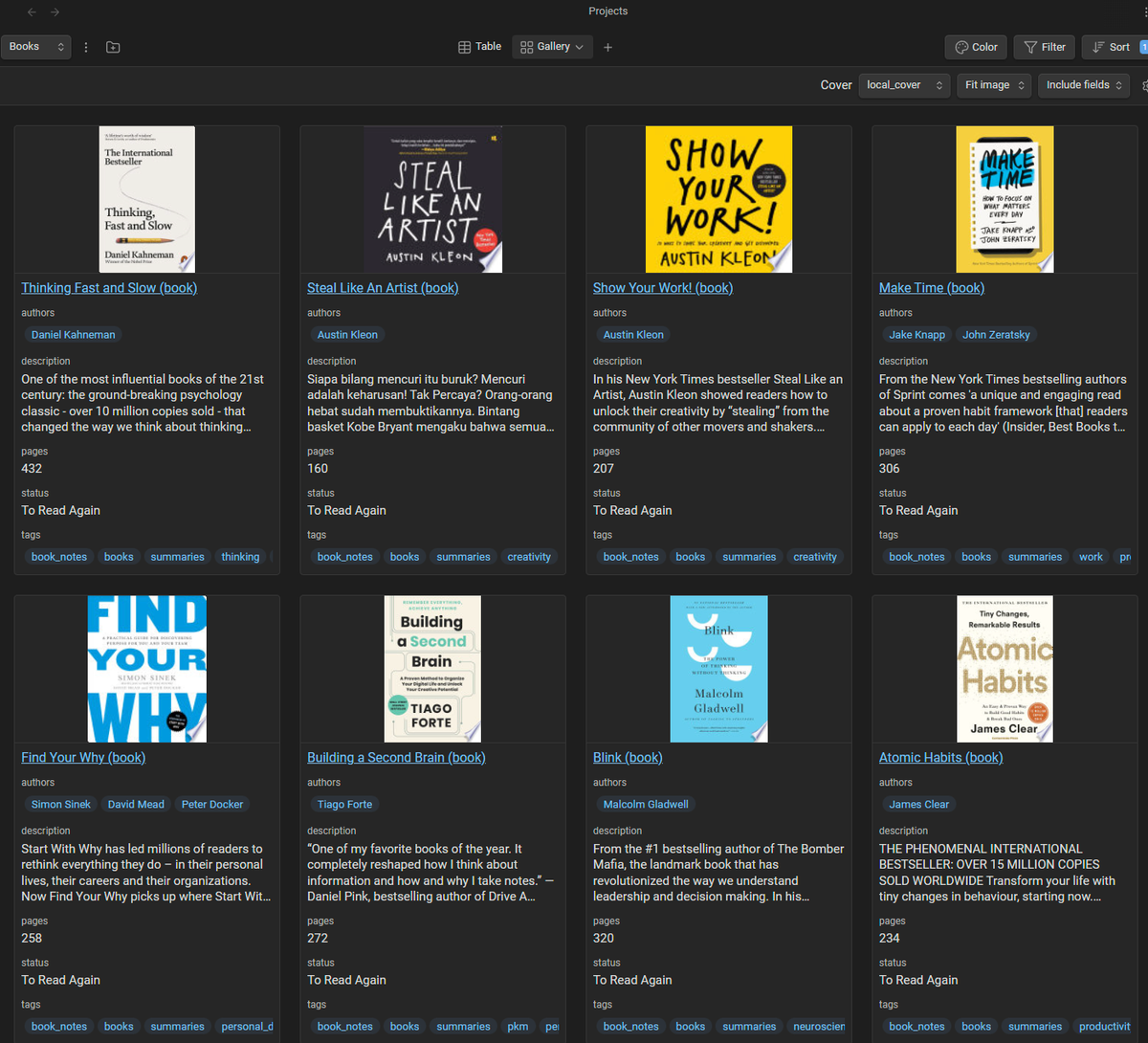
To manage books and summaries in Obsidian, combine three plugins: the Book Search plugin fetches each book's metadata and cover from Google Books and creates a note, a Templater template gives every book note a consistent structure (status, author, quotes, key ideas), and a Bases or Projects view turns those notes into a sortable table and a cover gallery. A single status property (To Read, Reading, Read) then powers a reading dashboard, and because your summaries live in Obsidian you can link book ideas to the rest of your notes, something Goodreads can't do.
Update 2026-01-21: I don't use the Projects plugin anymore and highly recommend using Obsidian Bases instead. The whole updated setup is available in the Obsidian Starter Kit
In this article, I explain how I now manage books and summaries in Obsidian. I discuss why I've switched from Goodreads to Obsidian, and why it's a great improvement to my Knowledge Management system.
Introduction
I've been a frustrated user of Goodreads for many years. Since they were acquired by Amazon, they've stopped evolving, and what once was an innovative web app became a dark corner of the Web.
Meanwhile, I've been using Obsidian more and more. It has already replaced many apps I was using previously. I've also started centralizing my book notes and summaries in Obsidian, and kept thinking about using metadata to track the books I want to read, those I'm busy reading, and those I've finished reading. Combining the library side with the summaries felt like a winning move.
I've now achieved my goal, and designed a cool system in Obsidian to track all my books and summaries. I've combined properties, plugins, and created a cool dashboard I can use to track my progress, and choose what to read next. I'll cover the implementation details in this post.
Now that it's there, all that I have left to do is to actually migrate my book library from Goodreads to Obsidian. And that might take a while... ;-)
PS: A vastly improved version of this system is part of the Obsidian Starter Kit
 Knowledge Forge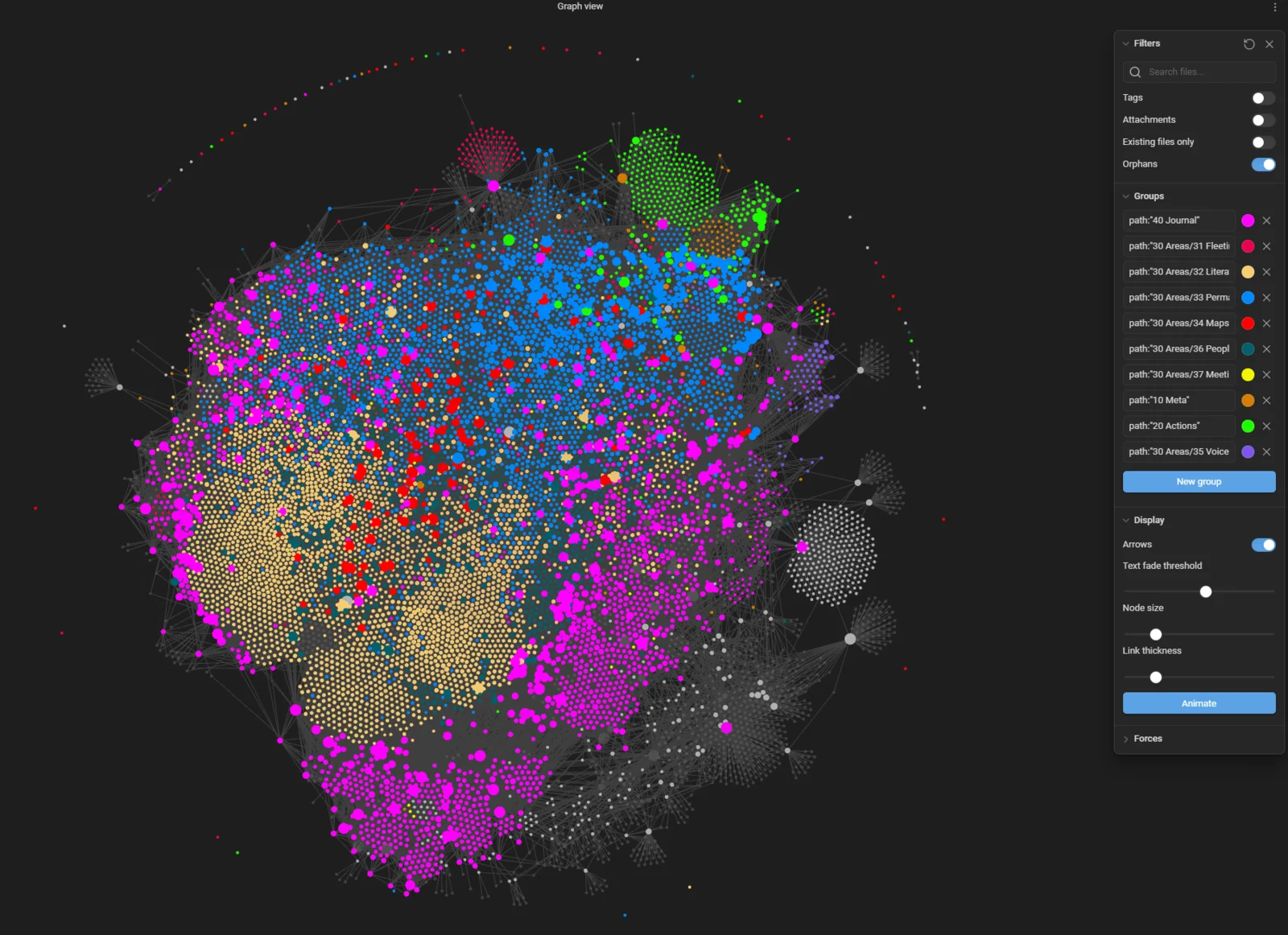
Why leave Goodreads and similar apps?
There are multiple reasons why I wanted to get away from Goodreads. Some of those apply to other tools as well. First of all, as I said, Goodreads hasn't improved in many years. It's just one more channel for Amazon to sell books. Yes, it has some use, such as discovering new books, reading user reviews, etc. But those advantages come at a price: one more information silo to maintain. And in practice, I can get those benefits without having to centralize my book library over there.
Second, there's a lot of value in centralizing knowledge in a single tool such as Obsidian: the ability to connect ideas. Having book notes and book summaries in Obsidian, I can connect the ideas in my summaries with other notes in my system, enabling me to actually build upon and leverage the knowledge I have acquired.
Third, it means I have one less app to care about, and as I've argued before, fewer apps means fewer worries, and fewer integration issues.
Last but not least, Goodreads and other similar apps could disappear anytime, and I would either lose my data, or be forced to find ways to migrate it. Now that I have full control over my data, nothing/noone can take it away from me.
Overview
Here's a quick overview of the solution:
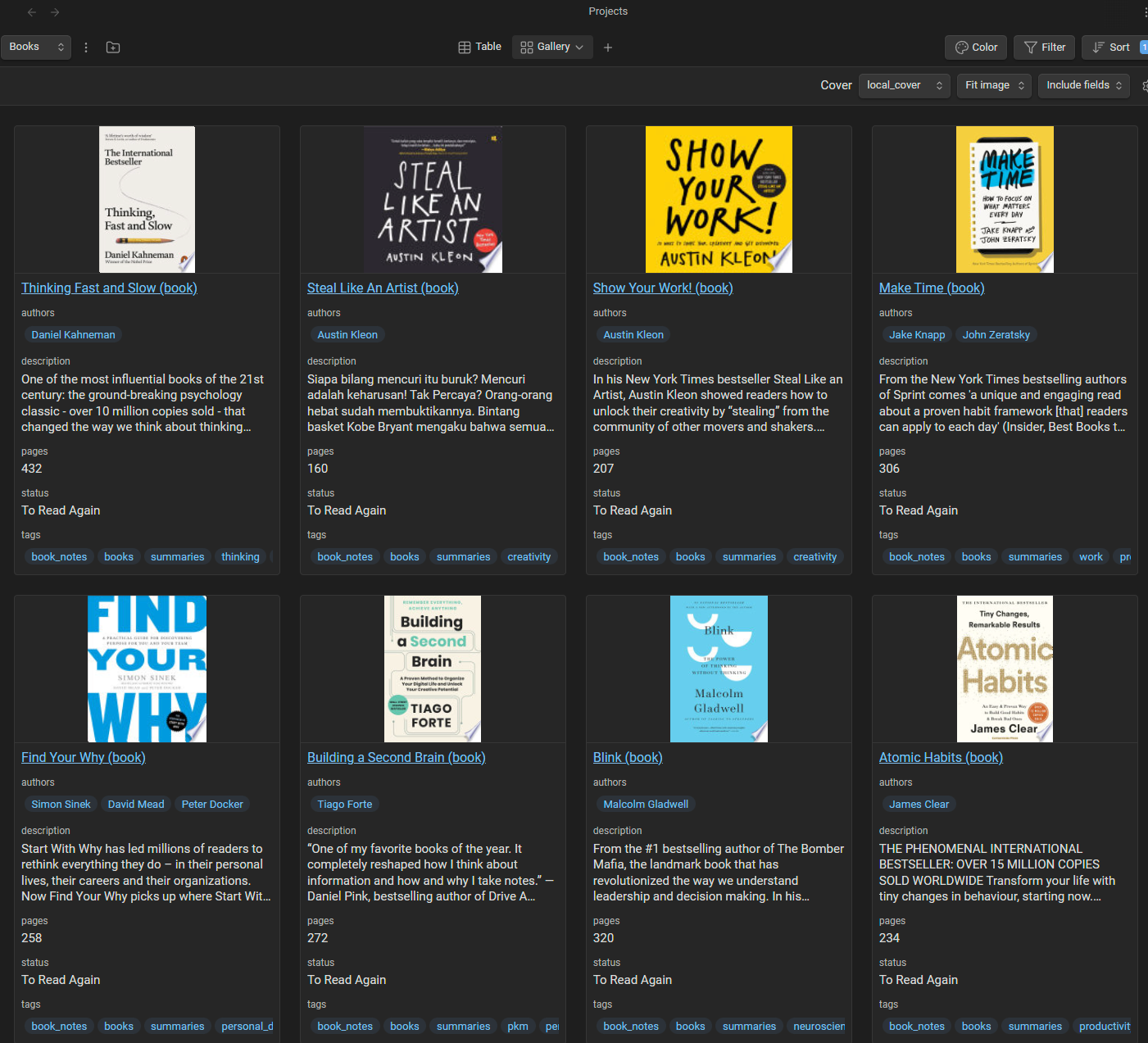
The same information can also be seen as a data table:
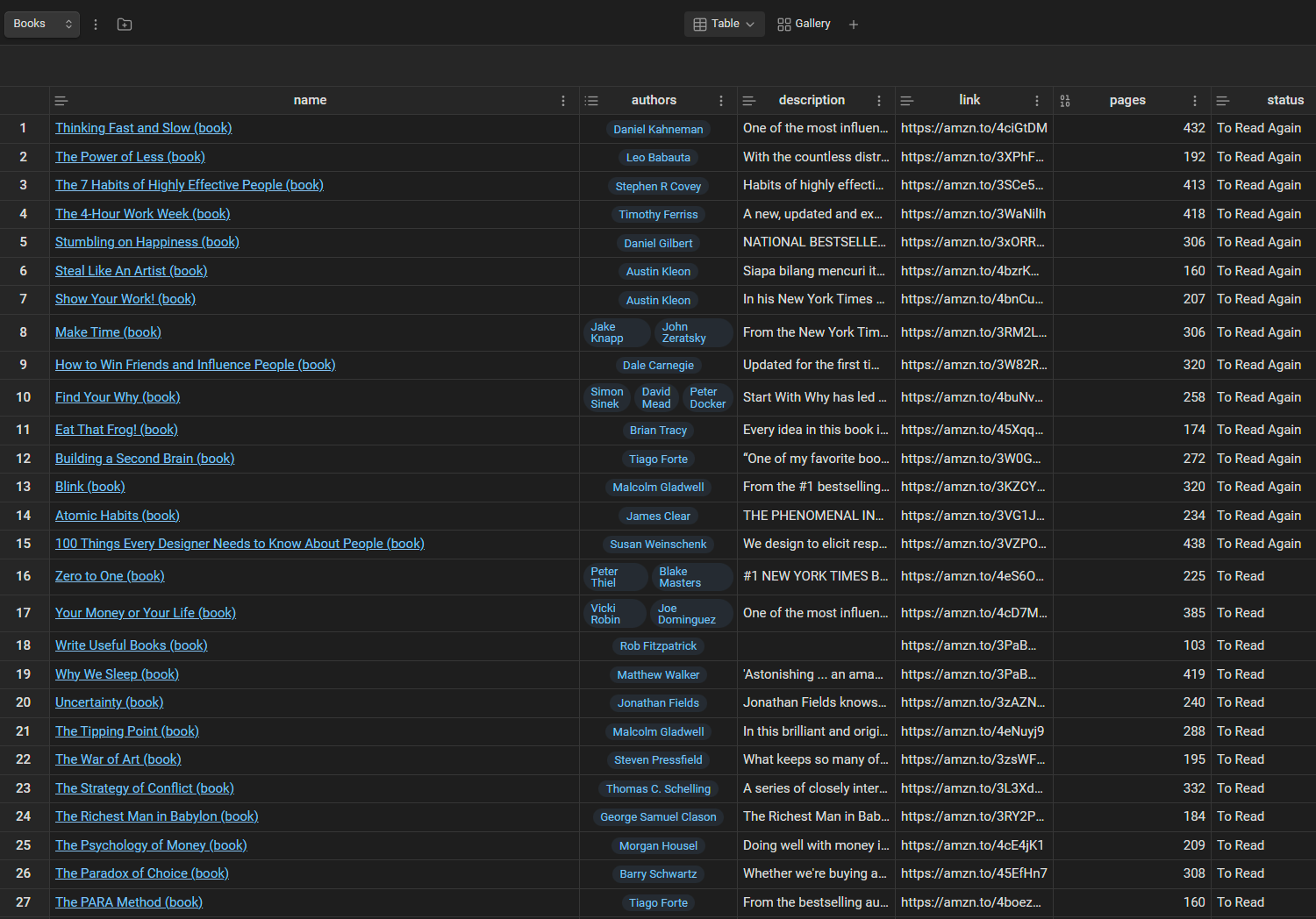
To achieve this, I've combined:
- The Book Search plugin for Obsidian: https://github.com/anpigon/obsidian-book-search-plugin
- The Projects plugin for Obsidian: https://github.com/marcusolsson/obsidian-projects
- The Templater plugin for Obsidian: https://github.com/SilentVoid13/Templater
- A custom book template
The Book Search plugin is the one responsible for fetching all the metadata about books (it uses an API of Google to do so), and for creating book notes containing all the information (including the book cover when available).
The Projects plugin makes it a breeze to create dashboards and galleries.
Finally, the Templater plugin enables creating very powerful and versatile templates.
By the way, this whole setup is part of the Obsidian Starter Kit:
 Knowledge Forge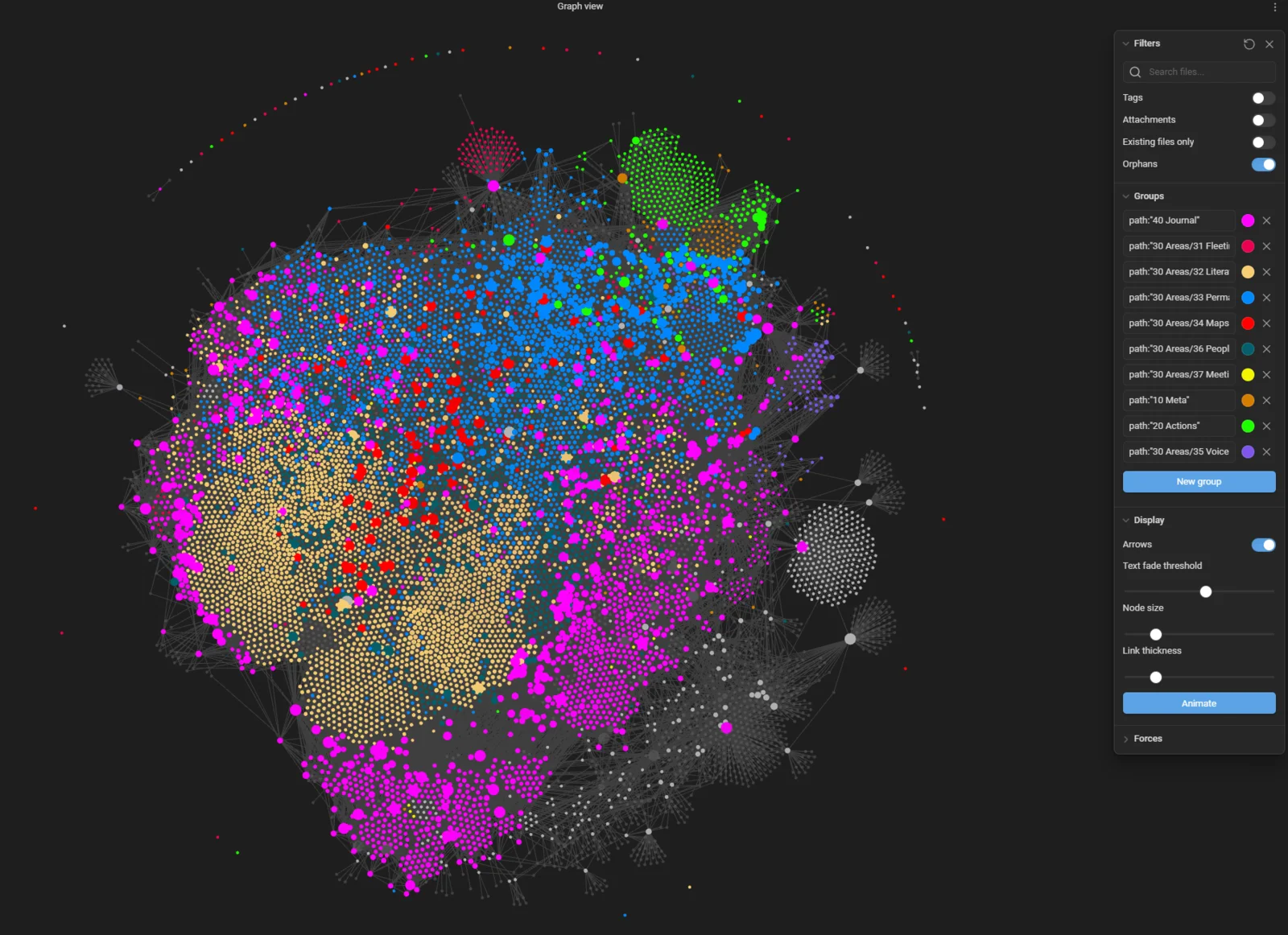
Pre-requisites
Simply install, and enable all the plugins I've listed in the previous section.
Create the book template
The Book Search plugin relies on a Templater template to create new notes and insert the metadata it has fetched.
Go ahead, and create a new template file. I've called mine "TPL Book Note". Add the following content to it:
<%"---"%>
<%*" <!-- Statuses: To Read, Reading, Read, To Read Again, References --> "%>
status: To Read
title: "{{title}}"
subtitle: "{{subtitle}}"
description: "{{description}}"
categories: [{{category}}]
authors: [{{author}}]
published_on: {{publishDate}}
publisher: {{publisher}}
pages: {{totalPage}}
isbn: {{isbn10}}
cover: {{coverUrl}}
local_cover: {{localCoverImage}}
link:
tags:
- book_notes
- books
- summaries
<%"---"%>

# <% tp.file.title %>
- Author(s): {{author}}
- Link:

![[{{localCoverImage}}|200]]

# Brief description


# Key quotes
> ...

# Key ideas
...

# Chapter 1: ...
...

## References
-
You can of course customize it as you wish. Note that all the {{...}} blocks are specific to the Book Search plugin. You can find the full list of supported variables here.
Also, notice that I have decided to use the following values for the status property:
- To Read
- Reading
- Read
- To Read Again
- References
Again, don't hesitate to use something else if you want.
Note that this template is one of the many that are included in the Obsidian Starter Kit:
How to configure the Book Note plugin
Now that your template is created, go to the settings of the Book Note plugin, and configure the following parameters. I've listed my own values, but adapt those based on your own needs:
- New file location: 30 Areas/32 Literature notes/32.03 Book notes
- That's where new book notes will be created
- New file name: {{title}} (book)
- That's how the book notes will be named. For example: "Essentialism (book)"
- You can find the list of possible parameters here
- Template file: 50 Resources/54 Templates/TPL Book Note.md
- Where the template to use is located
- Locale: English
- Disabled "Ask for locale"
- I only want English book notes, but if you want, you can also select the locale each time
- Enabled "Cover Image Save"
- I want the plugin to save a copy of the book cover in my vault
- Cover image path: 50 Resources/51 Attachments
- Where the cover image should be saved in your vault
How to create a new book note
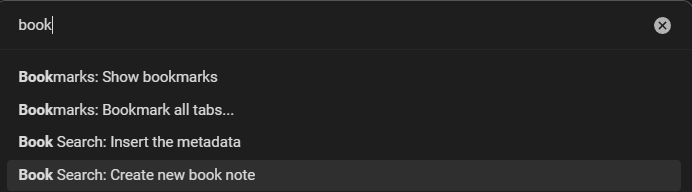
To add a new book note to your vault, you can click on the book icon in the left toolbar, or invoke the "Book Search: Create new book note" command:
After that, just type in the name of the book and select the one you want from the list of suggestions:

If you don't find the right book, search again, and add the author's name.
Once you confirm, the Book plugin will fetch the necessary information, create the new note, and use the template. The new book note should look like this:
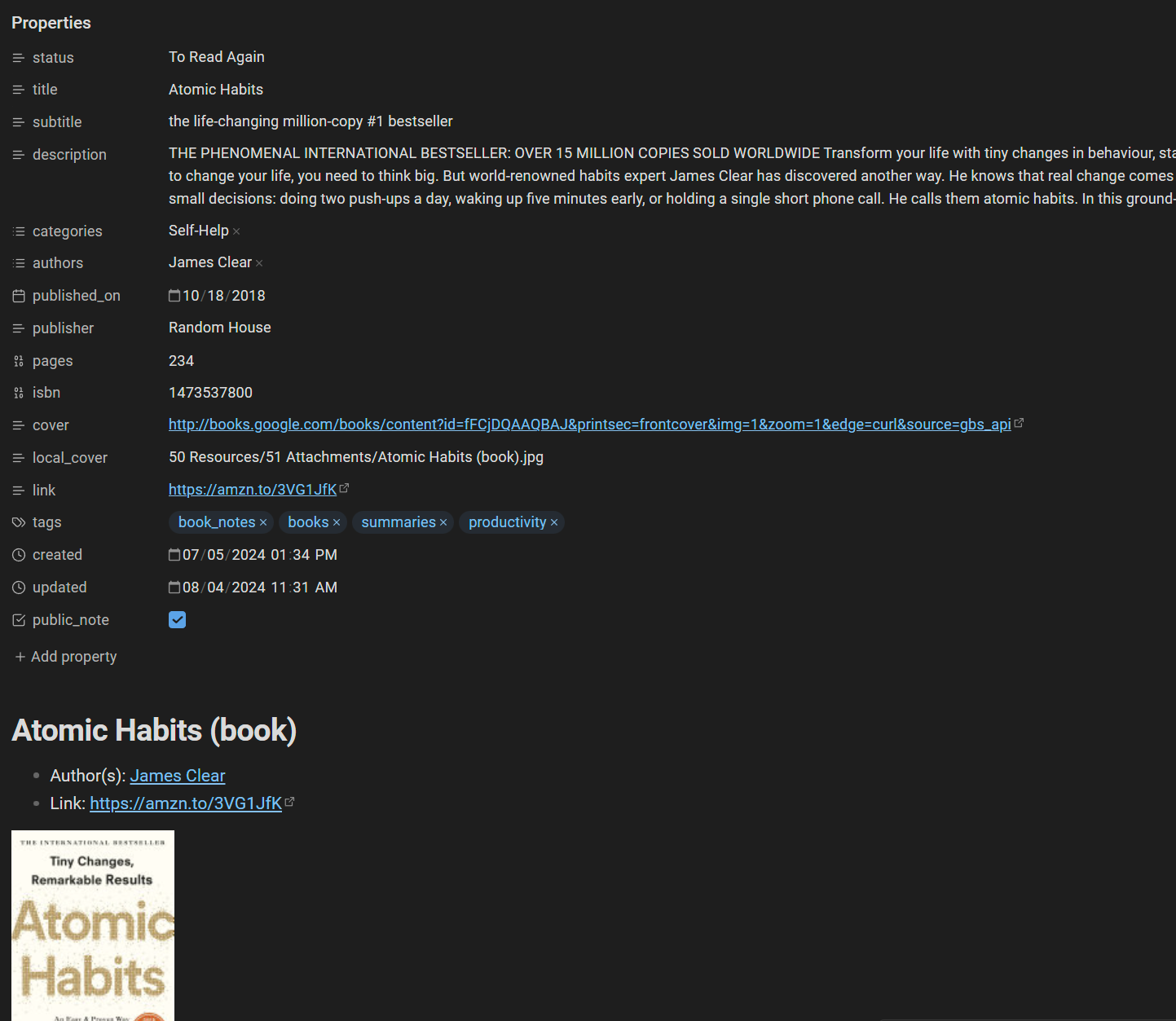
Now, you have an easy way to add new books to your vault. You can write your summaries in those book notes, and connect the ideas with the rest of your knowledge base. Cool!
The awesome part is that you can also easily publish those book notes and summaries using Obsidian Publish.
How to create a book list
Now that you have book notes, you can create a book list. I've chosen to create mine using the Projects plugin for Obsidian. That plugin makes it a breeze to create data tables and galleries based on the metadata present in your notes. I use that plugin for my books, but also for the articles and videos I'm preparing, my ongoing projects (e.g., the Knowledge Management course), etc.
Assuming you have installed the Projects plugin, you should now be able to open it using the "Open Projects" button in the left sidebar, or using the "Projects Show projects" command (CTRL/CMD + P):
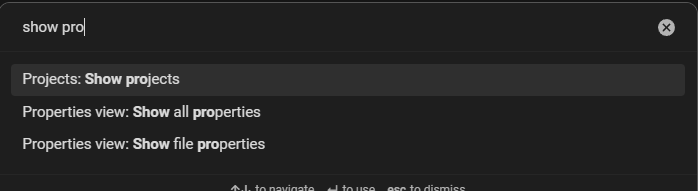
Once you're in Projects, you can click on the "Create new project" button in the top left corner. This will open the following dialog:
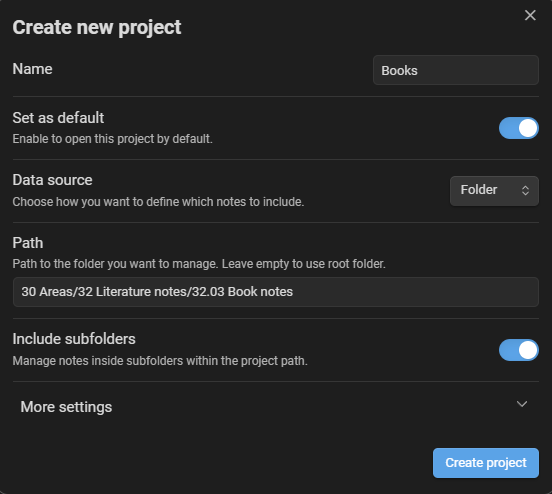
You can see how I've configured mine above. Note that I've used a "Folder" as data source, and set the path to the folder where I store my book notes.
After hitting the "Create project" button, I got this table:
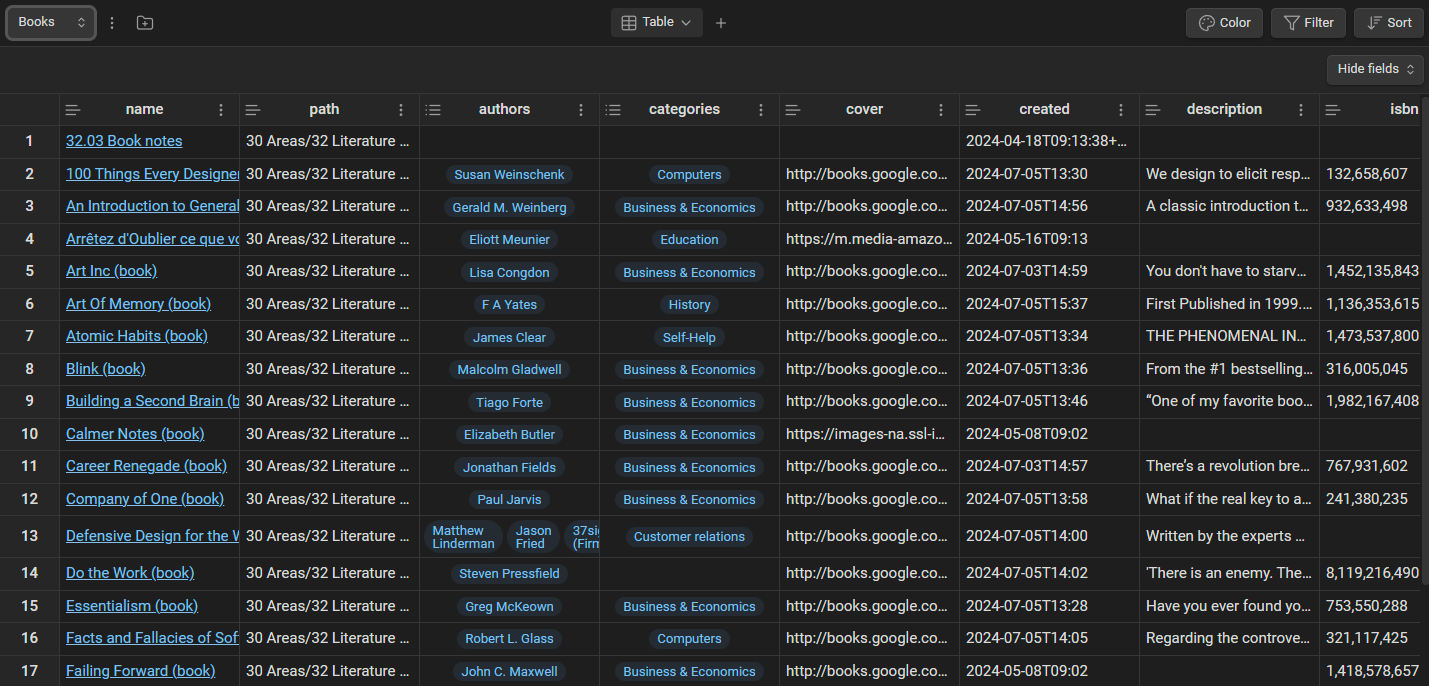
Quite cool already, but a bit too crowded. Luckily, you can easily customize that table.
First, you can hide some fields using the "Hide fields" drop-down in the top right corner. I've decided to hide the following fields:
- Path
- Categories
- Cover
- Created
- ISBN
- Local Cover
- Public note
- Published on
- Publisher
- Subtitle
- Tags
- Title
- Updated
Second, you can modify the sort order. I've decided to sort by "Status", from Z to A, in order to have the books I have yet to read displayed first.
This is what the end result looks like:
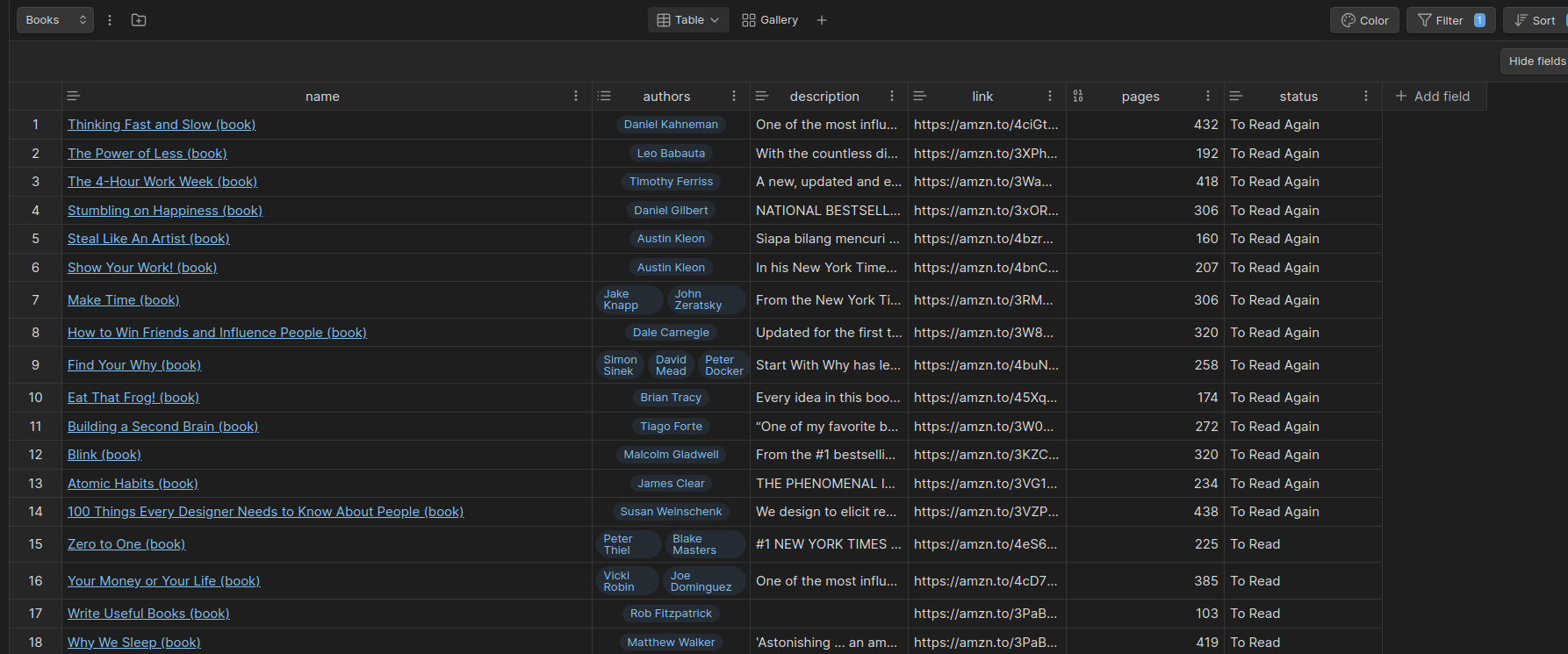
That's much better!
How to create a book gallery
A table view is quite nice, but a gallery is way better. Using the Projects plugin, you can also create one. To do so, click on the "+" on top, next to the Table drop-down, in order to create a new view of the same information:

This will open the "Add new view" dialog:
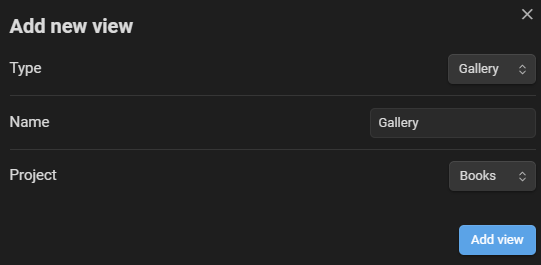
Then, customize that view to make it look better, and show the right information.
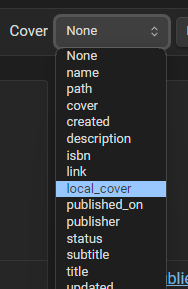
First, set the cover (top right) to local_cover (assuming you also save the book covers locally):
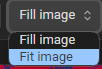
Second, configure the cover to "Fit Image":
Third, include the fields you want on the gallery cards. I have decided to include the following ones:
- Authors
- Description
- Pages
- Status
- Tags
Finally, you can also set the sort order. Once again, I have sorted the results by "Status", from Z to A.
And tadaaaa, a beautiful books gallery:
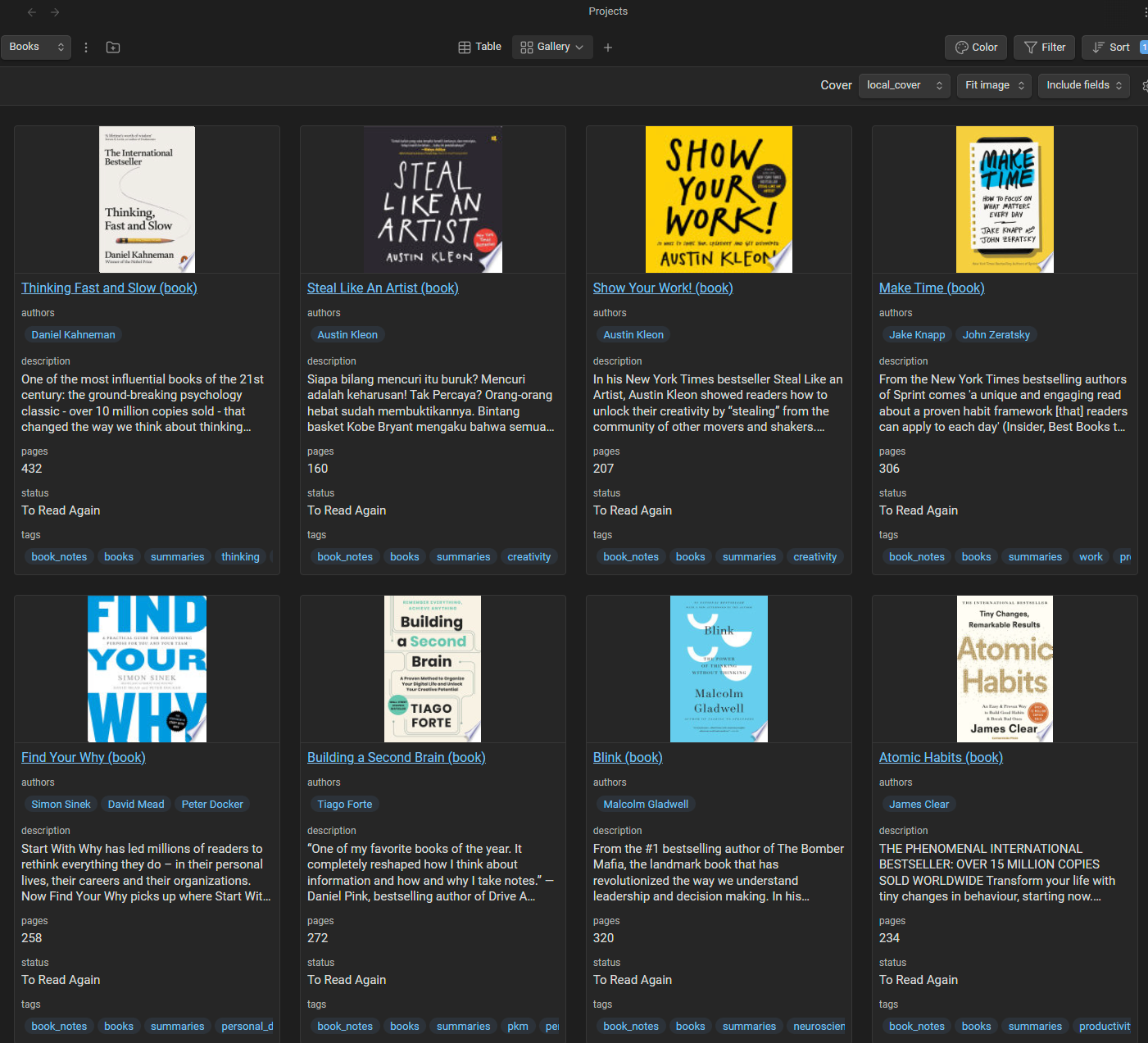
I don't know about you, but I just love this gallery.
Conclusion
There you have it, a simple way to add book notes to your Obsidian vault, with all the metadata, cover images, etc. And a project with a data table view and a beautiful gallery view.
Now, you can also get rid of Goodreads and similar apps.
If you liked this article, then you might also want to take a look at the Obsidian Starter Kit, which is a powerful Obsidian vault, full of plugins, templates, automation, and accompanied by a detailed user guide. That system is a 1:1 copy of mine. It has stood the test of time, scales really well, and is used by hundreds of happy customers.
Frequently Asked Questions
How do you track books you are reading in Obsidian?
Give every book note a status property with values like To Read, Reading, and Read, then build a view that sorts or groups by that property. I use a Bases or Projects view to turn my book notes into a dashboard where the books I still need to read show up first. Because the status lives in the note's frontmatter, the same data drives both a table and a gallery.
What is the best plugin for managing books in Obsidian?
There is no single plugin; you combine a few. The Book Search plugin fetches book metadata and cover images from Google Books and creates a note for each book. Templater gives every book note a consistent structure. Bases (the built-in core plugin) or the Projects plugin then turns those notes into a sortable table and a cover gallery.
Can Obsidian replace Goodreads?
For tracking and summarizing your own reading, yes. You own your data, you can connect a book's ideas to the rest of your notes, and nothing can take the library away from you. What you give up is the social layer of Goodreads (community reviews and discovery), so some people keep Goodreads only for finding new books.
How do you add book covers to Obsidian?
Enable "Cover Image Save" in the Book Search plugin settings and set a cover image path (for example, an attachments folder). The plugin then downloads each book's cover into your vault and stores the path in a local_cover property. In your gallery view, set the card cover to that local_cover property so the covers display.
How do you make a book gallery in Obsidian?
Create a Bases or Projects view over your book notes folder, add a gallery or card view, and set the card image to your local_cover property. Choose which fields to show on each card (author, status, pages), set the sort order (I sort by status), and you get a visual bookshelf that updates automatically as you add books.
References
While exploring this, I've taken inspiration from various sources:
- https://www.reddit.com/r/ObsidianMD/comments/13yf4ss/obsidian_library_how_to_keep_track_of_your_books/
- https://www.youtube.com/watch?v=7PFFJlyiv28
- https://thebuccaneersbounty.wordpress.com/2021/08/21/tutorial-how-to-create-a-bookshelf-in-obsidian/
- https://forum.obsidian.md/t/bookshelf-by-dataview-with-conditional-clause-for-images-from-two-sources-is-it-possible/67785
- https://www.youtube.com/watch?v=_3MSwW51BhU
- https://medium.com/obsidian-observer/obsidian-library-how-to-keep-track-of-your-books-with-book-search-and-projects-plugins-716599633715
- Obsidian Starter Kit: https://www.store.dsebastien.net/product/obsidian-starter-kit
Go Further
 Sébastien Dubois
 Sébastien Dubois
 Sébastien Dubois
Want to go deeper?
Sébastien Dubois
About Sébastien
Ready to get to the next level?
Found this valuable? Share it with someone who needs it.