
Obsidian Search Mastered - Quick Switcher, Search Operators and Bases

This article is part 5 of my series on finding notes in Obsidian. The overview, with the map of all 12 parts, is The Complete Guide to Obsidian Search.
The most common complaint about Obsidian search on Reddit is that Search doesn't rank notes whose title matches your query first. You type the name of a note you know exists, and it's buried in the middle of the results.
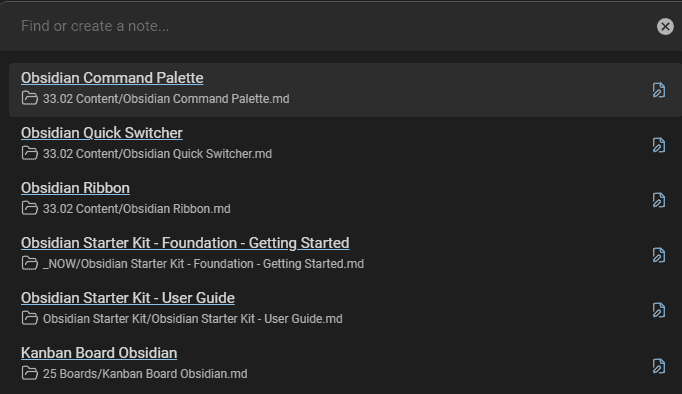
That complaint mixes up two tools. The quick switcher is built to open a note by name: it's fuzzy, it ranks title matches first, and it shows recent notes. The Search view is built to find notes by what they contain: it supports operators, but it sorts results by file name or date, not by relevance.
My rule is simple:
- You remember the title (even roughly)? Use the quick switcher (
Ctrl/Cmd+O),file:in Search, and aliases. - You don't remember what you called it? Use the Search view, or Omnisearch if you want relevance ranking (covered in part 9).
Two more cases come up often enough to deserve their own reflex:
- You remember a heading (a section you wrote, but not in which note)? Type
[[##followed by a word from the heading. The link suggester searches every heading in your vault. - You remember what you want to do, but not how (open the local graph, show backlinks, search the current file)? Open the command palette (
Ctrl/Cmd+P) and type a word or two.
Obsidian ships four finding tools, and each one answers a different question:
| Tool | Answers | Searches |
|---|---|---|
| Quick switcher | "Open the note called..." | Note names and aliases |
Link suggester ([[) | "Link to the note, heading or block that..." | Names, aliases, headings, blocks |
| Command palette | "How do I do...?" | Command names |
| Search view | "Which notes talk about...?" | Content, names, paths, tags, properties, tasks |
Learn the first three and you'll open most notes in under two seconds. Learn the fourth properly (operators included) and you'll find the rest.
In this part, I go through each of them in depth, then cover Bases, for the questions Search can't answer (dates, links, backlinks). A cheat sheet and a FAQ close the article.
TL;DR
- Remember the title? Use the quick switcher (
Ctrl/Cmd+O). It's fuzzy, matches aliases, ranks title matches first, and lists your recent notes when the query is empty. - Remember a heading? Type
[[##and a word. The link suggester searches every heading in your vault. - Remember a word or a phrase? Use the Search view (
Ctrl/Cmd+Shift+F) with operators:"exact phrase",-exclude,path:,tag:,[property:value],task-todo:,/regex/. It sorts by name or date, never by relevance. - Don't trust every operator you read about.
heading:,created:andmodified:don't exist. Usesection:, a regex or a Base instead, and turn on "Explain search term" to check what Obsidian understood. - Remember a date, a link or a relation? Use Bases. Date math,
file.hasLink(), backlinks, folders and file types, saved as a view you can embed, dock in a sidebar or query from the CLI.
The quick switcher
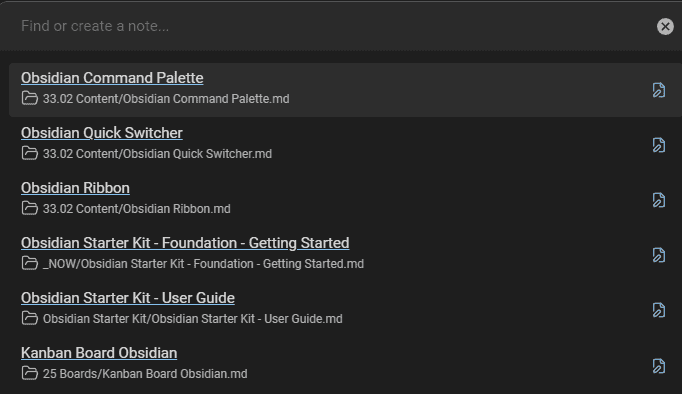
The quick switcher is my favorite tool in Obsidian. I've been saying that since I wrote my beginner's guide, and it's still true. Press Ctrl+O (Cmd+O on macOS), type a few letters of a note's name, press Enter. Done.
Why do I like it so much? Because most of the time, you don't need to search at all. You know the note exists, you know roughly what it's called, and you just want to get there. It's the shortest path between "I need that note" and "I'm reading that note": no mouse, no folder tree, no scrolling through results. It's also the reason I care so much about note names (part 2). Good names turn the quick switcher into a search engine for your whole vault.
I recorded a one-minute video about it:
How to use it
- Press
Ctrl+O(Cmd+Oon macOS). You can also click the "Open quick switcher" icon in the ribbon (if you don't see it, right-click the ribbon to show it). - Type part of the note's name or one of its aliases.
- Move to the right suggestion with the arrow keys.
- Press
Enterto open it.
The main keys:
| Action | Key |
|---|---|
| Open the quick switcher | Ctrl+O / Cmd+O |
| Open the selected note | Enter |
| Open it in a new tab | Ctrl/Cmd+Enter |
| Create a note with exactly what you typed (even if similar notes exist) | Shift+Enter |
| Create a note when nothing matches | Enter |
| Move through suggestions | Arrows, or Ctrl+N / Ctrl+P |
| Jump back to the previous note | Open it with an empty query (it lists recent notes), then Down, Enter |
A few of these deserve a closer look:
Ctrl/Cmd+Enterkeeps your current note open. Use it when you're writing and want to check something in another note without losing your place.Shift+Enteris a capture shortcut. Say you want to create "Meeting with Sarah" but a "Meeting with Sarah (2025)" note already exists. A plainEnterwould open the existing note.Shift+Entercreates a new note with the exact name you typed. The new note lands in the folder set in Settings → Files and links → Default location for new notes.Ctrl+N/Ctrl+Pwork on all platforms since Obsidian 1.13. Handy if you don't like leaving the home row for the arrow keys.- The empty query is a "recent notes" list. Open the switcher without typing anything, and it shows the notes you opened last. The previous note sits right below the current one, so
Ctrl+O,Down,Entertoggles between two notes. I use this all the time when I'm moving content from one note to another.
How it matches notes
- Fuzzy matching. Letters just need to appear in order:
dnfinds "Daily notes". - Aliases count. A note is found by its name or any of its aliases. That's why the naming and alias habits from part 2 pay off here.
- Excluded files rank lower. Anything you list in Settings → Files and links → Excluded files is pushed down.
- It got better in 2026. Obsidian 1.12 improved fuzzy results for queries with spaces. Obsidian 1.14 (public in October 2026) dropped the simplified matching algorithm that used to kick in for vaults over 10,000 files, so fuzzy matching now works in vaults of any size. Matches at the start of words also rank higher now. If you read an older guide that mentions the 10,000-file limit, it's outdated.
A few examples from my vault:
- Acronyms. I put acronyms in parentheses in note names (the acronym trick from part 2). Typing
cdeorcloud devboth find "Cloud Development Environment (CDE)". No alias needed. - Type suffixes. My articles end with
(Article)and my projects with(Project). Addingarticleto a query (e.g.search article) pushes my articles about search up the list. The suffix works as a filter you get for free. - Partial words. Multi-word queries with spaces got much better in 1.12, so
obs quickfinds "Obsidian Quick Switcher" without typing the full name.
The gotchas:
- The quick switcher only looks at names and aliases. It never searches the content of your notes. If you can't remember any word from the title, switch to the Search view.
- Short queries are noisy. Two letters will match hundreds of notes in a big vault. Type a distinctive word (or the start of two words) rather than the most common one.
- Excluded files still show up here. They're only pushed down the list. If an archived note appears below your active ones, that's expected.
- Aliases can pollute the list. Every alias is one more candidate in the switcher. Add the aliases you'll actually type, not every possible synonym.
On mobile, tap the icon in the middle of the bottom navigation bar when you're not editing. It works like the quick switcher.
In my own vault, I've rebound Ctrl+O to Quick Switcher++, which adds modes for headings, symbols, bookmarks and commands. More on that in part 9. If you want a deeper look at the core switcher, I keep a reference note: Obsidian Quick Switcher.
The link suggester: find headings and blocks across your vault
When you type [[ in a note, Obsidian opens a suggester. It's a search tool in disguise:
| Type | To find |
|---|---|
[[name | Notes by name or alias (fuzzy) |
[[# | Headings in the current note |
[[note# | Headings in a specific note |
[[note#^ | Blocks in a specific note |
[[##term | Headings anywhere in your vault |
[[^^term | Blocks anywhere in your vault |
The last two are barely documented, and they're great. Type [[## weekly review, and you get every heading in your vault that matches, across all notes. Pick one to insert the link, or just look at the list and press Escape. It's a vault-wide heading finder without any plugin. I wrote a short note about it: Auto-link to subheadings anywhere in the Obsidian vault.
It works especially well with daily notes, since they repeat the same headings every day.
Why the link suggester is a finding tool
Most people see [[ as a way to create links. But to create a link, Obsidian first has to find the target. So the suggester runs the same fuzzy matching as the quick switcher (since 1.14, at any vault size), plus two vault-wide modes that no other core tool offers: headings and blocks. And it does it without leaving the note you're writing in.
That matters because headings are where a lot of knowledge actually lives. You might not remember that your notes on "spaced repetition" are in a note called "Learning techniques", but you might remember writing a section about it. Search can find the words, but [[## finds the heading and hands you a direct link to it.
How to use each mode
- Notes:
[[name. Type a few letters, pick a note, pressEnter. If you pick an alias, Obsidian writes[[Note name|Alias]], so the link reads naturally and still points to the right note (see Obsidian Aliases). - Headings in one note:
[[note#. Type the note name, then#, and you get the list of its headings. You can chain them for nested headings:[[Note#Heading#Subheading]].[[#alone lists the headings of the note you're in, which is a quick way to link (or jump) within a long note. - Headings anywhere:
[[##term. Two hashes, then a word. Obsidian lists every heading containing it, with the note it belongs to, and builds the full[[Note#Heading]]link when you pick one.[[##on its own lists every heading in your vault. - Blocks in one note:
[[note#^. Lists the paragraphs, list items and other blocks of that note, so you can link to one. - Blocks anywhere:
[[^^term. The same idea for blocks, across the whole vault. Expect a much longer list: every paragraph and list item is a block.
Add a ! in front (![[##term) and you embed the section or block instead of linking to it (Transclusion).
A realistic example: in my weekly review, I want to link to the "Learned" section of the daily note where I wrote about a specific idea. I type [[## learned, scroll through the dated results, pick the right day, and the link is done. Without [[##, I'd have to remember the date, open the right daily note, and only then build the link.
Gotchas
[[##only matches heading text. It won't find a word that sits in the paragraph under the heading. For that, usesection:in the Search view.- Picking a block can change the other note. If the block you pick has no ID yet, Obsidian adds one (something like
^37066d) at the end of that block in the target note. That's how block links work, but it surprises people who just wanted to look. - Just browsing? Press
Escape, then delete what you typed. Nothing is inserted until you pick a result. I often type[[##in a scratch line of my daily note, read the results, and remove the line. - Common headings return long lists. If every daily note has a "Notes" heading,
[[## notesgives you hundreds of results. Add a second word, or use a more specific heading name. - Excluded files rank lower in link suggestions, as they do in the quick switcher.
The command palette
The command palette (Ctrl/Cmd+P) finds commands, not notes. But many commands are finding tools: "Search: Search in all files", "Open random note", "Open local graph", "Backlinks: Open backlinks for the current note". If you don't remember a hotkey, the palette shows it next to the command. I covered it in Obsidian Command Palette.
Everything Obsidian can do is a command: built-in features and every command added by your community plugins. The palette is the one place where you can find all of them, with fuzzy matching. You don't need to remember a menu location or a shortcut; you need to remember (roughly) what the command does.
How to use it:
- Press
Ctrl+P(Cmd+Pon macOS), or click the terminal icon in the ribbon. - Type part of the command's name. Fuzzy matching works here too: the official docs use
scfto find "Save current file". - Press
Enterto run it.
What makes it useful for finding things:
- Commands are prefixed with their plugin name. Type
search:and you see the Search commands. Typebacklinksand you see what the Backlinks plugin can do. It's the fastest way to discover what a plugin offers. - Recently used commands appear at the top (since Obsidian 1.8.3). Once you start typing, fuzzy matching takes over, and shorter matches can rank above recent ones.
- Pin the commands you use all the time. Settings → Command palette → New pinned command. Pinned commands appear at the top before you type anything.
- Hotkeys are shown next to each command. The palette is the best way to learn shortcuts: run a command three times from the palette, notice the hotkey, use the hotkey the fourth time. If a command you use daily has no hotkey, assign one in Settings → Hotkeys (my favorites are in Obsidian Keyboard Shortcuts).
The finding-related commands worth knowing by name:
| Command | What it does |
|---|---|
| Search: Search in all files | Opens the Search view |
| Search current file | Find in the current note (Ctrl/Cmd+F) |
| Search & replace in current file | Find and replace in the current note |
| Random note: Open random note | Opens a random note (great for rediscovery) |
| Graph view: Open local graph | Shows the notes around the current one |
| Backlinks: Open backlinks for the current note | Lists the notes that link here |
TIP: the Doubleshift plugin opens the palette when you press Shift twice:
And since Obsidian 1.13, the Settings window has its own search box, which made the old "Settings Search" community plugin obsolete. It searches setting names and descriptions, across core settings and core plugins (community plugins appear once they adopt the new settings API), and Ctrl/Cmd+F puts the cursor back in the box. Not note-finding, I know. But "where's that setting again?" is a search problem too.
The Search view
The Search view (the core Search plugin) searches the content of your notes, with its own query language.
This is the tool for the hard cases: you don't remember the title, you only remember a phrase, a person, a project, a tag, or that it was a task you never finished. Typing a single word works. The operators are what make it strong: they let you say where to look (a folder, a tag, a property, a task, a single line) and what to exclude. Ten minutes spent learning them pays off for years.
Opening it
| How | What happens |
|---|---|
Ctrl+Shift+F / Cmd+Shift+F | Opens Search, ready to type |
| Select text, then open Search | The selection pre-fills the query |
| Open Search with an empty query | Your recent searches are listed |
| Right-click a folder → Search in folder | Pre-fills path: with that folder |
| Click a tag in a note or in the Tags view | Opens Search with tag:#x |
| Click a property in the All properties view | Opens Search with [property] |
obsidian://search?vault=<name>&query=<term> | Opens Search from outside Obsidian (launchers, bookmarks, scripts) |
obsidian search query=<text> | Searches from the terminal (see part 6) |
Two small things that save time: press Down in the search box to move the focus into the results and walk through them with the keyboard (since 1.8), and on mobile, long-press a result to get its context menu (since 1.9.10).
The "select text, then search" trick is underrated. You're reading a note, you see a name or a concept, you select it, press Ctrl+Shift+F, and you instantly see every other note that mentions it. It's the quickest way to answer "where else did I write about this?".
What Search covers (and what it doesn't)
Search covers the content, file names and paths of your notes and canvases. Other files (PDFs, images, audio) are only reachable through file: and path:, and only by name. Their content is never indexed. If you need that, see the attachments section of part 9.
Files listed in Settings → Files and links → Excluded files never show up in Search results, in the Graph view or in unlinked mentions. I exclude my archives, templates and prompts folders in my vault, and it cleans up results a lot.
Search stops after 100,000 results (since Obsidian 1.9.10). And it got "drastically" faster in 1.9.12, in August 2025.
What this means in practice:
- Your PDFs are invisible to content search. A search for a sentence from a PDF returns nothing, even if the PDF is in your vault.
file:.pdflists the PDFs by name, and that's it. - Excluded means gone from Search. If a note "doesn't exist" according to Search, check Excluded files first. The note is still in your vault and in the file explorer; Search just ignores it.
- The 100,000 cap applies to each query. You'll only hit it with very broad queries (a single common word in a huge vault). If you do, the results are incomplete, so narrow the query with
path:ortag:. - No accent folding. Searching for
cafedoesn't find "café". Use a regex (/caf[eé]/, see below) or Omnisearch.
Basic syntax
| Syntax | Meaning | Example |
|---|---|---|
word1 word2 | Both words, anywhere in the note (a space means AND) | meeting work |
"..." | Exact phrase | "second brain" |
OR | Either term (uppercase) | meeting OR work |
-term | Exclude | meeting -work |
( ) | Group | meeting (work OR meetup) personal |
-( ) | Exclude notes that contain the whole combination | meeting -(work meetup) |
/regex/ | JavaScript regular expression | /\d{4}-\d{2}-\d{2}/ |
\" | A quote inside a phrase | "they said \"hello\"" |
AND binds tighter than OR: meeting work OR meetup personal means "(meeting AND work) OR (meetup AND personal)". When in doubt, add parentheses.
A few things that trip people up:
- Each word is matched independently, anywhere in the file.
second brainreturns a note with "second" in the first paragraph and "brain" 200 lines later. If you mean the phrase, quote it:"second brain". If you mean "both words close together", useline:(second brain)(see operators below). - Search is case-insensitive by default. Turn on Match case (the
Aaicon in the search bar) or usematch-case:for a single term. Regexes follow the same rule: in my vault,/QUICK SWITCHER/and/quick switcher/return the same 21 notes, whilematch-case:/QUICK SWITCHER/returns 1. -(a b)and-a -bare different.meeting -work -meetupdrops notes containing either word.meeting -(work meetup)only drops notes containing both.ORmust be uppercase. Lowercase "or" is just a word to search for.
Operators
Operators narrow where Search looks. Most of them accept a sub-query in parentheses, like task:(call OR email).
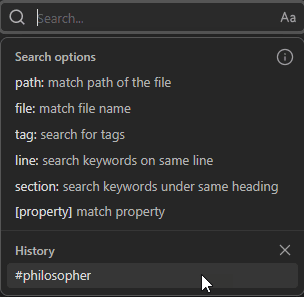
| Operator | Matches | Example |
|---|---|---|
file: | Text in the file name | file:2026-10, file:.canvas |
path: | Text in the full path (folders included) | path:"30 Areas/Projects" |
content: | Text in the content only (ignores names and paths) | content:"happy cat" |
tag: | A tag, including its nested tags | tag:#work |
line: | Terms on the same line | line:(mix flour) |
block: | Terms in the same Markdown block | block:(dog cat) |
section: | Terms in the same section (between two headings) | section:(dog cat) |
task: | Terms inside a task | task:call |
task-todo: | Terms inside an open task | task-todo:call |
task-done: | Terms inside a completed task | task-done:call |
match-case: | Case-sensitive match | match-case:MCP |
ignore-case: | Case-insensitive match (overrides the Match case toggle) | ignore-case:ikea |
[property] | Notes that have a property | [aliases] |
[property:value] | Notes where a property matches a value | [status:Watched] |
The operators fall into four families. Thinking in families makes them easier to remember:
- Where the file is:
file:andpath:. Use them to scope a search to a folder (path:Projects), a naming pattern (file:2026-10for October 2026 daily notes) or a file type (file:.canvas). They're also the fastest operators: well under a second on my vault. - What the file says:
content:,line:,block:,section:. These control how close your terms must be to each other.content:obsidian -file:obsidianis a nice one: it finds notes that talk about Obsidian without having "Obsidian" in their title (237 notes in one of my folders). Those are often the notes you forgot about. - What the file is tagged with or described by:
tag:and[property]. Structured filters. They depend on the metadata habits from part 2, and they're where Search starts to feel like a database. - What's left to do:
task:,task-todo:,task-done:. They only look inside Markdown tasks (- [ ]and- [x]lines).
How to choose between line:, block: and section:: start with the narrowest scope that makes sense. line:(Sarah budget) finds the line where you wrote about Sarah and the budget. If that's too strict (you wrote her name in one bullet and the budget in the next), widen to block: (same paragraph or list) or section: (same part of the note, under the same heading).
I verified these behaviors in my vault, because the documentation is ambiguous about some of them:
tag:includes nested tags.tag:#aialso returns notes tagged#ai/tools. The docs warn thattag:#workdoesn't match#myjob/work: that's about a tag that ends with "work", not about children.- A bare
#aiis not a tag search. It's a plain text search for the characters "#ai". In my vault,tag:#aireturns 1,675 notes and#aireturns 42. Always usetag:. tag:is faster and more accurate than searching for the text#tag, because it ignores code blocks and only looks at real tags.path:includesfile:.path:matches folder names and the file name. Usefile:when you only want names.-line:(...)means "no line matches", which is different from-on its own.- The scopes nest as you'd expect. In my vault,
obsidian pluginmatched 1,715 notes,section:(obsidian plugin)1,605,block:(obsidian plugin)1,493 andline:(obsidian plugin)1,473.
Two consequences:
- To exclude a sub-tag, subtract it. Since
tag:#obsidianincludes all nested tags,tag:#obsidian -tag:#obsidian/pluginskeeps the general notes and drops the plugin ones. In one of my folders, that took the list from 281 notes to 67. -line:(a b)vs-a.-meetingdrops every note that contains "meeting".-line:(meeting cancelled)only drops notes where "meeting" and "cancelled" appear on the same line. The note can still mention meetings elsewhere.
Combine them freely. Here's a query I use as an example in my Obsidian Search note: tag:#obsidian -path:"60 Archives" /URI|deeplink/. It finds notes tagged #obsidian (or nested tags), outside my archives, that mention "URI" or "deeplink".
Searching properties
Property search is the most powerful part of the syntax, and the least documented. Here's what I verified on my vault (about 30,000 notes):
| Query | What it does |
|---|---|
[status] | Notes that have a status property |
[status:Watched] | status contains "Watched" |
[status:"To Watch"] | Values with spaces need quotes |
[status:watch] | Values match as case-insensitive substrings: this hits both "Watched" and "To Watch" |
[status:(Watched OR "To Play")] | Either value (the parentheses are optional, but they make the grouping obvious) |
[status:/^To /] | Regex on the value |
[status:null] | The property exists but is empty (it doesn't match "" or []) |
[copies:>1] | Numeric comparison (> and < work) |
[public_note:true] | Booleans work |
[status:Watched] [rating:★★★★★] | Two property conditions (AND) |
["status":Watched] | Quoting the property name is accepted |
[!warning] Two property search gotchas[status:A OR status:B]silently keeps only the first part. Use[status:(A OR B)]instead. **Property names also match as substrings.**[status]also matchespledge_statusand any other property whose name contains "status". Even[tatu]works! In my vault,[status]returned 16,879 notes while only 13,016 actually have astatusproperty. If your property names overlap, use distinctive names, or use a Base for exact matches.
Property queries are also the slowest kind of search: 5 to 8 seconds on my vault. Worth it, but don't expect instant results on a big vault.
A few more things I tested that the docs don't mention:
- You can negate a property.
-[aliases]lists the notes that don't have analiasesproperty. In one of my folders (about 3,600 notes),[aliases]returned 2,648 notes and-[aliases]returned 944: together, the whole folder. That's how you find notes that are missing metadata. - Date properties can be compared too.
[created:>2026-09-01]returns notes whosecreatedproperty is after September 1st, 2026. I checked it against a regex on the same property ([created:/^2026-(09|10)/]): same 154 notes. It works on dates written in the ISO format (2026-09-01), which is what Obsidian's date properties use. nullis strict.[aliases:null]matchesaliases:with nothing after it. A property set to""or[]has a value as far as Search is concerned. If your templates leave empty brackets,nullwon't find those notes.- Substring matching cuts both ways.
[status:done]also matches "undone" or "Done-ish". When values overlap, anchor them with a regex:[status:/^done$/]matches "done" and nothing else (I checked the same anchoring on[public_note:/^true$/]).
Why [status:A OR status:B] fails: inside the brackets, everything after the colon is the value sub-query, so you only list values there, never the property name again. On my movie notes, [status:Watched] returns 2,050 notes and [status:"To Watch"] 2,797. [status:Watched OR "To Watch"] and [status:(Watched OR "To Watch")] both return 4,847 (the docs use the first form). [status:Watched OR status:"To Watch"] returns 2,050: the second half is silently ignored. I still write the parentheses, because they make the grouping obvious when the query grows.
Regular expressions
Wrap a pattern in slashes to use a JavaScript regular expression. Regex can also go inside operators.
| Goal | Query |
|---|---|
| Notes that mention a date | /\d{4}-\d{2}-\d{2}/ |
| Daily notes by name pattern | path:/\d{4}-\d{2}-\d{2}/ |
| A whole word only ("Mai", not "email" or "main") | /\bMai\b/ |
| A word with or without an accent | /caf[eé]/ |
| Singular or plural | /zettel(kasten)?s?/ |
The "whole word" case comes from a Reddit thread where someone searched for a person named "Mai" and got every note containing "email". Quotes didn't help. A regex word boundary (\b) did.
If regex isn't your thing, ask an AI assistant to write the pattern for you, and test it on regex101.com.
Three more patterns I find useful:
| Goal | Query | Why it works |
|---|---|---|
| Headings that contain a word | /^#+ .*review/ | ^ matches the start of a line, #+ a Markdown heading |
| Only level-2 headings | /^## .*search/ | Exactly two hashes, then a space |
| A word, case-sensitive | match-case:/\bAI\b/ | "AI", but not "ai" inside other words or "Ai" |
The heading pattern is the closest thing to the heading: operator that people keep asking for (it doesn't exist; more on that below). In one of my folders, /^#{2,} .*search/ found 34 notes with a heading of level 2 or deeper mentioning "search".
Regex gotchas:
- Regexes are case-insensitive by default, like the rest of Search. Wrap them in
match-case:when the case matters. - Keep regexes for when you need them. A plain word or a quoted phrase is easier to read and to debug.
Finding tasks
The task operators search inside Markdown tasks (- [ ] lines):
task-todo:""lists every note with an open task (871 notes in my vault, in under a second)task-todo:(call OR email)finds open tasks that mention calls or emailstask-done:invoicefinds completed tasks about invoices
For anything more complex (due dates, priorities, grouping), you'll want the Tasks plugin or a task manager. I cover those in part 9.
The empty phrase "" is the trick here: task-todo:"" means "an open task containing anything", so it lists every note with at least one unchecked box. Combine it with path: or tag: to answer real questions:
- Which project notes still have open tasks?
task-todo:"" path:Projects. - Which meeting notes have unfinished action items?
task-todo:"" tag:#meeting. - What did I complete in October 2026?
task-done:"" file:2026-10, if your daily notes are named by date.
One limit to keep in mind: the results are notes, with the matching tasks shown under each one. You can't sort tasks by due date or group them across notes. That's where Bases (with the Tasks plugin) or a dedicated task manager come in.
Search recipes
Here are queries I'd keep in a cheat sheet. Adapt the folder and tag names to your vault.
| You want | Query |
|---|---|
| Open tasks in project notes | path:Projects task-todo:"" |
| Open tasks that mention a person | task-todo:(Sarah OR "@sarah") |
| Notes where a property exists but is empty | [status:null] |
| Notes missing a property | -[aliases] |
Notes created after a date (needs a created property) | [created:>2026-09-01] |
| Drafts or work in progress | [status:(draft OR "in progress")] |
| Published notes still marked as drafts | [public_note:true] [status:draft] |
| A topic, outside your archives | budget -path:Archives |
| Dates mentioned outside your daily notes | /\d{4}-\d{2}-\d{2}/ -path:Daily |
| A tag without its sub-tags | tag:#obsidian -tag:#obsidian/plugins |
| Notes about a topic that don't have it in the title | content:zettelkasten -file:zettelkasten |
| Two terms in the same bullet or line | line:("second brain" obsidian) |
| Headings mentioning a word | /^#+ .*review/ |
| All canvases, or all images | file:.canvas, file:.png |
| October 2026 daily notes that mention a client | file:2026-10 acme |
Each of these combines two ideas: a filter (where to look: path:, tag:, file:, a property) and a term (what to find). When a query gets slow or noisy, add a filter before adding terms.
Operators that don't exist
Several guides list operators that Obsidian doesn't support. If you type one in the Search view, you simply get no results (I tried heading:review: nothing, even though plenty of my notes have a "Review" heading). There's no error or warning, just an empty list, which is easy to mistake for "I have no such note":
| Doesn't exist | What people want | Use instead |
|---|---|---|
heading: | Text in a heading | section:(Review) (see below), /^#+ .*review/, [[## in the link suggester, Quick Switcher++ (# mode) |
created: / modified: | Notes by date | A Base: file.ctime > now() - "7 days", or sort Search results by created/modified time |
links: / backlinks: | Notes that link to X | A Base: file.hasLink(file("X.md")), or the Backlinks pane |
ext: | Files by extension | file:.pdf (by name), or a Base: file.ext == "pdf". ext: is Omnisearch syntax |
The date and link operators are long-standing feature requests on the Obsidian forum (139 and 120 likes). Bases covers both today, as you'll see below.
Two more workarounds from earlier in this section: the regex /^#+ .*term/ finds headings that contain a word, and if your notes have a created property, [created:>2026-09-01] filters by date. That's the date you wrote in the property, not the file's creation time on disk, which is often more reliable anyway (sync and copies change file dates).
My go-to replacement for heading: is section:. A section is a heading plus everything under it, and the heading line is part of it, so section:(Review) finds the notes where "Review" appears in a heading or in the text below one. It's broader than a true heading search, since it also matches the text under the heading, but the highlighted results make it easy to spot the headings. When you need headings only, use the regex /^#+ .*review/.
How do you know when an operator is fake? Turn on Explain search term (next section) and check that Obsidian understood your operator as an operator. The Obsidian CLI is more explicit: obsidian search query="heading:search" fails with Operator "heading" not recognized.
Sorting and debugging your queries
The sort menu offers file name (A to Z, Z to A), modified time and created time. There's no relevance sort. The forum request for it has 171 likes and has been open since 2020.
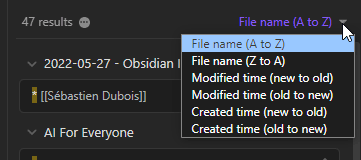
Each sort answers a different question:
- File name (A to Z) is the default. Fine for daily notes named by date, or when you scan for a title.
- Modified time (new to old) answers "what was I working on?". Search a project name, sort by modified time, and the notes you touched last come first.
- Created time (new to old) answers "what did I capture recently?". Useful for finding the note you wrote last week about something you just heard about again.
Since there's no relevance sort, the trick is to make the result list short enough that the order doesn't matter. Add path:, tag: or a line: scope until you're down to a list you can scan.
The sliders icon gives you three options:
- Explain search term translates your query into plain language. Use it whenever a complex query returns something unexpected.
- Collapse results hides the matching lines under each file.
- Show more context shows more text around each match.
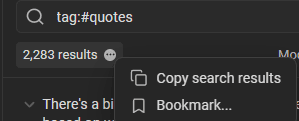
The menu next to the result count lets you copy the search results or bookmark the search.
How I debug a query that returns nothing (or too much):
- Turn on Explain search term and read how Obsidian understood the query. Most surprises come from
ORprecedence, a missing quote, or an operator that doesn't exist. - Remove parts of the query, one at a time, until results come back. The last part you removed is the culprit.
- Check the spelling, accents included, and the Match case toggle.
- If the note should be there but isn't, check Excluded files.
Collapse results is useful in the other direction: when a query matches many notes, collapse the results to see only the file names, then expand the one you want.
Saving searches
There are three ways to keep a search you run often.
Bookmark it. In the menu next to the result count, choose Bookmark. It appears in the Bookmarks pane, ready to run again.
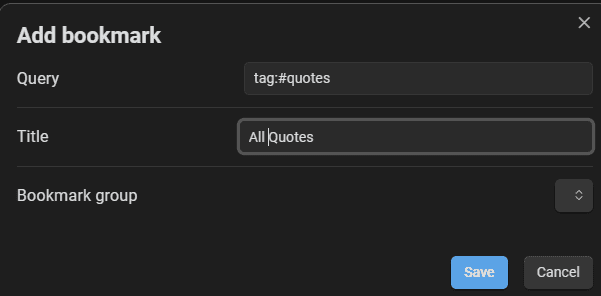
Give the bookmark a descriptive title ("Open tasks in projects", "Drafts to finish") rather than the raw query, and put your saved searches in a group of their own. Clicking the bookmark opens the Search view with the query filled in and runs it. Since 1.13, the Bookmarks pane has its own filter box, so even a long list of saved searches stays easy to browse. You can also bookmark a search from the terminal with the Obsidian CLI (obsidian bookmark search=<query>). The Bookmarks section in part 8 covers the rest.
Embed it in a note with a query code block. Results render live, inside the note:
```query
tag:#obsidian task-todo:""
```
Embedded queries are a zero-plugin index. They have limits though: you can't set the sort order or other options inside the block, and they don't render on Obsidian Publish.
Compared to Dataview, embedded searches are rather weak. A Dataview query can filter on any property with real comparisons, sort, group, and show the results as a table with the columns you choose. A query block only shows matching notes and lines, in a fixed format. Both share one big limitation, though: the results exist only inside Obsidian's renderer. They don't show up in the graph, in backlinks, on Publish, in grep, in git or for an AI agent reading the file. My Dataview Serializer plugin solves that: it writes the results of a Dataview query into the note as plain Markdown links, so they become real links that every tool can see (more on this in part 8, "Maps of Content that maintain themselves"). So: use a query block for a quick, zero-setup view, Dataview for richer queries, and Dataview Serializer when the results should last.
Where embedded queries shine:
- A dashboard note. A "Saved searches" or "Home" note with a few query blocks under headings: open tasks, drafts, notes to review. One note, all your recurring searches, always up to date.
- Project notes. Put
"Project name" -path:Projectsin a query block inside the project note, and you see every other note that mentions the project, including the ones you never linked. - Maps of Content. A query block at the bottom of a MoC lists the notes with the matching tag that you haven't linked from the map yet. That's a handy way to keep the map up to date.
Gotchas: the query runs every time the note renders. A 5-second property query in a block means waiting every time you open that note, so keep embedded queries scoped. And since the results only exist inside Obsidian, the block shows up as a code block for anyone reading the Markdown file elsewhere.
Build a Base when you need sorting, columns, date filters or link filters. That's next.
Finding things inside the current note
Ctrl/Cmd+Fsearches the current note and shows the number of matches.Ctrl+Hopens find and replace in the current note (check Settings → Hotkeys for your platform).
There's no vault-wide search and replace in core Obsidian. It's one of the most-liked feature requests on the forum (650 likes). Plugins fill the gap; see part 9.
For long notes, the Outline pane lists the headings of the current note. Click one to jump there.
More on the in-note tools:
- The commands are "Search current file" and "Search & replace in current file". On macOS, the default replace shortcut is
Cmd+Option+F, notCmd+H. You can change both in Settings → Hotkeys. - "Find all" selects every match at once. You get one cursor per match, so you can edit all occurrences together. That's a quick way to rename a term within a note.
- "Replace all" only touches the current note. For changes across many notes, you'll need a plugin, a script, or the terminal (part 9 and part 7).
- For long notes, combine the tools. Use the Outline to jump to the right section, then
Ctrl/Cmd+Fto find the exact line. Or use[[#to list the headings of the current note without leaving the keyboard.
Callouts: landmarks you can jump to
In a long note, you rarely read your way to the part you need. You scan. Headings help, but a decision buried in paragraph nine of a meeting note looks exactly like the eight paragraphs around it. Callouts fix that: a colored box with an icon and a title is the easiest thing on a page to spot, and the type in brackets is plain text you can search for.
The syntax is a blockquote whose first line holds the type:
> [!summary] What we decided
> We keep the Standard plan until the team grows past five people.
To make callouts work as landmarks, use a small, fixed set of types for the things you come back for: summary (or its aliases tldr and abstract) at the top of long notes, question for open questions, todo for follow-ups. The Insert callout command adds one, and if you select text first, it wraps the selection.
Then find them three ways:
- Inside the note: in editing view,
Ctrl/Cmd+Fand type[!summary. The Outline pane only lists headings, so callouts don't show there. Quick Switcher++'s@mode does list them (see part 9). - Across the vault: Obsidian Search matches the raw Markdown, so
"[!question]"returns every note with an open question. Combine it:"[!question]" path:Projects. A regex catches several types at once:/\[!(question|todo)\]/. - From the terminal:
rg -l '\[!question\]' -g '*.md'lists the same notes, without Obsidian running.
You can also create your own types, like [!decision], and style them with a CSS snippet (.callout[data-callout="decision"]). Without a snippet, Obsidian renders any unknown type as a note callout, and the type identifier is case-insensitive. Either way, the text stays searchable.
Gotchas: foldable callouts ([!faq]-) hide their content until you expand them, so don't fold the ones you want to see at a glance. And keep the set small: a note where half the paragraphs are callouts is as hard to scan as one without any.
Bases: structured search that saves itself
Bases (the core Bases plugin, public since Obsidian 1.9.10 in August 2025) turns your notes into a database you can filter, sort, group and display as tables, cards, lists, maps and, since 1.14, Kanban boards.
Think of a Base as a saved question you ask your vault. "Show me every permanent note I haven't published." "Show me what I created this week." "Show me every note that links to the one I'm reading." You write the question once, and the answer stays up to date on its own, every time you open it. There's no index to rebuild and no query to re-type. That's why I put Bases in the search section and not only in the "dashboards" box: for a whole class of questions, a Base is the best search tool Obsidian has.
For finding notes, Bases does what Search can't:
| Search can't… | A Base can |
|---|---|
| Filter by date | file.mtime > now() - "7 days", file.ctime >= now() - "1 month" |
| Filter by links | file.hasLink(this), file.backlinks.length == 0, file.links.length >= 10 |
| Filter by folder precisely | file.inFolder("Projects"), file.folder.startsWith("30 Areas") |
| Filter by file type | file.ext == "pdf" |
| Compare properties exactly | status == "Done", rating >= 4, public_note != true |
| Sort by anything | Any property, formula or file attribute |
| Show results relative to the current note | The this keyword |
| Remember the view | A .base file is a saved, shareable search |
| Group and count results | groupBy and per-column summaries (count, median, sum...) |
On the Obsidian forum, "Search operators for note creation/modification date" and "Search operators for LINKS" have been open since 2020 and 2021. Bases is the answer Obsidian shipped instead of new operators.
Since Obsidian 1.12, Bases also has a search button in the toolbar to filter the visible rows by their displayed properties. What Bases does NOT do is full-text search of note content. Use Search for that.
That toolbar search is the quickest way to narrow a big Base on the fly. Open a Base with 800 rows, click the search icon, type "zettel", and only the rows whose displayed columns contain "zettel" stay visible. It matches what you see (the name column, a status, a topic), not the text inside the notes. It closed most of a popular forum request ("Bases: Temporary / Quick Search / Filtering Columns", 249 likes). If you want a filter to stick, add it to the view instead.
How a Base decides what to show
A .base file is a small YAML file with up to five top-level keys: filters, formulas, properties, summaries and views. You rarely need to type it by hand. You can create one by right-clicking a folder in the file explorer and choosing "New base", with the "Bases: Create new base" command, or with "Bases: Insert new base" from inside a note (which creates the file and embeds it at the cursor). Then you build filters with the point-and-click editor.
Filters work like a funnel with two layers:
- Base-wide filters decide which notes enter the Base at all. They apply to every view.
- View filters narrow that set further, one view at a time.
My Books Base keeps only notes tagged type/book at the top. The "Reading" view adds status is Reading; the "Read This Year" view adds a finish date since January 1st. "Only books" is written once, and every view inherits it.
So don't create a new Base for every question. Create one Base per kind of note (books, people, permanent notes, daily notes...) and add views. Views are cheap; Bases are the thing you maintain.
When a condition is too complex for the point-and-click UI, click the </> button next to a filter. It opens the advanced editor with the raw syntax, where you can type any expression from the snippets below.
Filters: and, or, not
Each filter group is a list of conditions combined with and (all must be true), or (at least one) or not (none). In the UI, they appear as "All", "Any" and "None". Groups nest, so you can express pretty much any logic:
filters:
  and:
    - file.hasTag("type/permanent_note")
    - or:
        - file.hasTag("obsidian")
        - file.hasTag("pkm")
    - not:
        - file.inFolder("60 Archives")
Read it as: permanent notes, tagged obsidian or pkm, that aren't in the archives. Core Search can do part of this with tag: and -path:, but it can't combine it with what comes next: dates, links and property comparisons.
Dates: now(), today() and durations
This is the biggest gap Bases fills. Core Search has no date operators at all (created: doesn't exist, whatever some guides claim).
now()returns the current date and time;today()returns today's date without the time. Usetoday()when you compare with date-only properties likedate_finished.- You add or subtract durations written as strings:
now() - "7 days",now() + "1 day",date("2024-12-01") + "1M" + "4h". Units go from years (y,year,years) to seconds, andMis months whilemis minutes. - Subtracting two dates gives you a duration.
.daysturns it into a number you can compare or display. date("2026-01-01")turns a string property into a date, andfile.ctime/file.mtimeare the file's creation and modification times.
Some examples:
# Modified in the last week
- file.mtime > now() - "1 week"

# Created this month (roughly)
- file.ctime >= now() - "1 month"

# Due within 7 days
- date_due <= today() + "7 days"
Gotcha: file times don't survive everything. Syncs, migrations, restores and git checkouts can reset file.ctime and file.mtime. That's why I keep created and updated properties in my notes, filled automatically by my Update Time plugin, and why my Dynamic Base prefers them, with a fallback to the file times:
  days_since_created: if(created, (now() - date(created)).days.round(), if(file.ctime, (now() - date(file.ctime)).days.round(), 999))
  days_since_updated: if(updated, (now() - updated).days.round(), if(file.mtime, (now() - file.mtime).days.round(), 999))
If the created property exists, use it. If not, use the file's creation time. If neither exists, return 999 days, so the note sinks to the bottom instead of breaking the view.
Links: hasLink, backlinks and links
The second big gap. Search can find the text [[Zettelkasten]], but it doesn't know about the link graph. Bases does:
file.linksis the list of outgoing links;file.backlinksis the list of incoming links. Add.lengthto count them.file.hasLink("Zettelkasten")is true when the note links to that note.file.hasLink(this)is true when the note links to the current note (more onthisbelow).link.linksTo(file)checks whether the note a link points to itself links to a given file.
file.backlinks.length == 0 finds notes nothing points to. file.links.length >= 10 finds your hubs. Mind the names: it's file.links and file.backlinks, not outlinks/inlinks. And the official docs flag file.backlinks as performance-heavy, so add a cheap filter before it (a tag, a folder, file.ext == "md") on big vaults.
Folders, tags and file types
file.inFolder("Projects")matches a folder and all its subfolders;file.folder == "Projects"matches one exact folder;file.folder.startsWith("30 Areas")matches by path prefix (so also everything under it), which is what my Maintenance Base uses to OR its six top-level folders together.file.hasTag("type/permanent_note")checks tags, in the frontmatter and inline. It's case-insensitive (since Obsidian 1.9.14), and it also matches nested tags:file.hasTag("type/periodic_note")includes#type/periodic_note/daily.file.ext == "pdf"filters by extension. Core Search only reads the content of notes and canvases (it can match other files only by name, withfile:orpath:), so this is the built-in way to list your PDFs, images or audio files.
Here's a real view from my Maintenance Base that lists every non-note file, biggest first. It's the fastest way I know to find the 40 MB video that's bloating a vault:
  - type: table
    name: Attachments & Media
    filters:
      and:
        - file.ext != "md"
        - file.ext != "canvas"
    sort:
      - property: file.size
        direction: DESC
Properties: exact comparisons
Property search in core Search matches substrings ([status:watch] hits "Watched" and "To Watch"). Bases compares exactly:
status == "Done",status != "Done",rating >= 4,public_note != truecategories.contains("Fiction")for list propertiesfile.hasProperty("status")to check that the property exists at all- Checkbox properties are filters on their own: a
favoritecheckbox plus a view filtered onfavoriteistruegives you a favorites list with no new tags.
This view from my Maintenance Base combines a tag and a property comparison to list every permanent note I haven't published yet:
  - type: table
    name: Unpublished Permanent Notes
    filters:
      and:
        - file.hasTag("type/permanent_note")
        - public_note != true
public_note != true is the important part: it catches notes where the property is false, empty, or missing entirely. That's why Bases punishes sloppy metadata. As I explain in A property is a promise, one property name should have one meaning and one type, or no Base can trust it.
Formulas: computed columns
Formulas are virtual properties computed on the fly. They live in the .base file, not in your notes. You use them to display something (days since the last update), to sort (a relevance score) or to filter (formula.links_overlap > 2).
A formula can use if(), the date functions above, string functions (.contains(), .startsWith(), .slice(), .replace()...), list functions (.filter(), .map(), .unique(), .containsAny()...) and other formulas (formula.x), but never itself.
A real one from my Knowledge Base buckets notes by how connected they are:
connection_strength: if(file.links && file.links.length > 0, if(file.links.length >= 10, "10 - 🌐 Highly Connected", if(file.links.length >= 5, "20 - 🔗 Well Connected", if(file.links.length >= 2, "30 - 🤝 Connected", "40 - 📌 Few Links"))), "50 - 🔍 Isolated")Group a view by that formula, and the isolated notes, the ones you'll never reach by navigation, sit together in their own section. The 10 - , 20 - prefixes are a convention I use everywhere: text labels sort alphabetically, so the number forces the right order, and steps of 10 leave room to insert a 15 later.
A few gotchas that cost me time: there's no standalone length() or year() (use .length and .year), and numbers use methods (value.round(), not round(value)).
Views, grouping and summaries
Each view picks a layout:
- Table (the default): columns, multi-column sort, keyboard navigation.
- Cards: a gallery with a cover image from a property (an image path, a URL or even a hex color).
- List (since 1.10): a compact list.
- Map: notes with coordinates on a map (1.10 and later, with the official Maps plugin).
- Kanban: cards in columns, added in 1.14. Group by
file.folderand dragging a card moves the file to another folder. - Plugin views: community plugins can add layouts through the Bases API. Mine include the Graph Explorer Base View (part 8) and Journal Bases.
Two options turn a list of results into something you can scan:
groupBysplits the rows into sections by a property or a formula. Since 1.14, groups can be collapsed, reordered and hidden.- Summaries compute one value per column at the bottom of the table (and at the top of each group): count, sum, average, median, earliest/latest date, empty/filled...
My Knowledge Base groups its "Knowledge Hub" view by note type, with counts and medians:
  - type: table
    name: Knowledge Hub
    filters:
      and:
        - '!file.tags.contains("type/folder_note")'
    groupBy:
      property: formula.knowledge_type
      direction: ASC
    summaries:
      file.name: count
      file.backlinks: median
      file.links: median
One glance tells me how many permanent, literature and fleeting notes I have, and how well linked each kind is. Click the result count next to the view name to set a limit, copy the results or export them to CSV.
this: views that follow what you're reading
this is the feature that turns a Base into a search tool. It refers to a different note depending on where the Base is shown:
| Where the Base is | this refers to |
|---|---|
| Opened on its own in the main area | The .base file itself |
Embedded in a note (or an inline base block) | The note that embeds it |
| Docked in a sidebar | The note you're currently looking at |
So a single Base, docked in your sidebar, can answer "what's related to this note?" for every note you open, without you typing anything. this.file.links, this.file.tags and this.file.name give you the current note's links, tags and name.
Real Bases I use to find notes
I use Bases a lot for finding things. These snippets come straight from the Bases in my vault.
Orphans: notes nothing links to and that link nowhere. These are the notes you'll never stumble upon by navigation.
views:
  - type: table
    name: Orphaned Notes
    filters:
      and:
        - file.ext == "md"
        - file.backlinks.length == 0
        - file.links.length == 0
    sort:
      - property: file.folder
        direction: ASC
      - property: file.mtime
        direction: DESC
file.ext == "md" keeps attachments out (a PDF never links anywhere). The two length == 0 conditions keep only notes with no links in either direction. Sorting by folder, then by modification date, puts the recent orphans of each folder first: those are usually notes I forgot to connect while writing them. When I find one, I add a link from a MoC or a related note, and it's findable again.
Notes without tags, so I can add the pathways they're missing:
    filters:
      and:
        - file.ext == "md"
        - file.tags.length == 0
Every note in my vault should have at least a type tag. This view catches the ones that slipped through (a quick capture, a note created by a script). I sort it by modification date and fix a few at a time.
Created in the last 7 days, for "I wrote something about this last week":
    filters:
      and:
        - file.ext == "md"
        - file.ctime >= now() - "7 days"
This is the answer to the most common half-memory: you know when you wrote it, not what you called it. Change "7 days" to "1 month" and you have a monthly view.
Stale notes, untouched for six months, a good resurfacing list:
    filters:
      and:
        - file.mtime <= now() - "180 days"
        - file.ext == "md"
Sorted oldest first, it surfaces notes I haven't opened in a long time. Some deserve an update, some a link to newer notes, some the archive.
Most-referenced notes, using backlinks as a popularity signal:
    filters:
      and:
        - file.backlinks.length >= 10
    sort:
      - property: file.backlinks
        direction: DESC
This one comes from my Wisdom Base (quotes and ideas from others). The notes with the most backlinks are the ones I keep coming back to. It's also a good starting point when you're lost in a big vault: your most-linked notes are the hubs of your thinking.
Tag variants in one view. My "Methods & Frameworks" view ORs singular and plural tags, because I haven't always been consistent:
    filters:
      and:
        - or:
            - file.hasTag("methods")
            - file.hasTag("frameworks")
            - file.hasTag("framework")
            - file.hasTag("methodologies")
            - file.hasTag("methodology")
It's a pragmatic fix: the view finds everything, whatever tag I used on a given day. Cleaning up the tags with Tag Wrangler is the other fix (part 8).
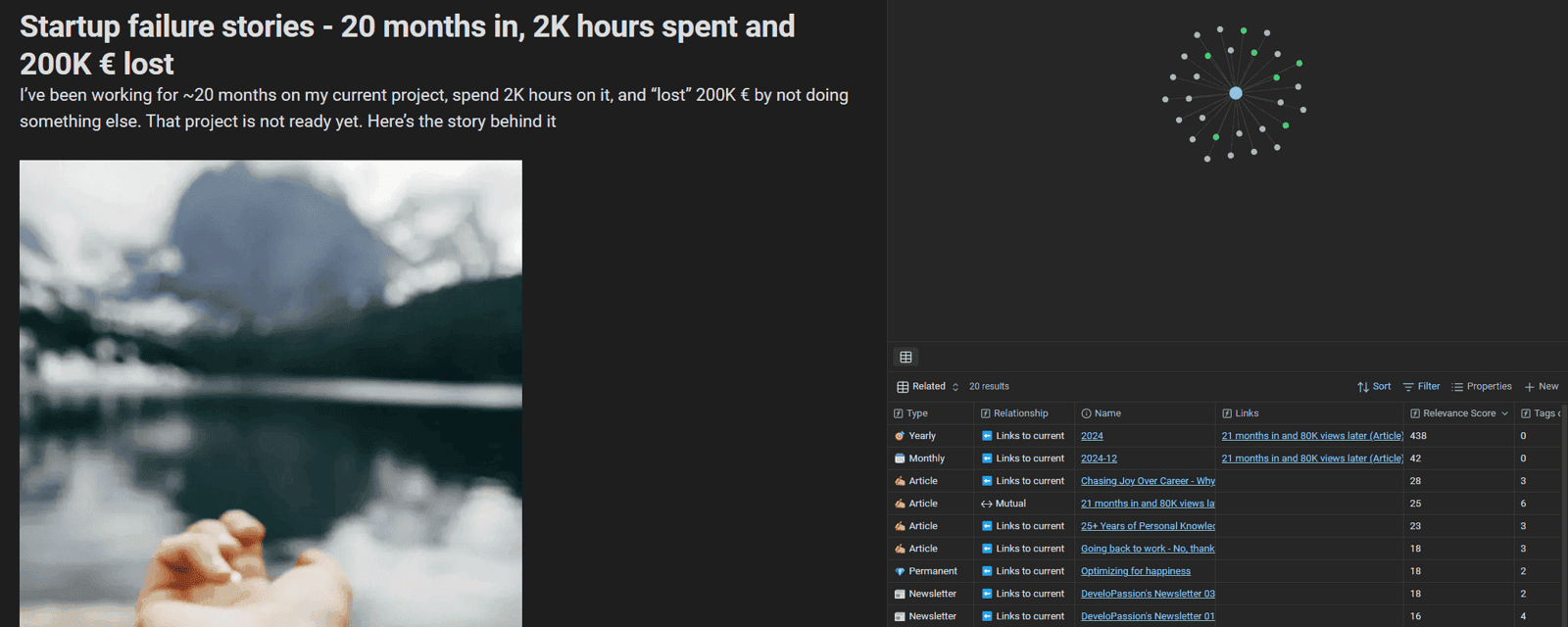
Notes related to whatever I'm reading. This is the one I like most. The this keyword refers to the note that embeds the Base, or to the active note when the Base is open in the sidebar. My "Dynamic" Base lives in my right sidebar and always shows notes related to the current one. Here's a simplified version:
filters:
  and:
    - file.path != this.file.path
formulas:
  shared_links: list(this.file.links).filter(list(file.links).containsAny(value)).unique()
  relevance_score: (formula.shared_links.length * 3) + file.backlinks.length
views:
  - type: table
    name: Related
    filters:
      or:
        - file.hasLink(this)
        - this.file.hasLink(file)
        - formula.shared_links.length > 2
    sort:
      - property: formula.relevance_score
        direction: DESC
    limit: 25
It finds notes that link to the current note, notes it links to, and notes that share more than two outgoing links with it, ranked by a homemade relevance score. The minimal version is a single filter, file.hasLink(this): drop that in your sidebar and you get a smarter backlinks panel.
Line by line:
file.path != this.file.pathremoves the current note from its own results.shared_linkstakes the current note's outgoing links and keeps those that the other note also links to. Two notes that both link to Obsidian Search and Bases are probably about something close, even if neither links to the other. That's how this view finds related notes that plain backlinks miss.relevance_scoreweighs each shared link three times as much as a backlink, so topical closeness beats raw popularity.- The view's
orkeeps three kinds of relationships, andlimit: 25keeps the list short enough to scan.
The full version in my vault also counts shared tags (×2), adds a small bonus for notes updated in the last 7 or 30 days, labels each row ("Mutual", "Links to current", "Shared links", "Shared tags"), and excludes resources, archives and folder notes. It has more views on the same formulas: "Mentions" (notes linking to the current one), "Tags" (more than one shared tag), "Same Type" (notes of the same note type), "Related Actions" (projects and tasks), and "Recently Created" / "Recently Modified". I switch views from the sidebar depending on what I'm looking for.
The same Base also has a "Same Time Previous Years" view: on a daily note, it shows the daily notes from the same day in previous years, by comparing the end of the file names. That only works because the daily notes have ISO dates in their names.
The comparison is this.file.name.slice(-5) == file.name.slice(-5): the last five characters of 2026-10-09 are 10-09, so every daily note from October 9 matches. Weekly, monthly and quarterly notes get the same treatment with shorter slices. A folder or naming scheme you chose years ago becomes a query you can run today.
Embed, dock and query your Bases
You can embed any view in a note with ![[My Base.base#View name]], and query it from the terminal with obsidian base:query (see part 6). I wrote a whole article about Bases if you want to go deeper: How I Turned 20,000 Notes Into Live Dashboards With Obsidian Bases (Article).
 Sebastien Dubois
A few ways to put a Base where you'll need it:
- Embed a view in a note.
![[Maintenance (Base).base#Orphaned Notes]]in a weekly review note shows the live list every week. Without#View name, the first view is used. In my vault, 168 notes embed a Base view this way. - Write an inline Base. A code block with the
baselanguage holds a full Base inside one note. It's handy for a query that only makes sense on one page. I prefer.basefiles, because they can be reused across notes and queried from the CLI. - Dock it. Drag a Base's tab to a sidebar, and with
thisit becomes a context panel that follows you from note to note. - Pin a view in a Canvas. Embed a Base in a Canvas, right-click its file name and choose "Pin view...".
- Query it from outside.
obsidian base:queryreturns a view's results as JSON, CSV, TSV, Markdown or a list of paths, which is how my AI assistant reads my Bases.
Bases gotchas
- No full-text search. Bases filter on properties and file metadata. To find a word inside notes, use Search (or
file.name.contains()if it's in the name). - Excluded files are excluded. Since 1.9.3, Bases respects Settings → Files and links → Excluded files. If a Base misses your archives, that's why.
- Your properties set the ceiling. A Base can only be as consistent as your metadata. Two spellings of the same status value give you two groups.
file.backlinksis expensive. Narrow the set first on big vaults.- Sorting text labels. Use number prefixes (
10 -,20 -), or your groups come out in alphabetical chaos.
Obsidian search cheat sheet
Print this, or keep it in a note.
Keyboard
| Action | Shortcut |
|---|---|
| Quick switcher | Ctrl/Cmd+O |
| Search all files | Ctrl/Cmd+Shift+F |
| Find in the current note | Ctrl/Cmd+F |
| Find and replace in the current note | Ctrl+H (Cmd+Option+F on macOS) |
| Command palette | Ctrl/Cmd+P |
| Back / forward | Ctrl/Cmd+Alt+← / → |
| Reopen a closed tab | Ctrl/Cmd+Shift+T |
| Open a result in a new tab | Ctrl/Cmd+Enter (quick switcher), Ctrl/Cmd+click |
| Create a note with the exact name typed | Shift+Enter in the quick switcher |
| Toggle between the last two notes | Ctrl/Cmd+O, Down, Enter |
Quick switcher
| Action | Key |
|---|---|
| Move through suggestions | Arrows, or Ctrl+N / Ctrl+P |
| Create a note when nothing matches | Enter |
| See your recent notes | Open it with an empty query |
| Fuzzy matching | dn finds "Daily notes"; aliases count |
Link suggester
[[name notes · [[# headings in this note · [[note#^ blocks in a note · [[##term headings in the whole vault · [[^^term blocks in the whole vault
Search basics
| Syntax | Meaning |
|---|---|
meeting work | Both words, anywhere in the note (space = AND) |
"second brain" | Exact phrase |
meeting OR work | Either term (uppercase OR) |
meeting -work | Exclude a term |
meeting (work OR meetup) | Group |
meeting -(work meetup) | Exclude the whole combination |
"they said \"hello\"" | A quote inside a phrase |
AND binds tighter than OR. When in doubt, add parentheses.
Search operators
| Syntax | Example |
|---|---|
| Phrase, OR, exclude, group | "second brain" (pkm OR zettelkasten) -draft |
| File name / path / content | file:2026-10, path:"Projects", content:"happy cat" |
| Tag (includes nested tags) | tag:#ai |
| Same line / block / section | line:(a b), block:(a b), section:(a b) |
| Tasks | task-todo:"", task-todo:call, task-done:invoice |
| Properties | [status], [status:"To Watch"], [status:(A OR B)], [rating:>3], [status:null] |
| Case | match-case:MCP, ignore-case:ikea |
| Regex | /\bMai\b/, /caf[eé]/, path:/\d{4}-\d{2}-\d{2}/ |
| Embedded query | a query code block |
| Don't exist | heading:, created:, modified:, links:, ext: |
Remember: a bare #ai is a text search, not a tag search. Always use tag:. And path: matches the file name too.
Property search
| Query | Finds |
|---|---|
[status] | Notes with a status property (also pledge_status: names match as substrings) |
[status:Watched] | Values containing "Watched" (case-insensitive substring) |
[status:"To Watch"] | Values with spaces: quote them |
[status:(Watched OR "To Play")] | Either value. Never [status:A OR status:B] |
[status:/^To /] | Regex on the value |
[status:null] | The property exists but is empty |
[copies:>1] | Numeric comparison |
[public_note:true] | Booleans |
[status:Watched] [rating:★★★★★] | Two conditions (AND) |
In the CLI, single-quote the whole query: query='[status:Watched]'.
Regex recipes
| Goal | Query |
|---|---|
| A date anywhere | /\d{4}-\d{2}-\d{2}/ |
| Daily notes by name | path:/\d{4}-\d{2}-\d{2}/ |
| A whole word only | /\bMai\b/ |
| With or without an accent | /caf[eé]/ |
| Singular or plural | /zettel(kasten)?s?/ |
Operators that don't exist, and what to use instead
| You want | Use |
|---|---|
| Text in a heading | section:, [[##, Quick Switcher++ # |
| Notes by date | Sort Search by created/modified time, or a Base on file.ctime / file.mtime |
| Notes that link to X | The Backlinks pane, obsidian backlinks, or a Base with file.hasLink(file("X.md")) |
| Files by extension | file:.pdf, or a Base with file.ext == "pdf" |
Search view options
Sliders icon → "Explain search term" translates your query into plain language. The menu next to the result count copies the results or bookmarks the search.
Bases filters
- file.mtime > now() - "7 days"        # modified this week
- file.ctime >= now() - "1 month"      # created this month
- file.backlinks.length == 0           # nothing links here
- file.links.length == 0               # links nowhere
- file.hasLink(this)                   # links to the current note
- file.hasTag("type/meeting")          # has a tag (nested included)
- file.inFolder("Projects")            # in a folder
- file.ext == "pdf"                    # by extension
- file.tags.length == 0                # untagged
More filters:
- file.mtime <= now() - "180 days"         # stale: untouched for six months
- file.backlinks.length >= 10              # most-referenced notes
- file.links.length >= 10                  # hubs
- this.file.hasLink(file)                  # notes the current note links to
- file.hasLink(file("X.md"))               # notes linking to X
- file.folder.startsWith("30 Areas")       # a folder and its subfolders
- file.path != this.file.path              # exclude the current note
- status == "Done"                         # exact property value
- rating >= 4                              # numeric property
- public_note != true                      # everything not published
Saving and embedding
```query
tag:#obsidian task-todo:""
```

![[My Base.base#View name]]
Bookmark a search from the menu next to the result count. Embedded query blocks and Bases don't render on Obsidian Publish.
URIs
obsidian://search?vault=<name>&query=<term>      # open Search with a query
obsidian://open?path=<absolute path>             # open a file found by another tool
obsidian://omnisearch?query=<term>               # open Omnisearch with a query
FAQ
What are the search operators in Obsidian? file:, path:, content:, tag:, line:, block:, section:, task:, task-todo:, task-done:, match-case:, ignore-case:, plus [property] and [property:value] for properties. You can combine them with spaces (AND), OR, - (exclude), parentheses and /regex/. See the operators table above.
How do I search for an exact phrase or exclude a word? Put the phrase in double quotes: "second brain". Put a minus sign before a word to exclude it: meeting -work. You can exclude a whole group too: meeting -(work meetup) excludes notes that contain both "work" and "meetup". And you can combine everything: "second brain" -draft path:"Projects".
What's the fastest way to open a note by name? The quick switcher: Ctrl+O (Cmd+O on macOS), a few letters, Enter. It's fuzzy, it matches aliases, and it ranks title matches first, which the Search view doesn't. If you often fail to find a note by name, add the words you typed as an alias. Quick Switcher++ adds modes for headings, symbols, bookmarks and commands.
Why doesn't Search show the note whose title matches my query first? Because the Search view sorts results by file name or date, never by relevance. The quick switcher is the tool for titles. If you want relevance ranking for content searches, use Omnisearch, which boosts matches in file names, aliases and headings.
How do I search by tag, folder or property? tag:#project (it includes nested tags like #project/active), path:"Projects/2026", and [status:Done]. For values with spaces, use quotes: [status:"In Progress"]. For several values: [status:(Done OR Archived)].
Does Obsidian support regex search? Yes, in the Search view: wrap a JavaScript regular expression in slashes, like /\d{4}-\d{2}-\d{2}/. It also works inside operators (path:/.../) and property values ([status:/^To /]).
Is Obsidian search case-sensitive? Not by default. Turn on the Match case toggle in the Search view, or use match-case:MCP for one term. ignore-case: does the opposite and overrides the toggle. Accents are a different story: core Search treats "café" and "cafe" as different words. Use /caf[eé]/, an alias without the accent, or Omnisearch, which ignores diacritics by default.
How do I find all open tasks? task-todo:"" lists every note with an open task. task-todo:call narrows it to tasks that mention "call". For due dates and priorities, use the Tasks plugin or a task manager.
Can I search by creation or modification date? Not with an operator: created: and modified: don't exist. Sort Search results by created or modified time, or use a Base with a filter like file.mtime > now() - "7 days".
How do I find recently modified notes? Four options, from quickest to most flexible: open the quick switcher with an empty query (it lists recent notes), sort Search results by modified time, use a Base sorted by file.mtime, or, from the terminal, git log --since='2 weeks ago' --name-only --format= -- '*.md' | sort -u if your vault is a git repository. The Recent Files plugin lists recently opened files in the sidebar.
How do I find a heading anywhere in my vault? Type [[## followed by a few words in any note. The link suggester lists every matching heading in your vault. Press Escape if you only wanted to look. For text inside a section, use section:(word1 word2) in Search. heading: doesn't exist.
How do I search within a single note? Ctrl/Cmd+F. For headings, use the Outline pane or Quiet Outline.
How do I embed a live search in a note? Use a code block with the query language and your search inside. Results update live. They don't render on Obsidian Publish, and you can't set the sort order inside the block. For more control, embed a Base view: ![[My Base.base#View]].
How do I save a search I run often? Three ways. Bookmark it from the menu next to the result count, and it appears in the Bookmarks pane. Embed it in a note with a query code block. Or build a Base when you need columns, sorting, date or link filters. A Base is the most durable option: it's a file you can embed anywhere and query from the CLI.
Conclusion
Each built-in tool answers a different question. The quick switcher opens what you can name, the link suggester finds headings, the command palette finds actions, and the Search view finds content, with operators that become precise once you know which ones really exist. When a question involves dates, links or properties, build a Base and keep it. Next time you can't find a note, first ask yourself what you remember about it, and pick the tool that matches.
Next in the series: Obsidian Search Beyond the Basics - Version History, CLI, Mobile and Performance. Previous: Fix a Messy Obsidian Vault - The 30-Day Findability Makeover.
Prefer to read the whole series in one place? I turned it into an ebook, The Obsidian Search Handbook, with an exercise at the end of every chapter (the Complete edition adds a starter pack and worksheets).
Free cheat sheet. The commands and operators worth remembering, and the search escalation ladder (which tool to try first, depending on what you remember about the note), on 13 pages you can keep next to your vault. Enter your email and I'll send it right away: the Obsidian Search Cheat Sheet.
 Sebastien Dubois
Get the free Obsidian Search Cheat Sheet. 13 pages to keep next to your vault: the search operators worth remembering and the search escalation ladder. Enter your email and I'll send it right away. You'll also get a few short follow-up emails about finding notes in Obsidian, and you can unsubscribe at any time.
About Sébastien
Ready to get to the next level?
Found this valuable? Share it with someone who needs it.