
Design Notes You Can Find - Names, Aliases, Types and Metadata in Obsidian


This article is part 2 of my series on finding notes in Obsidian. The overview, with the map of all 12 parts, is The Complete Guide to Obsidian Search.
You know the note exists. You wrote it six months ago. Three queries and 40 scrolled results later, you give up. Most of the time, the fix belongs in the note itself: a vague title, no alias for the word you actually typed, no type, no tag that narrows things down.
Findability is decided when you write a note. In the first part, I explained why: you re-find a note through the cues you stored with it. This part is about the cues you put in the note itself: its name, its aliases, its type, its properties and its tags.
Here's what you'll get:
- Naming rules that turn the quick switcher into a search engine, including the acronym trick and when to rename a note
- When to split a note into atomic notes, and when to keep it whole
- How to use aliases for all the other names you'll type
- How to define note types explicitly (allowed values, fixed sections), and why that makes filters reliable
- The minimum of metadata worth adding, and how to keep it consistent
- How to design tag families so
tag:searches return what you meant
TL;DR
- Name notes the way you'll search for them. Keywords first, full-sentence claims for idea notes, ISO dates for anything chronological. The name is the one thing every tool sees.
- Put acronyms in parentheses, like
Artificial Intelligence (AI). Typing either form finds the note, with no alias to maintain. - Rename after a failed search, using the words you actually typed. It's the cheapest findability fix there is.
- Add aliases for every other name you'll type: abbreviations, translations, unaccented spellings, the name without its type suffix.
- Give every note a type, defined once: a
type/...tag, a template, allowed property values and fixed sections. That's what makestag:,[property:value]and Bases filters reliable. - Keep tag families separate (
type/,zone/, topics) and tag topics liberally.tag:#typematches everytype/...child.
Name notes like you'll search for them
Andy Matuschak wrote that "evergreen note titles are like APIs": "When Evergreen notes are factored and titled well, those titles become an abstraction for the note itself." A good title is a search target, a link anchor, and what researchers call information scent (the cue that tells you whether a path leads to what you want) all at once. A title like Meeting notes or Untitled 23 is none of those.
My rule from the course: "Whenever you choose the name for a note, think about how you'll want to find it back. Remember: A well-named note saves future-you time and energy. Don't be afraid of longer names if they're more descriptive and clearer."
Why does the name matter so much? Because it's the one piece of a note that EVERY tool sees. The quick switcher, the [[ link suggester, the file explorer, the graph, the tab title, rg, your OS search, git, Obsidian Publish and every AI agent all start from the file name. Properties and tags only exist for the tools that read them. The name travels everywhere. And as I say in the course: "In IT, we often joke that there are two hard problems: caching, and naming things." It applies to notes too.
A few practical rules I follow:
- Include the terms you're likely to search for. Put the most important keyword first.
- Prefer clarity over brevity.
How to structure a weekly reviewbeatsWeekly review. - Whole sentences make great titles for idea notes:
Navigation beats search for personal filesis a claim you can find and link to. - Use ISO dates in names that need them (
2026-10-09,2026-W41,2026-10,2026-Q4). They sort correctly and are easy to type. - Avoid generic names, emojis and special characters. Some characters (
[ ] # ^ |) break links, and Windows and Android forbid more (* " \ / < > : ?). - When a search fails, rename the note with the words you just searched for. That tip comes from a Reddit thread about notes people couldn't find, and it costs two seconds.
Put the search terms in the title, most important first
The name should contain the words you'd type to find the note. Not the words you used while writing it; the words future-you will think of. If a note is about choosing a backup strategy for your vault, Backup strategy for my Obsidian vault beats Thoughts on resilience. The first word matters too: lists are sorted alphabetically in the file explorer, and your eye scans the start of each line in the quick switcher. Lead with the strongest keyword.
In my naming article, I list a few more rules that help retrieval:
- Start with an uppercase letter, separate words with spaces, and keep the rest lowercase (except for acronyms and proper names). Consistency makes lists easy to scan.
- Don't prefix names with numbers (outside dates). As I say in the course, they "make it harder to create links including the note name", and searching gets harder than it needs to be.
- Don't put the note's current location in its name. Locations change; the name then lies.
- Don't put sensitive information in names. Names show up everywhere: tabs, sync logs, git history, published link previews.
Write titles as claims for idea notes
For notes that capture an idea (permanent notes, evergreen notes, whatever you call them), a full sentence works better than a topic. Compare Folders with Folders as Silos, or Tags with Each tag and link you add to a note adds a path to resurface that note later on (yes, that's a real note in my vault). The second version tells you what the note says, so you know whether to open it. It also reads naturally inside a sentence when you link it, which is exactly what you want for inline links.
Don't worry about length. The naming article says it plainly: "Don't worry too much about length." File systems have limits (usually around 255 characters for a file name), but you'll rarely hit them.
Use ISO dates for anything chronological
For notes tied to a date (daily notes, meeting notes, periodic reviews), use the ISO 8601 format, from the most significant part to the least: YYYY-MM-DD for days, YYYY-Www for weeks, YYYY-MM for months, YYYY-Qx for quarters, YYYY for years. Three reasons:
- Alphabetical sorting becomes chronological sorting, in every tool.
- Typing a partial date finds everything from that period (more on this in part 3).
- There's no ambiguity.
03/04/2025means two different days depending on where you live.2025-03-04doesn't.
My meeting notes follow the pattern YYYY-MM-DD - Topic (e.g., 2025-01-21 - Work session). The date gives the order, the topic gives the meaning, and the quick switcher matches both.
Avoid characters that break links and sync
Obsidian warns you when a name contains [ ] # ^ |, because those characters have a meaning inside links (# for headings, ^ for blocks, | for display text). Windows and Android also forbid * " \ / < > : ?. If you sync your vault across devices, a name that's valid on macOS can fail to sync on Windows. Emojis are allowed, but they're hard to type in a search box, and some tools handle them badly. Stick to letters, numbers, spaces and basic punctuation (,, -, ', parentheses).
Rename after a failed search
This is the cheapest findability fix there is. You searched for "vault backup", tried three variations, and finally found the note titled Resilience thoughts. Don't just read it and move on: rename it to something with the words you actually searched for, or add those words as an alias (see below). Obsidian updates every link to the note automatically when you rename it from within the app, as long as "Automatically update internal links" is enabled in Settings → Files and links. Next time, the first query will hit.
Special cases: people, quotes, projects and look-alikes
Some kinds of notes deserve their own convention. Here's what I teach in the course, and what I use:
- People:
GivenName FamilyName, always in that order. If you mix orders, you'll create duplicates and miss notes. - Quotes: the quote itself is the name (or its first meaningful part if it's too long), and the full text lives in the note. Searching for a few words you remember from the quote then matches the title.
- Projects: notes that belong to a project can get the project name as a prefix (
Newsletter - Links,Newsletter - Overview). That way, generic names like "Links" or "Overview" stay unique, and typing the project name lists all of them. - Look-alikes: when two things share a name (a book and an article with the same title, a book and its author), add the type and/or the author in parentheses.
Type suffixes: the deliberate exception
In my vault, many note types also get a suffix: Obsidian Starter Kit V5 (Project), The Complete Guide to Dataview in Obsidian (Article). That's a deliberate exception to the "don't put categories in names" rule. The suffixes comes from the note types, and my templates add those automatically. Thanks to that, typing "project" in the quick switcher then lists my project notes. I explain the reasoning in Templates make notes easier to find and in my article on note naming.
 Sebastien Dubois
The same goes for tasks ((Task)), goals ((Goal)), Maps of Content ((MoC)) and others. In practice, the suffix solves two problems at once. It disambiguates: Obsidian Starter Kit (the product) and Obsidian Starter Kit V5 (Project) (the work to build it) can coexist without confusion. And it turns the quick switcher into a type filter without any plugin. The cost is that links look heavier ([[Foo (Project)]]), which is why I pair suffixes with aliases.
The key point is that the suffix is generated, not typed. If you add suffixes by hand, you'll forget half of them, and an inconsistent convention is worse than none. In my Obsidian Starter Kit plugin (part of my Obsidian Starter Kit), each note type defines its own prefix and/or suffix, and the plugin applies it when you create the note.
The acronym trick
Put the acronym in parentheses in the note name:
- Artificial Intelligence (AI)
- Directed Acyclic Graphs (DAG)
- Cloud Development Environment (CDE)
- Model Context Protocol (MCP)
Typing either the full term or the acronym in the quick switcher, the [[ link suggester, the Search view or rg finds the note. There's no alias to maintain. It reads well in links and in the graph. And AI agents get both forms for free, which matters because they search with plain text matching by default (more on that later). Many notes in my vault follow this pattern.
The only condition: you need to know the acronym. For the other variants, use aliases.
One idea per note
Granularity is a findability decision too, and you make it when you write. A note has one title. If a long note holds ten ideas, at most one of them is in the title. The other nine are invisible to the quick switcher, the [[ link suggester and the file explorer. You can't link to them directly, so they never show up in backlinks. And when full-text search does find a word inside, you land at the top of a long note and scroll.
Atomic notes solve this: one idea/concept per note, with a title that states it (see "Write titles as claims for idea notes" above). Each idea becomes a search target, a link anchor and a node in the graph. In my guide to splitting long notes, the first downside of long notes I list is that they make it harder to retrieve information: their density makes it hard to find specific pieces when you need them. AI search benefits as well, because an atomic note is often a single chunk (more on that in part 10).
How do you decide what deserves its own note? The main heuristic is connectability: can you link this idea to other ideas, in the same source or elsewhere in your vault? A practical sign: if you'd like to link to part of a note, that part probably wants to be a note of its own. Avoid linking to specific headings in a note; that's fragile and hard to maintain.
Splitting a note. Use the Note composer core plugin. In Editing view, select the text of one idea, then right-click it and choose Extract current selection... (or run Note composer: Extract current selection... from the command palette). Type a name and press Ctrl/Cmd+Enter to create a new note with the selected text, or pick an existing note to add it there. By default, Note composer replaces the extracted text with a link to the destination note, so the original keeps a pointer and nothing gets lost. In the settings, you can embed the new note instead, or leave nothing behind. This is step 2 of the knowledge ingestion process described in part 3. Or use AI ;-)
Merging notes. The reverse works too. Note composer: Merge current file with another file... adds the current note to another one, removes the first note and updates every link to point to the merged note. That's how you fix two notes about the same idea. Keep the old title as an alias, so searches for it still land (see the aliases section below). Merging is normal: ideas grow, split and merge, which is what I call the cattle approach to ideas. Or use AI ;-)
Not every note should be atomic. Meeting notes, logs, daily notes and project notes stay whole: you find them by date, person or project, and their value is the context. For those, use clear headings and jump straight to a section with [[## (part 5). Book notes are a middle ground. After I extract atomic notes from a long book summary, I keep the summary around: it becomes a map of the ideas I extracted. I describe that process in the splitting guide and in my article on atomic notes.
 Sebastien Dubois
 Sebastien Dubois
Aliases
The aliases property gives a note alternative names. The quick switcher, the [[ link suggester and unlinked mentions all match them. My vault has 13,361 of them.
Use aliases for:
- singular and plural forms
- translations, if you think or search in more than one language
- alternate spellings, and unaccented spellings (core Search doesn't ignore accents, see part 5)
- old titles after a rename
- the "clean" name of a note with a type suffix (
Dataview plugin for Obsidiangets the aliasDataview)
---
aliases:
  - Dataview
  - DQL
---
Aliases only exist inside Obsidian: rg, your OS search and git don't know about them. And too many aliases pollute your link suggestions. Add the ones you'd actually type.
Why aliases help you find things. A note has one name, but you'll think of it in many ways. You might remember "AI" one day and "machine intelligence" the next. Aliases let all of those roads lead to the same note, without creating duplicates. In my vault, Artificial Intelligence (AI) also answers to AI and Machine Intelligence, and my Obsidian Tags note answers to Obsidian Nested Tags.
How to add one. Open the note, add an aliases property (Ctrl/Cmd+; adds a property, or use the command palette: "Add file property"), and type each alias as a separate list item. You can also type the YAML directly in source mode, like in the example above. The property must be named aliases (plural) and be a list: the singular alias was deprecated in Obsidian 1.4 and dropped entirely in 1.9, so if you have an old vault, check for it.
How aliases show up. When you type [[Dataview in a note, the link suggester lists the note under its alias. Pick it, and Obsidian inserts [[Dataview plugin for Obsidian|Dataview]]: the link points to the real note, but reads naturally. That's what I mean in the course when I say: "Leverage note name aliases if possible so that sentences that include links can still be read out loud." The quick switcher works the same way: type an alias, and the note comes up with the alias highlighted. And the "Unlinked mentions" section of the backlinks pane picks up plain-text mentions of a note's aliases, which is a great way to find notes that should link to it.
Gotchas.
- Too many aliases pollute your suggestions. Every alias is one more line in the quick switcher and the link suggester. If you add ten synonyms to every note, you'll scroll more, not less.
- Avoid giving the same alias to two notes. Both will show up, and you'll have to guess which one you meant.
- Rename, then alias. When you rename a note, Obsidian updates the links inside your vault, but not your memory (or the links people bookmarked on your published site). Keeping the old title as an alias covers both.
If you want to go further, I keep a reference note about Obsidian Aliases.
Define your note types
The next sections are about individual properties. This one is about the system around them: every note has a type, and every type is defined explicitly. Written down once, as a contract that every note of that type follows, rather than "I usually put a type/meeting tag on meetings".
Search is a guessing game, and predictability removes the guesses. If every meeting note has a date property, a Participants section and lives in the meeting notes folder, you don't need to remember how you wrote THAT one: you know how all of them are written. The same goes for Search, for Bases, and for any AI agent you point at your vault. A tool can only filter on what it can count on.
A note type, as I define it, covers seven things:
| Part of the type | Example (my task notes) | What it buys you when you search |
|---|---|---|
| A set of properties | status, priority, date_due, related_projects... | Every task can be filtered on the same fields |
| Allowed values for some of them | status: 10 - Backlog to 80 - Done | Filters match ALL the notes, not the ones you spelled right |
| Sections (headings) | Action, Context, Notes, References, Related | You, section: and AI know where to look inside a note |
| A template | TPL Task.md | The properties and sections are added for you, every time |
| A folder | 20 Actions/24 Tasks/{{year}}/{{month}} | path: and file.inFolder() return tasks, and only tasks |
| Mandatory tags | zone/actions, type/task | tag:#type/task works, even if a note ends up in the wrong folder |
| A name prefix or suffix | (Task) | Typing "task" in the quick switcher lists tasks |
Each row on its own is a habit I described somewhere in this part or in the next one. The type is what ties them together, so you don't have to remember seven habits per kind of note.
What it looks like in my vault
Obsidian has no note types built in. The Obsidian Starter Kit adds them, and my vault currently has 69. All 69 have mandatory tags, 67 have a folder, 64 have a template, 58 have a name suffix, and 49 have at least one property with a fixed list of allowed values. The plugin also exports every type as a Markdown file in a .types/ folder, which the osk-cli command-line tool reads (even with Obsidian closed). So I can ask my vault what a type looks like instead of remembering it:
osk-cli list-types                       # the 69 types, with descriptions
osk-cli show-type tasks                  # the full definition, as JSON
osk-cli path tasks --field suffix        # →  (Task)
osk-cli path tasks --field mandatory-tags
# → zone/actions
# → type/task
osk-cli required-fields tasks
# → date_created
# → date_modified
# → status
The allowed values of a property:
osk-cli show-property tasks status --aspect allowedValues10 - Backlog
20 - This Year
30 - This Quarter
40 - This Month
50 - This Week
60 - In Progress
70 - On Hold
80 - DoneAnd the sections a type's template creates, with what goes in each:
osk-cli sections meeting-notes --format textMeeting Notes (50 Resources/54 Templates/Templater/TPL Meeting.md)
# <% tp.file.title %> [dynamic]
The title of the note, rendered by the template.
## Participants
Who attended, linked to their person notes.
## Minutes
What was said and decided, as it happened.
## References
External sources and links this note draws on, one per line.
## Related
Wikilinks to the vault notes this one connects to.The advantage of having this in place is that it's VERY easy for AI to understand how to work with my Obsidian vault. In addition, these tools give AI means to validate what they do, which is invaluable.
Why allowed values make filters reliable
Free text drifts. Without a list of allowed values, the same state ends up written as In progress, in-progress, WIP and Doing, and every filter you write catches only part of your notes (without telling you).
With an enum (a property that only accepts values from a fixed list), there's exactly one way to write each state. [status:In Progress] in Search finds every task in progress. In a Base, status != "80 - Done" lists every open task, and status == "60 - In Progress" matches every task in progress, because there's only one correct spelling (and the plugin flags the others, see below). The number prefixes are there for sorting: sort a Base by status, and you get the workflow order (backlog first, done last) instead of the alphabetical one.
Enums also catch mistakes. Here's what the validator says about a task note whose status was typed by hand (output shortened):
osk-cli validate "20 Actions/24 Tasks/2026/09/Sample (Task).md" --format text[INVALID] 20 Actions/24 Tasks/2026/09/Sample (Task).md
Type: tasks
Errors:
- Value not in allowed values for field: status
Expected: one of: [...]
Actual: "In progress"
Hint: Choose one of the allowed values: ["10 - Backlog", "20 - This Year", ..., "80 - Done"]Inside Obsidian, properties with allowed values become a dropdown, and invalid values are highlighted in red, in the note and in Bases tables. The bad value gets fixed when you see it, not a year later when a filter quietly skips the note.
This stuff just doesn't exist out of the box in Obsidian, and that's why I've built this. For my system to scale, I needed something like this.
Why fixed sections make notes easier to search
Headings are the structure inside a note, and a type makes them predictable. Every meeting note in my vault splits who was there (Participants) from what was said (Minutes). Three things get better:
section:results are easy to read.path:"37 Meeting notes" section:(pricing decided)returns sections where both words appear together. Since decisions always go underMinutes, you know where a hit comes from before you open the note.- AI agents can extract instead of reading everything. "List the decisions in the
Minutessection of my 2025 meeting notes" is a precise instruction when every meeting note has that section. And becauseosk-cli sectionstells the agent the exact heading names, it doesn't guess them. - Chunks line up. Semantic search splits notes at headings (see "Chunking: let your headings do the work" in part 10). Same headings, same kind of chunk, every time.
Types change, and that's fine
You'll get some types wrong, and your needs will change. That's fine.
Start small, though. Five to ten types cover most vaults.
Check out my other articles about Obsidian properties:
 Sebastien Dubois
 Sebastien Dubois
If you'd rather not build this from scratch, my Obsidian Starter Kit ships with all of it: the note types, their properties and allowed values, templates, folders, tags, plus tools to validate notes, change the type of an existing note easily, and customize note types easily.
 Dwayne Appleby
A minimum of metadata
The minimum I recommend is a useful title, created and updated dates, a few tags and a couple of links. I wrote a short note called When you take a note, you need to add a minimum of metadata about this.
Two other notes explain how I think about it. Metadata is an interface: "Metadata only has value if something reads it", so ask "what will read this?" before adding a property. And A property is a promise: one name, one meaning, one type, or no query, dashboard or AI can trust it.
Researchers in Personal Information Management (PIM) reached the same conclusion decades ago. Lansdale (1988) found that the bottleneck is recall: people often can't remember the category they used. So systems should let you retrieve notes by attributes you actually remember (the type of note, the person, the project, the date) rather than by a category you invented months earlier.
In practice:
- Give every note a type. A
type/meetingtag or atypeproperty lets you filter in one click (see "Define your note types" above). - Store dates in properties. File-system dates rarely survive syncs, migrations and restores. My Update Time plugin keeps
createdandupdatedin sync automatically. - Avoid typing metadata by hand. Let templates do it. I covered this in the templates guide and the property side in the properties guide.
What each piece of the minimum buys you when you search:
| Metadata | What it lets you find | Example query |
|---|---|---|
| A type (tag or property) | "All my meeting notes", "all my book notes" | tag:#type/meeting, a Base filtered on the type |
created / updated | "What did I write last week?", "what haven't I touched in a year?" | A Base with file.mtime > now() - "7 days", or a filter on updated |
status (when the note has a lifecycle) | "Articles in progress", "books I'm reading" | [status:In Progress] |
| Topic tags | "Everything about PKM", across all types | tag:#pkm |
| Links to people and projects | "Everything related to project X or person Y" | The backlinks of the project or person note |
For example, here's what a typical meeting note can look like (a generic example, not one of mine), in a file called 2026-10-09 - Meeting - Newsletter redesign kickoff.md:
---
tags:
  - type/meeting
  - pkm
date: 2026-10-09
attendees:
  - "[[Jane Doe]]"
  - "[[John Smith]]"
related_projects:
  - "[[Newsletter redesign]]"
created: 2026-10-09T10:41
updated: 2026-10-09T11:02
---

# Newsletter redesign kickoff

Kickoff with [[Jane Doe]] and [[John Smith]] for the [[Newsletter redesign]] project.

## Decisions
- ...
The attendees and the project are links, so the meeting shows up in the backlinks of each person and of the project. With just this, you can find the note by its title, its date, its type, its topic, the people involved and the project. That's six different retrieval cues for a few seconds of work (zero if a template adds them).
Use properties to narrow down results
A plain keyword search in a big vault returns too much. Properties are how you cut a list of hundreds of results down to the three you care about, because they let you filter on things you remember ABOUT a note, not just words IN it.
A realistic example: say you're looking for a task you created a few weeks ago, about writing an article on search. You don't remember its title.
- Plain keyword.
searchin the Search view. Thousands of hits: every note that mentions the word, including daily notes, articles and plugin notes. - Add the type.
search tag:#type/task. Now only task notes come back. In my vault, that's still dozens: I write about search a lot. - Add the status or the project.
search tag:#type/task [status:In Progress]keeps the tasks I'm working on. Or, if I remember which project it belonged to,search tag:#type/task [related_projects:Newsletter](an illustrative project name). A handful of results now. - Finish with a Base when dates matter. If "a few weeks ago" is the strongest cue, a Base does what Search can't: compare dates. Filter on
file.hasTag("type/task"),status != "80 - Done"andfile.mtime > now() - "30 days", then sort byupdated. Save the Base, and it's there next time.
Each step uses a different cue: a word, a type, a state, a relation, a date. None of them alone would have been enough, but together they get you there in under a minute. Part 5 covers the Search operators and Bases filters in detail.
Which properties pay off most for finding? The ones you'll actually remember and filter on. From my own note types, here are the ones I use most when I search:
| Property | What you remember | Real examples from my note types |
|---|---|---|
| Type (tag or property) | "It was a meeting note", "it was a book" | type/task, type/meeting, type/project tags |
status | "I was still reading it", "it was done" | Books: To Read, Reading, Read. Tasks: 60 - In Progress, 80 - Done. Projects: 30 - Active, 60 - Completed |
related_projects, related_goals, related_activities | "It was for that project" | Links to the project, goal or activity notes (about 2,200 notes each in my vault) |
| People | "It was with that person" | Links to person and contact notes, in the body or in a property |
topics | "It was about AI" | A list of topics (on 13,139 notes) |
authors, source, link | "That book by X", "that article from Y" | authors on book notes, link for the source URL |
rating | "That really good book" | ★★★★★ to ☆☆☆☆☆ on books |
| Dates | "Last month", "the books I finished in 2025" | created, updated, date_finished (on 10,085 notes), date_completed, a meeting's date |
public_note | "I published that one" | A checkbox (on 19,774 notes) |
A property you'll never remember (an internal ID, a sort order) won't help you find anything. It may still be useful for automation, but don't add it for search.
Property types matter. Obsidian has six property types: Text, List, Number, Checkbox, Date and Date & time (plus the special tags type). The type decides what you can do with a property:
- Dates are sortable and comparable.
date_finished > date("2025-01-01")in a Base only works ifdate_finishedis a Date. Stored as text, "2025-03-04" and "March 4" are just strings. - Lists match any of their items. A note with
topics: [ai, pkm]shows up when you filter on either one. Put several values in a text property instead, and you'll match on a messy string. - Numbers compare as numbers (
[copies:>1]works), and checkboxes give you clean true/false filters ([public_note:true]).
Types are vault-wide: a property name has the same type in every note. So pick names carefully (a property called date can't be a date in one note and text in another).
Consistency comes from templates, not willpowe. If you type Status in one note and status in another, or In progress here and in-progress there, your filters miss half your notes. In my vault, each note type defines its properties, their types and their allowed values (the enums you see above), and templates fill them in. The OSK plugin also highlights invalid values in Bases. That's what A property is a promise means: one name, one meaning, one type.
Keep names clean with the All properties view. The Properties view core plugin lists every property in your vault with its type and how many notes use it. Scan it from time to time: duplicates (author vs authors), typos and one-off properties stand out immediately, and you can rename a property across the vault from there. More on that view in part 8.
One last heads-up: property search has a few quirks (names and values both match as case-insensitive substrings, so [status:watch] also matches "To Watch", and [status] also hits customer_status). I cover those in part 5, in the Search view's property section.
A few rules keep metadata useful over time:
- Pick one name per concept, and stick to it. If half your notes use
authorand the other halfauthors, every query has to check both, and you'll forget one. I use plural names for lists and singular names for single values (authorsvsstatus), so the name tells me the shape. - Keep property types consistent. A date property should always hold a date. Obsidian assigns one type per property name across the whole vault, so mixing types breaks sorting and filtering.
- Don't add properties nobody reads. Every property is a promise you'll have to keep filling. If no Base, search, template or AI reads it, drop it.
- Use the
updateddate to review old notes. As I say in the course: "I use the updated timestamp on my notes to list notes that I should revisit." A Base sorted byupdated(oldest first) is a ready-made review queue.
The search side of this (property operators in Search, and Bases) is covered in part 5.
Tags are pathways
From my course: "You should think of tags as additional pathways leading to your notes." And: "The main question to ask yourself when tagging notes is 'how will I find this in the future when I need it?'"
A note can have many tags but only one folder. That's why tags work so well for retrieval. I use a few kinds of tags:
- type tags, one per note:
type/meeting,type/book - topic tags, as many as useful:
pkm,ai,systems_thinking - zone tags that mirror my top-level folders:
zone/actions,zone/journal
Hierarchical tags are great for search. In Obsidian, tag:#type matches #type, but also every nested tag like #type/meeting. Avoid deep nesting though, or you'll recreate the problems of folders.
Conventions help too: lowercase, underscores instead of spaces, consistent singular or plural. And don't obsess. As I say in the course: "You will make mistakes, and that's ok. Just make it a habit to fix the incorrect tags you stumble upon."
I wrote more about this in the tag system that finally made sense for me and in why and how to tag your notes. The short version is in my note on why and how to tag notes.
 Sebastien Dubois
 Sebastien Dubois
Tags are probably the single most useful findability tool in my vault, so let's go deeper.
Separate your tag families
The mistake I made for a long time was mixing everything in one flat list of tags. I'd search for #books to find my book notes, and get meeting notes where someone mentioned a book, articles about books, random thoughts that referenced books. The tag was supposed to help me find things, and it was making them harder to find.
The fix is to give each job its own family of tags, with its own namespace (the part before the /):
| Family | Job | How many per note | Examples from my vault |
|---|---|---|---|
type/ | What the note IS | Exactly one (plus its parents) | type/project, type/meeting, type/permanent_note, type/periodic_note/daily, type/creation/article |
zone/ | Where it lives in the system (mirrors the top-level folders) | One or two | zone/actions, zone/areas, zone/areas/permanent_notes, zone/journal, zone/meta |
| Topics | What the note is ABOUT | As many as useful (often 5 to 10) | pkm, obsidian, ai, ai/agents, systems_thinking |
status/, actions | Where it stands, what should happen next | Only when a workflow needs it | None: I track status in a status property instead |
With this separation, #type/book returns ONLY my book notes, and #books (without the prefix) returns everything related to books, which is sometimes exactly what I want. Type tags give precision. Topic tags give coverage.
In my course, I also mention action tags (what should happen next: review, summarize, publish) and what I call "concept tags", to mark first principles in different domains. Use them if they serve a workflow; skip them if they don't.
Time-relative tags: now, soon, someday
You can also tag by time horizon. Temporal Tags such as today, this_week, next_month, backlog or on_hold say when something matters, relative to now. Michael Hyatt calls them "horizon tags" in his Free to Focus course, and Colter Reed calls them "temporal contexts". They answer "what should I look at this week?" in one query: tag:#this_week.
Their weakness is that they go stale. this_week is true for seven days, and after that every tagged note is wrong until you retag it. Only use them if your weekly review updates them.
In my vault, I use a property instead. Tasks, projects, plans and goals have an urgency property with the values 10 - Now, 20 - Soon, 30 - This Year, 40 - Next Year and 50 - Future (it defaults to 99 - TBD). Goals also get a time_horizon, from 10 - Within 6 Months to 50 - Someday. A property holds one value at a time, its allowed values are defined once, and a Base can filter or group on it: urgency == "10 - Now" lists everything that's urgent right now. It still has to be updated during reviews, but that's one field to change instead of a tag to swap. The numbers in the values also make them sort in the right order.
How nested tags make search precise
A nested tag is a tag with slashes in it: type/periodic_note/daily. Obsidian treats each level as a parent of the next, which gives you three things for free:
- Search at any level.
tag:#type/periodic_notereturns all my daily, weekly, monthly, quarterly and yearly notes (2,166 notes).tag:#type/periodic_note/dailynarrows it down to the daily notes (1,814). Same with topics:tag:#aiincludes#ai/agents,#ai/toolsand#ai/tools/mcp. - Combine families. Because type and topic are separate, you can cross them:
tag:#type/meeting tag:#pkmfinds meeting notes about PKM. Exclude a family with a minus sign:tag:#systems_thinking -tag:#type/quotedrops quotes from the results. - Browse them as a tree. The Tags pane shows nested tags as a collapsible tree with counts, so you can drill down from
typetotype/creationtotype/creation/article(347 notes in my vault).
Bases use the same logic. file.hasTag("type/project") matches the tag and its children, and it's case-insensitive. So a Base filtered on file.hasTag("type/meeting") stays correct no matter which folder a meeting note ends up in. That's why I build most of my Bases on type tags rather than on folders. They don't break when I reorganize something.
One gotcha that trips a lot of people: in the Search view, typing #ai without tag: is a plain text search. It matches the string "#ai" anywhere in your notes (including inside #aircraft, if you have that). Use tag:#ai when you mean the tag.
Naming conventions for tags
Obsidian's rules first: tags can contain letters, numbers, underscores (_), hyphens (-) and slashes (/), but no spaces. A tag must contain at least one non-numeric character, so #2026 is not a tag. Matching is case-insensitive (#PKM and #pkm are the same tag), but your notes keep whatever casing you typed, and the Tags pane shows the casing you used first, so mixed casing gets messy.
On top of that, my own conventions, from my course:
- All lowercase. Some tools are case-sensitive, some aren't. Lowercase avoids the question.
- Underscores between words:
systems_thinking,permanent_note,content_creation. Hyphens work too; just pick one. - Pick singular or plural, and stick to it. I prefer plural for topics; type tags are singular (
type/project). What matters is consistency within a family. - No punctuation or special characters. They cause problems with search and other tools.
- Keep nesting shallow. Two or three levels is plenty. Almost all of my tags stop at three levels, like
type/periodic_note/daily. Deeper hierarchies bring back the problems of folders: you have to remember the exact path.
Tag liberally, clean up later
For topic tags, my advice is: tag a lot, and don't plan. "Don't look for the one perfect tag. Instead, add as many relevant keywords as you can think of." I usually add 5 to 10 topic tags per note, based on gut feeling. Some overlap, some are redundant. That's fine: when I search later, I won't remember whether I used #writing or #content_creation, but if I added both, one of them will hit. As I wrote in my tag system article, "redundancy creates resilience", and "tag chaos is better than tag scarcity". A note with too many tags can be cleaned up. A note with no tags is basically lost.
Inconsistencies will creep in (#pkm, #knowledge_management, #KM...), and that's fine as long as you fix them during periodic reviews. Two tools help:
- Tag Wrangler renames or merges a tag (and its children) across the whole vault in one go. More on it in part 8.
- Bases can absorb inconsistencies instead of fixing them. In my Knowledge Base, the "Methods & Frameworks" view ORs
methods,frameworks,framework,methodologiesandmethodology, so it catches every variant.
And type tags? Those I DON'T tag by hand. Every note type in my vault has mandatory tags that the template adds and the OSK plugin checks. A permanent note always gets type/permanent_note, zone/areas and zone/areas/permanent_notes. A project always gets type/project and zone/actions. That's what makes type tags reliable enough to build Bases and automation on.
One big advantage of the tools I've built on top of my system is that AI can easily find invalid or stale type tags. Since note types are clearly documented, outliers are very easy to spot.
Conclusion
Every search tool in Obsidian, and every AI agent you point at your vault, can only work with what you put in the note. A clear name, the right aliases, an explicit type, a few properties and well-separated tags take seconds at capture time, and they pay you back every time you look for that note again. Start with names: the next time a search fails, rename the note you eventually find with the words you typed.
Next in the series: Structure a Findable Obsidian Vault - Folders, Links, Dates and Daily Notes. Previous: Why You Can't Find Your Notes - The Science of Re-finding Information.
 Sébastien Dubois
Prefer to read the whole series in one place? I turned it into an ebook, The Obsidian Search Handbook, with an exercise at the end of every chapter (the Complete edition adds a starter pack and worksheets).
Sébastien Dubois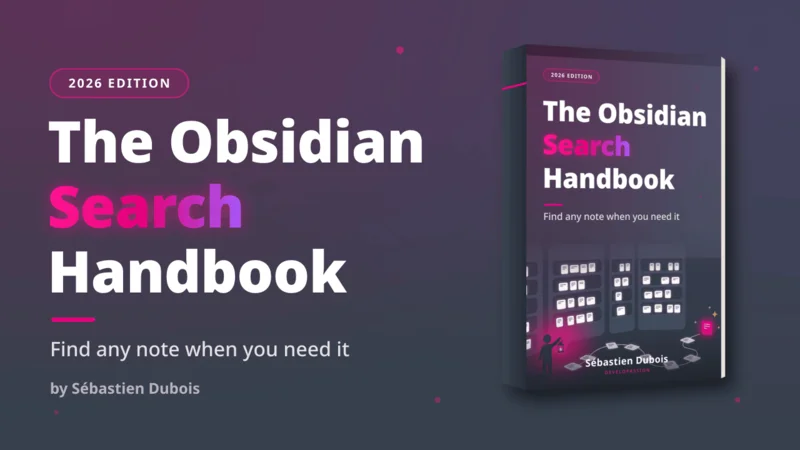
Free cheat sheet. The commands and operators worth remembering, and the search escalation ladder (which tool to try first, depending on what you remember about the note), on 13 pages you can keep next to your vault. Enter your email and I'll send it right away: the Obsidian Search Cheat Sheet.
 Sebastien Dubois
Get the free Obsidian Search Cheat Sheet. 13 pages to keep next to your vault: the search operators worth remembering and the search escalation ladder. Enter your email and I'll send it right away. You'll also get a few short follow-up emails about finding notes in Obsidian, and you can unsubscribe at any time.
About Sébastien
Ready to get to the next level?
Found this valuable? Share it with someone who needs it.