
The Complete Guide to Obsidian Search - Find Any Note When You Need It



Introduction
You've probably read that knowledge workers spend 1.8 hours a day searching for information. That number has no real source. It gets credited to McKinsey, but it isn't in McKinsey's report. Follow the trail and it ends at a 2001 white paper sponsored by a search vendor (Inktomi), whose "2.5 hours a day" is "a general estimate" with no method disclosed. Nobody actually knows how much time we lose searching.
What researchers DO know is how people re-find their own information, and it goes against the "just search for it" advice. In Jaime Teevan's 2004 diary study at MIT, people used keyword search in only 39% of their searches, even when they knew key details about the target. In 2008, Bergman and his colleagues found that people estimated 56 to 68% of their file retrievals happened through navigation and only 4 to 15% through search, whatever search engine people had. People navigate first and search when navigation fails. (Whittaker's 2011 study of 345 email users found heavy folder users weren't better at re-finding messages, but an inbox is a high-volume stream written by other people. Your notes are fewer, written by you, and about ideas.)
So findability is mostly decided before you search: when you capture and name a note, and give it a type, a few properties and links. Search, queries, navigation and AI can only exploit what you put there.
"A PKM system is only as good as your ability to find information when you need it." (from my Knowledge Management for Beginners course)
My own vault is the case study. As of October 2026, it holds about 30,000 Markdown files, 3,287 tags, 13,361 aliases, 39 Bases and 3,199 git commits. It also has 8,664 orphan notes (nothing links to them) and 2,148 links to notes that don't exist yet. At that scale, structure alone isn't enough. And search without structure drowns you in results.
This is the next piece in my Obsidian deep dives series, after the guides on properties, templates, Dataview and automation.
Here's what the series covers:
- Why you can't find your notes and how to design notes so they can be found (part 1 to part 3), plus an actionable plan to fix a vault that's already messy (part 4)
- Every built-in tool: the quick switcher, Search and all its operators (including the ones that DON'T exist), Obsidian Bases, File recovery and the Obsidian CLI (part 5 and part 6)
- How to navigate from a note you know to the one you can't name (part 8)
- The relevant plugins worth installing in 2026, and how to vet them (part 9)
- Searching your vault from outside Obsidian, and finding the files that live elsewhere (part 7)
- AI search: keyword, semantic and hybrid, RAG, qmd, Model Context Protocol (MCP) servers and agents (part 10 and part 11)
- Resurfacing the notes you forgot you had (part 12)
- A comparison table and a FAQ (in this overview), and a cheat sheet at the end of most parts
This guide is the overview of a 12-part series. It gives you the map, the search escalation ladder and the comparison of every tool; each part goes deep on one job, and you can read them in any order.
Let's get started 🚀
TL;DR
- This is the overview of a 12-part series. Most bullets below point to the part that goes deep; read them in any order.
- People navigate first and search as a last resort. Design for both: a light structure to browse, and good names and metadata so search hits the right note (part 1).
- Findability is decided at capture time. Explicit titles, aliases, a note type, a few properties and a couple of links do more for search than any plugin or tool (part 2).
- Separate your tag families and file by type. Nested type tags (
type/meeting,type/project) plus one folder per note type maketag:,path:and Bases filters precise.tag:#typematches everytype/...child (part 2 and part 3). - Link everything to time. ISO dates in names, a daily note that links every note you create, and periodic reviews that bubble things up: "roughly when" becomes enough to find a note (part 3).
- Audit a note type with LATCH. Count how many of Location, Alphabet, Time, Category and Hierarchy lead to it. The more letters, the more different memories find it (part 1).
- Put acronyms in parentheses in note names, like
Artificial Intelligence (AI). Typing either form finds the note, with no alias to maintain (part 2). - If you remember the title, use the quick switcher (
Ctrl/Cmd+O). Since Obsidian 1.14, it uses fuzzy matching in vaults of any size (part 5). - If you remember a word or a phrase, use the Search view (
Ctrl/Cmd+Shift+F) with operators:"exact phrase",-exclude,path:,tag:,[property:value],task-todo:,/regex/.tag:#parentincludes nested tags. Operators likeheading:orcreated:don't exist (part 5). - If you remember a date, a link or a relation, use Bases. Bases handles what Search can't: date math, links, backlinks, folders, file extensions, and views (part 5).
- If you know a related note, start there. Backlinks, unlinked mentions, the local graph and Maps of Content get you to notes you can't name (part 8).
- Plugins fill real gaps: Omnisearch for relevance ranking, typos and accents; Notebook Navigator for browsing; Better Backlinks, Clew, Doomscroll and others for links, graphs and resurfacing (part 9).
- Outside Obsidian, your vault is just a folder. ripgrep, fzf, your OS search and Git history all work on it, with Obsidian closed (part 7).
- Make the vault the index of everything. Bring in what you'll process. For files that must stay elsewhere (a contract in a shared drive, a big video, etc), write a small pointer note that search can find (part 7).
- Handwriting and voice memos only become findable as text. Transcribe them to Markdown (my reMarkable pipeline does it with a local LLM), name them like notes, and treat the transcripts as raw captures (part 9).
- AI search works best on top of structure. Hybrid search (keyword + semantic) beats either alone. qmd is an excellent local option, but it needs maintenance (part 10 and part 11).
- Vault already a mess? Follow the 30-day findability makeover: 15 minutes a day, one layer at a time.
- My search order: Obsidian first (it knows your links and properties), AI second with qmd for meaning, ripgrep for certainty (and speed). Details in the comparison below.
Four ways of looking for something
Before you pick a tool, ask yourself what kind of search you're doing. In a 2006 article for Boxes and Arrows, Donna Spencer described four modes of seeking information:
- Known-item. You know what you want, and you know the words for it. You need the answer quickly. In Obsidian, that's the quick switcher and the Search view (part 5).
- Exploratory. You have a rough idea, but not the right terms, and what you're looking for shifts as you learn. Spencer's goal for this mode is that "the visitor never reaches a dead end". In a vault, that means walking links (part 8) and semantic search, which matches ideas rather than words (part 10). Marcia Bates called this behavior berrypicking; more on that in part 8.
- Don't know what you need to know. You don't even know there's something to find. Spencer recommends a concise answer first, then related links. In a vault, that's a Map of Content, or an AI agent that answers and cites the notes it used.
- Re-finding. You've seen it before, and you want it back. When Spencer reviewed her own browser history, most of her time had gone to re-finding things she had already found.
In a personal vault, most searches are re-finding searches: you wrote the notes, so you're looking for something you've already seen. Re-finding is the mode where the cues you stored at capture time pay off the most, and that's what part 2 and part 3 are about. Spencer also separates active support for re-finding (bookmarks, favorites, "save for later") from passive support (the system remembers what you saw). Obsidian has both: bookmarks and pinned notes on one side, recent files and the empty quick switcher on the other.
And when you're not looking for anything at all? That's resurfacing, in part 12.
The findability stack
I couldn't find any published model that describes the different layers of findability in a personal knowledge base. So here's mine: the findability stack. Each layer is a fallback for the one above it, and resurfacing runs across all of them.
| Layer | What it is | Obsidian examples | Effort spent… |
|---|---|---|---|
| 1. Structure and location | Where a note lives, what type it is | A few folders, note types, PARA | At capture time |
| 2. Names | Titles, aliases, prefixes and suffixes | Quick switcher, [[ suggester | At capture time |
| 3. Metadata | Properties and tags you can recall: type, project, people, dates, status | Search [property:value], tag:, Bases | At capture time |
| 4. Links and maps | Wikilinks, backlinks, Maps of Content, the daily-note timeline | Backlinks, local graph, MoCs | At capture and review time |
| 5. Full-text search | Exact words and phrases | Search view, Omnisearch, ripgrep | At retrieval time |
| 6. Semantic and AI search | Meaning, vague memories, synonyms | qmd, Smart Connections, AI agents | At retrieval time (plus index upkeep) |
| Across all layers: resurfacing | Notes come back to you without a query | Random note, on-this-day, review queues | Continuously |

The top layers are investments you make when you create a note. The bottom layers are effort you spend when you look for it. AI makes the bottom layers much cheaper, but it works much better when the top layers exist.
Notice that layers 1 to 4 are about navigation, and 5 and 6 about search. That matches the research: navigate when you can, search when you must.
The stack is also a debugging tool: when a search fails, it tells you which layer to fix. Part 1 covers that loop, a second lens on the same question (LATCH), and the research behind both. The concept has its own note too: findability stack.
The series
The series has 12 parts. Each one stands on its own:
- Why You Can't Find Your Notes - The Science of Re-finding Information: the research on re-finding information, the FILE framework, the findability stack and LATCH.
- Design Notes You Can Find - Names, Aliases, Types and Metadata in Obsidian: names, the acronym trick, aliases, note types, a minimum of metadata, and tags as pathways.
- Structure a Findable Obsidian Vault - Folders, Links, Dates and Daily Notes: folders by type, the archive, links and Maps of Content, dates, daily notes, web clipping and a capture-time checklist.
- Fix a Messy Obsidian Vault - The 30-Day Findability Makeover: a 15-minutes-a-day plan for a vault that's already a mess, and a findability pass for imported notes.
- Obsidian Search Mastered - Quick Switcher, Search Operators and Bases: the quick switcher, the link suggester, the command palette, every Search operator, and Bases. With a cheat sheet.
- Obsidian Search Beyond the Basics - Version History, CLI, Mobile and Performance: version history, the Obsidian CLI, mobile, accessibility, and troubleshooting when search misses a note.
- Search Your Obsidian Vault From Outside Obsidian: ripgrep, fzf, OS search and launchers, git history, published notes, read-later tools, and files outside your vault.
- Navigate Your Obsidian Vault - Links, Graphs, Bookmarks and Hubs: backlinks, unlinked mentions, the local graph, K-Plex, Canvas, self-maintaining MoCs, hub notes, bookmarks and pins.
- The Best Obsidian Plugins for Finding Notes: the plugins worth installing for search, switching, navigation, links, graphs, tags, queries, attachments and languages.
- AI Search for Your Obsidian Vault - Keyword, Semantic, Hybrid and Agentic Search Explained: keyword, semantic and hybrid search, RAG, agentic search, a 20-query test, and the risks.
- Set Up AI Search for Your Obsidian Vault - qmd, MCP Servers and AI Assistants: qmd, MCP servers, how my AI assistant finds things in 30,000 notes, and in-editor AI plugins.
- Resurfacing in Obsidian - Find the Notes You Forgot You Had: random notes, on-this-day views, reviews, review queues, related notes, AI, and a routine you can copy.
Start from what you remember
Each part is a reference. You don't need to read them from top to bottom.
Start from what you remember about the note you're looking for. The research from the introduction has a name for this: retrieval cues. What you remember (a word, a date, a person, a project, a vague idea) decides which tool will find the note fastest.
Here's the map. Find your row, then jump to the part.
| You remember… | Go to |
|---|---|
| (Part of) the title | The quick switcher (+ aliases), Quick Switcher++, the [[ link suggester (part 5, part 9) |
| An exact word or phrase | The Search view ("quotes", operators), Omnisearch, rg, obsidian search (part 5, part 7, part 9) |
| Where it lives or what kind of note it is | File explorer, Notebook Navigator, path:, a Base filtered by type (part 3, part 5) |
| Where you placed it on a map | Your canvases and Excalidraw drawings (visual memory palaces), K-Plex (part 8) |
| When you created or edited it | Daily notes, Journal Bases, recent files, a Base with file.mtime > now() - "7 days", git log --since (part 3, part 5, part 7) |
| Who or which project it's about | The project or activity hub note, properties ([project:X]), the person's backlinks, Bases, Kanban Action Planner filters (part 8, part 5) |
| A heading or a block | [[## and [[^^ in the link suggester, section:, block:, Quick Switcher++ (part 5) |
| A task | task-todo:, Tasks queries, Kanban Action Planner, TaskNotes (part 5, part 9) |
| A related note | Backlinks, unlinked mentions, the local graph, Maps of Content, a Base using this, Graph Explorer Base View (part 8) |
| Only the idea, not the words | qmd (vec, hyde), Smart Connections, Similarity, AI agents with MCP (part 10, part 11) |
| Something that was deleted or changed | File Recovery, Sync version history, Time Machine, git log -S, git show <sha>^:path (part 6, part 7) |
| Something inside a PDF or an image | Omnisearch + Text Extractor, or better, transcribe it to Markdown (part 9) |
| Something you wrote by hand or said out loud | Your transcripts: the reMarkable pipeline and voice notes (part 9) |
| A file that lives outside your vault | Its pointer note ("Find what lives outside your vault", part 7) |
| Nothing in particular (you want to rediscover) | Random note, on-this-day views, Doomscroll, Readwise review (part 12) |
| Something you want to share | Your published notes (Obsidian Publish search, site: on Google) (part 7) |

The parts follow the order I recommend: general principles first, then Obsidian's built-in tools, then tools outside Obsidian, navigation and plugins, then AI and resurfacing. Obsidian's own tools come first because they understand your links, aliases and properties, and they need zero setup.
The search escalation ladder
Here's the process I teach in my course to find a note. Try each step in order, and stop as soon as you find it:
| Step | What to try | In Obsidian |
|---|---|---|
| 1 | Search by note name, even part of it | Quick switcher, [[ suggester, file: |
| 2 | Search for an exact phrase, in quotes | Search view: "exact phrase" |
| 3 | Add filters: tags, folder, note type, status | tag:#x, path:, [type:meeting], a Base |
| 4 | Ask AI over the whole knowledge base | qmd, Smart Connections, an AI agent |
| 5 | Open the Map of Content of the topic | MoC notes, the Maps Base |
| 6 | Find a related note, then follow links and backlinks | Backlinks, local graph, outgoing links |
| 7 | Look at recent notes | Quick switcher (empty query), recent files, a "recently modified" Base |
| 8 | Use saved searches and bookmarks | Bookmarks (files, searches, headings) |
| 9 | Last resort: browse folders, or use other tools | File explorer, Notebook Navigator, rg, VS Code |
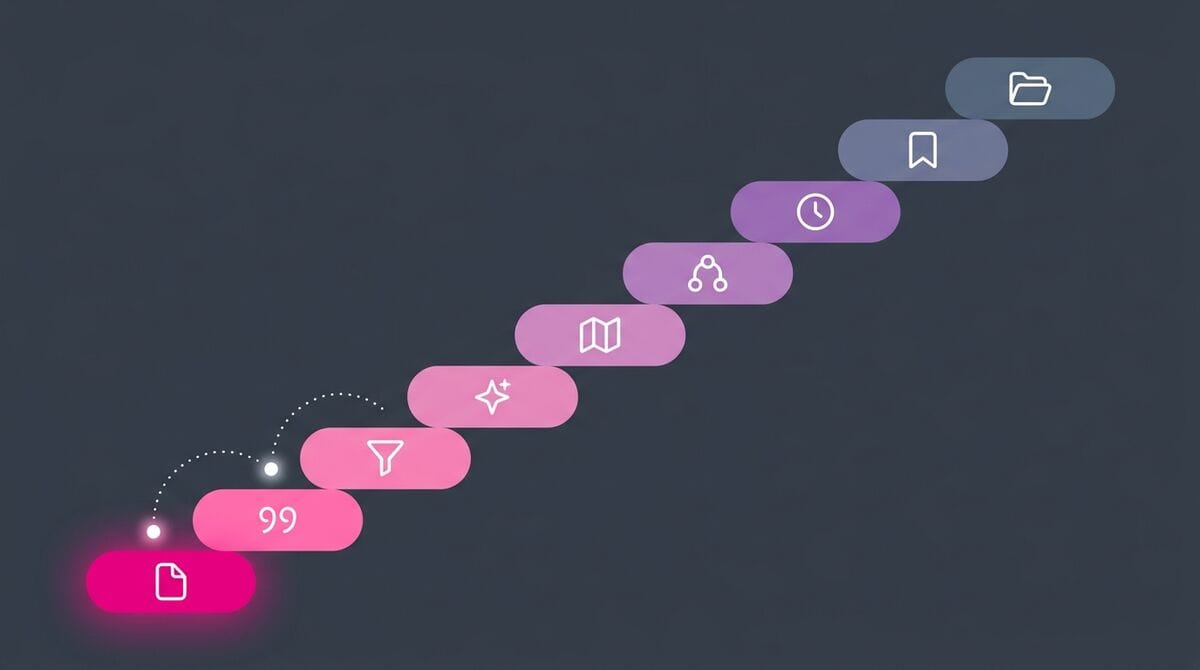
The order matters. The first steps are the fastest and most precise, and they rely on the habits from part 2 and part 3: names, tags, folders. Each step down costs a bit more time and returns fuzzier results. In the course, I put it this way: "If that doesn't work or yields too many results, then try using exact search by enclosing the query in quotes." Too many results is a reason to climb down, just like zero results.
An illustrative example: you're looking for a note about how to run a weekly review, written a while ago:
- You type
weekly reviewin the quick switcher. Dozens of weekly notes (2025-W10...) come up, but not the one you want. - You search for
"weekly review"in the Search view. Still too many hits: the phrase is everywhere in your periodic notes. - You add filters:
"weekly review" -path:"40 Journal" tag:#type/permanent_note. Three results, and the second one is the note you were looking for.
Three steps, under a minute. Without the type tag and the predictable folder, you'd have been scrolling through hundreds of results, or asking AI.
Notice that AI comes at step 4, after the precise tools and before navigation. AI is great when you only remember the idea, but it's slower, it needs an index, and it can't beat a good title. My own day-to-day order (in the comparison below) tries a note I know before AI, because walking links is cheap when I have a starting point. Use whichever matches how you remember. Steps 5 and 6 (MoCs, links) are where navigation takes over, and step 9 is your safety net: your vault is just a folder of Markdown files, so any tool can search it.
And don't forget the loop from the findability stack: when you find the note at step 3 or later, spend ten seconds fixing the name, an alias, a tag or a link, so that next time step 1 is enough.
The parts of this series go through these tools in detail.
Free cheat sheet. The commands and operators worth remembering, and the search escalation ladder (which tool to try first, depending on what you remember about the note), on 13 pages you can keep next to your vault. Enter your email and I'll send it right away: the Obsidian Search Cheat Sheet.
 Sebastien Dubois
Get the free Obsidian Search Cheat Sheet. 13 pages to keep next to your vault: the search operators worth remembering and the search escalation ladder. Enter your email and I'll send it right away. You'll also get a few short follow-up emails about finding notes in Obsidian, and you can unsubscribe at any time.
The comparison: which tool for which job
Obsidian's own tools come first in this table, because they're where I start. The speeds are from my own vault (about 30,000 notes).
| Tool | Best for | Speed on my vault | Setup | Needs upkeep? | Works outside Obsidian? | AI / meaning? |
|---|---|---|---|---|---|---|
| Quick switcher | Opening a note by name or alias | Instant | None | No (good names and aliases help) | No | No (fuzzy names) |
Link suggester ([[##, [[^^) | Headings and blocks anywhere in the vault | As you type | None | No | No | No |
| Search view | Words, phrases, operators, tags, properties, tasks | 0.3 s to 8 s | None | Excluded files, once | No | No |
| Bases | Dates, links, folders, properties, saved views | Depends on the filters | Write the filters once | Consistent properties | Only through the CLI (app running) | No |
| Backlinks, local graph, MoCs | Navigating from a note you know | Instant | None | Linking habits | No | No |
| Obsidian CLI | Obsidian's index from the terminal, scripts and agents | Same as Search; scope big queries | Enable it once | No | Yes, but Obsidian must be running | No |
| Omnisearch | Relevance-ranked, typo- and accent-tolerant full text; attachments | Fast once indexed | Install; cache at startup | No | No (opt-in local HTTP server) | No |
| ripgrep | Exact strings and regex, at any scale | 0.15 to 0.6 s | Install it | No | Yes | No |
| git | Old versions, deleted notes, "when did I write this?" | About 16 s for a pickaxe over the whole history | A repository and regular commits | Commit regularly | Yes | No |
| Smart Connections, Similarity | Related notes while you write | Fast once indexed | Install; first indexing run | Local index, auto-updated | No | Yes |
qmd search | Keyword search for agents and scripts | 0.6 s | Collection + qmd update | qmd update, scheduled | Yes | No |
qmd query | Natural-language questions, concepts | 10 to 16 s warm, ~80 s cold | + qmd embed, about 2.2 GB of models | qmd update + qmd embed, scheduled | Yes | Yes (hybrid + rerank) |
| AI agent (Claude Code, Codex) | Multi-step questions, synthesis across notes | Seconds to minutes | An AGENTS.md with a search order | Keep the rules current | Yes (the CLI part needs Obsidian running) | Yes (through its tools) |
Here's when I'd pick each one.
The quick switcher is the answer whenever you remember the title, even roughly. It's fuzzy, it ranks title matches first, and it matches aliases, which makes it the fastest tool in this table for the most common search there is: "open that note". If it fails, the fix is usually on the note side: add the alias you just tried.
The link suggester is the hidden vault-wide heading and block finder. Use [[## when you remember a section title but not the note it's in, and [[^^ for a sentence in a list or paragraph. It's especially good with daily notes, which repeat the same headings.
The Search view is for when you remember words from the content. Its operators (tag:, path:, section:, task-todo:, properties, regex) make it the most precise text search inside Obsidian. Its weak spot is ranking: it sorts by name or date, never by relevance, so scope your queries rather than scrolling.
Bases win every question about structure: "notes created last week", "notes linking to X", "projects with status active", "orphans". A Base is also a search you save once and reuse forever, embeddable in any note. It doesn't search note content; combine it with Search for that.
Backlinks, the local graph and Maps of Content are how you find a note you can't name, starting from one you can. It's the way people re-find things most of the time (orienteering, which I explain in part 8), and it only works if you link.
The Obsidian CLI gives scripts and AI agents Obsidian's own index: search with operators, backlinks, orphans, unresolved links and Base queries. Pick it when you need link or property answers from outside the app. Scope every query with path= and limit=, and keep Obsidian running.
Omnisearch is for "I don't remember what I called it". Relevance ranking, typo tolerance and accent folding make it more forgiving than core Search, and it boosts title and heading matches. It doesn't do OR, regex or property queries, so keep core Search for precision. In very large vaults, watch the startup cost.
ripgrep is for certainty and speed: every occurrence of an exact string or regex, across thousands of notes, in a fraction of a second, with Obsidian closed. It only sees text, not aliases or resolved links.
Git is the only tool here that searches the past: when a phrase appeared, what a note looked like before, which notes you deleted. Pick it when the note you want is an older version of a note, or one that's gone.
Smart Connections and Similarity are for discovery while you write rather than for finding a known note. Pick Smart Connections for the most established option, Similarity if privacy and a tiny on-device model matter most.
qmd search is a fast keyword index that works anywhere, without Obsidian. It's mostly for agents and scripts, since it's already covered by Search and rg for humans.
qmd query is the best answer when you only remember the idea: "that note about feeling stuck". It combines keyword and semantic search, expands the query and reranks the results. It's slow and it needs its index maintained, which is why I treat it as a bonus layer on top of the others.
An AI agent is for questions that need several searches and some reading: "what did I decide about X last spring?", "summarize what I know about Y". It runs the other tools for you, follows links and cites sources. It's only as good as the tools and the rules you give it.
And my own search order:
- The quick switcher, if I have any idea of the title.
- The Search view (or Omnisearch) if I remember words, then filters (
tag:,path:, properties) if there are too many results. - A Base if the question is about dates, links or properties.
- A note I know, then links, backlinks and the local graph.
- qmd or my AI assistant when I only remember the idea, or when I need an answer that spans many notes.
- ripgrep and git when I need certainty: every occurrence, or what a note looked like before.
For agents and scripts, the order shifts: the Obsidian CLI, scoped with path= and limit=, for links, backlinks and properties; qmd for meaning; rg when speed matters.
Short version: Obsidian first (it knows your links and properties), qmd for meaning, ripgrep for certainty (and speed). Git covers the history side of that certainty.
FAQ
What's the fastest way to find a note in Obsidian? The quick switcher (Ctrl+O, Cmd+O on macOS), if you remember any part of the title: it's fuzzy and it matches aliases. Otherwise, start from what you remember: a phrase goes to the Search view, a date or a property to a Base, a related note to its backlinks. The table in "Start from what you remember" maps each memory to a tool, and part 5 covers the built-in ones.
Why can't Obsidian search find my note? Sometimes it's technical: Excluded files, spelling or accents, broken frontmatter, a sync conflict or a stale cache (part 6 has the checklist). More often, the note doesn't carry the words you're searching with: a vague title, no alias, no type, no links. Once you find it, rename it or add an alias on the spot (part 2), so the quick switcher finds it next time.
Is core Search enough, or do I need a plugin? Core Search is enough for precise queries: phrases, tag:, path:, properties, tasks, regex. It sorts results by name or date, never by relevance. If you often don't remember the exact words, add Omnisearch for relevance ranking and typo tolerance (part 9).
Can Obsidian search by meaning? Not on its own. Semantic search needs a plugin (Smart Connections, Similarity) or an external tool like qmd, and hybrid search (keyword + semantic) works best. Part 10 explains how it works, and part 11 shows how to set it up.
How do I find a note when I only remember roughly when I wrote it? Open the daily notes of that period, if they link the notes you created (part 3). There's no created: operator in Search, but you can sort results by creation time, or use a Base with a filter like file.ctime > now() - "30 days" (part 5).
How do I search for text in all my Obsidian notes? Press Ctrl+Shift+F (Cmd+Shift+F on macOS) to open the Search view and type your words. Use quotes for an exact phrase. For relevance ranking and typo tolerance, install Omnisearch.
Can I search and replace across all my notes? Not in core Obsidian: Ctrl+H only works in the current note, and vault-wide replace is one of the most-liked feature requests on the forum. Plugins like Find-n-Replace and Regex Replace fill the gap. Outside Obsidian, any editor with project-wide replace works on your vault folder. Whatever you use, commit or back up first.
Can I search my vault from the terminal or with AI agents? Yes. The Obsidian CLI (obsidian search, obsidian backlinks, obsidian base:query) uses Obsidian's own index while the app runs. ripgrep and qmd work with Obsidian closed. AI agents like Claude Code and Codex can use all of them, and MCP servers expose your vault to other AI clients.
Where to go next
Don't try to apply this whole series at once. Here are eight small actions, ordered by return on effort. Pick one or two this week.
- Take your last failed search, and rename or alias the note you were looking for with the words you used. That's the cheapest findability fix there is, and it targets the searches you actually do.
- Rename one note with an acronym to the
Full Name (ACRONYM)pattern. Then both the quick switcher and any AI agent find it, whichever form you type. - Add
tag:,path:and one[property:value]query to your search habits this week. Most slow or noisy searches become fast and precise once they're scoped. - Create one Base with two views: "Created in the last 7 days" and "Orphans". The first answers "I wrote something about this last week". The second shows the notes you'll never reach by navigation.
- Add Excluded files for your archives and templates. Your results get cleaner immediately, in Search, the graph and unlinked mentions.
- Open the local graph of your most important project note and pin it in a sidebar. You'll see what's connected to your current work at a glance.
- If you work with AI agents, add a search order to your
AGENTS.md. Adapt the snippet from part 11. Agents stop guessing paths and start asking the vault. - Write your 20-query test set before you install any new search tool. Part 10 shows how. Then you can measure whether the new tool actually finds more, instead of trusting a feeling.
And one bonus: give the Random note command a hotkey, and press it once a day. It's the smallest possible resurfacing habit.
Then pick the part of the series that matches your biggest gap. If you'd rather read in order, start with part 1.
Conclusion
The search guides I reviewed all start with the search box. I started with the notes, because that's where findability is decided. A good title, an alias, a type, a few properties and a couple of links make every tool in this series better: the quick switcher, Search, Bases, ripgrep, qmd and the AI agents that rely on them.
Then use the right tool for what you remember. The title: quick switcher. A phrase: Search. A date, a link or a property: Bases. A related note: backlinks and the local graph. Only the idea: semantic search, or an AI agent that can run all of the above. And from time to time, let old notes come back to you without being asked.
Want the whole series as one book? The Obsidian Search Handbook has all of it in one place, as a PDF and an EPUB you can read offline, plus a foreword, a "Try this" exercise in every chapter, one merged FAQ and a cheat sheet appendix. The Complete edition adds the Findability Starter Pack and six worksheets. Just want a quick reference? Grab the Obsidian Search Cheat Sheet.
Want a vault where all of this is already set up? My Obsidian Starter Kit ships the note types, templates, Bases, plugins and AI skills from this series. It's the setup I use every day.
 Dwayne Appleby
To learn the foundations first, there's my Knowledge Management for Beginners course. To talk about all this with others, join the Knowii Community. And for more like this, subscribe to my weekly newsletter.
 By
By
That's it for today! ✨
About Sébastien
Ready to get to the next level?
Found this valuable? Share it with someone who needs it.