
Obsidian Search Beyond the Basics - Version History, CLI, Mobile and Performance

This article is part 6 of my series on finding notes in Obsidian. The overview, with the map of all 12 parts, is The Complete Guide to Obsidian Search.
A search that returns nothing doesn't always mean the note is gone. It can sit in an excluded folder, hide behind broken frontmatter, or be missing from a stale cache. And when it really is gone (deleted, overwritten, eaten by a sync conflict or an AI agent's "cleanup"), Obsidian usually still has a copy somewhere.
The quick switcher, the link suggester, the command palette, the Search view and Bases cover your everyday searches (part 5). This part covers the rest of what Obsidian ships for finding things: version history for notes you deleted or overwrote, the Obsidian CLI for scripts and AI agents, search on mobile, accessibility, and what to check when search can't find a note you know exists.
You'll get the order in which to check Obsidian's safety nets, the CLI commands I run on my 30,000-note vault (and the gotchas that bit me), the mobile settings that save taps, and a troubleshooting table for missing results. A cheat sheet and a FAQ close the article.
TL;DR
- Check the safety nets in order: the trash, File Recovery, Obsidian Sync's version history, git, then your backups.
- File Recovery is local, short-lived and searchable by name only. By default it takes a snapshot every 5 minutes and keeps it 7 days, on each device separately. My Time Machine plugin puts those snapshots and your git commits on one timeline, and restores a single block.
- The Obsidian CLI gives scripts and AI agents Obsidian's own index:
search,backlinks,orphans,unresolved,base:query. Scope every query withpath=andlimit=; one unscoped search kept my search engine busy for about 8 minutes. - On mobile, save taps. Set the pull-down Quick Action to the quick switcher or Search, and capture into the daily note instead of creating notes with one thumb.
- When search misses a note you know exists, check Excluded files, spelling and accents, broken frontmatter, sync conflict files and iCloud offloading, then rebuild the vault cache.
- Core search doesn't ignore accents or stem words. Use a regex like
/caf[eé]/, unaccented aliases, or Omnisearch.
Recover old versions and deleted notes
Sometimes the note you're looking for is the old version of a note, or one you deleted.
This is a search problem too. You remember a paragraph that isn't there anymore, or a note that vanished after a sync, a bad merge or an AI agent's "cleanup". Obsidian has several safety nets, and knowing which one covers what saves a lot of panic. Check them in this order:
- The trash. What happens on delete is set in Settings → Files and links → Deleted files: move to the system trash, move to Obsidian's
.trashfolder inside your vault, or delete permanently. With the first two, the file is usually still there. The.trashfolder is a dot-folder, so Obsidian doesn't show it; open it from your file manager. - File Recovery, for anything from the last few days on this device.
- Obsidian Sync version history, if you use Sync.
- Git, if your vault is a repository.
- Your backups.
- File Recovery (core plugin) takes snapshots of your notes: by default every 5 minutes, kept for 7 days. Both are configurable. Snapshots stay local to each device and are never synced. Go to Settings → File recovery → Snapshots → View. You can only filter by file name, not by content. See Obsidian File Recovery.
- Obsidian Sync keeps version history (1 month on the Standard plan, 12 months on Plus) and lets you restore deleted files from Settings → Sync → Deleted files. See Obsidian Sync.
- If your vault is a git repository, git keeps everything you committed, forever. I cover how to search that history in part 7.
File Recovery in practice
File Recovery is on by default. Here's how to get a paragraph back:
- Open Settings → File recovery and click View next to Snapshots (or run the "File recovery: Open local history" command).
- Type the note's name. Remember: names only, no content search across snapshots.
- Click through the snapshots, newest first, until you see the paragraph.
- Copy the content you need, or restore the whole snapshot as the current version of the note.
Things to know before you rely on it:
- Defaults are short. Seven days is fine for "I broke this note yesterday", not for "I deleted that section last month". If you have the disk space, raise the retention. Some people keep snapshots for months.
- It's per device. Snapshots are stored in Obsidian's app settings, outside the vault, and keyed by the vault's absolute path. Your laptop's snapshots don't exist on your phone, and moving the vault folder can leave old snapshots behind.
- Only notes and canvases. Images, PDFs and other attachments aren't covered.
- It records content, not events. Deletions and renames aren't tracked as such. If you deleted a note recently, search for its old name: its snapshots may still be there.
- It's not a backup. If the disk dies, the snapshots go with it.
From the terminal, the Obsidian CLI reads the same snapshots: obsidian history:list, obsidian history:read and obsidian history:restore, and obsidian diff file=README from=1 to=3 compares two versions inline. Run obsidian help history:read for the exact parameters.
Sync version history
If you use Obsidian Sync, every synced change is kept on the server: 1 month on Standard, 12 months on Plus, and 2 weeks for attachments.
- One note: right-click it in the file explorer (long-press on mobile) and choose "Open version history". You get a list of versions with a diff and a restore button.
- Deleted notes: Settings → Sync → Deleted files → View, then Restore.
- Everything that changed recently: the "Sync: Show Sync history" command opens a sidebar with recent changes. Since 1.13 it has a search box, and since 1.14 its filter matches full paths and supports
-termexclusions, which helps when you're looking for a note that was deleted from one specific folder.
Unlike File Recovery, Sync history is shared across your devices and survives a dead laptop.
Time Machine: find information back through time
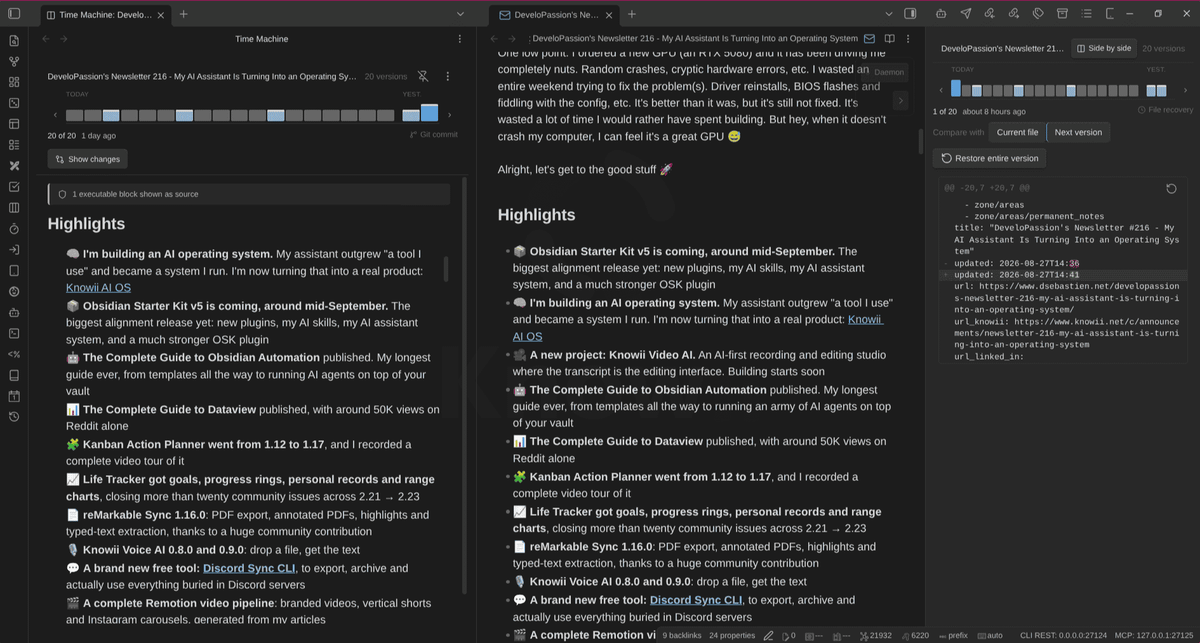
My Time Machine plugin puts File Recovery snapshots and git commits on one timeline, with diffs and selective restore. More on it in part 9.
I built it because the core File Recovery view gives you a flat list of snapshots, and restoring is all-or-nothing: you roll back the whole note, or you copy and paste the bits you need by hand. And if your vault is also a git repository, your commit history and your snapshots live in two separate worlds. Most of the time, you don't want the whole old note back. You want the one paragraph or section that got lost.
Time Machine treats a note's history as something you can search. It answers questions like:
- "What did this note say before I rewrote it?" Scrub back to the version before the rewrite and read it, without touching the current note.
- "Where did that paragraph go?" Find the last version that still had it, and restore only that block.
- "When did this change?" Move along the timeline and watch when a fact, a decision or a definition changed in the diff. Useful to see how your thinking on a topic evolved, too.
Where the versions come from
Time Machine doesn't need its own storage. It reads what already exists:
- File Recovery snapshots (the core plugin must be enabled), on desktop and mobile.
- Git commits that touched the note, when the vault is a git repository (desktop only). It reads the 50 most recent commits by default; raise Maximum Git commits in its settings, up to 200. Duplicates between the two sources are removed.
That's what makes it useful for finding things: File Recovery covers the last few days at a 5-minute granularity, and git covers months or years, labelled with your commit messages. So write meaningful ones: "Refactor Zettelkasten MoC" is findable, "updates" is not. You can also force a snapshot before a big change, so the "before" version is guaranteed to be there.
How to use it
- Install Time Machine from Settings → Community plugins → Browse, and make sure File Recovery is enabled (Settings → Core plugins).
- Open the note whose history you want to search.
- Run Time Machine: Compare versions side by side from the command palette (or click the ribbon icon, "Open past view for current note") to open the note as it was in a pane next to the live editor. Time Machine: Open view opens the version list as a side panel instead. Both follow the active note as you switch notes.
- Move along the version rail at the top. Each version gets its own mark, grouped under Today, Yesterday, Last 7 days, Last 30 days and then by year, and labelled "File recovery" or "Git commit".
- Switch between the old version and the diff (additions in green, removals in red). The "Compare with" toggle picks what the diff shows: changes since that version up to now ("Current file", the default) or the change made in that single step ("Next version").
- Restore what you need: Restore entire version, Restore this hunk (only one changed block, the rest of the note stays as it is), or Copy this version to paste it elsewhere.
Every restore is a normal file write, so it's captured by File Recovery (and git) too. You can undo an undo.
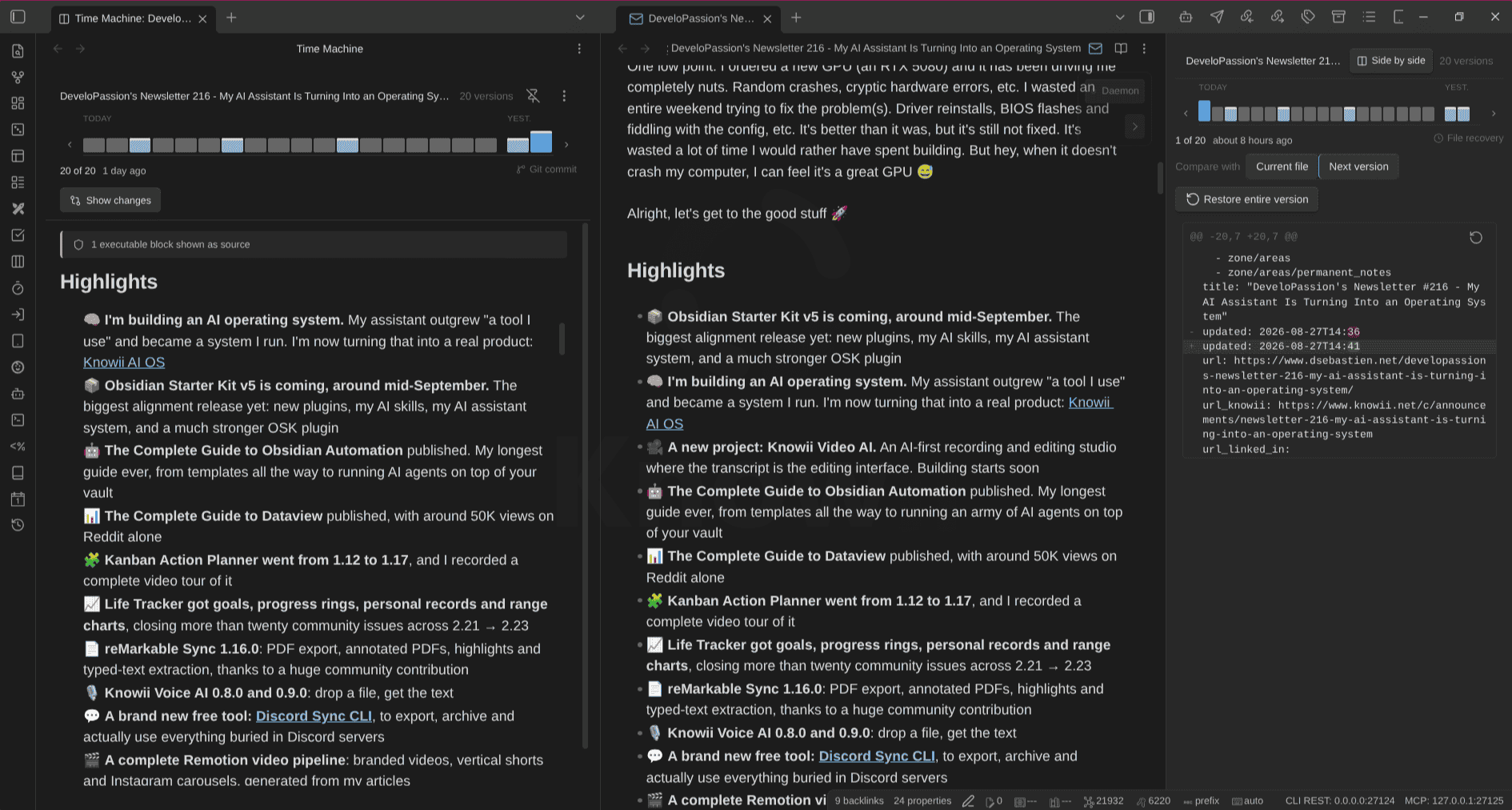
One safety detail: old versions render with their dataviewjs and Dataview blocks shown as source rather than executed, so browsing history never runs code against your vault as it is today.
Limits
- One note at a time. It works on the active note. To find which note changed, use git or Sync history first, then open the note in Time Machine.
- Whole deleted notes can only come back if File Recovery still has snapshots or git has a commit. Otherwise, use your backups.
- Text notes only. Images, PDFs and canvases are out of scope.
- Large git histories take a moment to list the first time you open a note; after that they're cached.
Here's the video overview:
I explain why I built it in this article, and the Obsidian Starter Kit - Tutorial - Recovering note versions with Time Machine tutorial covers the recovery scenarios step by step.
 Sebastien Dubois
The Obsidian CLI: built-in search from outside the app
Since Obsidian 1.12, Obsidian ships an official Obsidian CLI. It talks to the running app, so it uses Obsidian's own index, its search operators, its link graph and its properties. You need the 1.12.7 installer or later, and you enable it in Settings → General → Command line interface. Obsidian must be running (the first command starts it).
Why would you search from a terminal when the app is right there? Three reasons:
- Scripts and automations. A cron job that counts your orphans every week, a shell alias that greps your vault with Obsidian's operators, a status bar widget.
- AI agents. Claude Code, Codex and friends live in the terminal. With the CLI, they ask Obsidian's index instead of guessing with plain text matching (part 11).
- Graph questions. Backlinks, orphans and unresolved links can't be answered by
grep. The CLI answers them in a fraction of a second.
Setting it up
- Update to the 1.12.7 installer or later (the app updating itself isn't always enough; the installer ships the binary).
- Open Settings → General → Command line interface and toggle it on.
- Follow the prompt to register the
obsidiancommand on your PATH. - Restart your terminal and run
obsidian version.
The CLI is not headless: it's a remote control for the desktop app. It won't run on a server without a GUI. Running obsidian with no arguments opens an interactive shell with autocomplete, history and Ctrl+R search.
Commands for finding things
The search-related commands:
obsidian search query="meeting notes"                     # paths of matching notes
obsidian search query='tag:#ai' total                      # operators work; total = count only
obsidian search query='[status:Watched]' total             # property queries: single-quote the whole query
obsidian search:context query="qmd" path="Projects" limit=20   # grep-style "path:line: text"
obsidian search:open query="qmd"                           # opens the Search view in the app
obsidian backlinks file="Progressive summarization"        # notes linking to a note
obsidian orphans total                                     # notes nothing links to
obsidian unresolved total                                  # links to notes that don't exist
obsidian tags counts sort=count                            # all tags by frequency
obsidian properties name=status                            # property usage
obsidian base:query path="Bases/Books.base" view="Read This Year" format=json
obsidian random:read                                       # a random note
And a few more that help when you're looking for something:
| Command | What it answers |
|---|---|
obsidian deadends total | Notes with no outgoing links |
obsidian tag name=pkm total | How many notes carry a tag (nested tags included) |
obsidian aliases file="Zettelkasten (MoC)" | The aliases of a note |
obsidian links file="..." | The outgoing links of a note |
obsidian outline file="..." format=tree | The heading tree of a note |
obsidian bases | Every .base file in the vault |
obsidian random:read folder="..." | A random note from one folder |
How the syntax works:
- Parameters are
key=valuepairs; flags are bare words (total,counts,case).totalreturns only the count.--copyputs the output on your clipboard. file=vspath=.file="Zettelkasten (MoC)"resolves a name like a wikilink does (no extension, no folder).path="30 Areas/34 Maps/..."is the exact path from the vault root. Forsearch,path=scopes the search to a folder.- Formats are per command.
searchgivestextorjson;base:querygivesjson,csv,tsv,mdorpaths;backlinks,tagsandunresolvedgivejson,tsvorcsv.obsidian help <command>lists what each one accepts. searchvssearch:context.searchreturns paths.search:contextreturnspath:line: textlikegrep, which is better when you want to see where a word appears.
Some real outputs from my vault (about 30,000 notes): obsidian search query=zettelkasten total returns 419; obsidian tags counts sort=count lists every tag with its count, tab-separated, parent counts including their children; obsidian backlinks file="Zettelkasten (MoC)" total returns 8; obsidian orphans total returns 8,664 and obsidian unresolved total 2,148. That last pair is a good reminder that a big vault accumulates loose ends, and that you need a tool to find them.
Speed is the same as Search in the app, because it's the same engine: file:, path: and tag: queries answer in 0.3 to 0.5 seconds on my vault; exact phrases and property queries take 4 to 8 seconds (see the timing table in part 5).
Gotchas
A few gotchas from my own tests:
- Big unscoped searches can block Obsidian's search engine for minutes. I once piped a huge
search:contextintoheadand killed it. Obsidian's search stayed busy for about 8 minutes, and every search call hung in the meantime. Another unscoped search timed out after 90 seconds in an AI agent session. Always scope withpath=andlimit=, and write big outputs to a file. - Quote property queries.
query='[status:Watched]'works; without the single quotes, your shell mangles the brackets. file:only covers Markdown from the CLI.file:.pdfreturns nothing there.vault=must come first if you target a specific vault:obsidian vault="My Vault" search query="test".
On quoting, the safe rule is: wrap the whole query in single quotes whenever it contains brackets, backslashes, $ or !. Brackets trigger glob expansion (zsh answers "no matches found"), and ! can trigger history expansion inside double quotes. For an exact phrase, nest the quotes: query='"obsidian cli"'. Regular expressions pass through too: query='/qmd\s+query/'.
And when you write scripts, prefer format=json and pipe it to jq, or redirect to a file: obsidian search:context query="qmd" path="Projects" limit=200 format=json > hits.json. Your terminal stays responsive, and you can re-read the results without asking Obsidian again.
The CLI is most useful for graph queries. obsidian backlinks, orphans, unresolved and base:query give you answers no text tool can, because they use Obsidian's link index. I wrote a complete guide about it: The Complete Guide to the Obsidian CLI - Everything You Can Do From the Terminal (Article).
 Sebastien Dubois
For agents and scripts, my rule is: the Obsidian CLI, scoped, for links, properties and Bases; ripgrep for fast raw text (part 7).
Search on mobile
The search syntax is the same on mobile, but getting to the search box takes more taps. A few settings fix that:
- Configure the pull-down Quick Action. Pulling down from the top of the app runs one command (the command palette by default). Set it to the quick switcher or to "Search: Search in all files" in Settings → Interface → Configure mobile Quick Action.
- Add search commands to the mobile toolbar (Settings → Interface → Configure mobile toolbar), for example "Search current file".
- Use the OS integrations. Since Obsidian 1.11, iOS has a "Search Vault" Shortcuts action, a Siri phrase ("Search in Obsidian"), Spotlight actions and widgets that open search. Android has a Search widget you can configure with a query and a vault.
- Prefer the quick switcher on mobile. It matches names and aliases from Obsidian's metadata cache, which is lighter than a full-text search on a phone.
Mobile is where you look things up in a hurry: in a meeting, in a bookshop, in front of someone who asked you a question. Every tap you save matters more than on desktop.
Inside the app
- The bottom bar. When you're not editing, the centre icon of the navigation bar creates a note or switches to an existing one, like the quick switcher. Start typing a name and pick it.
- The Quick Action. One swipe down, one search box. I'd pick the quick switcher for names and aliases, or "Search: Search in all files" if you mostly search content. If you use Omnisearch, its vault search command works here too.
- The toolbar. It shows while you're editing. Tap "Add a command..." and search for any command: "Search current file", the quick switcher, Omnisearch.
- The Menu button. The ribbon lives behind "Menu" at the bottom right. Under Settings → Appearance → Ribbon menu, you can set a quick access action: a short press on Menu runs it, a long press opens the full menu. That's a second one-tap slot, for example for search.
From the OS (Obsidian 1.11 and later)
On iOS and iPadOS:
- Shortcuts: the "Search Vault" action opens a search, and there are actions to open a bookmark, get the daily note, or capture to a note without opening the app. Combine them in a shortcut on your Home Screen or the Action button.
- Siri: say "Search in Obsidian".
- Spotlight: search "Obsidian" and you get New Note, Search and Daily Note actions. Note contents are not confirmed to be indexed in Spotlight, so don't count on it for full-text.
- Widgets (iOS/iPadOS 18+): Lock Screen and Control Center widgets can open search. They aren't available if "Require Face ID" is on.
On Android:
- The Search widget launches a search query. Long-press it to configure the query, a file or path, and the vault. You can add several, for example one per project.
- App shortcuts: long-press the Obsidian icon for "Open note" and "Daily note".
- Automation: Tasker, Automate or MacroDroid can fire
obsidian://search?vault=MyVault&query=meetingURIs. See Obsidian URI.
Plugins on mobile
The popular search plugins (Omnisearch, Smart Connections, Notebook Navigator, Quick Switcher++, Another Quick Switcher, Dataview) all load on mobile: none of them is marked desktop-only. The limits are inside some features:
- Omnisearch has no cache on iOS, so it re-indexes your vault at each launch there. Its HTTP server is desktop-only.
- Text Extractor (used by Omnisearch for PDFs and images) can't extract text on mobile; it only reads the cache synced from a desktop.
- Copilot's agent mode is desktop-only; Quick Chat and Quick Ask work on mobile.
Large vaults on a phone
Big vaults take longer to open and index on mobile, and forum users with 50,000+ notes on Android have reported load times of several minutes. Obsidian 1.14 made the quick switcher faster in large vaults and removed its simplified fallback above 10,000 files. In practice: prefer the quick switcher, scope full-text searches with path: or tag:, and consider excluding heavy folders (archives, media) from what you sync to your phone. See Obsidian Mobile for the rest of the mobile setup.
Capture on mobile without creating a mess
Mobile is also where a lot of unfindable notes are created an Untitled 4, a half-sentence title typed with one thumb, a note that lands wherever new notes go by default. Fixing those later means remembering they exist...
My rule: phone entries should land in the daily note, while structure waits for a real keyboard. A line in today's daily note is findable by date right away (see "Daily notes as a timeline" in part 3), and the weekly review turns it into a proper note with a proper name. Obsidian's mobile apps make that fast:
- Quick Capture (iOS and iPadOS 26 or later, Obsidian 1.14 or later). A Lock Screen, Control Center or Home Screen widget opens a text box that saves without waiting for your vault to load. A capture location can append or prepend to your daily note, to a bookmarked note or to a note you pick, or create a new note in a chosen folder with a template and a custom name. Templates accept
{{content}},{{date}},{{time}}and location placeholders such as{{shortAddress}}. Append- {{time}} {{content}}to the daily note and every entry gets a timestamp. Add{{shortAddress}}and it also records where you were: one more cue for later ("that idea I had at the station"). - Shortcuts. The "Capture to Daily Note" and "Capture to Bookmark" actions append or prepend text without opening the app. Put one on your Home Screen or the Action button.
- Share Sheet (iOS and iPadOS 18 or later, Obsidian 1.13 or later). Share a page, a video or a post from any app to a location: a new note in a folder, today's daily note, a bookmarked note, any note, or a new bookmark. Create an "Inbox" location with a folder and a template, so shared things land where your weekly review will see them.
- Android. The documented widgets and Quick Settings tiles open, create or search notes; none of them captures text. For one-tap capture, an automation app can fire
obsidian://daily?vault=MyVault&append=true&content=.... Thedailyaction accepts the same parameters asnew, includingcontentandappend.
If you do have to create a note on the phone, type the one keyword you'll search for and stop there. When nothing matches, pressing Enter in the quick switcher creates a note with what you typed. Fix the full name, the type and the links at your desk; the "Rename after a failed search" habit from part 2 catches what slips through.
Two settings keep mobile notes from scattering:
- Default location for new notes (Settings → Files and links): point it to an inbox folder, so a note created in a hurry never lands in the root of your vault.
- Default location for new attachments: photos taken or shared from the phone follow the same rule as on desktop. Name them before you forget what they show (see "Name attachments so you can find them" in part 9).
Search with the keyboard, a screen reader or bigger text
Findability also depends on whether you can operate the tools comfortably. Here's what Obsidian offers for keyboard-only use and larger text, based on the official help and changelog. For the general principles, see my note on Accessibility (a11y).
Keyboard only. The main search flows work without a mouse:
Ctrl/Cmd+O(quick switcher),Ctrl/Cmd+Shift+F(Search),Ctrl/Cmd+P(command palette) andCtrl/Cmd+F(current note) open everything in this section.- In the Search view and the file explorer, the arrow keys move through items, and
EnterorShift+Enterselects. - In the quick switcher and the command palette,
Page Up,Page Down,HomeandEndjump through long lists. - The Outline pane, Bases tables (full keyboard navigation since Obsidian 1.10) and the Settings window (searchable, with keyboard navigation, since 1.13) work from the keyboard as well.
- Many panes have no default hotkey. "Backlinks: Show backlinks", "Outline: Show outline" and "Focus on tab group to the left" are good candidates. Assign them in Settings → Hotkeys; the filter icon there shows only the commands that already have one.
Bigger text. Settings → Appearance → Font size changes the text of your notes. "Quick font size adjustment" lets you change it with Ctrl+Scroll (Cmd+Scroll on macOS) or a pinch on the trackpad, and the "Increase font size" and "Decrease font size" commands can get hotkeys. Under Appearance → Advanced, "Zoom level" scales the whole interface, search results included. Font size is saved per device and doesn't sync. On mobile, since Obsidian 1.14, text and interface elements follow your system's preferred text size, including the larger accessibility sizes.
Screen readers. The official help has no page about screen readers, so I won't make claims about how well they work with Obsidian's search views. If you rely on one, test the three flows you use most (quick switcher, Search, backlinks) before you build habits on them. One thing helps in every case: descriptive note titles. A list of results read aloud is a list of titles, and "2026-03-12 Pricing call with ACME" tells you far more than the tenth "Meeting notes".
Performance and troubleshooting
When search doesn't find a note you know exists, the cause is usually one of these:
| Symptom | Likely cause | Fix |
|---|---|---|
| Search, backlinks or Bases are out of date | The metadata cache is out of sync | Settings → Files and links → Rebuild the vault cache |
| A note never shows up in Search | It's in an excluded folder | Check Settings → Files and links → Excluded files |
A hidden folder (like .claude/) is invisible | Obsidian ignores dot-folders | My Hidden Folders Access plugin makes them searchable |
| Property search returns nothing | Broken YAML (unquoted wikilinks, tabs, a blank line before ---) | Quote "[[links]]" in properties, make --- the first line, check in Source mode |
| Accented words don't match | Core search doesn't ignore diacritics | Search both forms with /caf[eé]/, add unaccented aliases, or use Omnisearch |
| Duplicates in results | Sync conflict files | Search file:"Conflicted copy", then merge |
| Notes missing on iPhone or Mac with iCloud | Files offloaded to the cloud | Use "Keep Downloaded" on the vault folder |
[[## freezes the app | A bug in large vaults | Update to Obsidian 1.14.3 or later |
| Search is slow | Unscoped phrase or property queries | Scope with path: or tag:, exclude archives |
| A note created by a script or another app is missing from backlinks or Bases | Obsidian hasn't indexed it yet | Wait a moment with Obsidian open, or rebuild the vault cache |
| You can't name a note the way you want | Forbidden characters in file names | Use a plain file name and put the "pretty" name in aliases |
| Case-sensitive search needed | Search ignores case by default | Add match-case: to the query |
| Rebuilding the cache didn't help | Huge files or a misbehaving plugin | Look for very large notes, disable plugins and CSS snippets, restart |
Here's what's behind each fix.
Rebuild the vault cache
Obsidian keeps a metadata cache of every note: links, headings, tags, properties, aliases. Search, backlinks, the outline, the quick switcher and Bases all read from it. It lives in the app's internal database (IndexedDB), and it can drift out of sync after a crash, a big external change (a git checkout, a sync that moved thousands of files), or a plugin gone wrong.
Go to Settings → Files and links and click Rebuild next to the vault cache. On a large vault it takes a while; let it finish before you judge the results. If it doesn't help, the usual suspects are huge files (giant tables, notes with pasted base64 images) and plugins. Disable community plugins and CSS snippets, restart, and see if the problem goes away.
Excluded files
Excluded files are the first thing to check when a note "doesn't exist". The official wording: excluded files are hidden in Search, Graph view and Unlinked mentions, and less noticeable in the quick switcher and link suggestions. They also don't count in the Tags and Properties views, and Bases skips them.
They're not hidden everywhere: the file explorer still shows them. So if you can see a note in the explorer but never in Search, look at Settings → Files and links → Excluded files first.
Excluded files. They're the cheapest way to clean up your results. Exclude your archives, templates and any generated folders. Files stay in your vault and in the file explorer; they just stop polluting Search, the graph and unlinked mentions.
I exclude my archives, templates and prompts folders. When I do want to search the archives, I use ripgrep from the terminal or temporarily remove the exclusion.
Broken frontmatter
When a property search returns nothing, the frontmatter of the note is often invalid YAML. Obsidian then treats the whole block as text, not as properties, so [status:done] can't see it. The usual causes:
- Unquoted wikilinks.
related: [[My note]]is a nested list in YAML. Writerelated: "[[My note]]", and use a list for several links. - A
#that starts a comment.topic: #pkmis an empty value followed by a comment. - Tabs instead of spaces for indentation.
- Anything before the opening
---, even a blank line. It must be the very first line.
To check a note, switch to Source mode, or set Settings → Editor → Properties in document to "Source" and look at the raw YAML. When Obsidian can't parse the properties, the Properties view shows it.
Hidden folders
Obsidian ignores every folder whose name starts with a dot: .claude/, .github/, .trash/. They don't show in the explorer, Search, the quick switcher or Bases. That's fine for system folders, but not if you keep AI agent instructions or skills there and want to find them. My Hidden Folders Access plugin makes the folders you pick visible in Search, the quick switcher, the graph and Bases, without renaming anything on disk.
Sync conflicts and duplicates
When two devices change the same note before syncing, you can end up with two versions. With Obsidian Sync (1.9.7 and later), Settings → Sync → Conflict resolution lets you pick per device: merge automatically (the default, which can duplicate text inside the note) or create a conflict file named like My note (Conflicted copy MyDevice 202610091530).md. Find them all with file:"Conflicted copy". Syncthing creates files with .sync-conflict- in their names: search file:sync-conflict. Merge the content you want into the original, then delete the copy, or your searches will keep showing two versions of everything.
Find and merge duplicate notes
Sync conflicts aren't the only source of duplicates. You capture the same idea twice a few months apart, type a person's name with different casing, or paste a quote once with a straight apostrophe (') and once with a curly one (’). Each duplicate splits your links, tags and backlinks between two notes, so a search or a backlinks list only shows part of what you know about the topic.
Prevent them first. Before you create a note, type its name in the quick switcher (or after [[ in a note). Fuzzy matching and aliases will show you a close match if one exists. If it does, open it, or add the new name as an alias instead of creating a second note.
Find the ones you already have. Obsidian has no duplicate finder, but the terminal does the job in a second. This lists notes whose names only differ by casing, spaces or punctuation:
cd ~/vault
fd -e md . | awk -F/ '{
  name = $NF; sub(/\.md$/, "", name)
  key = tolower(name); gsub(/[[:space:][:punct:]]/, "", key)
  if (key in seen && seen[key] != name) print seen[key] "  <->  " name
  else seen[key] = name
}'
On my vault (about 30,000 Markdown files), it finds 36 pairs. They include quote notes captured twice with different punctuation (You don't know what you don't measure and You don’t know what you don’t measure), people whose names I typed differently (Aaron Mc Adam and Aaron McAdam), and notes that only differ by casing (Knowledge ingestion process and Knowledge Ingestion Process). Some are false positives: Alien (Movie) and Alien³ (Movie) are two different films, and a CLAUDE.md instructions file isn't a duplicate of my Claude note. Review every pair by hand. I tested it with GNU awk; the awk that ships with macOS may not treat curly apostrophes as punctuation, so install gawk if you're on a Mac.
A second check lists notes that share the exact same name in different folders:
fd -e md . | awk -F/ '{print $NF}' | sort | uniq -dObsidian allows this, but links to those names then need the folder path, and the quick switcher shows both. On my vault, it returns 44 names. Some are legit (the daily logs of my AI agents share their names with my daily notes). Others are real duplicates: people with two notes (one in my people folder, one in a customers or project folder), and empty task notes (only the template, no content) with the same name as an existing permanent note.
For identical attachments (the same PDF imported twice), use a tool that compares file contents, like fdupes -r ~/vault.
Inside Obsidian, a Base docked in the sidebar can show possible duplicates of whatever note you're looking at, using this (see part 5):
filters:
  and:
    - file.ext == "md"
    - file.path != this.file.path
formulas:
  key: file.basename.lower().replace(/[\s.,;:!?()\u0027\u2019\u0022-]/g, "")
views:
  - type: table
    name: Possible duplicates
    filters:
      and:
        - formula.key == this.file.basename.lower().replace(/[\s.,;:!?()\u0027\u2019\u0022-]/g, "")
The formula lowercases the name and strips spaces, punctuation and both kinds of apostrophes, then compares it with the current note's name.
Merge them with Note composer. The Note composer core plugin merges one note into another and updates every link to point to the note you keep. Open the note you want to get rid of, run Note composer: Merge current file with another file... from the command palette (or right-click it in the file explorer → Merge entire file with...), and pick the destination. Enter adds the content at the end of the destination, Shift+Enter at the start. The source note is then removed.
Then do two things Note composer doesn't do for you:
- Add the losing title as an alias of the note you kept. Your links are updated, but your memory isn't: next time you type the old name in the quick switcher, you'll still land on the right note (see Obsidian Aliases).
- Clean up the result. Both notes had their own properties, tags and headings. Check the merged note, and keep one consistent set.
Gotchas:
- Merging asks for confirmation by default. If you turned that off and merged the wrong note, the File recovery core plugin still has the source note (see "Recover old versions and deleted notes" above).
- Pick the note with the most backlinks as the destination. Its name is the one your vault already uses.
- Be careful with case-only renames. If the two notes only differ by casing (
obsidianandObsidian), merge first, then rename if needed. On Windows and macOS, a rename that only changes the casing can confuse git and sync tools. Go through a temporary name (obsidian→obsidian-tmp→Obsidian).
The principle behind all of this is the one I describe in Single Source of Truth in a PKM system: one place for each piece of information, so you never have to wonder where to look.
iCloud offloading
On iPhone, iPad and Mac, iCloud can offload files it thinks you don't need, keeping only a placeholder. Obsidian can't index what isn't on the device, so notes "disappear" from search and startup gets slow. On iOS 18 and macOS Sequoia or later, long-press (or right-click) the vault folder and choose Keep Downloaded. On older macOS versions, turn off "Optimize Mac Storage". Also make sure the vault lives in Obsidian's own iCloud folder. Details in Obsidian Tip - iCloud Keep Downloaded for faster startup.
Accents and stemming
Accents. Core Search, the quick switcher and the link suggester don't ignore diacritics as of Obsidian 1.14.4. "ànima" and "anima" are different words to Obsidian. It's the most-liked search request on the forum (788 likes, open since 2020). If you write in French, Spanish, German or any accented language, use aliases and Omnisearch. Stemming doesn't exist either: "run" won't find "running" unless you use a regex or a plugin.
The workarounds, from cheapest to most effective:
- A regex for one-off searches:
/caf[eé]/matches both spellings,/run(s|ning)?/matches the variants. - Unaccented aliases on notes you look up by name, so the quick switcher finds "Ecole" and "École".
- Omnisearch, whose "Ignore diacritics" option is on by default ("brûlée" is indexed as "brulee"), and whose prefix matching finds "running" when you type "run" (not "ran", though).
- Another Quick Switcher has a "Normalize accents/diacritics" toggle, off by default because it's 2 to 5 times slower.
- Semantic search sidesteps both problems, because it matches meaning, not spelling (part 10).
Part 9 covers Chinese, Japanese and other languages in more detail.
Forbidden characters in file names
Obsidian blocks [ ] # ^ | in file names because they mean something in links. Windows adds * " \ / < > : ?, and Android blocks \ / : * ? < > ". If a note's natural title contains one of them ("C# tips", "Q&A: what/why"), give the file a plain name and put the real title in aliases. The quick switcher and link suggester search aliases, so you'll still find the note by the name you remember. See Obsidian Aliases.
The [[## freeze
Typing [[## searches headings across all notes. In large vaults, it could freeze the app. Obsidian 1.14.3 (September 29, 2026) fixed it, and it also ranks word-start matches higher in the quick switcher and link suggestions. If you're on an older version, update before you blame your vault.
Large vault tips
My vault has about 30,000 notes, and search stays usable with a few habits:
- Use the cheap operators first.
file:,path:andtag:answer in well under a second. Exact phrases and property queries take seconds. Start with a scope, then add the expensive part:path:"33 Permanent" "second brain". - Use
tag:#x, not#x. A bare#aiis a plain text search, slower and less precise. - Exclude what you never search: archives, templates, generated folders, imported media.
- Use the right tool. Quick switcher for names, Search for words, Bases for dates and links. Don't run a full-text search to open a note whose name you know.
- Know the cap. Since 1.9.10, Search stops scanning after 100,000 results. If a query hits that, it's too broad anyway.
- Keep Obsidian up to date. 1.9.12 made the Search view much faster, and 1.14 sped up fuzzy matching in large vaults.
- For agents and scripts, scope everything with
path=andlimit=, or use ripgrep (part 7).
Cheat sheet
Obsidian CLI
obsidian search query='tag:#ai' path="Projects" limit=20
obsidian search:context query="qmd" limit=10
obsidian backlinks file="My Note"
obsidian orphans total
obsidian unresolved total
obsidian base:query path="Bases/Books.base" view="Read" format=json
obsidian random:read
More:
obsidian search query='[status:Watched]' total             # count only; single-quote property queries
obsidian search:open query="qmd"                           # open the Search view in the app
obsidian tags counts sort=count                            # all tags by frequency
obsidian properties name=status                            # property usage
obsidian random:read folder="Quotes"                       # a random note from a folder
obsidian vault="Work" search query="pricing"               # vault= comes first
When search can't find a note
Check, in order: Excluded files → spelling and accents → broken frontmatter (for property searches) → sync conflict files → iCloud offloading → Settings → Files and links → Rebuild the vault cache.
FAQ
Why can't Obsidian find a note I know exists? Check, in order: Excluded files (Settings → Files and links), the spelling (accents!), broken frontmatter if you search properties, sync conflicts, iCloud offloading, and finally rebuild the vault cache in Settings → Files and links.
Why is Obsidian search slow? Exact phrases and property queries take a few seconds in big vaults. Scope your queries with path: or tag:, exclude archives and templates, and prefer the quick switcher when you know the title.
How do I find a deleted note or an older version of a note? Three places to look. File Recovery (a core plugin) keeps local snapshots, by default every 5 minutes for 7 days: Settings → File recovery → Snapshots → View. Obsidian Sync keeps version history and lets you restore deleted files from Settings → Sync → Deleted files. And if your vault is a git repository, git log --diff-filter=D --name-only -- '*.md' lists every deleted note, and git show <sha>^:"path/to/note.md" brings one back. My Time Machine plugin shows File Recovery snapshots and git commits on one timeline.
Does search work on mobile? Yes, with the same syntax. Set the pull-down Quick Action to search or to the quick switcher, and use the iOS Shortcuts, Siri, Spotlight and widget integrations, or the Android search widget (Obsidian 1.11+).
How do I find duplicate notes? Before creating a note, type its name in the quick switcher. To audit the vault, normalize the file names (lowercase, no spaces or punctuation) with a short fd + awk script and look for collisions. Merge the duplicates with the Note composer core plugin, then add the old title as an alias. See "Find and merge duplicate notes" above.
Conclusion
When search can't find a note you know exists, the cause is usually on the short list in the troubleshooting table, and the fix takes a minute. When the note is really gone, File Recovery, Sync history and git often still have it, as long as you look before the retention runs out (so raise it now, not after the accident). And the Obsidian CLI hands the same index to your scripts and AI agents; just scope every query.
Next in the series: Search Your Obsidian Vault From Outside Obsidian. Previous: Obsidian Search Mastered - Quick Switcher, Search Operators and Bases.
 Sébastien Dubois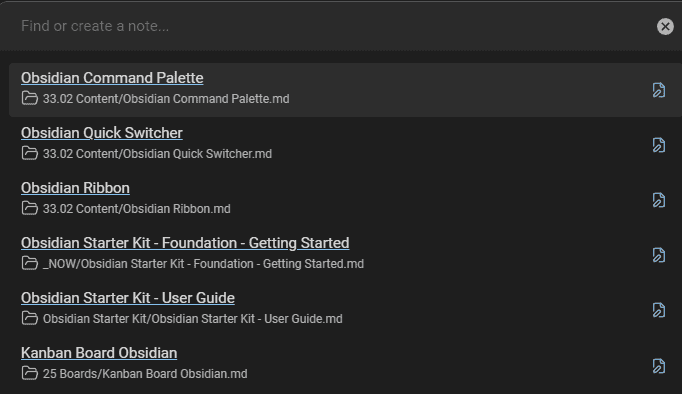
Prefer to read the whole series in one place? I turned it into an ebook, The Obsidian Search Handbook, with an exercise at the end of every chapter (the Complete edition adds a starter pack and worksheets).
Sébastien Dubois
Free cheat sheet. The commands and operators worth remembering, and the search escalation ladder (which tool to try first, depending on what you remember about the note), on 13 pages you can keep next to your vault. Enter your email and I'll send it right away: the Obsidian Search Cheat Sheet.
 Sebastien Dubois
Get the free Obsidian Search Cheat Sheet. 13 pages to keep next to your vault: the search operators worth remembering and the search escalation ladder. Enter your email and I'll send it right away. You'll also get a few short follow-up emails about finding notes in Obsidian, and you can unsubscribe at any time.
About Sébastien
Ready to get to the next level?
Found this valuable? Share it with someone who needs it.