
The Complete Guide to the Obsidian CLI - Everything You Can Do From the Terminal

Introduction
In this article, I want to show you how to drive Obsidian from your terminal instead of clicking through the app for everything. What the official Obsidian CLI is, how to enable it, what it can actually do, etc. I'll use real examples from my own vault.
Your vault is a folder of Markdown files. Plain text. It sits on your disk, readable by any program you own. You can of course search/read/write those directly within Obsidian. But you can also use any other editor to do that. In addition, you can also use low-level tools to search or manipulate your notes (e.g., grep, sed, etc), and leverage Large Language Models (LLMs) to go much further.
But there are many things you can't easily do outside of Obsidian: querying Obsidian Bases, listing tags, executing Obsidian plugin commands, installing/enabling/disabling/debugging plugins, etc. The Obsidian CLI can do all of the above, and MUCH more!
Let me guide you!
TL;DR
- The Obsidian CLI is Obsidian's own command-line interface, shipped by the Obsidian team starting with version 1.12 (February 2026). It became part of the standard desktop release with 1.12.4, and moved to a faster native binary in 1.12.7. It is NOT the third-party
obsidian-clitool you may have used before. - Enable it in Settings → General → Command line interface, register it, restart your terminal, then run
obsidian versionto confirm. - Almost anything you can do in the app, you can do from the shell: open daily notes, search, create and edit notes, manage tasks, tags, properties, bookmarks, plugins, workspaces, file recovery, and more.
- Run single commands (
obsidian daily) or drop into an interactive terminal UI (obsidianwith no arguments) with autocomplete and history. - The catch: the CLI drives a running Obsidian instance. It is not headless. If the app isn't open, your first command launches it.
- The Obsidian CLI isn't the only way in. Your notes are plain text, so direct file access works even with Obsidian closed.
- If you want to script your vault or let AI agents work inside it, this is the thing to enable.
What the Obsidian CLI actually is
The Obsidian CLI is the official command-line interface for Obsidian, introduced in version 1.12.0. It lets you control Obsidian from the terminal for scripting, automation, and integration with external tools. The design goal is simple: anything you can do in the Obsidian interface, you can do from the command line, including developer commands for plugin and theme work.
The name "Obsidian CLI" has meant different things over the years, and confusing them will waste your time.
It is NOT the third-party obsidian-cli tool. For a long time, if you searched for "Obsidian CLI", you found community-built tools that manipulated your vault files or triggered Obsidian through its URI scheme (e.g., Obsidian CLI npm package, AdvancedURI plugin for Obsidian, ...). Those filled a real gap. But they were never official, and they never gave as much control as what the Obsidian CLI now does.
What I'm covering in this guide is Obsidian's OWN executable, running in command-line mode. First-party, index-aware, and far more capable.
> [!warning] Early access at the time of writing > The Obsidian CLI arrived with Obsidian 1.12 (February 2026), first in early access for Catalyst supporters and then in the standard desktop release from 1.12.4 onward. Since 1.12.7 it runs as a fast native binary instead of the old Electron shim. It's young, so expect commands and syntax to keep evolving.
The catch: the CLI is not headless
One important point to mention is that the Obsidian CLI is NOT headless.
Read this carefully: The Obsidian CLI requires the Obsidian app to be running. If Obsidian is not running, the first command you run launches it. The CLI is a remote control for a running app, not a standalone command-line tool. A lot of the automation you might dream about (e.g., "a cron job that appends to my daily note at 6am on a headless server", "a CI pipeline that edits notes with no display attached") is not what this CLI is for; at least at this point in time, unfortunately.
Obsidian does ship a headless tool, a separate Obsidian Sync client that runs without a GUI to keep a vault synced across devices. That covers a bit of what I want for AI agents. Steph Ango, Obsidian's CEO, even lists "give agentic tools access to a vault without access to your full computer" as a reason to use Obsidian Sync in headless mode, so the direction is clearly on their radar. But it's not enough. It syncs files, but it doesn't give you anything comparable to the CLI's feature set (e.g., searching notes, querying metadata, creating and updating notes, listing plugins and tags). Also, it requires a paid Obsidian Sync subscription.
So, at least at this point in time, we're left with a real gap: the rich command interface needs the GUI, and the one official headless tool that exists is sync-only and behind a paywall.
IMHO, the official CLI should support a headless mode. That would enable the CLI to become a true automation tool usable in different scenarios (e.g., CI/CD pipelines, servers, scheduled tasks, services, etc). And I want Obsidian team to "fix" this. I'm not asking for everything to run headless. Some commands genuinely need the running app, and that's fine (e.g., interacting with the UI, driving plugins, executing arbitrary commands, running eval against the live workspace, etc). Those only make sense when the app is actually running. But a big part of the CLI command surface is just data operations on plain-text files, and there's no good reason those need a GUI at all. At a minimum, I want a headless mode that can search notes, list installed and enabled plugins, create and update notes, list tags, query metadata (properties, backlinks, frontmatter) and bases with no Obsidian window open.
The Obsidian CLI, and the other ways in
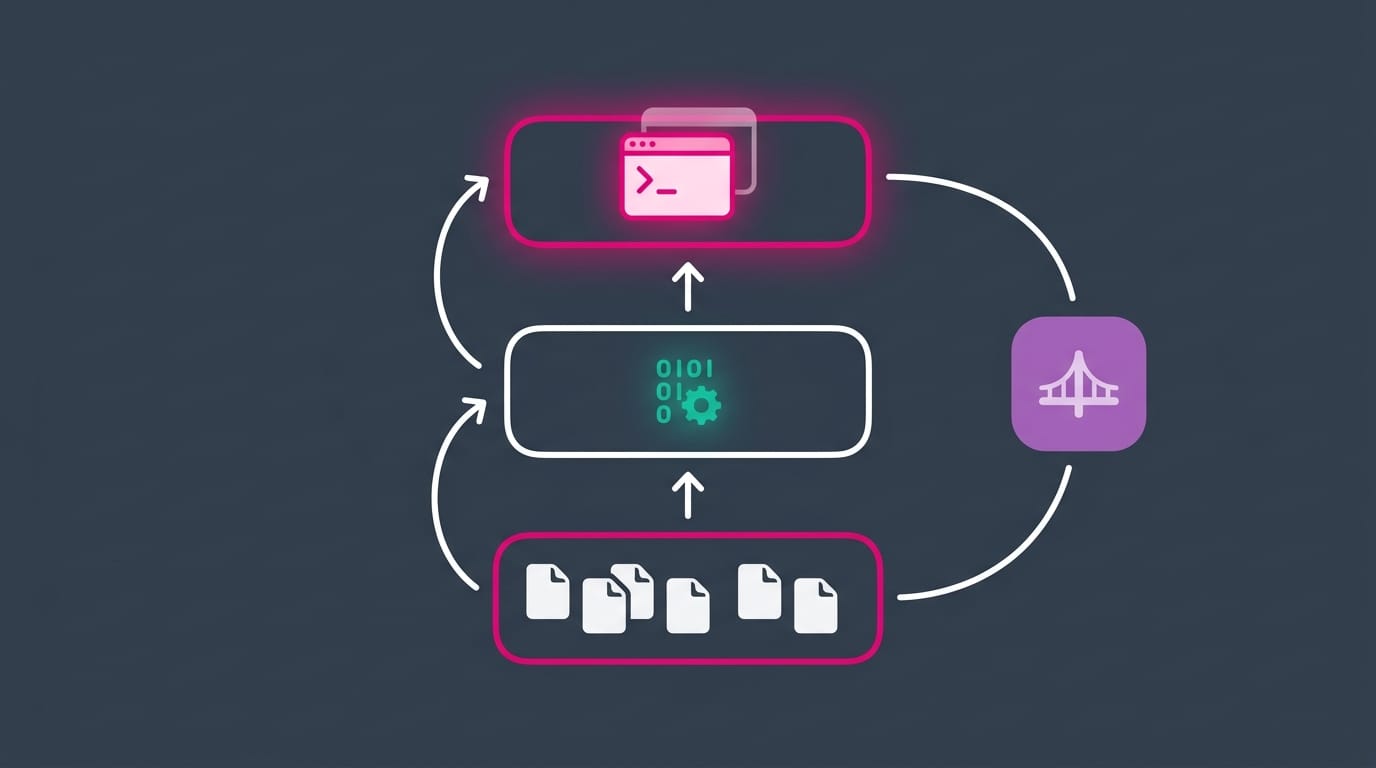
The Obsidian CLI (obsidian) is what this guide is mostly about, but it isn't the only way to interact with your vault from outside Obsidian. In addition to the CLI, you can directly interact with files. Your vault is Markdown on disk, so any tool (e.g., a text editor, a shell script, grep, sed, ripgrep, an AI agent, etc) can read and write it directly. The data is right there, and it works whether Obsidian is open or not.
I've also built a plugin that exposes the Obsidian CLI over a local HTTP API and Model Context Protocol (MCP) server: Obsidian CLI REST MCP plugin for Obsidian. That one is relevant if you have a headless server from which you want to be able to use the Obsidian CLI remotely (e.g., with something like Hermes or OpenClaw).
How to enable the Obsidian CLI
The steps are the same everywhere, with small platform-specific details for how the obsidian command gets onto your PATH.
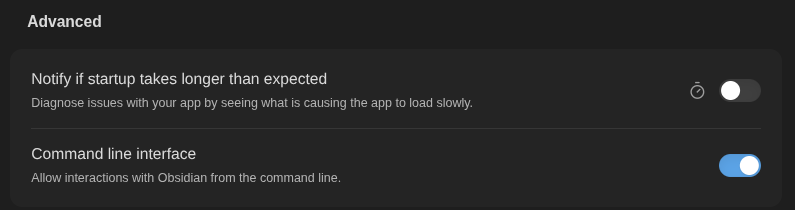
- Open Settings → General
- Find Command line interface
- Toggle it on
- Follow the on-screen prompt to register the CLI
- Restart your terminal so it picks up the new PATH entry
Obsidian creates a platform-specific entry point so that typing obsidian in any terminal reaches the running app.
Platform notes
Obsidian CLI registration on macOS adds Obsidian's binary directory to your PATH through ~/.zprofile (zsh only, which is the macOS default). If you use bash, add export PATH="$PATH:/Applications/Obsidian.app/Contents/MacOS" to ~/.bash_profile. For fish, run fish_add_path /Applications/Obsidian.app/Contents/MacOS.
On Windows, you need version 1.12.4 or later. The bundled Obsidian.com redirector handles the terminal bridge automatically and is placed next to Obsidian.exe. One gotcha to know about: on Windows, running the CLI from an ADMIN PowerShell can fail silently (empty output, no error). Use a normal, non-admin terminal.
On Linux, CLI registration creates a symlink at /usr/local/bin/obsidian (requires sudo). If sudo fails, it falls back to ~/.local/bin/obsidian, so make sure ~/.local/bin is on your PATH (it's normally the case by default). AppImage, Snap, and Flatpak each have their own nuances (Snap needs XDG_CONFIG_HOME pointed at the Snap config path; Flatpak needs a manual symlink to the exports bin). See the Obsidian CLI reference note for the exact per-distro recipes.
Verify it works
Make sure Obsidian is running. Then, open a fresh terminal and run:
obsidian versionYou should see the Obsidian version printed, something like 1.12.7 (installer 1.12.7). If you get that, you're in. Now try:
obsidian helpThis will list every available command. If obsidian version prints an obsidian-cli vX.Y.Z string instead, you're looking at the old third-party npm tool, not the official CLI. You should get rid of that. This guide is about the official CLI, not the legacy third-party one.
Your first five commands
Here are the five commands I'd give any beginner:
# 1. Open today's daily note
obsidian daily

# 2. Search your whole vault
obsidian search query="meeting notes"

# 3. Read the currently active file, straight to your terminal
obsidian read

# 4. List the open tasks in your daily note
obsidian tasks daily

# 5. List every tag in your vault, with counts
obsidian tags counts
The obsidian daily command alone is worth the setup: bound to a hotkey or an alias, it's the fastest way to open your journal, and it works from anywhere.
The interactive terminal (TUI)
Type obsidian with no arguments and you drop into a terminal user interface. Once you're in it, you type commands without the obsidian prefix, and you get autocomplete, command history, and reverse search with Ctrl+R (exactly like your shell).
obsidian
help
daily
search query="meeting notes"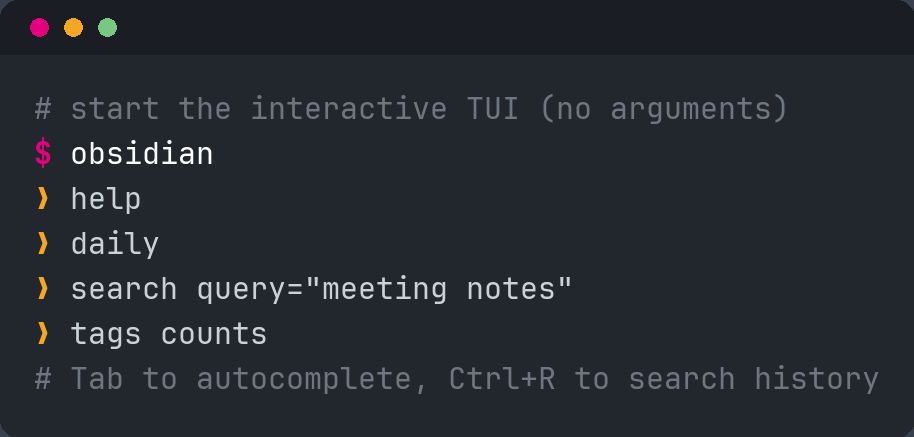
obsidian with no arguments to drop into the interactive TUI, with autocomplete and history.Tab accepts a suggestion, Up/Ctrl+P walk your history, Ctrl+R searches it, Ctrl+L clears the screen. If you already live in a terminal, this will feel familiar.
How parameters and flags work
Two more things to know.
Parameters are key=value pairs. Use quotes for values with spaces. Flags are just switches; include the name to turn it on.
# Parameter with a space in the value
obsidian create name="Trip to Paris" content="Hello world"

# Flags: silent and overwrite are just switches
obsidian create name=Note content="Hello" silent overwrite

# Multiline content uses \n for newline, \t for tab
obsidian create name=Note content="# Title\n\nBody text"
You target a specific file with file= (resolved like a wikilink, by name, no extension needed) or path= (the exact path from your vault's root folder). Omit both and most commands act on the active file. You target a specific vault with vault= as the first parameter, or just run the command from inside that vault's folder. And you can add --copy to almost any command to send its output straight to your clipboard.
Thus, you can not only manage your currently active vault with the Obsidian CLI, but also any other vault that is accessible.
The write side: capture from anywhere
Reading is one thing. Writing is where the CLI shines, because you can stop switching to the Obsidian window just to jot something down.
# Append a task to today's daily note from anywhere
obsidian daily:append content="- [ ] Buy groceries"

# Create a note from a template
obsidian create name="Trip to Paris" template=Travel

# Set a frontmatter property without opening the note
obsidian property:set file="Obsidian CLI" name=status value=published

# Move or rename a file (wikilinks update automatically)
obsidian move file="Old name" to="30 Areas/New name.md"
The last command is quite interesting. Because the Obsidian CLI goes through Obsidian's own internals, a move updates every wikilink that pointed at the file. You wouldn't get the same result by moving the file with your file explorer or move commands (assuming Obsidian is closed).
The obsidian daily:append command is also really cool. Thanks to it, anything on your machine can append information easily to your daily note. For instance, you could setup a cron job that fetches information (e.g., upcoming meetings, news, stocks, etc) and adds it to your daily note. Imagination is the limit :)
Combining the Obsidian CLI and Templater
I covered this in depth in the templates guide, so I'll keep it short here and point you there for the full version.
 Sebastien Dubois
Because the Obsidian CLI creates notes INSIDE the running app, a note you make with obsidian create still fires Templater's "trigger on new file creation" hook. So your folder templates and file-regex templates apply exactly as if you'd created the note by hand.
You can also run any Templater command by ID directly from the CLI:
# List Templater's commands
obsidian commands templater-obsidian

# Resolve the raw Templater syntax in the active note
obsidian command id=templater-obsidian:replace-in-file-templater
Set your templates up once, and even terminal-created notes are created correctly, with the right metadata and structure already in place.
For the deep dive, read the templates guide.
eval and the JavaScript API
The eval command runs arbitrary JavaScript inside the running Obsidian app, with full access to the app object (the same object plugins use to access everything). If the command surface doesn't expose something you need, eval almost certainly can.
# Count every file in the vault
obsidian eval code="app.vault.getFiles().length"

# Create a note from a Templater template, filed in a folder, without opening it
obsidian eval code="(async () => { const t = app.plugins.plugins['templater-obsidian'].templater; const tpl = app.vault.getAbstractFileByPath('Templates/TPL Book.md'); await t.create_new_note_from_template(tpl, '30 Areas/Books', 'New book', false); })()"
Two warnings. First, eval runs with the same access Obsidian has: it can read and write every file, setting, and bit of workspace state in your vault. Only run code you've reviewed, and be especially careful with AI-generated eval snippets (review before you run).
In the current early-access builds there's a known quirk where an async eval that awaits a vault-mutating API can lose its return value and console output; if a script "does nothing", that bug may be why. Both of these will settle as the CLI matures.
One practical note for scripting: eval wants a single line of JavaScript, so for anything multi-line, write the code to a temp file and pass it in with obsidian eval code="$(cat /tmp/snippet.js)".
The command surface, at a glance
The full reference lives in my Obsidian CLI note (every command, every parameter, every TUI shortcut). Here are the command families:
- Files and folders:
read,create,append,prepend,move,rename,delete,files,folders - Daily notes:
daily,daily:path,daily:read,daily:append,daily:prepend - Search:
search,search:context(grep-style with line context),search:open - Links and graph:
backlinks,links,unresolved,orphans,deadends - Tasks and tags:
tasks,task,tags,tag - Properties:
properties,property:set,property:remove,property:read,aliases - File history:
diff,history,history:read,history:restore(your File Recovery, from the terminal) - Plugins and themes:
plugins,plugin:enable,plugin:install,themes,theme:set,snippets - Templates and Bases:
templates,template:insert,bases,base:query,base:create - Command palette:
commands,command(run ANY command by ID),hotkeys - Sync and Publish:
sync:status,sync:history,publish:status,publish:add - Workspace:
workspace:save,workspace:load,tabs,recents - Developer:
devtools,dev:screenshot,dev:console,dev:dom,eval
That last command family is worth knowing: it runs any Obsidian command by its ID, and since plugins register their own commands, the CLI can reach almost any plugin you have installed. That reach is a big part of why it's so useful for AI agents. In addition, even if a plugin doesn't expose commands, it's still accessible via the eval command we discussed in the previous section.
You can generate nice outlines for your notes using the outline command. Super useful for AI to understand the structure of your notes without reading the entire files:
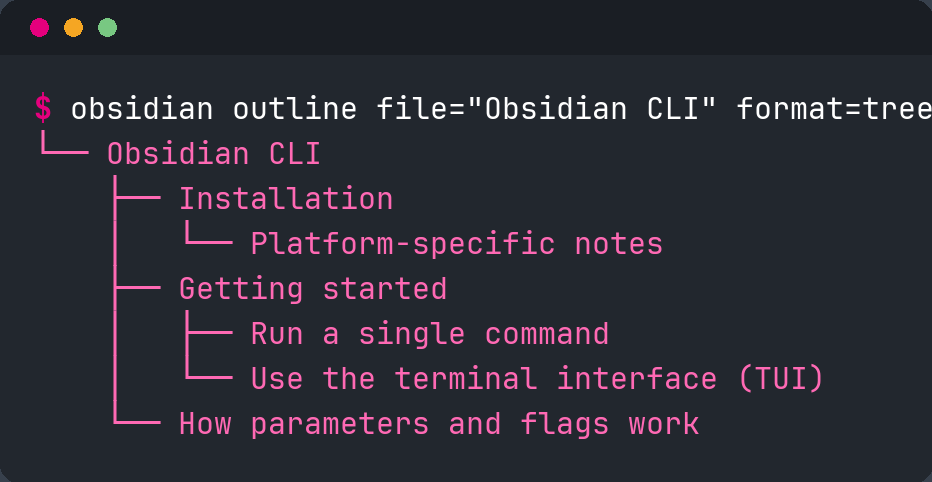
obsidian outline file="..." format=tree prints a note's heading structure straight to the terminal.Another cool thing you can do is use the File recovery core plugin for Obsidian directly from the CLI. Using obsidian history and obsidian history:restore, you can list old versions of a note and roll one back without opening the app. obsidian diff file=README from=1 to=3 compares two versions inline. obsidian random opens a random note, which is a surprisingly good way to resurface old thinking. I'll improve my Time Machine plugin for Obsidian to support something similar.
So much power at your disposal!
The complete command reference
There's actually so much you can do with the Obsidian CLI.
Here's the full set of commands that are currently available, grouped by family. Commands take file=/path=/vault= where it makes sense, and most list commands accept a total flag (count only) and --copy (send the output to your clipboard). For the exhaustive parameter-by-parameter version, see my Obsidian CLI note.
General
| Command | What it does |
|---|---|
help | List every available command |
version | Show the Obsidian version |
reload | Reload the app window |
restart | Restart the app |
Daily notes
| Command | What it does |
|---|---|
daily | Open today's daily note |
daily:path | Print the daily note's path (even if it doesn't exist yet) |
daily:read | Read the daily note |
daily:append | Append content to the daily note |
daily:prepend | Prepend content (after the frontmatter) |
Files and folders
| Command | What it does |
|---|---|
file | Show file info (path, size, created, modified) |
files | List files (folder=, ext= filters) |
folder / folders | Show folder info / list folders |
open | Open a file in the app |
create | Create or overwrite a file (content=, template=) |
read | Read a file's contents |
append / prepend | Add content to the end / start of a file |
move | Move or rename a file (wikilinks update automatically) |
rename | Rename a file, keeping its extension |
delete | Delete a file (to trash, or permanent) |
Search and links
| Command | What it does |
|---|---|
search | Full-text search; returns file paths |
search:context | Grep-style search; returns path:line: text |
search:open | Open the search view in the app |
backlinks | List notes linking to a file |
links | List a file's outgoing links |
unresolved | List links pointing at notes that don't exist |
orphans | List notes with no incoming links |
deadends | List notes with no outgoing links |
Tasks and tags
| Command | What it does |
|---|---|
tasks | List tasks (todo, done, daily, all filters) |
task | Show or toggle a single task |
tags | List tags (counts, sort=count) |
tag | Info for one tag |
Properties
| Command | What it does | ||||
|---|---|---|---|---|---|
properties | List a note's properties | ||||
property:read | Read one property's value | ||||
property:set | Set a property (`type=text\ | list\ | number\ | checkbox\ | date`) |
property:remove | Remove a property | ||||
aliases | List a note's aliases |
File history (File Recovery, from the terminal)
| Command | What it does |
|---|---|
history / history:list | List saved versions of a note |
history:read | Read a specific version |
history:restore | Restore a specific version |
diff | Compare two versions (from=, to=) |
Plugins, themes, and snippets
| Command | What it does |
|---|---|
plugins / plugins:enabled | List installed / enabled plugins |
plugin:enable / plugin:disable | Toggle a plugin |
plugin:install / plugin:uninstall | Install / remove a community plugin |
plugin:reload | Reload a plugin (developer loop) |
plugins:restrict | Toggle restricted mode |
themes / theme / theme:set | List / inspect / switch themes |
theme:install / theme:uninstall | Install / remove a theme |
snippets / snippet:enable / snippet:disable | Manage CSS snippets |
Templates and Bases
| Command | What it does |
|---|---|
templates | List templates |
template:read | Read a template (resolve to render variables) |
template:insert | Insert a template into the active file |
bases | List all .base files |
base:views | List views in a base |
base:query | Query a base (returns rows you can pipe into jq) |
base:create | Create a new item in a base |
Command palette and hotkeys
| Command | What it does |
|---|---|
commands | List command IDs (filter= by prefix) |
command | Run any command by ID (this reaches every plugin) |
hotkeys / hotkey | List hotkeys / get the hotkey for a command |
Sync and Publish
| Command | What it does |
|---|---|
sync | Pause or resume Sync |
sync:status / sync:history | Show Sync status / version history |
sync:read / sync:restore | Read / restore a Sync version |
sync:deleted | List deleted files in Sync |
publish:status | List what changed since the last publish |
publish:add / publish:remove | Publish / unpublish a file |
publish:list / publish:site / publish:open | Inspect and open your published site |
Workspace, vault, and the rest
| Command | What it does | ||
|---|---|---|---|
workspace:save / workspace:load | Save / load a window layout | ||
tabs / tab:open / recents | Manage tabs and recent files | ||
vault / vaults / vault:open | Vault info; list and switch vaults | ||
bookmarks / bookmark | List / add bookmarks | ||
outline | Print a note's heading tree (`format=tree\ | md\ | json`) |
random / random:read | Open / read a random note | ||
unique | Create a uniquely-named note | ||
wordcount | Count words and characters | ||
web | Open a URL in Obsidian's web viewer |
Developer
| Command | What it does |
|---|---|
devtools | Toggle Electron dev tools |
dev:debug | Attach or detach the debugger |
dev:console / dev:errors | Read captured console messages / errors |
dev:dom / dev:css | Query the DOM / inspect CSS |
dev:screenshot | Capture a screenshot |
dev:mobile | Toggle mobile emulation |
dev:cdp | Run a raw Chrome DevTools Protocol command |
eval | Run JavaScript inside the app |
A note on output formats
Formats are per-command, not global, which trips people up. The rough map:
searchandsearch:context:text(default) orjsonproperties:yaml(default),json, ortsvbase:query:json,csv,tsv,md, orpathsoutline:tree(default),md, orjsonbacklinks,tasks,tags,bookmarks,unresolved,hotkeys:json,tsv, orcsv
When in doubt, run obsidian help <command> to see what a given command accepts. And two flags work almost everywhere: --copy sends the output to your clipboard, and total on a list command returns just the count, which is handy for cron metrics.
AI agents driving your vault
A huge part of the reason why the Obsidian CLI was introduced is to help AI Agents better interact with and leverage Obsidian vaults. And it works wonders! Thanks to the Obsidian CLI, your vault becomes something any program can operate.
I use AI a lot to help me maintain and grow my vault, and the CLI makes it a breeze. Creating notes, adding/updating metadata, creating daily notes, linking notes together, building plugins, running commands, etc. Everything you can do with the CLI is easily discoverable and usable by AI.
My AI Agents drive Obsidian largely through the CLI. I actually instruct AI specifically to favor the Obsidian CLI instead of direct file-system level manipulation. Without that, they would default to using tools like grep, mv, sed, etc.
When I tell an agent "create a meeting note for today's call with xxx using Templater", it uses the CLI and interacts with the Templater plugin for Obsidian to create the note with the right template. The new note lands in the right folder with the right structure, and the agent fills in the details. I never have to touch the mouse.
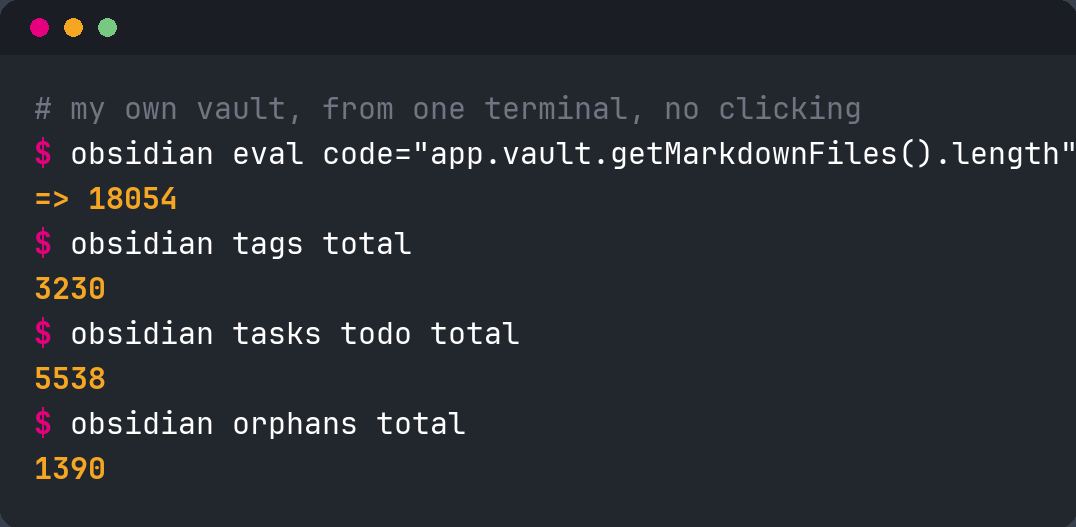
And the CLI reports on the vault as easily as it edits it. Here's my own vault, right now, from one terminal, no clicking: obsidian eval code="app.vault.getMarkdownFiles().length" returns 18,054 notes, obsidian tags total returns 3,230 tags, obsidian tasks todo total returns 5,538 open tasks, and obsidian orphans total returns 1,390 notes with nothing linking to them. My vault IS a database I can query.
Why the CLI, specifically? Because it gives an AI agent a consistent, discoverable command surface with no plugin glue or third-party tools in the middle. The agent can:
- Read and write notes without requiring a separate HTTP server
- Run any command from the palette by ID, reaching into every installed plugin
- Inspect the vault's structure (files, folders, properties, tags, bases)
- Debug/troubleshoot plugin behavior, take screenshots, and reload plugins during development
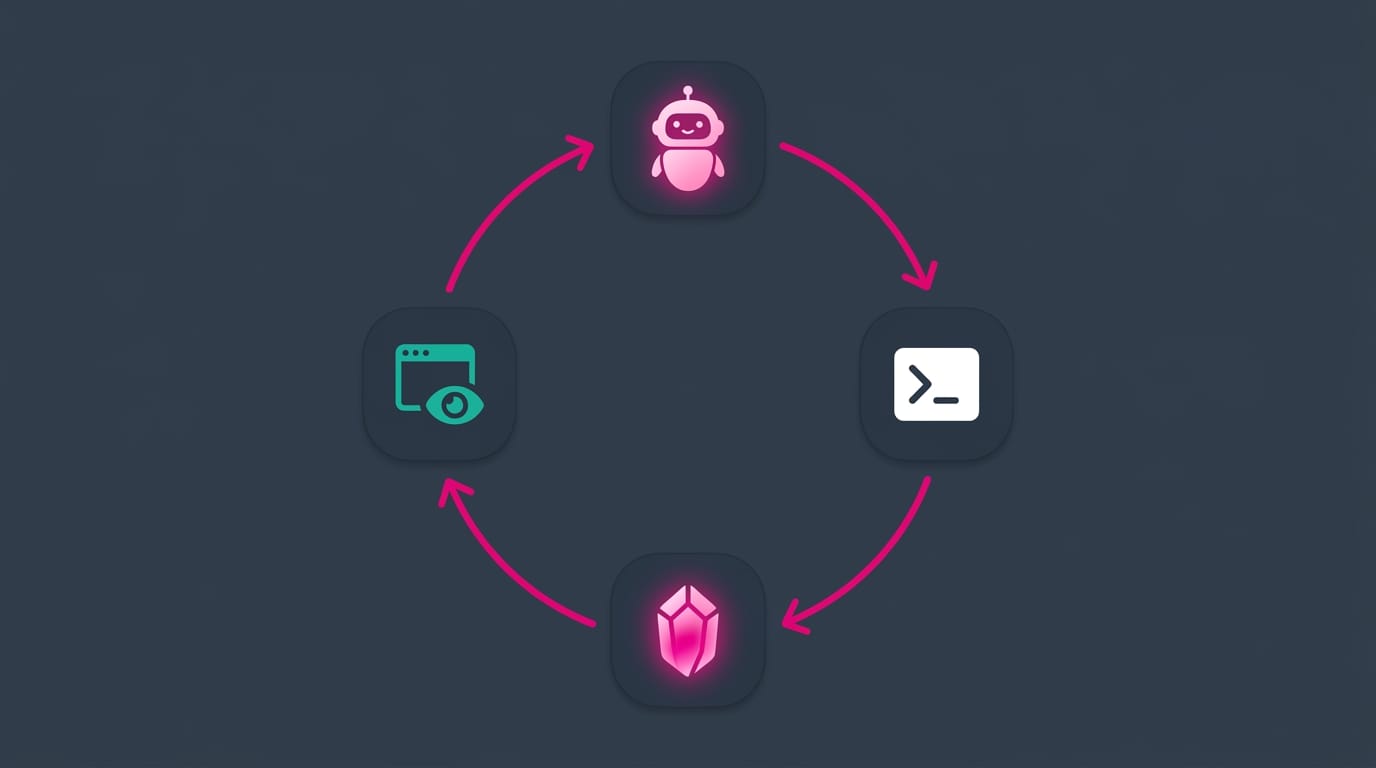
My favorite example of how far this goes: I don't just have AI write notes for me, I have it build Obsidian plugins for me, and it drives the whole app through the CLI to do it. The agent writes the plugin code, runs obsidian plugin:reload id=my-plugin to load the new version, takes an obsidian dev:screenshot to see what actually rendered, looks at the actual DOM of the page within Obsidian (hint: Obsidian IS a Web browser!) reads obsidian dev:errors and obsidian dev:console when something breaks, fixes it, and loops. A full build, test, and debug cycle inside Obsidian, with no hands on the mouse and no switching over to the developer tools. The developer commands (devtools, dev:screenshot, dev:console, dev:dom, plugin:reload, and eval) exist precisely to let agentic coding tools test and debug against the live app. The CLI doesn't just let an agent use my vault, it lets an agent extend Obsidian where my vault runs. That's why I keep saying that Obsidian is not a note-taking tool, but a real development platform. And that is quite unique in the knowledge management space.
A few more examples... My end-of-day ritual reads the daily note and its open tasks to build a shutdown review. My health sync writes watch data into daily-note properties through the plugin. My Garmin skill loads data from my watch (through Garmin Connect) and adds data about my running sessions. Another skill of mine creates whole new note types by calling the Obsidian Starter Kit plugin for Obsidian's API through obsidian eval. Yet another runs the Linter plugin for Obsidian over a file the same way. Yet another queries my Obsidian Bases as lives databases (obsidian base:query ... format=json | jq) so an agent can ask "what's in progress?" or "What books did I read this year" without having to search through the Markdown files. Plain file access gives an agent literacy, but the app-aware CLI gives it comprehension. Obsidian already understands your links, tags, and Bases, so the agent can ask the app instead of reverse-engineering the folder.
And when the CLI isn't available, nothing breaks. The agent degrades gracefully to file access and my osk-cli. Templates create the structure, properties enforce the schema, the CLI gives agents a handle, and the files keep everything working even when the Obsidian is closed.
If you want the step-by-step version of enabling this for your own vault, I wrote it up as an OSK tutorial: Enabling and using the Obsidian CLI.
Going remote: REST and MCP
The Obsidian CLI works on the machine where Obsidian runs. But what if the AI agent lives somewhere else? A second laptop, a Raspberry Pi, a Virtual Private Server (VPS)?
That's why I built the Obsidian CLI REST MCP plugin for Obsidian. It runs inside Obsidian as a community plugin and exposes the entire CLI two ways: a local HTTP REST API and an Model Context Protocol (MCP) server, both on 127.0.0.1:27124 by default. Any script can hit the REST endpoints with curl; any MCP client (e.g., Claude Code, OpenAI Codex, Cursor, ...) can talk to the MCP server.
# List available commands over the REST API
curl -H "Authorization: Bearer YOUR_KEY" http://localhost:27124/commands
I personally run OpenClaw, a self-hosted AI assistant, on VPS server. It reaches the Obsidian CLI on my machine through this plugin. So I can message it from Discord or WhatsApp, from my phone, from anywhere, and it does the work on my vault for me. "Add a note about this", "update the status on that project", "build me a small plugin", and it reads and writes my notes, runs commands, writes code, then reports back. My vault, driven from a chat app on my phone, while my laptop sits closed on the desk.
That power requires remaining careful. My strong recommendation: keep the plugin bound to 127.0.0.1 and reach it from other machines through a tunnel (e.g., Tailscale, Secure Shell (SSH), ...), not by opening a port to your network or the internet.
# From the remote machine, tunnel the port over SSH
ssh -L 27124:localhost:27124 user@your-obsidian-machine
The plugin ships with sensible defaults for this reason: localhost-only binding, an auto-generated 64-character API key, and the ability to block dangerous commands (eval, restart, devtools) entirely. Before you ever change bindAddress off 127.0.0.1, set an API key and understand what you're doing, because anyone who can reach that port with the key can read and write every note in your vault and do very nasty things.
Before you expose anything: a threat model
The REST and MCP bridge is the most powerful thing here, and the most dangerous. Before you open it to anything beyond your own machine, understand exactly what you're exposing your machine, your network and yourself to.
Anyone who can reach the bridge with the API key can read and write every note in your vault, and, if dangerous commands are allowed, run code inside your app. That's by design. So treat the key like the password to your entire second brain.
What I actually do, and recommend:
- Stay on localhost. Keep
bindAddressat127.0.0.1. The default is safe on purpose, and most people never need to change it. - Reach it over a secure channel, not an open port. When another machine needs in, tunnel it (e.g.,
ssh -L 27124:localhost:27124 ...). Don't poke holes in your host and/or network firewall, etc. Never put the raw port on the internet. - Set an API key, always. Even on localhost. The moment
bindAddressleaves127.0.0.1it's non-negotiable. Generate a real one withopenssl rand -hex 32. - Block the dangerous commands. My plugin blocks
eval,restart, anddevtoolsby default, and lets you blocklist more. A remote caller almost never needseval, so leave it off. - Assume the key leaks. Ask what happens if it does. If the answer is "someone reads and rewrites my whole vault", you want it on localhost behind a tunnel, not on a public URL behind hope.
- Make sure you have a proper backup system in place. This advice is very important regardless.
Which tool when: the CLI vs the alternatives
The CLI isn't the only way to touch your vault from outside the app, and it isn't always the right one. Here's how I choose between the options.
| Approach | Setup | Needs app open | Index-aware | Reaches other machines | Best for |
|---|---|---|---|---|---|
| Obsidian CLI | built in (a toggle) | Yes | Yes | No (local) | terminal use, scripting, and agents on the same machine |
| Direct file I/O (read, edit, ripgrep) | none | No | No | No (local) | bulk reads, edits, and search when the app is closed |
| Local REST API plugin | plugin + token | Yes | Yes | Yes (HTTP) | remote clients, surgical HTTP edits, any language |
| My CLI REST MCP plugin | plugin (OSK) | Yes | Yes | Yes (HTTP + MCP) | remote AI agents driving the full CLI surface |
| Community CLIs (Yakitrak, notesmd, etc.) | separate install | No | No | No (local) | simple file operations without the official CLI |
The quick version. On the machine where Obsidian runs, reach for the Obsidian CLI first, because it's really powerful, manages the index, updates links/backlinks for you, etc. When Obsidian is closed, use direct file access. When the caller lives on another machine, use a REST/MCP bridge (mine, or the Local REST API plugin for Obsidian) over a secure tunnel.
If you're pointing an AI agent at this
If you're building automation on top of the Obsidian CLI, these are the failure modes that your AI agents should be aware of:
- Exit codes are always 0, so parse the output, not
$?. As I showed in the sharp edges section, a failed command still exits 0 and reports the error in its text. An agent that trusts the exit status will think every command succeeded. Read and check the output instead. - There's no batching, so don't loop over thousands of files. Each command is a round trip to the running app, roughly a second each. A per-file
property:setacross a big vault turns into minutes. Use the CLI for single, index-backed queries (backlinks, orphans, a search), and use direct file reads or ripgrep for anything bulk. Consider the CLI as the control plane, and the file system as the data plane. - Some commands can succeed silently without changing anything. On edge cases (a file the index hasn't picked up yet, for example), a write can report success and do nothing. For anything that matters, read the note back and confirm the change actually landed.
- It needs the app running, so always give your AI agent a fallback. My AI skills favor the Obsidian CLI, then fall back to my
osk-cliand direct file edits when it isn't available. What you want is graceful degradation, not tons of wasted tokens. - Don't fire many commands in parallel. Concurrent
evalormovecalls can collide or leak output between processes. Keep agent calls sequential, or gate them.
Real workflows from my own setup
How the CLI shows up in my day:
- Working on code projects. I orchestrate everything I build through my Obsidian vault, and the Obsidian CLI is the key entrypoint to the information about my projects, my repositories, how they related to each other, how I want to code, my standards, etc. My vault holds the project notes, the CLI reads them, and the agent resolves the local repo path and gets to work.
- Search that never fails. My AI skills follow a fixed priority: semantic search first (better results), then the
obsidianCLI (index-aware, fast), then ripgrep, then grep. Four tools, one job, graceful degradation. - Capture from the shell. I use
obsidian daily:appendvia hotkeys and scripts to easily capture information from anywhere on my computer (or from my phone). - Vault maintenance without the UI.
obsidian orphans,obsidian unresolved,obsidian tags counts. A quick health check on the vault, scriptable, pipe-able intojqorrg. I leverage all this through AI skills I've built into my Obsidian Starter Kit to maintain my vault in good shape.
What people are building with it
I've shown you my own setup. The wider community has been busy too. Here's a sampler of what people have built since the CLI shipped:
- Link-safe bulk edits across thousands of files. One writer changed a property on 3,674 notes with a single loop (
obsidian files | while read -r f; do obsidian property:set file="$f" name=status value=review; done), and usedobsidian movefor a big folder reshuffle where a rawmvhad previously broken 47 links. The index-aware CLI rewrote every wikilink. - A vault-wide tag rename in one command:
obsidian tags:rename old=meeting new=meetings, the kind of cleanup that used to mean clicking endlessly through the interface. - Weather in the daily note, every morning, from cron:
w=$(curl -s "wttr.in/City?format=3"); obsidian daily:append content="**Weather:** $w". - A Hacker News digest that writes itself: a cron job pulls the top stories, formats them with
jq, and drops them into an inbox note withobsidian create. - A weekly vault-health report:
orphans,unresolved,deadends, and a file count viaeval, appended to the Monday daily note. - A dev worklog that turns "I reviewed PR #6300" into a timestamped entry, pulling metadata from GitHub and Jira and deduping against the day's note.
- AI sessions that archive themselves. A Claude Code hook fires when a plan is finalized, parses the transcript with
jq, and files it into the vault withobsidian createplus a backlink. Your work with the AI becomes part of your notes automatically. - A guard that forces agents through the CLI. One clever setup blocks an AI agent from writing vault files directly, so every change goes through
create,property:set, andappend, keeping the index and links intact. - A whole vault edited over SSH. Because the TUI is just a terminal program, people run
obsidianover SSH to browse and edit a vault on a machine with no display attached.
And you can have tons more fun, for instance with RSS feeds, Zotero libraries, data analysis, data extraction, pulling in your Garmin data, importing news, curating content, etc etc etc. Many pull information into Obsidian through community plugins, but the CLI can do it all, and then some. Not to say that the CLI should be favored over purpose-built plugins, but it gives an alternative way in that you could consider leveraging. obsidian create and obsidian daily:append plus a little curl and jq in a cron job could pull anything in your vault.
Beyond keyword search: pairing the Obsidian CLI with qmd
The Obsidian CLI's search is keyword search. It's fast and index-aware, and it's perfect when you know the words/tags/base path you're looking for. But sometimes you don't. You remember the idea, not the phrasing, and no keyword you try brings the note back. That's a different problem, and it needs a different tool.
This is why I use both the Obsidian CLI and qmd (Quick Markdown Search), a local, on-device search engine for your notes. qmd combines three modes: BM25 keyword matching (similar to the CLI, but standalone and headless), vector semantic search over embeddings (find by meaning, not by exact words), and a hybrid mode that expands your query and re-ranks the results. So when a keyword search comes up empty, a semantic search often surfaces the exact note you were half-remembering.
Two things make it a natural partner for the Obsidian CLI. First, it runs entirely on your machine, with no need to have Obsidian open. qmd indexes your Markdown directly, so like plain file access, it keeps working when Obsidian is closed. Second, it speaks JSON and ships an MCP server, so my AI agents reach for it the same way they reach for the CLI. My agents' search order reflects that: qmd first (best results by meaning), then the obsidian CLI (fast and index-aware), then ripgrep and grep as fallbacks.
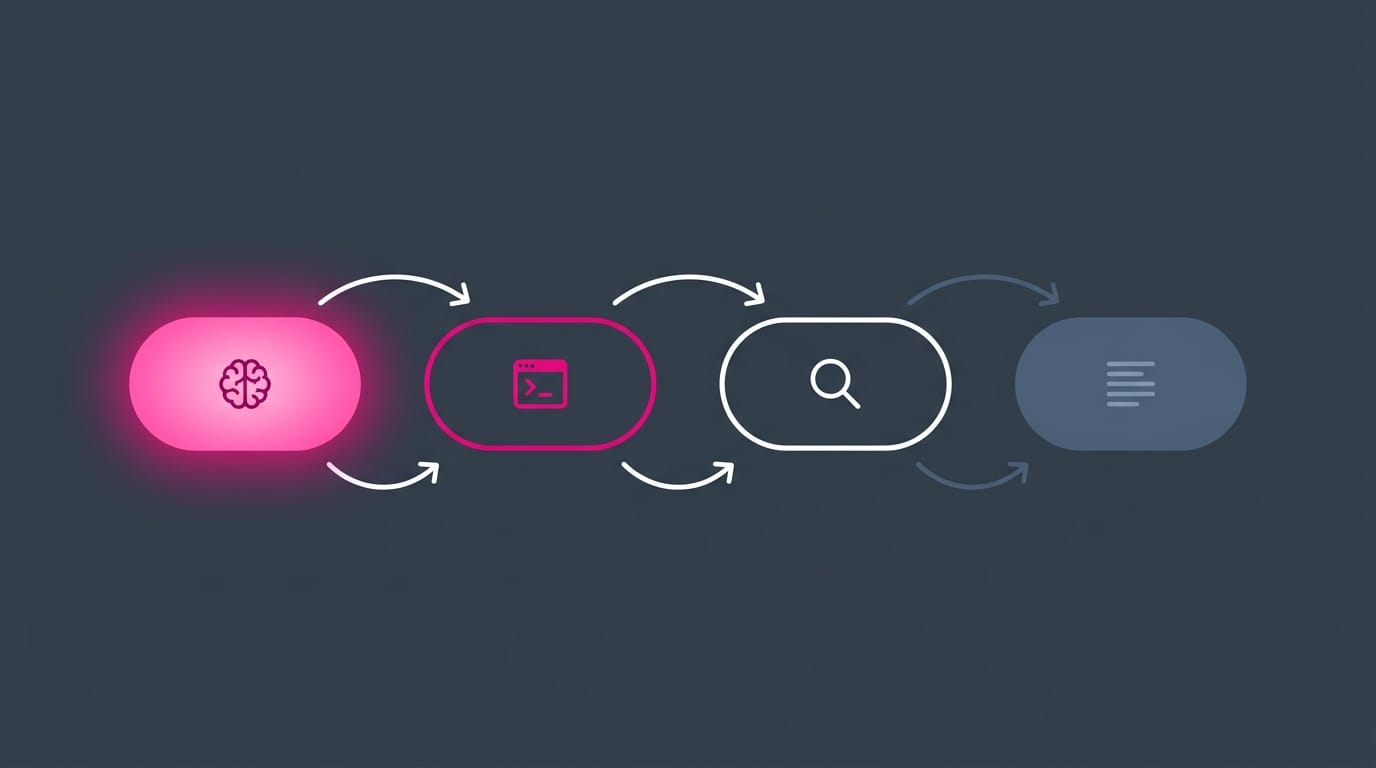
There's a lot more to say here. Keyword versus semantic, the CLI versus qmd versus Bases versus plain ripgrep, etc. That deserves a dedicated article.
Sharp edges and gotchas
Every tool has them. The ones worth knowing:
- Obsidian must be running. If Obsidian is closed, your first CLI command launches it and then runs. Fine for interactive use, awkward for true background automation. (See the catch above.)
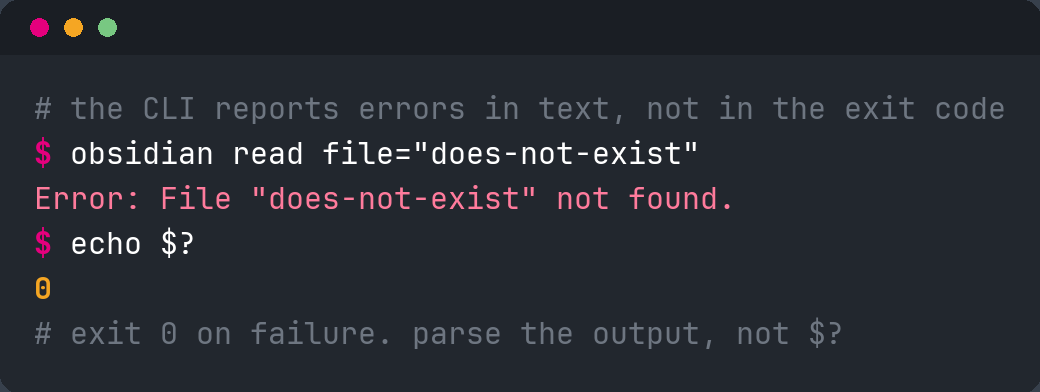
- Exit codes are always 0. This one bit me, so I tested it. Run
obsidian read file="does-not-exist"and it printsError: File "does-not-exist" not found.and still exits with code 0. The CLI reports errors in its text output, not in the exit status. If you script it, parse the output; don't trust$?. This matters most for agents and cron jobs that treat a non-zero exit as failure.
- PATH after registering.
obsidian: command not foundalmost always means your terminal hasn't picked up the new PATH entry. Close and reopen it, or source your shell config. - Windows admin mode fails silently. Run the CLI from a normal PowerShell, not an elevated one, or you'll get empty output and no error.
- macOS: keep the installer version in sync. If the CLI stops responding after a quit-and-relaunch on macOS, the fix is usually to update to the matching installer version, not to keep re-registering it.
- Desktop only. There is no CLI on Obsidian mobile. This is a desktop feature.
- Multiple vaults. The CLI defaults to the active vault or the vault matching your current directory. When in doubt, pass
vault=<name>as the first parameter.
FAQ
Is the Obsidian CLI free? The CLI arrived in Obsidian 1.12 (February 2026), first as an early-access feature for Catalyst supporters, then in the standard desktop release from 1.12.4 on. Obsidian itself is free; you just need a recent version and installer. Obsidian Sync, which has its own separate headless client, is a paid add-on.
Is this the same as the obsidian-cli npm/Go tool? No. Those are third-party community tools that predate the official one. This guide covers Obsidian's own executable in command-line mode, which is first-party and index-aware.
Can I run it on a headless server or in CI? Not the command CLI, no. It drives a running desktop app. Obsidian Sync has a separate headless client (an open beta, Node 22+) for keeping a vault synced on a server, but it's paid and sync-only, so it doesn't expose the CLI's command surface. People do get the command CLI running on a GUI-less server by giving it a virtual display (Xvfb), usually in Docker, but that's a community workaround, not an official mode. For automation when the app is closed, use direct file access or the REST/MCP bridge.
Does it work on mobile? No. Desktop only.
Is eval dangerous? It runs code with the same access as a plugin, so review any script before running it, especially AI-generated ones. Obsidian's renderer is sandboxed from your OS, so the risk is scoped to your vault data.
How do AI agents use it? They prefer the CLI when it's on PATH (read, write, search, run commands), and fall back to direct file access when it isn't. Remote agents can reach it through a REST/MCP bridge over a secure tunnel.
Why isn't the "Command line interface" option in my Settings? You need a recent Obsidian version AND a recent installer version. The in-app updater bumps the app but not the installer, so people get stuck on an old installer and the toggle never appears. Re-download and reinstall from the official site, then look at the bottom of Settings → General. I've faced this issue at some point under Omarchy where the Arch Linux package for Obsidian was outdated.
Why does my search return nothing at all? Two reasons, usually. Plain obsidian search query="..." returns file names, not the matching text; use obsidian search:context query="TODO" for grep-style file:line: context output. And some early builds had a search bug on large vaults, so make sure you're on a current version.
How do I target the right vault when I have several? Pass vault="My Vault" as the FIRST parameter on every command: obsidian vault="My Vault" search query="test". Otherwise the CLI hits whichever vault was focused last, or the one matching your current directory.
Why does a window pop open instead of staying in the terminal? Some commands (create, read) open the file by default; add the silent flag to suppress that. And if you target a vault that isn't already open, Obsidian has to open a window to initialize it.
How do I get output I can script against? Add format=json on the commands that support it (search, base queries) and pipe into jq: obsidian search query="TODO" format=json | jq '.[]'. On my machine, search with format=json returns a JSON array of file paths, so jq '.[]' lists them. Other formats include csv, tsv, md, and paths.
What's the difference between file= and path=? file=Recipe resolves by name, the same way a [[Recipe]] wikilink does (no folder, no extension). path="Templates/Recipe.md" is the exact path from your vault root. Use file= for convenience, path= when names collide or you need to be precise. With neither, the command acts on the active file.
How do I set a list property, like tags? Use type=list with comma-separated values: obsidian property:set path="Note.md" name=tags value="a,b,c" type=list. Two caveats I confirmed by testing. Commas inside a value aren't escapable yet, so that method breaks for values that contain commas. And a single link value doesn't become a real list: property:set name=links value="[[Note]]" type=list writes links: "[[Note]]" as a quoted string, not a list item. For genuine link lists, edit the frontmatter directly, or use eval.
How is this different from the Local REST API plugin? The Local REST API plugin for Obsidian is a community plugin that runs an HTTP server you reach with a token, from any language. The Obsidian CLI is built into Obsidian, needs no plugin or token, and talks to the app over local IPC. The REST API plugin is useful for HTTP edits from another machine; the CLI is better for zero-setup terminal use, eval into the full app, and running any command by ID. My own Obsidian CLI REST MCP plugin for Obsidian bridges the two by exposing the CLI over both REST and MCP.
Can plugins add their own CLI commands? Not as their own top-level verbs. But you can run any plugin's command by its ID with obsidian command id=<plugin:command>, and reach a plugin's API directly through obsidian eval. So plugins are fully scriptable.
Start here (beginner checklist)
If you do nothing else, do this:
- Update to Obsidian 1.12.4+ (Catalyst, for now).
- Enable the CLI in Settings → General → Command line interface and register it.
- Restart your terminal and run
obsidian versionto confirm. - Try the five starter commands:
obsidian daily,obsidian search query="...",obsidian read,obsidian tasks daily,obsidian tags counts. - Add one alias to your shell config:
alias od="obsidian daily". - Open the TUI once (
obsidianwith no arguments) and feel the autocomplete.
Where to go next (power users)
- Wire
obsidian daily:appendinto a Git hook or a capture script. - Explore
obsidian evalfor anything the command surface doesn't cover. - If you use AI agents, enable the Obsidian CLI REST MCP plugin for Obsidian and point an MCP client at it over an SSH tunnel.
- Read the full command reference in my Obsidian CLI note and keep it handy.
My rules for driving Obsidian from the terminal
If I had to compress everything above into a handful of rules, it's these:
- Prefer the CLI, fall back to files. The CLI when Obsidian is open, and plain file edits when it isn't..
- Parse the output, not the exit code. The CLI exits 0 even on errors, so read what it printed.
- Let the CLI query, let the file system do the bulk. Index-backed lookups go through the CLI; thousands of file edits go through ripgrep and direct writes.
- Keep the bridge on localhost. If you want to expose the CLI to another machine, use secure tunnels; never a public port.
- Set your templates up once. Then even terminal-created and agent-created notes will be created with the right structure and metadata.
- Verify anything you can't afford to get wrong. Read the note back. Trust, but confirm.
Conclusion
Your vault is just plain text files on your computer's file system. The graphical app is a wonderful way to think and write, but it was never meant to be the way to access your data. The Obsidian CLI adds powerful and scriptable means to manage your data. It turns your vault into an API of sorts, and an API is something you can build on.
The main limitation of the Obsidian CLI is that it needs the app to be running. And I genuinely hope that the Obsidian team will ship a true headless mode, even if with a more limited feature set. But even today, between the Obsidian CLI and plain file access, you can do almost anything with your vault from a terminal, and you can hand almost all of it to an AI agent that works while you sleep.
Enable it. Run obsidian daily. Then start imagining what you could automate.
Want the systems around this? My Obsidian Starter Kit ships the note types, templates, plugins, and AI skills that leverage the Obsidian CLI in ways you didn't even start imagining ;-)
 Dwayne Appleby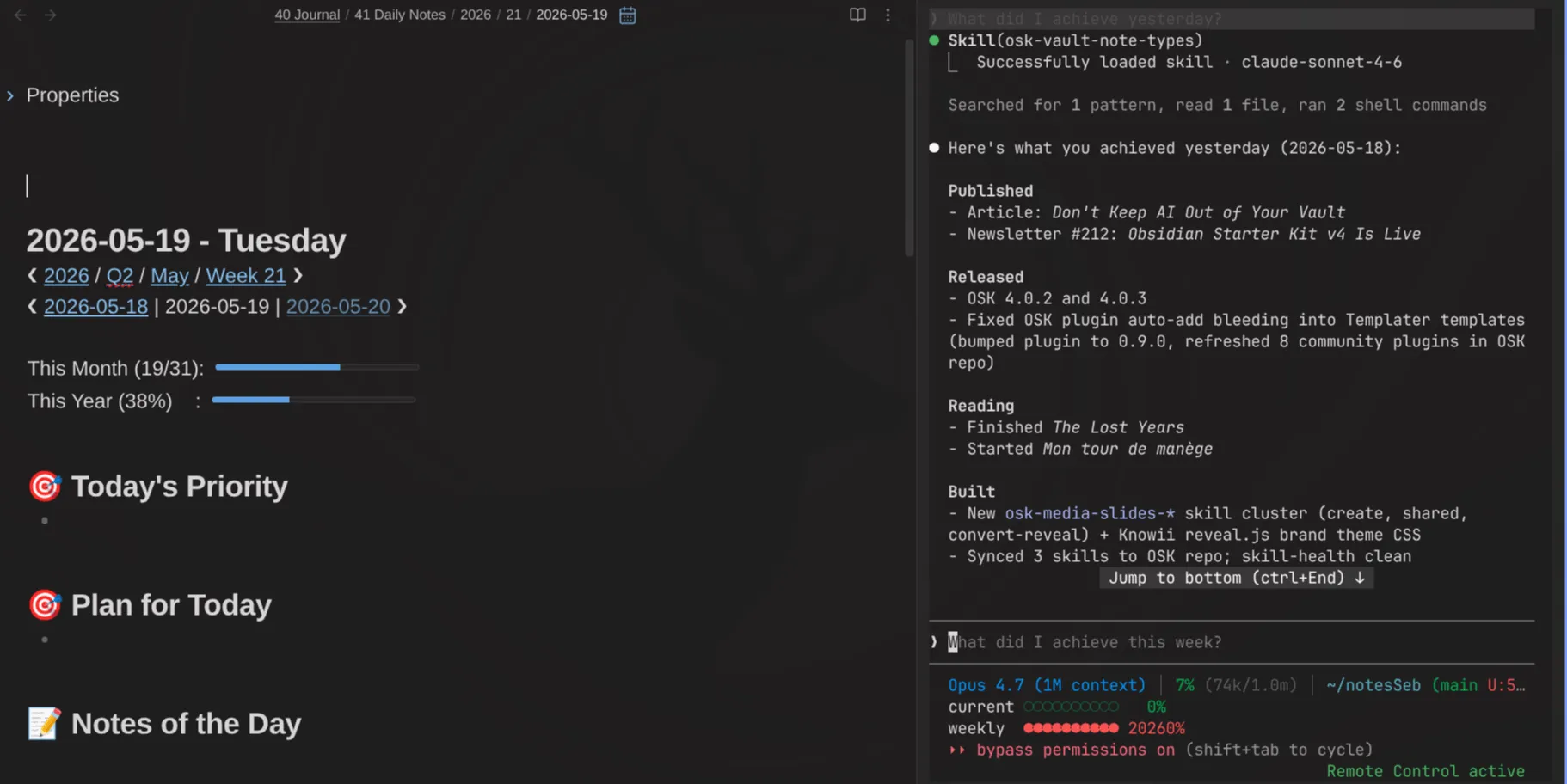
The CLI is also a great way to search your vault from outside Obsidian. I cover that in The Obsidian Search Handbook, along with built-in search, plugins and AI search.
 Sébastien Dubois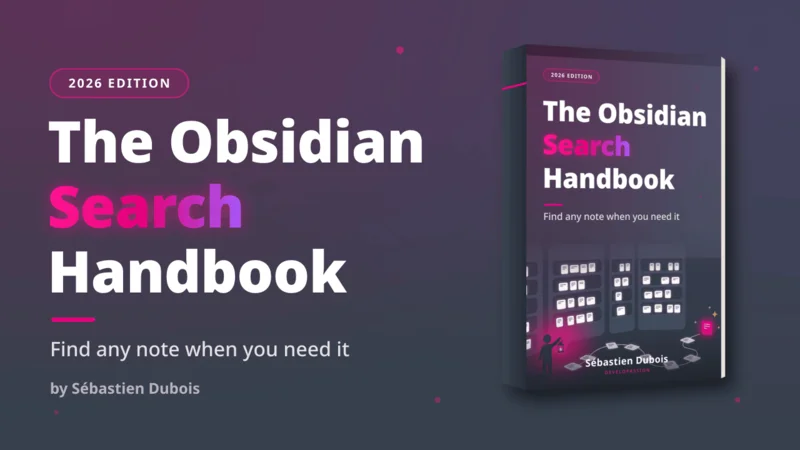
And if you want to talk this through with people building the same kind of systems, come join us in the Knowii community.
 Sofia
Sofia
For more like this, subscribe to my newsletter. LINK: https://dsebastien.net/newsletter
That's it for today! ✨
Go further
This guide is part of my Obsidian deep dives series. Each piece stands on its own, but together they build one system. Here are the others:
Sébastien Dubois Sébastien DuboisSébastien Dubois
 Sébastien Dubois
About Sébastien
Ready to get to the next level?
Found this valuable? Share it with someone who needs it.