
Obsidian Keyboard Shortcuts

Canonical version: Obsidian Keyboard Shortcuts.
Obsidian has great support for keyboard shortcuts. Most commands can be invoked using shortcuts, and most of those can be customized.
Obsidian Community Plugins also introduce additional shortcuts that can be customized at will.
Here are my favorite ones.
Key shortcuts
- Create a note: CTRL/Cmd + N
- Create a note in a new tab: CTRL + Shift + N
- Open the link you're hovering over in a new pane (in edit mode): CTRL/Cmd + Click
- Quick switcher: CTRL/Cmd + O
- Command palette: CTRL/Cmd + P
- Toggle edit/preview mode: CTRL/Cmd + E
- Force save the current note: CTRL/Cmd + S
- Rename the current file: F2
- Search in current file: CTRL + F
- Global Search: CTRL/Cmd + Shift + F
- Graph view: CTRL/Cmd + G
- Open settings: CTRL/Cmd + ,
- Add a property to the current note: CTRL/Cmd + ;
Panes/Tabs
- Navigate back: CTRL/Cmd + Alt + Left
- Navigate forward: CTRL/Cmd + Alt + Right
- Open a new tab: CTRL/Cmd + T
- Close the active tab/pane: CTRL/Cmd + W
- Undo close tab: CTRL/Cmd + Shift + T
Editing & Formatting
- Undo, cut, copy, paste, bold, italicize: CTRL/Cmd + Z, X, C, V, B, I
- Swap lines up/down: CTRL + Win + Up/Down
- Add link: CTRL/Cmd + K
- Toggle comment: CTRL/Cmd + /
- Create multiple cursors: ALT (or OPTION)
- Multiple selection: ALT-SHIFT (or OPTION-SHIFT) for multiple selection
Debugging
- Display the developer tools: CTRL/Cmd + Shift + I
Customizing keyboard shortcuts
To change the keyboard shortcuts, go to Settings > Hotkeys.
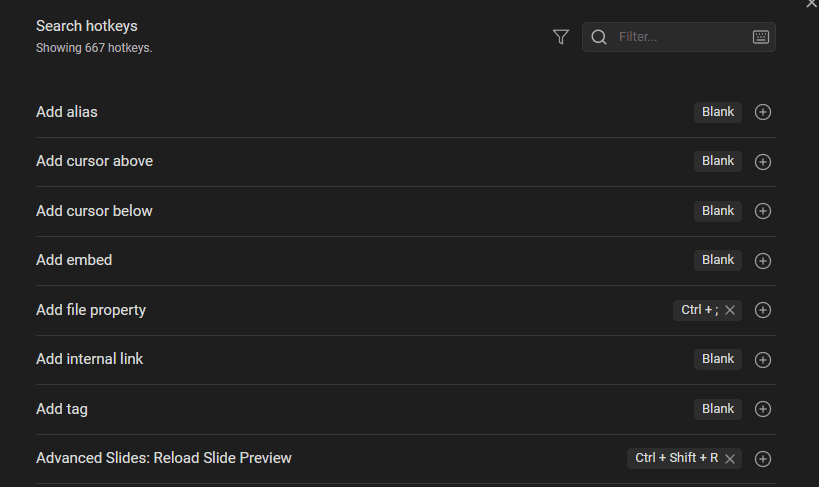
In that panel, you can change any shortcut or even set multiple ones for the each command.
I recommend defining shortcuts for the following:
- Fold less
- Fold more
- Reveal active file in navigation
- Show in system explorer
- Split down
- Split right
- Toggle bullet list
- Toggle left sidebar
- Toggle right sidebar
- Toggle pin
References
- Official documentation: https://help.obsidian.md/hotkeys
Related
- Obsidian Tips
- Obsidian
- Obsidian Quick Switcher
- Obsidian Command Palette
- Templater plugin for Obsidian
- Obsidian URL Deeplinks
- How to create deep links in Obsidian
About Sébastien
Ready to get to the next level?
Found this valuable? Share it with someone who needs it.