
How to Run Claude Code on Your GitHub Copilot Subscription

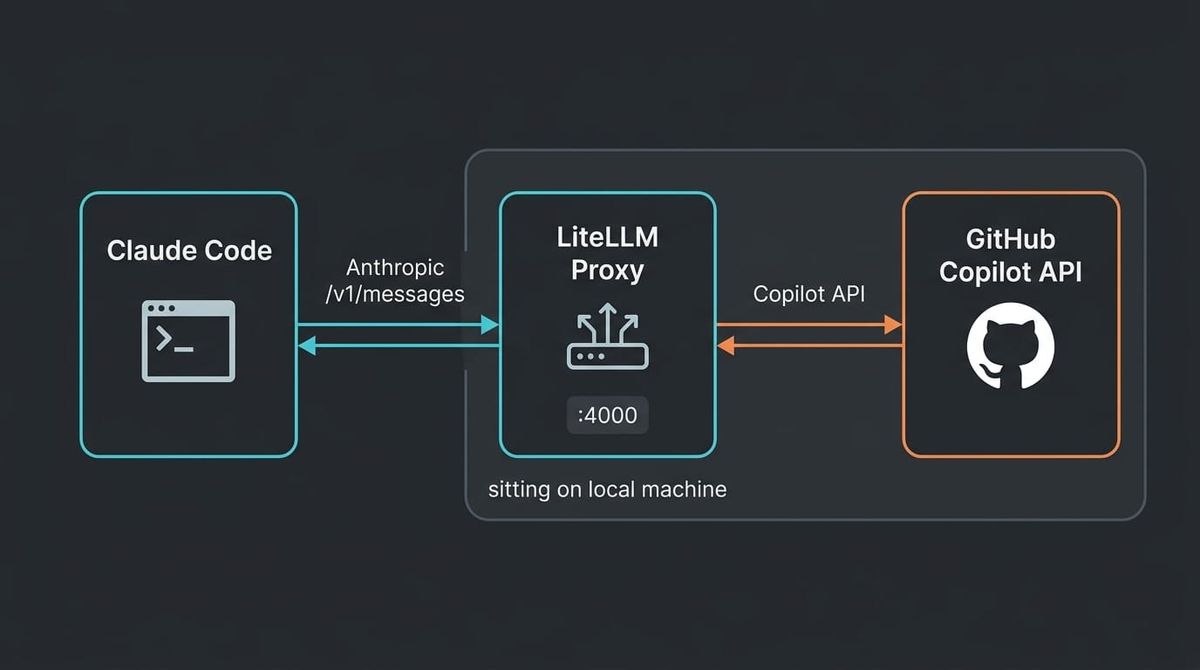
A straightforward setup that wires Claude Code to a back-end you already pay for.
In this article, I want to share a setup that solves a very specific problem: you'd like to use an AI Agent harness such as Claude Code, but you can't because your organization has an Enterprise Agreement with Microsoft and has chosen to use GitHub Copilot.
Maybe your employer only approves GitHub Copilot. Maybe you're already paying for Copilot personally and don't want a second AI bill. Either way, the answer is the same: a local LiteLLM proxy.
Let's get into it.
TL;DR
You can run Claude Code against GitHub Copilot's API by putting LiteLLM in the middle. Claude Code thinks it's talking to Anthropic; LiteLLM translates and forwards to GitHub Copilot using your existing subscription. The whole thing takes about 15 minutes to set up.
The key points:
- Claude Code speaks Anthropic's API; GitHub Copilot does not. LiteLLM bridges the two.
- The proxy runs locally on
localhost:4000. Claude Code is configured via two env vars. - Authentication is OAuth-based; LiteLLM walks you through it on first launch.
- You MUST disable Extended Thinking in Claude Code (
Alt+T); the Copilot provider doesn't support it. - The LiteLLM proxy must be running every time you use Claude Code in this mode. No proxy, no Claude Code.
- Models routed: Claude Opus 4.7, 4.6, 4.5, Sonnet 4.6, 4.5, Haiku 4.5, plus GPT-4 if you want.
- The whole thing is open-source and maintained by the National Bank of Belgium.
Why this matters
A lot of developers have a GitHub Copilot subscription through their employer or as a personal plan. GitHub Copilot now routes to Claude models (Opus 4.7, Sonnet 4.6, Haiku 4.5). So in theory, you already have access to the models that power Claude Code.
The thing is, Claude Code doesn't talk to GitHub Copilot. It talks to Anthropic. Different API, different auth, different endpoint.
That's the gap LiteLLM fills.
By running LiteLLM as a local proxy, you get Claude Code on your machine, talking to Anthropic-shaped requests, while the actual model calls go through GitHub Copilot's API on your existing token. No second subscription. No leaving your enterprise-approved stack.
It's the same idea as the LiteLLM Claude Code Proxy pattern for Azure AI Foundry, but pointed at GitHub Copilot instead.
How it works
Three moving pieces:
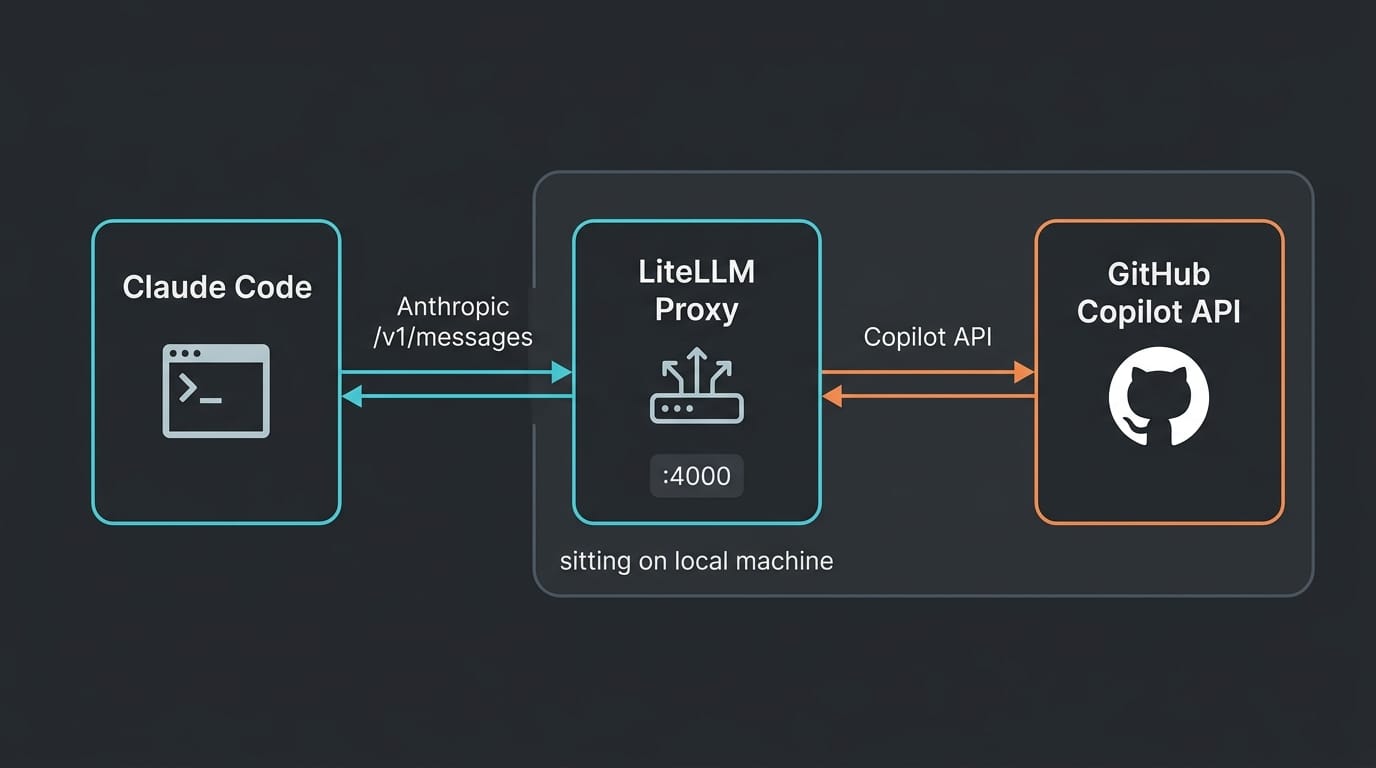
- Claude Code: the agentic CLI you already know. Configured with two env vars to point at the local proxy.
- LiteLLM proxy: runs on
localhost:4000. Translates between Anthropic's/v1/messagesAPI and GitHub Copilot's API. Stores your Copilot token at%USERPROFILE%/.config/litellm/github_copilot. - GitHub Copilot: the actual model provider. You authenticate once via OAuth on first launch.
Claude Code sends a request → LiteLLM rewrites it → GitHub Copilot answers → LiteLLM rewrites the response → Claude Code displays it. From Claude Code's perspective, nothing has changed.
How-to: Step-by-Step
Step 1: Prerequisites
Before you start, make sure:
- You have a working GitHub Copilot subscription
claude.exeis available at%USERPROFILE%/.local/bin- You have an open terminal (e.g., Git Bash)
Step 2: Clone the proxy
The setup uses an open-source proxy maintained by the National Bank of Belgium:
git clone https://github.com/NationalBankBelgium/litellm-claude-code-proxy
cd litellm-claude-code-proxy
Then prepare the environment:
cp .env.example .envOpen .env and set LITELLM_MASTER_KEY to a value of your choice. This becomes your local API key; pick something hard to guess.
Step 3: Configure the model list
Replace litellm_config.yaml with this:
litellm_settings:
  master_key: "os.environ/LITELLM_MASTER_KEY"
  ssl_verify: false
  additional_drop_params: ["response_format"]
model_list:
  - model_name: claude-opus-4-7*
    litellm_params:
      model: github_copilot/claude-opus-4.7
      extra_headers: {"Editor-Version": "vscode/1.85.1", "Copilot-Integration-Id": "vscode-chat"}
  - model_name: claude-opus-4-6*
    litellm_params:
      model: github_copilot/claude-opus-4.6
      extra_headers: {"Editor-Version": "vscode/1.85.1", "Copilot-Integration-Id": "vscode-chat"}
  - model_name: claude-sonnet-4-6*
    litellm_params:
      model: github_copilot/claude-sonnet-4.6
      extra_headers: {"Editor-Version": "vscode/1.85.1", "Copilot-Integration-Id": "vscode-chat"}
  - model_name: claude-haiku-4-5*
    litellm_params:
      model: github_copilot/claude-haiku-4.5
      extra_headers: {"Editor-Version": "vscode/1.85.1", "Copilot-Integration-Id": "vscode-chat"}
  - model_name: gpt-4
    litellm_params:
      model: github_copilot/gpt-4
      extra_headers: {"Editor-Version": "vscode/1.85.1", "Copilot-Integration-Id": "vscode-chat"}
The extra_headers block makes LiteLLM look like the VSCode chat client to GitHub Copilot. That's what gets the request past Copilot's editor checks.
Step 4: Start the proxy and authenticate
From the project folder:
./start_proxy.sh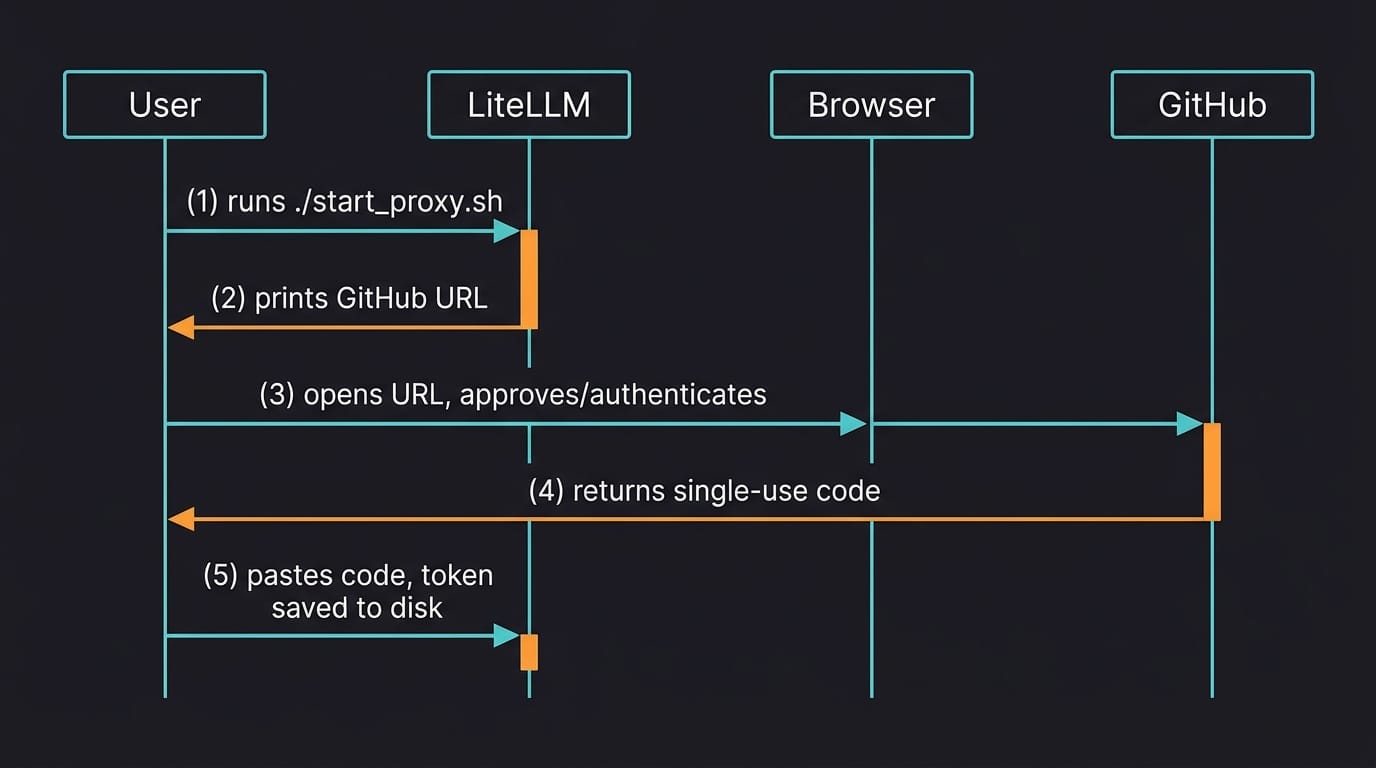
LiteLLM will print a GitHub URL. Open it in your browser. GitHub will ask you to approve the connection and give you a single-use code. Paste that code back into the terminal where LiteLLM is waiting.
That's the OAuth dance. From now on, your Copilot token lives at %USERPROFILE%/.config/litellm/github_copilot and the proxy reuses it.
Step 5: Point Claude Code at the proxy
Open %USERPROFILE%/.claude/settings.json and add:
{
  "env": {
    "ANTHROPIC_BASE_URL": "http://localhost:4000",
    "ANTHROPIC_API_KEY": "<your LITELLM_MASTER_KEY>"
  }
}
The ANTHROPIC_API_KEY here is NOT an Anthropic key. It's the local key you set in your .env. LiteLLM checks it before forwarding any request.
Step 6: Run Claude Code
Just run:
claudeNo --model flag. The default model goes through the wildcard route in your config. Test with a simple prompt; you should get a response within a few seconds.
Critical Gotchas
Two things will bite you if you don't know about them. I want to call them out specifically because they're the reasons this setup fails on the first try.
Gotcha 1: Disable Extended Thinking
Press Alt+T in Claude Code to disable Extended Thinking. The GitHub Copilot provider doesn't support thinking blocks; if you leave them on, you'll get cryptic API errors that don't explain what's actually wrong.
This is the single most common failure mode for this setup.
Gotcha 2: The proxy must always be running
Claude Code has no fallback. If LiteLLM isn't running on localhost:4000, every request fails. Get used to checking that the proxy is up before you launch Claude Code, or add a startup script that launches both together.
Gotcha 3: Don't pass --model if you don't need to
Once it works, resist the urge to test by running claude --model gpt-4. Stick with the default Claude model first. Validate that the basic flow works, then experiment.
Going Further
This setup is part of a wider pattern: putting an AI Gateway between your AI client and the model provider. The same approach works for Azure AI Foundry (see LiteLLM Claude Code Proxy), self-hosted models, and any other Anthropic-compatible client.
The full reference notes:
- Claude Code via GitHub Copilot: the atomic note this article is based on
- Claude Code: overview of the CLI
- GitHub Copilot: the model backend
- LiteLLM: the gateway itself
- LiteLLM Claude Code Proxy: sibling pattern for Azure
If you want to go deeper into AI tooling, I write about Knowledge Management, and AI regularly. Subscribe to my newsletter at https://www.dsebastien.net/newsletter/.
Conclusion
This setup removes a friction point that stops a lot of developers from using Claude Code at all. If you already have access to GitHub Copilot, you can run Claude Code on top of it. The OAuth flow handles auth. The config is straightforward.
It's far from perfect, but you can at least try a different harness.
Note that you can do the same sort of thing with other AI Agent harnesses and other AI providers/models too.
That's it for today! ✨
About Sébastien
Ready to get to the next level?
Found this valuable? Share it with someone who needs it.