
The Complete Guide to Templates and Templater in Obsidian

In this article, I want to show you how to stop creating notes by hand in Obsidian and let templates do it for you: what templates are, the difference between the built-in feature and the Templater plugin, and how far you can go with it. I'll use real examples from my own vault: 20,000+ notes, 40+ note types, and 50+ templates that create almost every note I make.
When I published my complete guide to Obsidian properties, I made one recommendation over and over: never type metadata by hand. A few readers wrote back with the obvious question: "Fine. So how do my notes get all those properties without me typing them every time?"
Well, templates are the answer. Let's get started 🚀
TL;DR
- Templates ensure your notes are always created correctly. The right properties, the right types, the right tags, the right structure, filed in the right folder, from the first second. They're a recipe for new notes.
- Core Templates vs Templater, in one line. The built-in Templates plugin pastes static text with three variables. Templater runs actual logic. I stopped using the core one years ago.
- One idea is all it takes:
<% %>prints,<%* %>runs. Learn that distinction and you're most of the way there. - Choices are awesome. A template can ask you a question and change the properties, the tags, the sections, or even the note's folder based on your answer.
- Templates make properties reliable, and properties are the whole game. Every dashboard, Base, and query in my vault depends on notes being created with a consistent schema.
- Metadata drift is the enemy. Change a section in a template? No big deal. Rename a property? That silently breaks search, queries, Bases, and AI.
- AI closed the loop. I now build most of my templates with AI, and because my note types are documented, AI creates new notes that already respect the expected structure.
How to read this guide
This is a reference guide. It's long. And it's meant to be that way. Just come back for more once you're comfortable with what you've learned. I want this to be the last Obsidian templating guide you need to open.
We'll start with the why, and some theory about templating engines. Then I'll cover two Obsidian "tools" you can use to create templates, and how to choose between them.
After that, we'll get more hands-on: how to install Templater, learn the one bit of syntax that matters, and build your first template. We'll climb from there, to templates that ask you questions, shape your note contents, compute dates, etc. Then we'll look at automation.
I'll also share practical examples, recommendations as well as tips & tricks that I've built and gathered over the years.
Skim what you need and skip what you don't.
Why templates are awesome
Let me start with the "why".
Manual metadata fails for two main reasons: you forget, and you improvise. You forget to add the status field on Tuesday. On Thursday you type date_done instead of date_completed. Six months later, half your notes are missing fields and the other half spell them three different ways. As I argued in my article about Obsidian Properties, a property is "a promise", and every promise you break by hand makes your searches, your queries, your Bases, and your AI less trustworthy.
There's a quieter cost, too. When creating a note means deciding on its shape every single time, that friction adds up. You make fewer notes, or you dump everything into one messy file. Take the friction away and you just write.
A template keeps that promise for you. When I create a book note, it directly includes all the properties I need: authors, isbn, pages, rating, status, and more. When I create a task, it arrives with the full prioritization schema. I don't remember the fields. I don't type them. The template does, and it never forgets, contrary to me!
This is what I call the note-type contract. Every type in my vault (task, book, person, project, daily note, article...) declares four things: which folder it lives in, which tags it must carry, which properties it must have, and which template creates it. The template is how that contract gets enforced automatically, on every single new note.
If you want the deeper "why templates matter for knowledge management" argument, I wrote about it years ago in The Power of Templates in PKM. This guide is the practical, technical companion to that one. And if you're brand new to Obsidian, grab my free Beginner's Guide to Obsidian first; it'll get you comfortable with the basics.
 Sebastien Dubois
What's a templating engine, anyway?
Before we get into Obsidian's own tools, a quick word on the general idea, because "templating engine" might sound too technical. A template is just a document with holes in it. A templating engine is the thing that fills those holes. You write the fixed parts once (the headings, the labels, the structure) and you mark the spots that should change (the title, today's date, a status you pick, ...). The engine takes your template, plugs in the right values, and hands you back a finished document.
This idea is everywhere in software. Web pages, emails, invoices, even source code get produced this way. Obsidian and community plugins use the same kind of mechanism for your notes. You describe once what a "book note" or a "meeting note" should look like, and the engine stamps that shape onto every new note, resolving (aka interpolating) the variable bits (the title, the date, your choices) on the spot. Everything in the rest of this guide is really just that one concept, applied to plain Markdown files you own.
Core Templates vs Templater
Obsidian has TWO different templating tools with almost the same name.
Templates core plugin for Obsidian ships with Obsidian and is enabled by default. You point it at a template folder, and it pastes the content of a template file into your note. It supports/understands three variables: {{title}}, {{date}}, and {{time}} (you can format the date with {{date:YYYY-MM-DD}} using the Moment.js syntax). That's the whole feature. It's static text with a couple of placeholders. It works in Restricted Mode.
The Templater plugin is a community plugin, and it's something far more powerful. It has its own syntax, it does date arithmetic, it can ask questions, it can move and rename files, and it can even execute JavaScript code. Everything interesting in this article uses Templater.
Here's a quick comparison between those two:
| Core Templates (built-in) | Templater (community) | |
|---|---|---|
| Install | Core plugin, works in Restricted Mode | Community plugin, needs Restricted Mode off |
| Variables | {{title}}, {{date}}, {{time}} only | Powerful API and JavaScript support |
| Dynamic dates | today only | offsets, arithmetic, parse from the filename, ... |
| Prompts and choices | no | tp.system.prompt and suggester |
| Move / rename the note | no | tp.file.move and rename |
| Run code | no | yes, in <%* %> blocks |
| Auto-apply on new note | only via other plugins | folder and file-regex templates |
Can they coexist? Yes, if you give them separate hotkeys and separate folders. But honestly, I don't really use the core Templates plugin anymore. Templater does everything the core plugin does and far more, so that's what I recommend and what the rest of this guide uses.
Everything the core Templates plugin can do
Even though I've moved on, here's the core plugin in full, because it's genuinely all you need for simple cases.
- Turn it on and point it at a folder. Templates is a core plugin, enabled by default. The one thing to set is Settings → Core plugins → Templates → Template folder location: the folder that holds your template files.
- Insert a template two ways. Click the Insert template button in the left ribbon, or run Templates: Insert template from the command palette (
Ctrl/Cmd + P). The core plugin ships with no default hotkey, so if you want one, assign it under Settings → Hotkeys (search for "Templates"). Either way, Obsidian drops the template's content at your cursor. - The three variables. Inside a template file you get exactly three placeholders:
{{title}}(the note's title),{{date}}(today's date), and{{time}}(the current time). That's the entire vocabulary. - Formatting dates and times. Add a colon and a Moment.js format string to override the output per placeholder:
{{date:YYYY-MM-DD}}or{{time:HH:mm}}. To change what the bare{{date}}and{{time}}produce everywhere, set the defaults under Settings → Core plugins → Templates → Date format and Time format. - Two bonus commands, no template file needed. Templates: Insert current date and Templates: Insert current time drop just a formatted date or time at your cursor, using those same default formats. Handy for timestamping inside any note.
- The tokens are shared. Those same
{{date}}and{{time}}placeholders are what the Daily Notes and Unique Note Creator core plugins use too, so once you know them here, they carry over. And as with Templater, edit template files in Source mode (or quote the values) so the Obsidian Properties panel doesn't swallow the placeholders in your frontmatter.
That's the whole plugin: static text, three variables, a couple of insert commands. For a fixed block with today's date, it's perfect. The moment you want computed dates, prompts, choices, auto-filing or other cool features, you want Templater.
Already using the core plugin? The swap is quick
If you already have templates in the core plugin, moving them over is mostly a find-and-replace on the three tokens you know:
{{title}}becomes<% tp.file.title %>{{date}}becomes<% tp.date.now("YYYY-MM-DD") %>(or any other date format you like){{time}}becomes<% tp.date.now("HH:mm") %>{{date:YYYY-MM-DD}}becomes<% tp.date.now("YYYY-MM-DD") %>
As I've mentioned, Templater is a community plugin, so you have to disable the Restricted Mode to install it, then give it its own hotkey and template folder.
The one idea that makes Templater tick: <% %> vs <%* %>
You don't need to be a programmer to use Templater. The syntax looks a little cryptic at first, but there's really only one thing to understand, and once it clicks, you can read any template.
Templater has two kinds of tags:
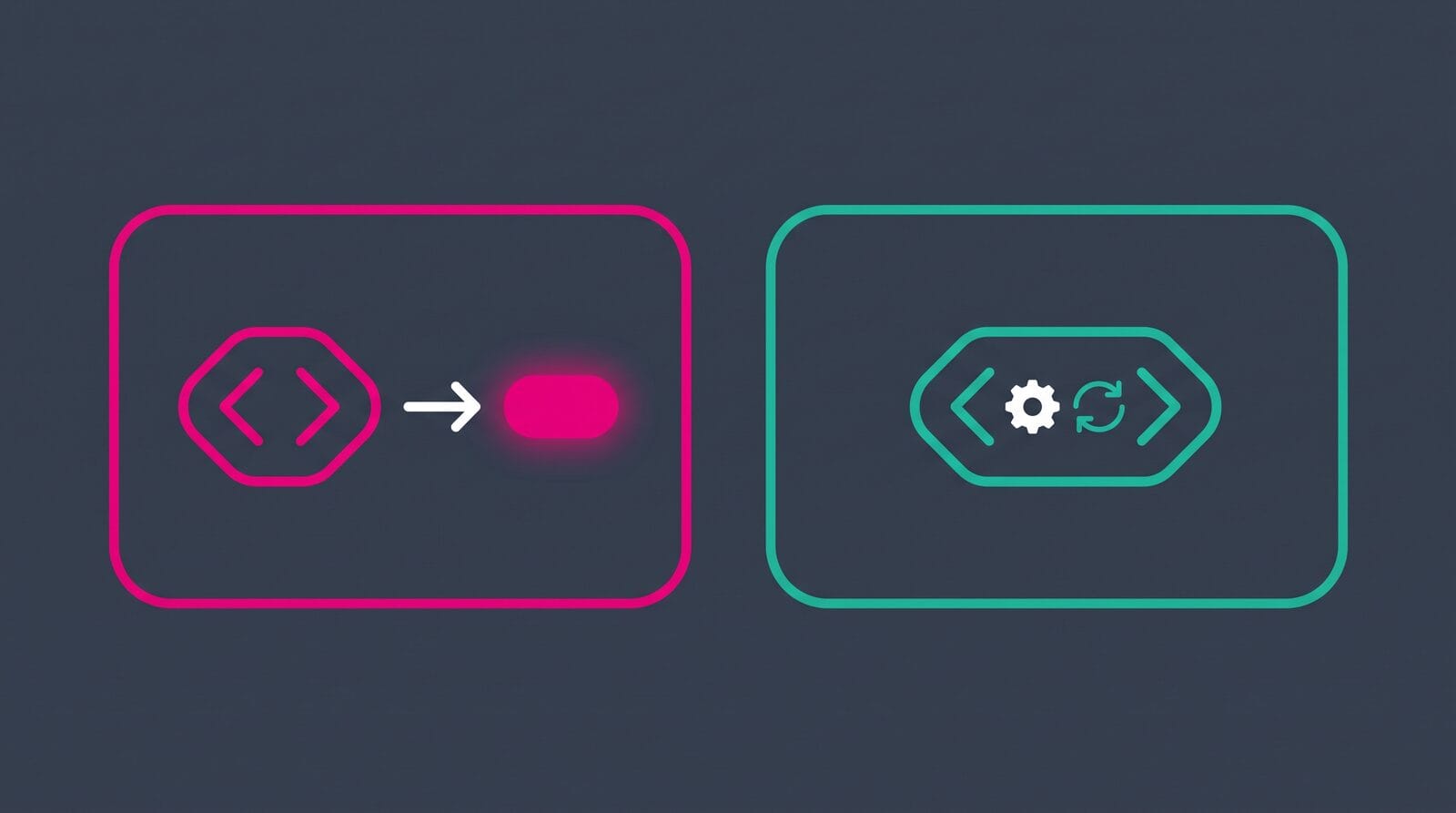
<% %>interpolation. It evaluates something and PRINTS the result into your note.<% tp.file.title %>prints the note's title.<% tp.date.now("YYYY-MM-DD") %>prints today's date. Think "show me a value."<%* %>execution. It RUNS JavaScript and prints nothing by default. This is where logic lives: variables, conditions, loops, moving files. If you want an execution block to output text, you append it to a special variable calledtR. Think "do something."
That's it. <% %> shows a value, <%* %> does work. Once that clicks, reading any template becomes easy: you scan for <% %> to see what gets printed, and you read <%* %> blocks as the little program behind the scenes.
You'll see both forms in action once we've installed Templater and built a first template, just below.
One quirk to file away now: execution blocks print nothing, but they still leave the blank line they sat on, so conditional templates end up riddled with empty lines. Templater has whitespace control for exactly this. Put a dash before the closing tag (-%>) to trim the newline after a command. If your template comes out full of gaps, that's the fix.
Install and configure Templater
Time to get hands-on. Setup takes a minute:
- Open Settings → Community plugins, search for "Templater", install it, and enable it. (You'll need Restricted Mode off, since it's a community plugin.)
- In Templater's settings, set a template folder location — mine is a dedicated folder that holds nothing but templates.
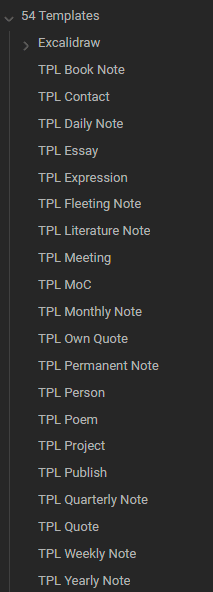
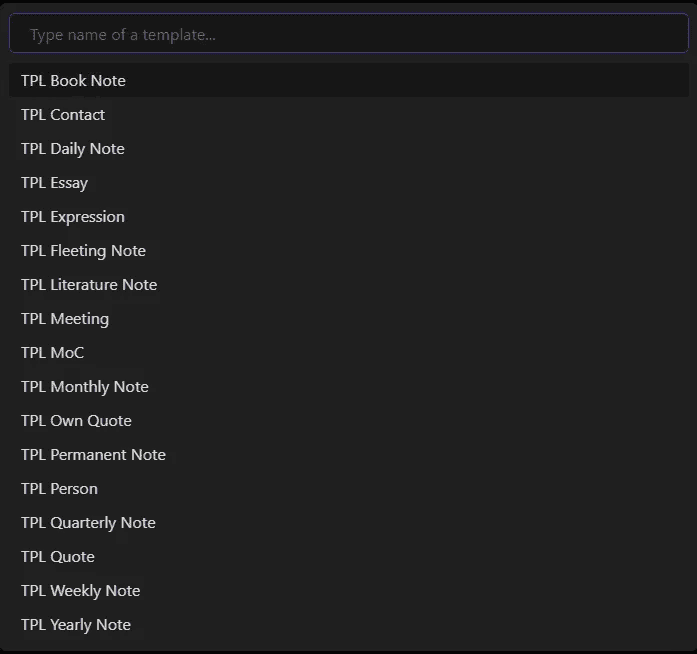
One habit that pays off immediately: name your templates consistently. I prefix every one with TPL — TPL Book Note, TPL Meeting, TPL Task. They sort together, they autocomplete together, and I can find any of them in a second.
Example structure for Templater templates:
Your first Templater template
Enough theory. Let's create one and apply it.
A minimal template is just structure plus a couple of expressions:
# <% tp.file.title %>
<% tp.file.cursor() %>

## References
-

## Related
-
tp.file.title prints the note's name as a heading, and tp.file.cursor() tells Templater where to drop your cursor after inserting, so you can start writing immediately. Simple, and already useful.
Create a file called "TPL Example" in your templates folder and paste that in. Then:
- Create a new, blank note with any name you like.
- Apply the template: hit
Alt + E(Templater's "Open insert template modal" command, bound toAlt + Eby default on Windows and Linux), or open the command palette withCtrl/Cmd + Pand run "Templater: Open insert template modal". On macOS there's no default hotkey —Cmd + Eis already Obsidian's edit/preview toggle — so assign your own under Settings → Hotkeys (filter for "Templater"). - Pick "TPL Example" and hit Enter.
Done. Your template was interpolated and the result was added to the note: the heading matches the file's name, and your cursor is waiting exactly where tp.file.cursor() put it.
That Alt + E template picker is what I use constantly. Even with all the automation I'll describe later, it stays my manual go-to whenever I want to apply a specific template to a note.
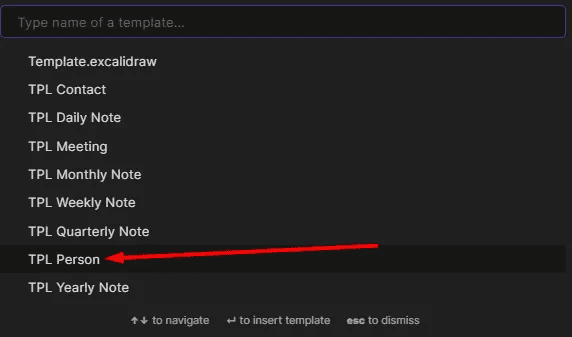
The alternative is to use CTRL/Cmd + P, then type "templater" to see the Templater commands:

One more built-in trigger is worth knowing: the "Replace templates in the active file" command evaluates any Templater syntax already sitting in the current note, which is how a snippet you pasted (or syntax another tool wrote in) gets run on demand.
And for the templates you reach for constantly, the fastest trigger of all is a dedicated hotkey.
Binding a template to its own hotkey
The Alt + E picker is great, but for the two or three templates you create constantly, scrolling a list is still friction. Templater lets you promote any single template to its own command, which you can then bind to a dedicated key.
It's a two-step setup:
- Register the template as a command. In Settings → Templater, scroll to the Template Hotkeys section, add a new template-hotkey entry, and pick the template file. Templater now exposes commands for that specific template.
- Assign the key. Go to Obsidian's Settings → Hotkeys, search for the template's name, click the
+, and press the shortcut you want.
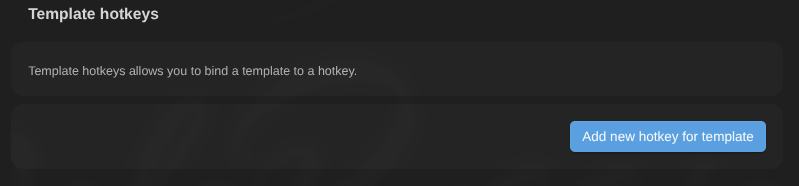
Each template you register this way actually gets two commands:
Templater: Insert <template>— inserts that template into the current note (likeAlt + E, but for that one template, with no picker).Templater: Create <template>— creates a new note from that template.
So you can wire Ctrl + Shift + M straight to "Create TPL Meeting" and spin up a fully structured meeting note without touching the mouse. These are the same commands you'll find in the command palette, and the same ones you can fire from the terminal with the CLI trick further down (obsidian command id=templater-obsidian:...).
One tip: pick a small, memorable set. I only bind the handful of templates I use every day; everything else stays behind Alt + E. A hotkey you have to look up isn't saving you anything.
The feature I love most: templates that adapt to your choices
Now let's make templates actually powerful. Almost everything you'll write draws on three families of functions: tp.date for dates, tp.file for the note itself (its title, its location, its cursor), and tp.system for asking you questions. Keep those three in mind and the rest is detail.
If there's one Templater capability that I find valuable, it's this: a template can ask you a question, and change what it produces based on your answer. It doesn't just fill a blank. It can produce different properties, different sections, different tags, even a different folder.
Two functions do the asking: tp.system.suggester (a pick-list) and tp.system.prompt (free text). Here's a snippet from my Task template letting me choose a status, where the label I see and the value that gets stored are deliberately different:
status: <% await tp.system.suggester(["Backlog", "This Week", "In Progress", "Done"], ["10 - Backlog", "50 - This Week", "60 - In Progress", "80 - Done"], false, "Choose a status") %>I see "In Progress"; the note stores 60 - In Progress. That numeric prefix makes every Base, query, and Kanban column sort by workflow order instead of alphabetically. Thanks to the template, the correct value gets used every time without me having to remember or type it.
I use the same approach for ratings. But for those, I don't need a different display text, so I use the simpler suggester form:
rating: <% await tp.system.suggester((item) => item, ["", "★★★★★", "★★★★☆", "★★★☆☆", "★★☆☆☆", "★☆☆☆☆"], false, "Choose a rating") %>Here's a more advanced example. In my Person note template, I start by asking a single question to state whether I'm creating a note about a personal contact, a customer or a public figure. My template asks the question; then, based on the answer, it adapts the tags, the frontmatter, the body sections and the destination folder:
const contactType = await tp.system.suggester(
  ["No - Public Figure/Influencer", "Yes - Personal Contact", "Yes - Customer Contact"],
  ["public", "personal", "customer"],
  false,
  "What type of person is this?"
);
const isCustomer = contactType === "customer";
const isContact = contactType === "personal" || isCustomer;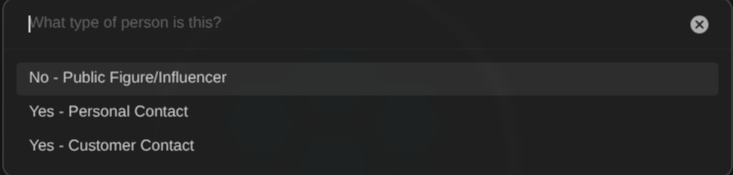
If I pick "customer", then the note is created with the type/contact/customer tag, a purchase-history table, customer fields like lifetime_value, and it files itself under Customers. If I pick "public figure", then the note I end up with is completely different. One template, three different note shapes, chosen at creation time. I'd otherwise need three separate templates and the discipline to always pick the right one.
Here's the branch that writes the right tags, straight into the frontmatter:
<%* if (isCustomer) { %>
  - type/contact
  - type/contact/customer
<%* } else if (isContact) { %>
  - type/contact
<%* } else { %>
  - type/person
<%* } %>
The pick-list doesn't have to be hardcoded, either. You can feed tp.system.suggester a list of your existing notes (filtered by tag, folder, or a property), so a new task can ask "which project?" and drop a [[wikilink]] to the one you pick. Choices can point at your vault, not just at fixed options.
I had fun with this feature and got crazy with my "Dot" note type. In my system (the Obsidian Starter Kit), Dots are like single-line notes that condense an idea (e.g., a win, a failure, an idea, a principle, ...). My Dot template offers a single 24-way choice. One choice from me, and a cascade of differences handled by the template. I'm not saying that this is the best of ideas, but it's useful in some cases!
Recommended note structures (design the body, not just the frontmatter)
Templates aren't only about properties. They're also where you can encode the shape of a note's body, so every note of a type is laid out the same way and I never stare at a blank page wondering what sections to add or goes where.
Here are some examples from my system:
- Meeting notes: Participants (with Present/Absent/Excused), Agenda, Minutes, Decisions, Actions, References, Related. I keep Decisions and Actions as separate sections on purpose: months later, I can see what was agreed and who owes what without re-reading the whole thing.
- Goals, projects, and plans: a Vision or Objective section (with the cursor waiting there), plus the relationship properties that chain them together (
related_goals,related_projects) so any task can answer "which goal does this serve?". - Book notes: Description, Quotes, Key ideas, Chapter notes, References, Related, on top of the reading metadata.
- Daily notes: Today's priority, Plan, Done Today, Discovered, and an End-of-day reflection.
None of this is elaborate. That's the point. A good structure is a small set of headings that make the note scannable and comparable to every other note of its type. The template stamps that structure so consistency costs you nothing.
For instance, my meeting template includes the following headings, so every meeting note captures the same things in the same order:
## Participants
- <% tp.file.cursor() %> : Present/Absent/Excused

## Agenda
-

## Minutes
-

## Decisions
-

## Actions
-

...
Within templates, you can include both structure and metadata, and that's awesome.
Check out my reference guide about Obsidian Properties to learn more about the metadata side:
 Sebastien Dubois
Every note ends with References and Related
One small convention I've found valuable as my knowledge base grew consists in including the following two sections in (almost) all my notes:
- Related
- References
Under References I add external links and under Related, I add [[wikilinks]] to other notes in my vault. External sources stay attached to the ideas they support, and the Related links weave every new note into the graph, which powers backlinks, discovery and retrieval. My vault gets denser with almost no deliberate effort. As an added benefit, AI understands these sections perfectly. When one of my AI assistants works on a note, it reads the Related section to gather context and follow the trail, and it drops new links into the right place. More on that later.
Example: Goal Note Template
Below, you can find another example: my template for Goal notes:
 262588213843476
Dynamic dates and periodic-note navigation
Dates are an area where Templater's logic shines. The tp.date.now Templater function takes a format and an optional offset, and the offset can be a plain number of days or an ISO 8601 duration string:
Last week: [[<% tp.date.now("YYYY-[W]WW", "P-1W") %>]]
Next month: [[<% tp.date.now("YYYY-MM", "P+1M") %>]]
For the common cases there are shortcuts: tp.date.tomorrow() and tp.date.yesterday() do exactly what they say, and tp.date.weekday("YYYY-MM-DD", 0) gives you this week's first day of the week, which is perfect for weekly notes. And when you outgrow those, Templater hands you the full moment object, so <% moment(tp.file.title, "YYYY-MM-DD").startOf("month").format("YYYY-MM-DD") %> computes the start of the month straight from the note's title.
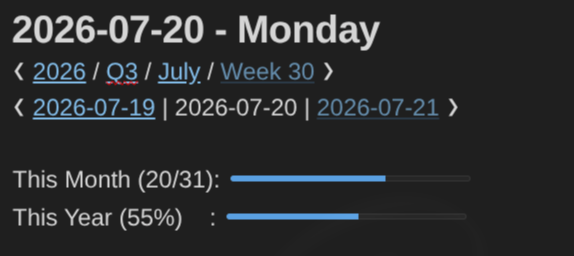
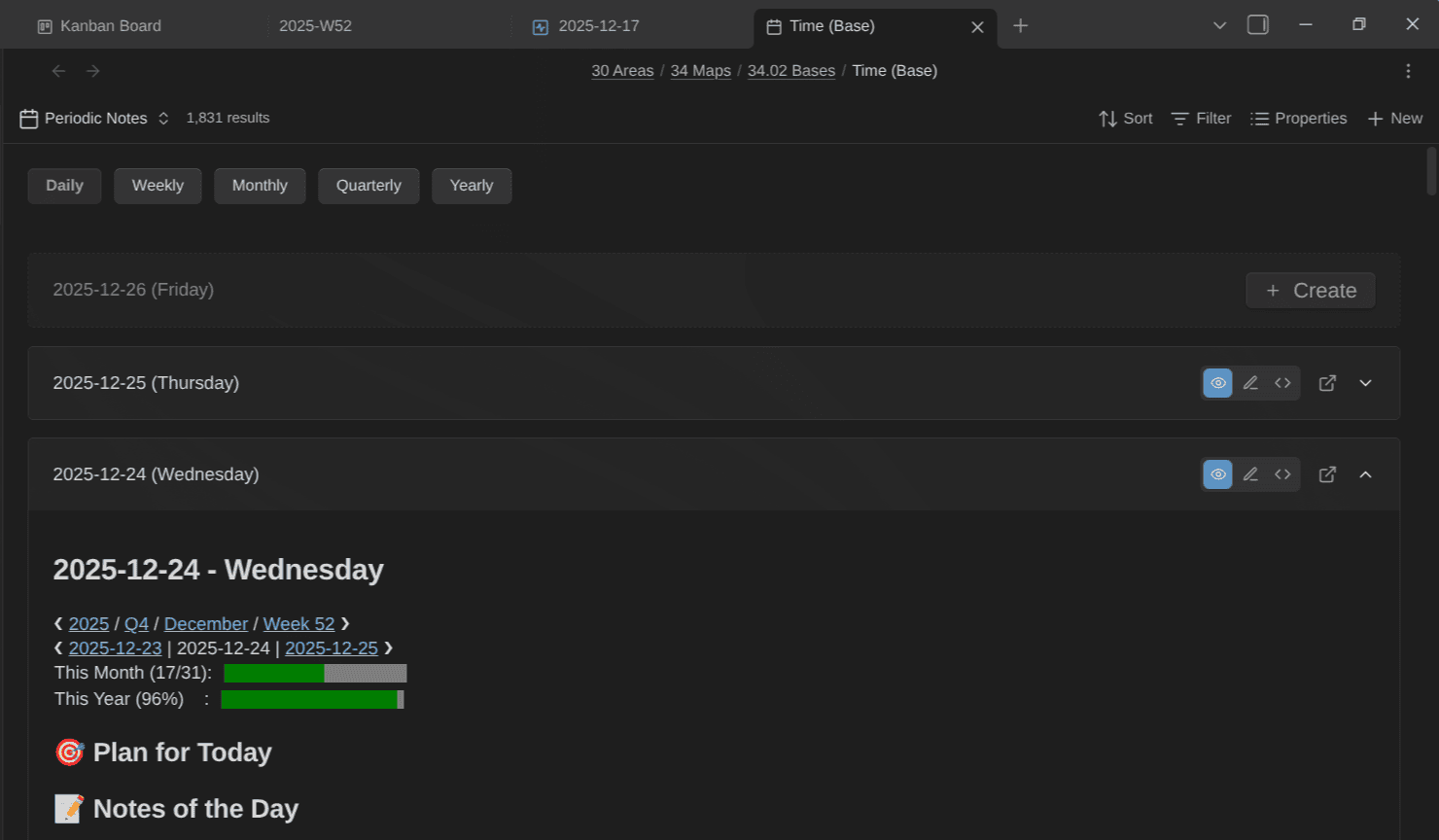
Even better, a template can read the date out of the note's own filename and compute from there. This is how my daily and weekly notes build their navigation without me touching a thing. Each daily note is created with a header row that links to its year, quarter, month, and week, plus the previous and next day:
❮ [[2026]] / [[2026-Q3|Q3]] / [[2026-07|July]] / [[2026-W29|Week 29]] ❯
❮ [[2026-07-17]] | 2026-07-18 | [[2026-07-19]] ❯
The template derives all of that from the filename with a bit of Moment.js math, adds a couple of progress bars for the month and the year, and files the note in the right year/week folder. I open a new day and everything is already wired up. For this to work, the name of your periodic notes must be well chosen, or you'll have to rely on metadata to be able to do the same.
I've shared my template a while ago in another article:
 Sebastien Dubois
I lean on periodic notes so heavily that I built a plugin for them, Journal Bases, which creates daily, weekly, monthly, quarterly, and yearly notes and applies the right template to each using the Templater plugin:
Here's a video walkthrough:
Transformation templates
Templater templates can do much more than "just" scaffolding new notes. You can also use those to transform existing notes.
For instance, you can easily write a template that modifies the text you've selected using tp.file.selection(). With this, you can transform sentences into quote blocks, callouts, links, etc.
Here's an example. This little TPL Callout template wraps whatever I've selected in a note callout:
> [!note]
<% tp.file.selection().split("\n").map(line => "> " + line).join("\n") %>
To use it, I select some text in a note, hit Alt + E, and pick TPL Callout. Templater replaces my selection with the rendered template. tp.file.selection() hands the template the text I had highlighted; I split it into lines, prefix each one with > , and the whole thing becomes a proper multi-line callout:
> [!note]
> First selected line
> Second selected line
The same trick covers a lot of ground: wrap a selection in a quote block, turn a highlighted URL into a Markdown link, upper- or lower-case it, make it bold, or prefix every line with - [ ] to turn a plain list into tasks. Anything you can express in a line of JavaScript, you can apply to your selection. Templates aren't only for the blank page; they're also a fast way to reshape text you already have.
Notes that populate themselves: queries and Bases inside templates
There's a lot more you can do with templates. For example, a template can seed a note with QUERIES that fill it in automatically.
When I create a new daily note, it includes blocks that answer "which notes did I create today?" and "which did I modify today?". My periodic notes carry queries for "created this week", "created this year", and even "books finished this year" (matching the note's own year against each book's date_finished). It's trivial to extend this to an on-this-day view: "what did I write exactly one year ago today?". I never build those lists. The queries build them for me.
The "created today" block in my daily note relies on another plugin I've created: Dataview Serializer plugin for Obsidian. Dataview serializer queries rely on the Dataview plugin to find notes that satisfy the search query, and Dataview Serializer converts the results into Markdown (in this case, a table):
<!-- QueryToSerialize: TABLE dateformat(default(date(created), date(file.ctime)),"yyyy-MM-dd") AS Created FROM "" WHERE dateformat(date(default(created, file.ctime)), "yyyy-MM-dd") = dateformat(this.date, "yyyy-MM-dd") -->
<!-- SerializedQuery: TABLE dateformat(default(date(created), date(file.ctime)),"yyyy-MM-dd") AS Created FROM "" WHERE dateformat(date(default(created, file.ctime)), "yyyy-MM-dd") = dateformat(this.date, "yyyy-MM-dd") -->

| File                                                                                      | Created    |
| ----------------------------------------------------------------------------------------- | ---------- |
| [[Improve my AI Assistant (Goal)]] | 2026-06-23 |
| [[AI Workshops (Project)]] | 2026-06-23 |
| [[X Wall (Project)]]                    | 2026-05-30 |

<!-- SerializedQuery END -->
The query lives in a comment, and the plugin writes the RESULTS into the note as real Markdown links. That matters, because real links show up in the Obsidian Graph view. Also, unlike live Dataview results that only exist inside Obsidian, both the query and the results are actually part of the Markdown file, meaning that any tool (AI included) can read those! So the note maintains itself, and its links are real.
You can go further and embed a whole Obsidian Base view inside a template. Very powerful for hub notes and reviews.
To learn more about Obsidian Bases, check out the following article:
 Sebastien Dubois
By the way while we're discussing Bases, there's one caveat worth knowing: Bases' own "New" button cannot apply a Templater template, so notes you spin up straight from a Base skip your schema. Create them the normal way, or reach for a community bridge plugin.
One real trap to know about, because it bit me: if you run this kind of processing across your vault, add your Templater templates folder to the ignore lists. Otherwise the tools try to process the templates themselves and mangle them. Same spirit as excluding templates from "trigger on new file creation".
Auto-filing: the ways a note ends up in the right place
I never drag notes into folders. New notes file themselves, through a combination of mechanisms rather than one magic switch. Here's how it works in my vault.
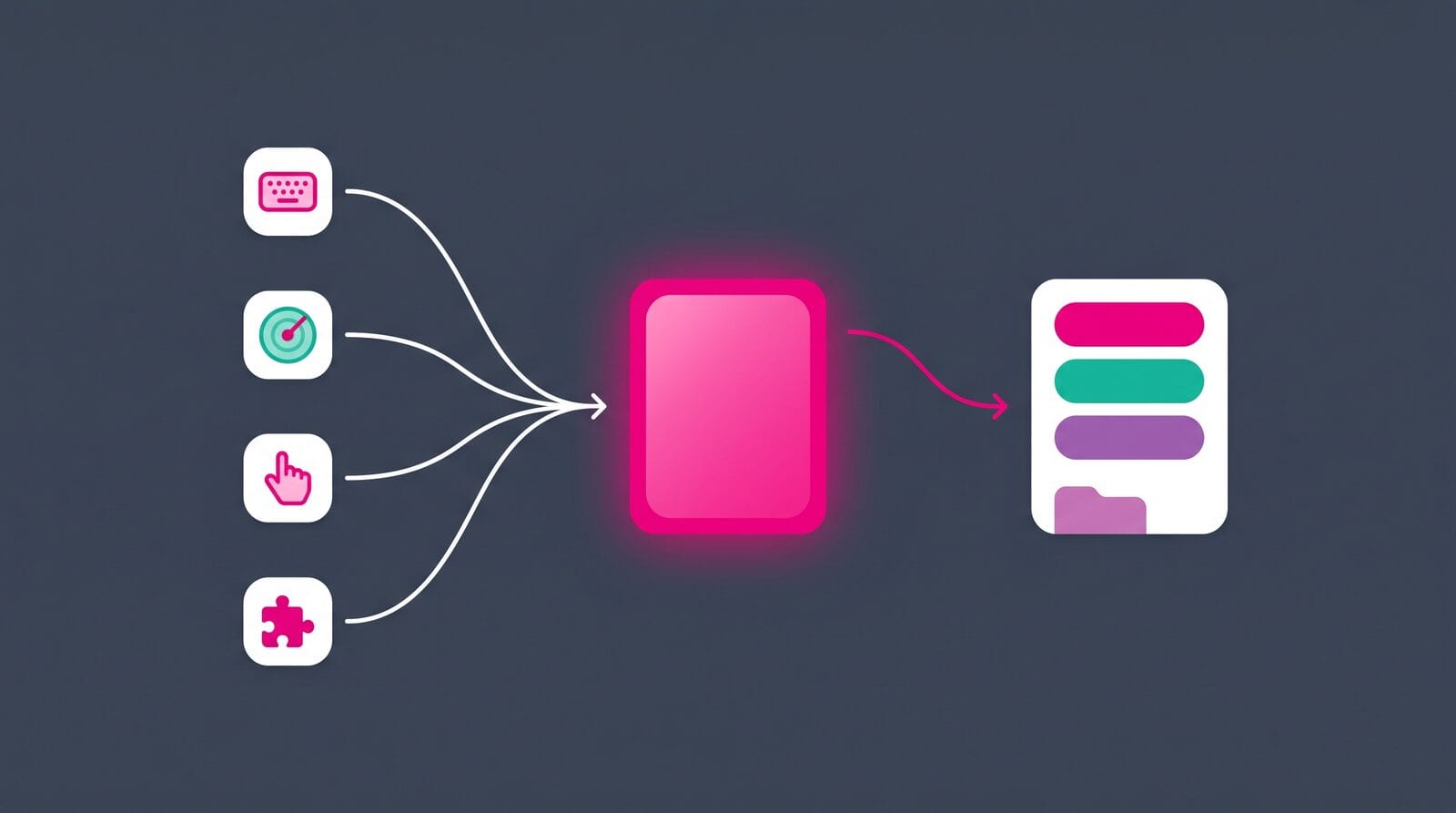
When you create a note, it just sits wherever you created it. And if you need it elsewhere, you have to move it manually. That's boring, and hard to do consistently. Luckily, you can actually automate note filing. Previously, I used the Auto note mover plugin for Obsidian to do this. But that was until I discovered that you can also do that using Templater!
Now, most of my templates include logic to automatically move notes where they belong, creating the folder if needed and (optionally) adding a type suffix to the name:
// add the type suffix, then file the note
if (!/\s*\(Task\)\s*$/i.test(fileName)) fileName += " (Task)";
await tp.file.rename(fileName);
await tp.file.move("20 Actions/24 Tasks/" + fileName);
With the above snippet in my Task template, the (Task) suffix gets added to the name if not present yet, and the note is then moved to the "20 Actions/24 Tasks/" folder.
Automatically applying templates
In my vault, I also have a special "meta-template" called TPL Dispatcher. That template contains code that is executed whenever I create a note at the root of the vault. It tries to recognize the note's type (with the help of my Obsidian Starter Kit plugin, where I defined all note types), and helps me quickly apply the right template to the new note. That one is pretty complex, but really useful.
The workflow is like this:
- Create a new note at the root of the vault
- If the note type can be recognized (e.g., task if contains
(Task)in the name), then the correct template is applied automatically (in this example,TPL Taskis applied) - If the note type can't be identified, a dialog is shown to me so that I can select the right note type; then the template for the chosen note type is applied
It's a big time saver.
If you're curious, you can find the code of my dispatcher template here:
 262588213843476
But as I mentioned, it relies on my Obsidian Starter Kit and the Obsidian Starter Kit plugin because that's where I configure my note types.
This dispatcher template is configured as a folder template in the Templater plugin settings, like this:
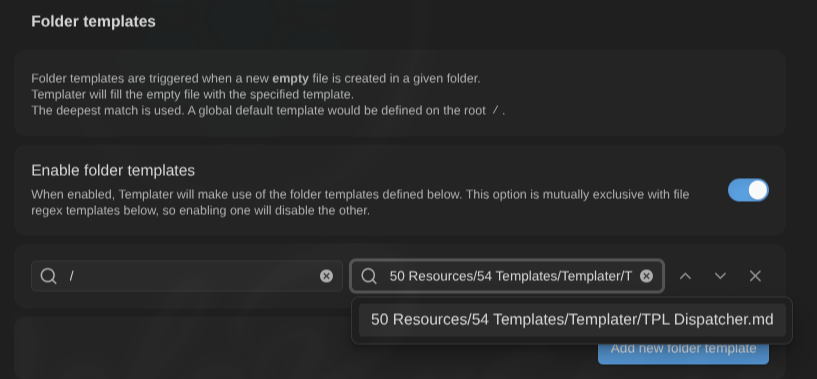
And it's also possible to define additional folder templates, so imagination is the only limit to what you can do with this!
Alt + E is my manual alternative, for when I want to pick a template myself or the dispatcher didn't fire (e.g., if the note was created elsewhere in the vault).
In addition, some plugins create notes through a template too. The TaskNotes plugin uses a Templater template to set up each new task note correctly, so even task creation goes through a template. Same thing with my Journal Bases.
Playing with JavaScript: from template logic to full plugins
Because <%* %> blocks run real JavaScript, a template can do far more than fill in blanks. It can read and write frontmatter with Obsidian's API, loop over every file in your vault, discover all your tags, interact with active plugins, run Dataview queries, or even execute scripts and programs.
Of course, this is for power users, and you absolutely don't need it to benefit from templates. But it's worth seeing how far you can go with Templater.
My favorite example is my publish template. I share more than 10,000 notes publicly through Obsidian Publish, and each public note carries a public_note: true property. I have a TPL Publish template that walks every file in my vault, compares it against the actual list of published files, fixes any public_note value that drifted out of sync, runs all Dataview Serializer queries present in the notes I've decided to publish, and regenerates my recently added and recently modified changelog notes.
It's a real program, living in a template, keeping my published notes up to date.

If you know a bit about JavaScript programming, it's interesting to know that you can even store .js files in your vault exporting functions using module.exports, and call those from any template using <% tp.user.myFunction("arg") %>. Very useful to extract reusable functions and to use those in multiple templates.
And if you want to use the Templater instance; tp or the "template result", tR, you just have to hand them over. For example: tp.user.myFunction(tp). Note that, similar to Templater's system-command functions, user functions don't run on mobile.
If at some point one of your templates becomes too large or too complex, then it may be time to start thinking about converting it to an actual Obsidian plugin. I've hit that with my publish workflow. It started as one of these programmatic templates, but got quite complex. In addition, I wanted a real user interface for it. So, I ended up turning it into a proper Obsidian plugin for publishing to Ghost: Ghost Publish plugin for Obsidian.
Templates are now the place where I prototype automation. When something is valuable enough, I convert it. And doing so ain't that hard thanks to AI and my Obsidian Plugin Template.
 dsebastien
One last thing to know about Templater templates is that you need to trigger those from an existing note. You can't just invoke ALT + E without an open/active note; that doesn't work. If you try it, you'll get the following error:

Just know that you need to focus on a note (any note will do) to invoke a template. And your template doesn't have to modify that note. For instance, my TPL Publish template doesn't modify the active note; it does other things :)
Triggering Templater from the command line
There's a more recent, lesser-known way to run a template: straight from your terminal. Obsidian now ships an official command-line interface, the obsidian command, available since version 1.12.7. To enable it, go to Settings → General → "Command line interface" and enable/register it. After that, much of what you can do in the app, you can trigger from the shell, templates included. One caveat: the CLI drives the running Obsidian app, so Obsidian has to be open; it isn't a headless engine.
The CLI can run any Obsidian command by its ID, and Templater's commands are no exception. List them first:
obsidian commands templater-obsidianYou'll see IDs like templater-obsidian:insert-templater (the Alt+E modal), templater-obsidian:replace-in-file-templater, and templater-obsidian:create-new-note-from-template.

Note that for scripting, the handy one is replace-in-file. To use it, create a note that contains Templater syntax, then have Templater resolve it in place.
# create a note whose content still has raw <% %> commands, and open it
obsidian create name="Scratch" content="# <% tp.file.title %>\n\nCreated <% tp.date.now() %>" open

# resolve the Templater commands in the now-active note
obsidian command id=templater-obsidian:replace-in-file-templater
If you've bound a specific template under Templater's Template Hotkeys, it gets its own command ID too (named Insert <template> in that list), so you can run one specific template directly, without the modal.
For full control, skip the commands and call Templater's API through obsidian eval, which runs JavaScript inside the app. This creates a note from a template, filed in a folder, without even opening it:
obsidian eval code="(async () => { const t = app.plugins.plugins['templater-obsidian'].templater; const tpl = app.vault.getAbstractFileByPath('Templates/TPL Book.md'); await t.create_new_note_from_template(tpl, '30 Areas/Books', 'New book', false); })()"One more benefit: because the CLI creates notes inside the live app, a note you make with obsidian create or obsidian daily still fires Templater's "trigger on new file creation" hook. So your folder and file-regex templates apply exactly as if you'd created the note by hand. Set those up once, and even terminal-created notes are created correctly. AI is GREAT at doing this; you just have to mention something like "use the 'obsidian' CLI to create a new meeting note using Templater", and it'll do the right thing!
This makes Obsidian templating scriptable. Cron jobs, shell scripts, and other tools can create structured, template-driven notes without you ever touching Obsidian's UI. If you want to go deeper on the CLI itself, see Obsidian CLI and the official docs.

The rest of the Templater toolbox
I've shown the features I use regularly, but Templater's API is broad. Skim over this section now, and come back when a specific need shows up.
- Create other notes from a template:
tp.file.create_new(). A template can give birth to other notes. Hand it either a chunk of content or another template (tp.file.find_tfile("TPL Task")), a filename, and a target folder, and it spawns the note. My project template can scaffold its own sub-notes this way; a MOC template can stamp out stubs. It's async, soawaitit:<%* await tp.file.create_new(tp.file.find_tfile("TPL Task"), "New task", false, "20 Actions/24 Tasks") %>. - Read your own frontmatter:
tp.frontmatter. Everything above WRITES metadata; you can also READ it back.<% tp.frontmatter.status %>prints a property,tp.frontmatter["note type"]handles keys with spaces, and list properties come back as real arrays you can.map()over. Perfect for branching a template on what the note already declares. - Grab the clipboard:
tp.system.clipboard(). Whatever you copied lands straight in the note. I use it for "copy a URL, create a bookmark note, drop the URL into the source field" without touching the keyboard in between. - Talk to the web:
tp.web.tp.web.request(url, path)hits any JSON API and can pluck a single field out of the response, so a book template could fetch metadata by ISBN.tp.web.daily_quote()andtp.web.random_picture("1600x900", "nature")drop a quote or an image into a daily note, if that's your thing. - Stamp real timestamps:
tp.file.creation_date()andtp.file.last_modified_date(). Both take a Moment.js format. Handy when you want a creation or modification date baked into the body rather than read from the file system. - Look before you leap:
tp.file.exists("Folder/Note.md"). Check whether a note already exists before a template creates or overwrites it. A cheap guard that saves you from duplicates.
Lesser-known Templater features
A few lesser-known Templater capabilities, for when you want or need more. Skip this section entirely if you're just getting started; come back when you're eager to learn more.
- Whitespace control, the full set.
<%_and_%>trim ALL whitespace before and after a command;<%-and-%>trim exactly ONE newline. This is what you need when you realize your notes end up with blank lines you don't want. - Discard a template's own output with
tR = "". A template can carry its owntype: templatefrontmatter and a description (so it's browseable and queryable as a template), then wipe everything generated so far and emit completely different content when applied. - Run code after everything finishes with
tp.hooks.on_all_templates_executed(). This is a function you can use to execute code whenever a template has finished executed. It's very useful to write frontmatter (via Obsidian'sprocessFrontMatter) without hitting race conditions. It's also a clean way to trigger another plugin. - Compose templates with
tp.file.include("[[File#Section]]"). Pull in a specific section or block from another file, so you can keep reusable snippets in one place. - The forgotten prompt options. Both
tp.system.suggesterandtp.system.prompttake a default value andthrow_on_cancel(abort the whole template when you hit Escape). The other two are function-specific:suggestertakes alimitfor capping big lists, andprompttakes amultilineflag for a bigger input box. - Multi-cursor placement. Reuse
tp.file.cursor()with the SAME index (e.g.,tp.file.cursor(1)twice) and Templater drops you into native multi-cursor mode; different indices give ordered jump stops instead. - A different template per day of week. Derive the weekday from the note's title and
tp.file.includethe matching template, so your Monday note and your Friday note can differ if you want. - Run a template at startup. Templater can fire a chosen template when it loads (Settings → Startup templates). It outputs nothing; the point is to run setup code or wire hooks into Obsidian's events the moment the app opens. For example, you can use this to hook into file creation or modification events and do whatever you fancy.
- The escape hatch.
tp.obsidianandtp.appgive you the full Obsidian API from inside a template, for when you really want to build something advanced.
Here's an example of hook that modifies frontmatter safely, after everything else has finished running:
<%*
tp.hooks.on_all_templates_executed(async () => {
  const file = tp.file.find_tfile(tp.file.path(true));
  await app.fileManager.processFrontMatter(file, (fm) => { fm.reviewed = false; });
});
%>
Maintaining templates over time: metadata drift is the real enemy
An important thing to keep in mind is that when you change a template, your EXISTING notes don't update. A template only shapes a note at creation time. So over time, your older notes and your templates drift apart. The question is: how much should you care?
My view, after years of this: it depends entirely on WHAT drifted.
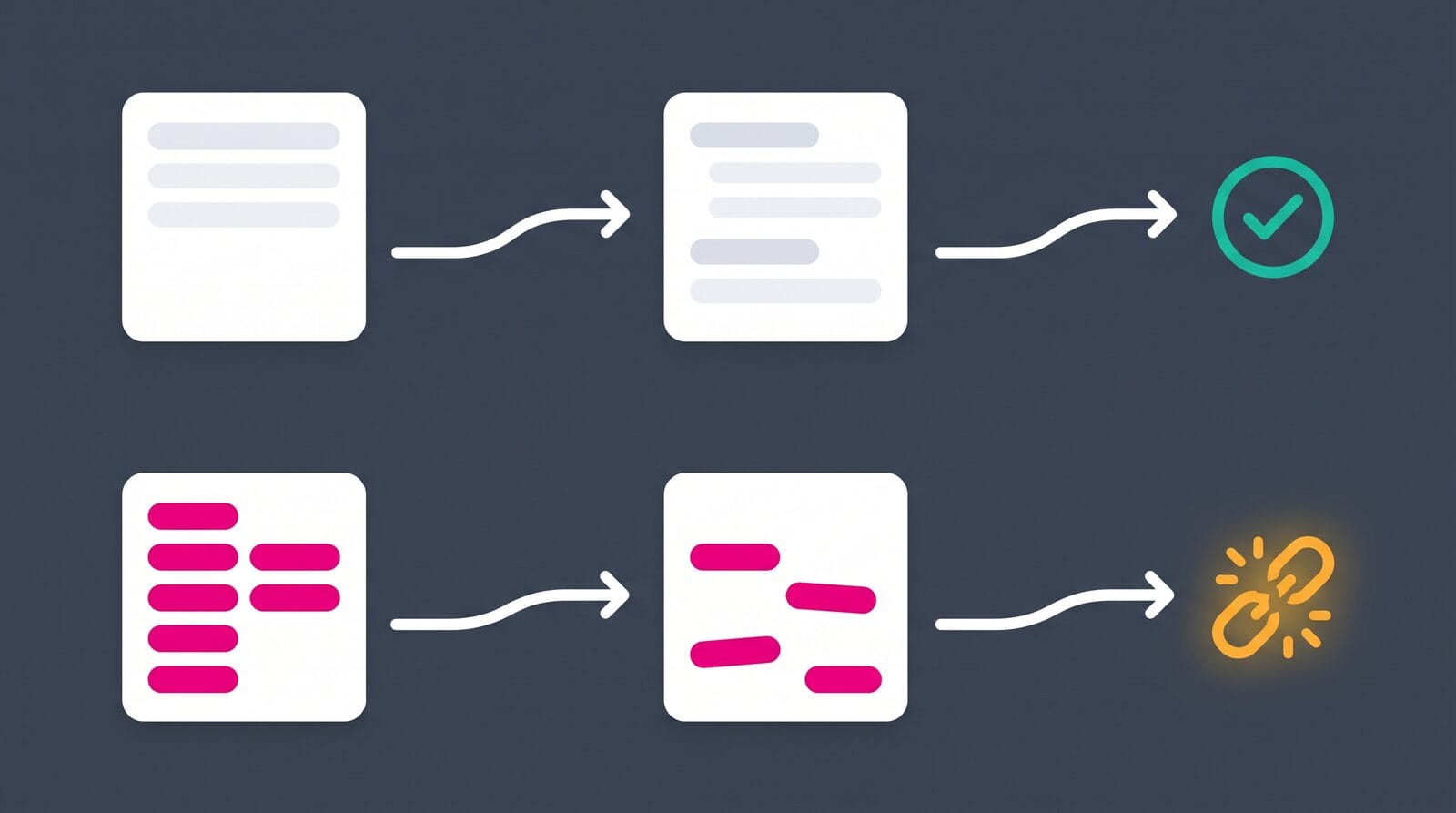
Structure drift is mostly fine. If I rename a section, add a "Decisions" heading, or reorder the body of my meeting template, my old meeting notes simply don't have the new layout. Nothing breaks. No query fails, no Base goes blank. I can update old notes if I feel like it, or leave them. It really doesn't matter much.
Metadata drift is a real problem. If I rename a property, change its type, or drop a field, every query, every Base, and every AI workflow that relied on it breaks. A book note missing date_finished vanishes from my "read this year" view. A task with the old priority values sorts wrong. This is the kind of drift that I do my best to avoid.
So the rule I follow is simple: treat your note type/property schema as a stable contract, and evolve sections freely. When metadata really has to change, don't just change the template and move on; adapt your existing notes too. By the way, AI is absolutely GREAT at doing this; even smaller Large Language Models (LLMs) (i.e., you don't need a super smart AI model to do this). My Obsidian Starter Kit plugin also helps a lot, because it can validate existing notes against the current schema. And when I combine both, I know everything will be fixed quickly and consistently.
To find the notes that need to be adapted, you don't necessarily need a plugin. You can use various other means. For instance, you can use a tool like Visual Studio Code (VSCode), and use advanced search capabilities (e.g., with Regular Expressions (Regex)). Alternatively, you can also use a Templater template to audit your vault. As I mentioned, you can basically do anything you want with templates, so why not this?? :)
The example Templater template below loops over every book note and reports the ones missing a required property, as a Markdown list with real links you can click through and fix:
<%*
// Which book notes are missing a required property?
const requiredProps = ["status", "rating", "authors", "isbn", "date_finished"];
const typeTag = "type/book";

const offenders = [];
for (const file of tp.app.vault.getMarkdownFiles()) {
  const fm = tp.app.metadataCache.getFileCache(file)?.frontmatter;
  if (!fm) {
    continue;
  }

  const tags = fm.tags ?? [];

  if (!tags.includes(typeTag)) {
	  continue; // only look at book notes
  }

  const missing = requiredProps.filter(p => fm[p] === undefined || fm[p] === null || fm[p] === "");

  if (missing.length) {
    offenders.push(`- [[${file.basename}]] — missing: ${missing.join(", ")}`);
  }
}

tR += offenders.length
  ? `Book notes missing required properties (${offenders.length}):\n\n${offenders.join("\n")}`
  : "Every book note has the required properties. 🎉";
%>
Apply it to a scratch note and you get an instant to-do list of exactly what drifted. Change requiredProps and typeTag to audit any note type, and hand the resulting list to AI to backfill in one pass. It's a poor man's schema validator in fifteen lines of code ;-)
Of course you can push this idea much further if you're motivated!
Where AI comes in
None of what you've read so far depends on AI. My entire system worked for years without AI, and it still does. But AI did have an impact on the way I do things.
First, AI makes it a breeze to create and update templates. I've created and updated many of my templates with AI, and at this point, whenever I add a new note type or change an existing one, AI does essentially all of the work: the Templater template, the properties, the tags, the filing logic, the plugins configuration, the documentation, etc. Templates went from something I hand-crafted to something I describe in plain English and AI produces. Great templates are cheap!
Second, templates make AI more reliable in return. Because my note types are documented and my templates encode the expected structure, an AI assistant can read them and create notes that already respect the contract: the right properties, the right tags, the right folder. As I explained in my Starter Kit user guide, if you don't name the note type up front, the AI has to guess, and guessing is where it goes wrong: wrong folder, wrong template, missing required properties, wrong tags. Name the type, and the template becomes a shared contract that humans and AI can both honor.
AI helps me build the templates, and the templates help AI create good notes. I pushed these ideas much further, but even this basic approach works great.
The templating best practices I teach in my course
In my Knowledge Management for Beginners course, templating gets its own treatment, and the advice I give there holds at any vault size:
- Start simple. One template for the note type you create most. That's it.
- Let templates evolve over time. You won't get them right on day one, and you don't need to.
- Create templates for your different note types. As soon as a type recurs, give it a template.
- Use AI to create and improve your templates. This is the shortcut I wish I'd had for years.
And as I've mentioned, do your best to avoid metadata drift in your vault. It's fine if the structure of your notes evolve, but it's not fine if your metadata is not kept up to date because your vault will be impossible to query reliably.
In my course, I also framed templates as one important pillar of a documented system, alongside conventions, folders, tags, metadata, workflows, automation, and backups. The course also includes multiple practical demonstrations and will help you build your own system, your first templates and automation rules, step by step. If you want the foundation behind everything in this article, that's where it lives.
 Olivier Larue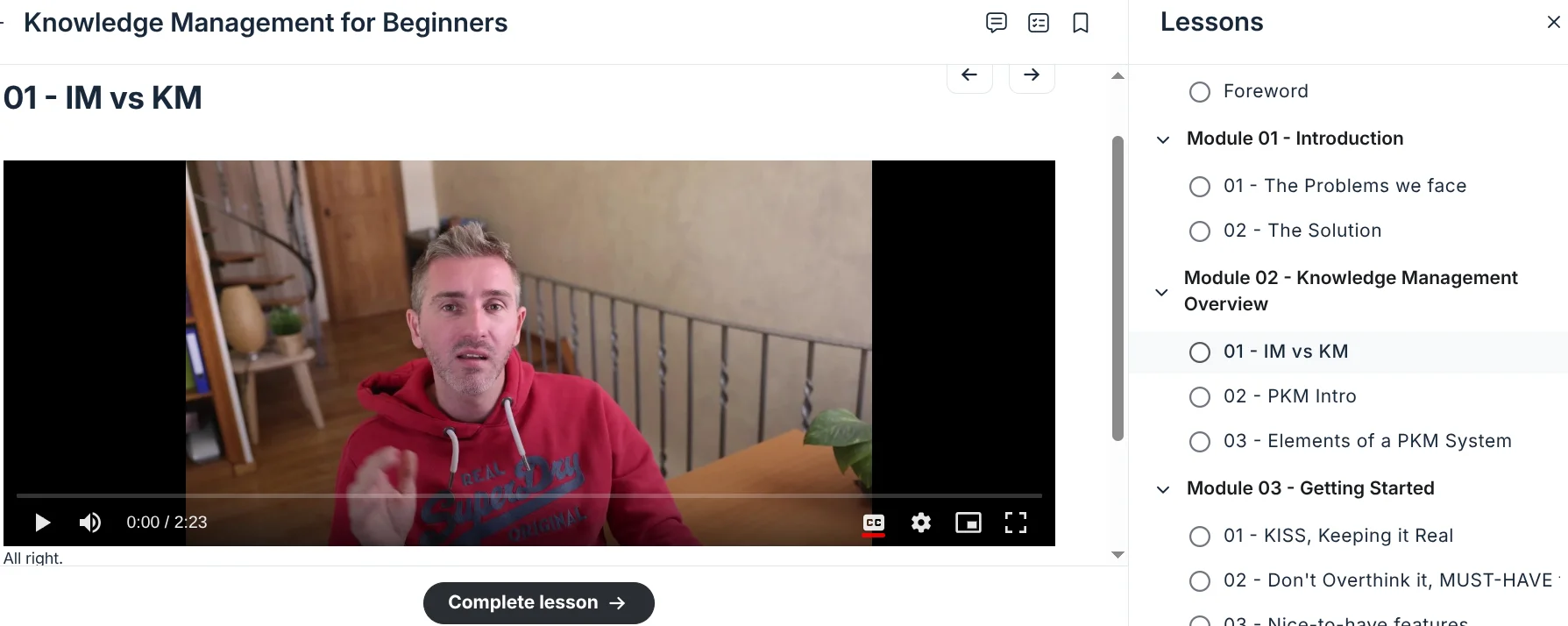
Start here
- Install and enable Templater, and set its template folder.
- Create ONE template for a note type you make often. Books, meetings, projects, whatever.
- Apply it with
Alt + E. Feel how fast a structured note appears. - Add one choice with
tp.system.suggester, for a status or a rating. - Add a periodic-note template with navigation links to yesterday and tomorrow.
- Ask AI to draft your next template. Describe the note type; let it write the Templater code.
Then use it for a couple of weeks, and grow from there. Start simple. Structure can change anytime; your schema is the part to keep clean.
Sharp edges and troubleshooting
Templates are really fun, until they break. Here are some traps to avoid.
- Empty or unprocessed frontmatter. If your Templater expressions show up as raw text in the properties panel, or your frontmatter comes out blank, set Settings → Editor → "Properties in document" to Source, or quote your values. This is the most common modern gotcha.
- Frontmatter written on the second try only. On new-file creation, Templater and Obsidian can race, and your frontmatter appears only when you apply the template a second time. Write frontmatter with
processFrontMatterinsidetp.hooks.on_all_templates_executed(), so it runs after everything else. - Folder Templates and File Regex Templates are mutually exclusive. Enabling one disables the other. If your folder rules "disappear", that's why.
- "Trigger Templater on new file creation" does nothing on its own. It needs a matching folder or regex rule (a
/catch-all counts). - Sync can re-trigger templates. With trigger-on-creation enabled, incoming synced files (including your template files) can get processed. Exclude your templates folder to avoid this.
- Mobile limits. Templater's user-script and system-command functions don't run on mobile, and fail quietly. Keep mobile templates to the built-in functions.
- Security. Templater runs real code. Only use templates you actually trust; a "cool template" from a stranger can do anything your computer can. This matters most for the user-function features that run shell commands, which are off by default and best left off unless you know exactly what a template does.
- Debugging a template. When one misbehaves, open the developer console (
Ctrl/Cmd + Shift + I) and drop aconsole.log(...)or anew Notice(...)into your<%* %>block to see what it's actually doing. Templater's own error messages show up there too, and they usually point straight at the broken line. For anything gnarly, you can also drop a plaindebugger;statement into a<%* %>block: with DevTools already open, applying the template pauses execution right there and lets you inspecttp,tR, and your local variables and step through the code. Two caveats: DevTools must be open first (otherwisedebugger;does nothing), and the paused code shows up as a generatedVM…script rather than your.mdfile, which is normal since Templater compiles the template on the fly. Desktop only. - Singular
tag/alias/cssclasssilently fail (Obsidian 1.9+). Obsidian dropped the singular property names, andtags,aliases, andcssclassesmust be LISTS now. A template that still writestag: something, or a plain string alias, just won't register. Use the plural, list form. - A folder-triggered template can see the title as "Untitled". When Templater fires on new-file creation, Obsidian has already made the empty
Untitledfile, sotp.file.titleis literally "Untitled". Prompt for the real name andtp.file.renameit. - My own most frequent gotcha: applying a template onto a note that ISN'T empty makes a mess. What I do is switch to Source mode, clear the note completely, and re-apply the template cleanly. One day I might add a guard in my templates to detect a non-empty note and handle it gracefully, but honestly it's low on my list. Now you know the fix.
Frequently asked questions
Do I need Templater, or is the core Templates plugin enough? If all you want is to paste a fixed block with today's date, the core plugin is enough. But if you want to go further (e.g., filling in properties, computing dates, proposing choices, ...), then you'll need Templater.
Should I disable the core Templates plugin if I use Templater? You don't have to; they coexist. Just give them separate hotkeys and folders. I simply stopped using the core one.
What's the difference between <% %> and <%* %>? <% %> evaluates something and prints it. <%* %> runs JavaScript and prints nothing unless you append to tR. Show a value versus do something.
Can a template change text I've already selected? Yes. tp.file.selection() gives a template the current selection, so you can wrap it in a callout, turn it into a link, or reformat it in place, not just create new notes.
Can one template create other notes? Yes, with tp.file.create_new(). A project template can scaffold its sub-notes, and a MOC template can stamp out stubs, each one created based on a specific template.
How do I insert a template automatically when I create a note? Turn on "Trigger Templater on new file creation" AND add a folder or regex rule that matches. The setting alone does nothing without a rule.
How do I make a daily note link to yesterday and tomorrow? Parse the date from the filename and offset it: tp.date.now("YYYY-MM-DD", 1, tp.file.title, "YYYY-MM-DD") gives the day after the note's date.
Why does my Templater frontmatter come out empty? Set Settings → Editor → "Properties in document" to Source, or quote the values. Obsidian's properties view can swallow unquoted template expressions.
Why are there blank lines where my template code was? Execution blocks print nothing but keep their line. Trim the newline with -%> at the end of the command.
Does Templater work on mobile? Mostly yes. The exception is user-script and system-command functions, which are desktop-only.
Can AI create notes that follow my templates? Yes. If your note types and templates are documented, AI can read them and produce notes with the right properties, tags, and structure. Name the note type up front and it rarely guesses wrong. Ideally, point AI to your templates folder so it discovers those.
Conclusion
Templates look like a convenience: a bit of boilerplate you paste to save typing. They're much more than that. Templates create new notes exactly the way you want those. And correct notes are what make everything downstream (your properties, your Bases, your boards, your AI) actually work.
If you'd rather not build all of this from scratch, the Obsidian Starter Kit ships with the whole system already wired together: 49 note types, their templates, the property schema, the automation, the Bases, pre-configured plugins (including Templater of course), AI agents & skills, a detailed user guide, and so much more. It's a 1:1 copy of the setup I use every day. And more than a thousand other Obsidian users built their own systems on top of it!
 Dwayne Appleby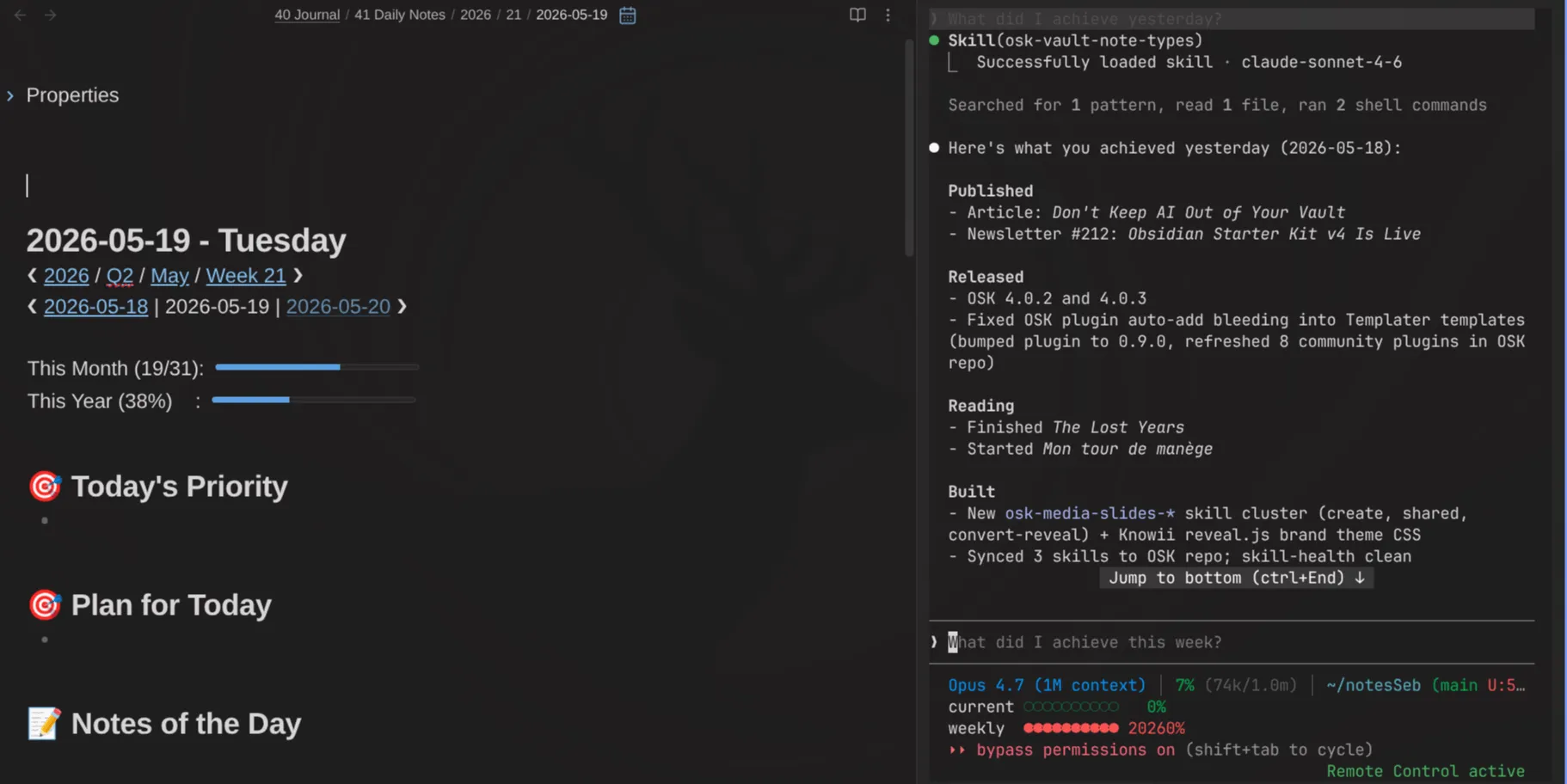
If you enjoyed this, subscribe to my newsletter for more on Obsidian, Knowledge Management, and AI-augmented knowledge work.
And if you want to talk Obsidian, templates, properties, and knowledge systems with people building the same thing, come join the Knowii Community. I share this kind of thing there all the time.
 Sofia
Sofia
That's it for today! ✨
Go further
This guide is part of my Obsidian deep dives series. Each piece stands on its own, but together they build one system. Here are the others:
 Sébastien Dubois
 Sébastien Dubois
 Sébastien Dubois
About Sébastien
Ready to get to the next level?
Found this valuable? Share it with someone who needs it.