
Resurfacing in Obsidian - Find the Notes You Forgot You Had


This article is part 12 of my series on finding notes in Obsidian. The overview, with the map of all 12 parts, is The Complete Guide to Obsidian Search.
The first eleven parts of this series assume you know you're looking for something. But some of the most valuable notes in your vault are the ones you forgot exist. You can't search for those.
Remember Malone's desk study from part 1? He described two functions of organization: finding and reminding. Some organization exists only to make things come back to you. Niklas Luhmann saw his Zettelkasten as a partner that could surprise him. And Andy Matuschak has a note titled "Notes should surprise you".
From my course: "as you accumulate notes and knowledge, you'll tend to forget about the things you've written previously. By using randomness, you can resurface ideas worth spending more time on."
Search is pull: you ask, the vault answers. Resurfacing is push: the vault brings something back without being asked. You need both. A vault that only supports pull slowly turns into an archive you write into and never read from. A vault that also pushes keeps old ideas in circulation, and that's where new connections come from. I collect my notes on that kind of luck in my serendipity map.
There are four ways to decide which note comes back:
- Chance: a random note, a shuffled feed.
- The calendar: the same day in previous years, last month's notes, notes untouched for six months.
- A schedule: review queues that bring a note back every week, or at growing intervals.
- Meaning: notes related to the one you're working on (that's the AI part, below).
Here are the tools I recommend for each, from zero setup to more elaborate, followed by a daily, weekly and monthly routine you can copy, and what to do when an old note comes back.
TL;DR
- Search is pull; resurfacing is push. Some of your most valuable notes are the ones you forgot exist, and you can't search for those. You need both.
- Chance: give the core Random note command a hotkey and scope it to a folder, or shuffle a filtered Base with Dynamic Views. Doomscroll turns your vault into a feed on your phone.
- The calendar: the "Same Time Previous Years" view of my Dynamic Base (or Daily Echoes) shows what you wrote on this day in past years. A Base of notes untouched for six months gives you a review list.
- A schedule: periodic reviews, plus review queues (Repeat, Simple Note Review, Spaced Repetition) for the notes you want to keep in mind.
- Meaning: related-notes panels (Smart Connections, Similarity) and AI agents bring back notes that share no words, tags or links with what you're writing.
- When an old note comes back, act on it: link it to what you're working on, improve it, merge it or archive it.
Random notes
The core Random note plugin. The core Random note plugin opens a random note from your vault. Enable it in Settings → Core plugins, then run "Open random note" from the command palette. Steph Ango uses a hotkey for it to "quickly travel randomly through my vault", and I recommend the same. Assign one in Settings → Hotkeys (search for "random"), so opening a random note takes one key press instead of a trip through the command palette.
From the terminal, the Obsidian CLI has two commands:
obsidian random                        # open a random note in the app
obsidian random newtab                 # same, in a new tab
obsidian random:read                   # print a random note's content
obsidian random:read folder="Quotes"   # a random note from one folder
random:read is handy in a script or a shell greeting: one random note in your terminal every morning, without opening Obsidian's window. The folder= parameter is the important one. A random pick from your whole vault will often land on a template, a meeting stub or an attachment note. A random pick from your permanent notes or your quotes is much more likely to be worth reading.
Random from a filtered set. That's the gap the old Smart Random Note plugin filled: it opens a random note from your current search results, or from the notes with a given tag. It hasn't been updated since 2021. It probably still works (small plugins are often just "done"), but I wouldn't build a habit on it today. The Obsidian Starter Kit still bundles it, with Ctrl/Cmd+Alt+R for a random note and Ctrl/Cmd+Shift+Alt+R for a random note with a tag.
The modern replacement is Dynamic Views. It adds grid and masonry card views to Bases, with thumbnails or cover images and text previews, plus two buttons: "Shuffle view" and "Open random file". Since it works on any Base, any filter becomes a resurfacing surface:
- a Base of your book notes, shuffled, shows you covers you forgot
- a Base of your quotes, shuffled, is a daily quote generator
- a Base of the permanent notes tagged with your current topic, shuffled, shows you what you already know before you write
To set it up, open a .base file, add a view and pick the Dynamic Views grid or masonry layout. The filters are normal Bases filters. It's still changing fast, so expect the occasional rough edge.
Doomscroll takes the social media feed and points it at your vault: a shuffled feed of cards built from random notes, attachments, web clips and quotes. Its author's reason for building it: "My vault became write-only." It's designed for mobile, to live in a pinned tab on your phone during your commute. A few details make it better than pure randomness:
- a note can't come back within 30 minutes
- at most 20% of each batch comes from notes you've seen in the last 7 days
- you can filter by folder, tag or file name pattern (only your diary, for example)
- the batch size goes from 5 to 50 cards, with optional infinite scrolling and a "back" button
It has no "mark as reviewed": it's serendipity by design, not a review system.
Other options: Improved Random Note for filtered random wandering, and VaultDex's "I'm Feeling Lucky" button.
On this day
Daily notes are a timeline, and timelines are great for resurfacing. Reading what you wrote on the same day one, two or five years ago shows you forgotten projects, ideas you dropped too early, and patterns you'd never notice otherwise.
My Dynamic Base has a "Same Time Previous Years" view. Open a daily note, and the view in the sidebar lists the daily notes from the same date in previous years. It works for periodic notes in general (up to 10 results): on a monthly note for March 2025, it shows March 2024, March 2023 and March 2022. It does that by comparing the end of the file names, which only works because my periodic notes have ISO dates in their names (2026-10-09, 2026-W41, 2026-10). That's one more reason to follow a strict naming scheme for periodic notes. The OSK tutorial Obsidian Starter Kit - Tutorial - Using the Dynamic Base covers all its views.

If you prefer a plugin:
- Daily Echoes (zero configuration) opens in the right sidebar (ribbon icon or "Daily Echoes: Open view") and shows entries from earlier years for the same day, a ±3-day window, the same month or the same day of the month, each labelled "2 years ago". It reads the folder and date format from your core Daily notes or Periodic Notes settings. An "Include other notes" setting extends it to non-daily notes, dated by a frontmatter date, the file name or the creation time. It replaces the Reflection plugin.
- Journal View shows all your daily notes as one continuous, editable, scrollable timeline, with a calendar to jump to a date, a search across entries and filters by tag or property value. Each day can also list the files you created or edited that day.
- ObJournal has a journal home view with a calendar (with thumbnails in the date cells) and an "On This Day" view. It isn't in the official plugin list: you install it through BRAT, and only BRAT keeps it updated.
- Better Backlinks adds "Created on this day" and "Created this week" groups on daily and weekly notes, so the notes you wrote on that date (not only the daily note) come back too.
Stale notes
The "untouched for six months" Base from part 5 is a resurfacing list in disguise:
    filters:
      and:
        - file.mtime <= now() - "180 days"
        - file.ext == "md"
Sort it by modification date (oldest first), and review a handful of items each week. For each one, decide: update it, link it to something current, archive it, or delete it. Five minutes, five notes. The Orphans view from part 5 works the same way: those notes have no links in or out, so you'll never reach them by navigation. Either link them or let them go.
Periodic reviews
Weekly, monthly and yearly reviews are the most reliable resurfacing habit I know. In my note on Periodic reviews, I recommend doing at least daily and weekly reviews. For a knowledge base, the weekly review is the moment to go through the notes you created or edited during the week and check that they're named well, tagged, in the right place and linked to the relevant notes. That pass alone makes them findable later, and it brings back older notes as you link to them. Matuschak makes the same point: linking forces you to review your old notes.
Monthly, quarterly and yearly reviews add the long view. You re-read the reviews below them, and you see trends and recurring patterns that a single week hides.
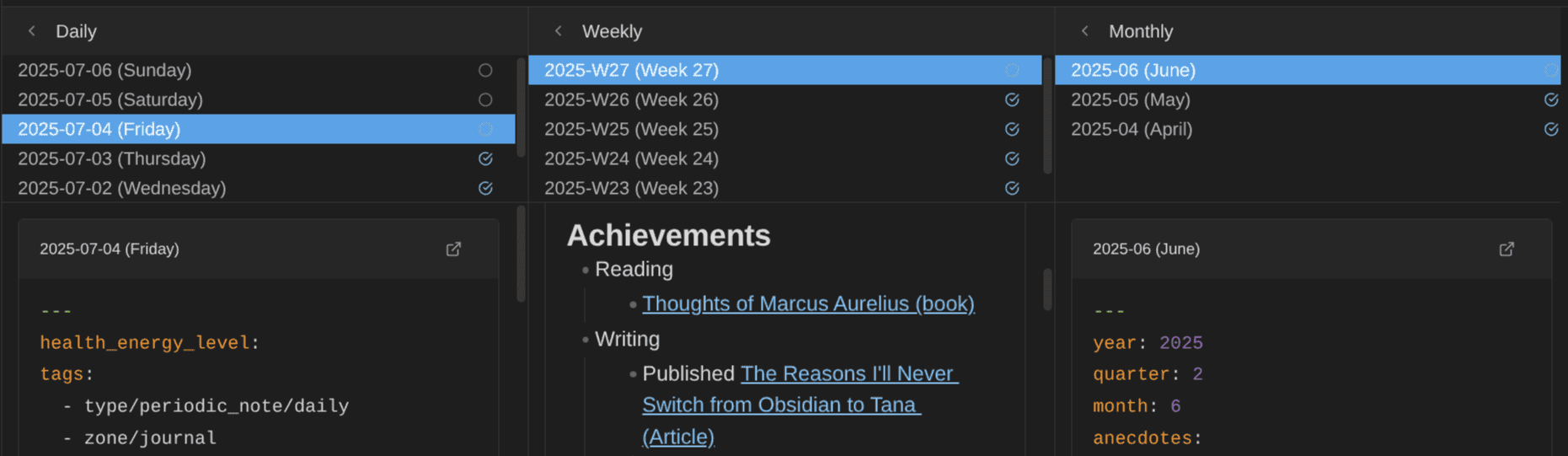
My Journal Bases plugin has two Base views for this. Periodic Notes lists all the notes of one period type (daily, weekly, monthly, quarterly or yearly), newest first, with placeholders for the missing ones. Periodic Review lays out columns side by side, so you can drill from a year to a quarter, a month, a week and its daily notes, mark reviews as done and minimize the columns you're finished with. Its commands open (and create if needed) the current, previous or next note of any period. The video overview is in part 9.
Review queues
Review queues bring notes back on purpose, on a schedule. Use them for the notes you want to keep in mind: principles, evergreen notes you're developing, project ideas you're not ready to start.
- Simple Note Review walks you through "notesets" defined by tags, folders, frontmatter, creation date or a dataviewJS query, in order or at random. You can set a note's frequency (high, normal, low or ignore). There's no rigid schedule. The gotcha: queues don't update on their own, so reset the queue before each session.
- Repeat schedules notes from their own frontmatter. You add
repeat: every week,repeat: every 3 days,repeat: every mon, thu,repeat: spaced every 2 weeks, orrepeat: neverto stop. The "Repeat: Review due notes" command shows what's due, andhidden: trueblurs the note body so you can test yourself before reading. It writesrepeatanddue_atinto your notes, so commit or back up before you start, and expect some sync churn. - Review takes a simpler approach: it links the current note into a future daily note, so the note comes back on that date. Its last code change dates from December 2024.
- Spaced Repetition is mostly known for flashcards, but it can also bring back whole notes with spaced repetition. Details just below.
Simple Note Review and Repeat both depend on Dataview, which is no longer actively maintained. That's a risk to keep in mind before you build a habit on them.
Spaced repetition for whole notes
The Spaced Repetition plugin's note review mode is the part that matters for finding: it brings back whole notes on a schedule that adapts to how well you know them. The spacing effect behind it is well supported in learning research, and it's the classic answer to the forgetting curve. Flashcards help you remember what's in a note. Note review helps you remember that the note exists, which is the first condition for ever finding it again.
How it works:
- Add the
#reviewtag to the notes you want to keep in mind. You can change the tag in the plugin settings, or define several review decks. - Open the queue with "Open Notes Review Queue in sidebar". It lists the new notes and the notes due on each date. The status bar shows "Review: N note(s)" for today; click it to open the next one.
- Read the note, then rate it Easy, Good or Hard from the note's menu (the three dots), from the queue's context menu, or with a command you can bind to a hotkey.
The plugin then computes the next review date (with the FSRS or SM-2 algorithm) and writes the scheduling data into the note's frontmatter. Notes you rate Easy come back less and less often; Hard ones come back soon.
Each review is also a findability check. When a note comes back, ask: would I have found it with a search? If not, fix the title, add an alias or a link right away (see "What to do when an old note comes back" below).
Gotchas: a newly tagged note doesn't show up in the queue right away; click the plugin's review icon or the status bar to refresh it. Like Repeat, it writes into your notes, so expect diffs and some sync churn. And if you already use #review for something else (review notes, for example), pick another tag in the settings before you start, or your queue fills with the wrong notes.
Highlights
Readwise's Daily Review sends you a few of your highlights every day, by email or in the app. Readwise says it's based on spaced repetition and active recall. There's no independent study of Readwise itself, but the spacing effect is well supported in learning research.
The trick is to connect the highlight back to your vault. When a highlight hits, search your vault for its topic: you'll often find a note where it belongs, or discover you never wrote one. In my own setup, an AI skill bridges the highlights of the daily review to related notes in my vault, and the Readwise MCP Server lets my AI assistant search all my highlights. You can do the same manually with the quick switcher.
Related-notes panels
The last kind of resurfacing happens while you work. A panel next to your note shows other notes related to it, and you discover one you forgot.
Without AI, my Dynamic Base's Related view does this from links: notes that link to the current note, notes it links to, and notes that share more than two outgoing links with it, ranked by a relevance score (part 5). Backlinks and unlinked mentions do it too. With AI, Smart Connections, Similarity and others do it by meaning. They're covered just below.
Play
My Note Village plugin turns your vault into a small village. The most used tags become areas, the notes with those tags become villagers wandering around their area, and you walk around and talk to them (the chat uses Claude). The conversations are saved in a village-conversations folder. It's a Mind palace of sorts: you can even talk to your yearly review, and so with your past self. Think of it as a playful way to bump into old notes, with no productivity goal.
You don't need to review everything. A few old notes per week, read next to what you're working on now, give you chances to link ideas you would never have connected otherwise.
AI-powered resurfacing
Random notes and on-this-day views bring notes back by chance or by date. Semantic tools bring them back by meaning: while you write about something, they show older notes about the same idea, even when those notes share no words, no tags and no links with what you're writing. That's how you meet a note you would never have thought of searching for.
- Smart Connections has a Connections view that lists the notes semantically related to the one you're reading. It uses a local embedding model and works offline by default; you can pin results or copy them as links. The advanced features are in paid Pro plugins ($30 a month or $299 a year according to its site), and the switch to a source-available license with a non-compete clause in early 2026 caused some backlash on Reddit.
- How to use it: install it, let it build its index (stored in
.smart-env/), then open the Connections view in the sidebar. As you move between notes, the list updates. Drag a result into your note to turn it into a link. - Gotcha: semantic results don't behave like text search. A note containing the exact query text might not appear.
- How to use it: install it, let it build its index (stored in
- Smart Lookup, from the same author, is the query-first counterpart: you describe what you're looking for, and it finds notes by meaning. The author's own rule of thumb sums up the split: current note → Smart Connections, question → Smart Lookup, exact phrase → Obsidian search.
- Similarity runs a tiny model on your device, shows related notes and works on mobile. Its author's pitch: "Notes are never truly orphaned… they still surface when I write something similar." No API keys, no network after install, and no telemetry. A tiny model means lower recall than Smart Connections, but it's the privacy-first pick, and a good fit for a phone.
- Smart Related Notes is a desktop-only panel of semantically similar notes, using a local multilingual model that matches notes across languages (useful if you write in more than one). It also uses your links in its ranking. Despite the name, it's not from the Smart Connections author.
- Smart Second Brain 2.0 has a Smart Graph that groups your notes into topic regions, highlights bridges and orphans, and draws semantic links between notes that never link to each other. For resurfacing, the bridges and orphans are the interesting part: an orphan sitting inside a topic region is a note that belongs somewhere and was never linked.
- Copilot has a Relevant Notes pane, but it now requires Miyo, its separate semantic search app.
- Semantic Auto-Linker suggests links across your vault, which you review before accepting, plus a semantic map. Link Unlinked Mentions does the same based on titles and aliases rather than meaning. Both turn a resurfaced note into a real link, so the connection survives the plugin.
- InfraNodus AI Graph View analyzes your notes as a text network, to show the main topics and the gaps between them. The gaps are what make it useful for resurfacing: two clusters of notes that should talk to each other and don't.
My preferred route is an AI agent. I ask it "what have I written about X?", and it combines a qmd semantic query with Obsidian's backlinks and a keyword search (part 11). The Obsidian Starter Kit also includes a resurfacing skill, osk-discovery-surface, with several modes: a random note, notes from this day in previous years, a random walk through the link graph, notes from one month to five years ago, a weekly list of forgotten notes, and "forgotten gems" (highly rated notes that have gone quiet).
The full list of modes:
| Mode | What comes back |
|---|---|
random | One random note (stubs under 50 words are skipped). With --with-commentary, the AI explains why it might matter for your current work |
connection | Two random notes from different domains; you find the bridge before the AI suggests one |
walk | A random walk through the link graph, with the path it took |
collision | Two random ideas forced into a "what if?" |
on-this-day | What you wrote on today's date in previous years |
temporal | Notes created 1 month, 3 months, 6 months, 1 year, 2 years and 5 years ago today |
rediscovery | A weekly digest of 10 forgotten notes, varied across note types |
forgotten-gems | Highly rated notes (four stars and up) that have gone quiet |
It's read-only: it never writes notes on its own. If a connection, a walk or a collision produces an idea worth keeping, it offers to create a note, and only does it if you agree. You can also scope it to a tag or a folder (--scope), so "a random note about writing" is one command.
Agents also work without any special skill. A few prompts to try in Claude Code or Codex, opened in your vault:
- "Find three notes I haven't touched in over a year that relate to what I'm writing in
<note>." - "Which of my notes from last October are related to the project I'm working on now?"
- "Find notes about
<topic>that don't link to my<topic>Map of Content."
The last one finds notes that belong in a map and were never added to it.
Two trade-offs. First, these tools depend on an index that needs upkeep: when the index is stale, the notes you changed or added since then simply don't come up, and nothing tells you. Second, privacy: prefer local models, and treat the index files (like .smart-env/) as sensitively as your notes. And when a suggestion is useful, link it. A link stays in your Markdown; a suggestion disappears with the plugin.
A resurfacing routine you can copy
Tools don't resurface anything if you never open them. This routine uses the tools above. Start with the daily part only, and add the rest when it sticks.
Daily (2 to 5 minutes)
- When you open today's daily note, glance at "Same Time Previous Years" (or Daily Echoes). If something from a year ago is still relevant, link it from today's note.
- Open one random note with your hotkey, or scroll Doomscroll for a few minutes on your phone. Scope it to your permanent notes or quotes, not your whole vault.
- If you use Readwise, read the Daily Review and look up one highlight in your vault.
Weekly (during your weekly review)
- Go through the notes you created or edited this week (a Base with
file.ctime >= now() - "7 days", or the Periodic Review view). Check names, tags, location and links. - Process five items from the stale notes view and five orphans: update, link, archive or delete.
- Look at the related-notes panel of the note you worked on most this week. Link anything that deserves it.
- With an AI agent: ask for the weekly
rediscoverydigest, or "ten notes I forgot that relate to this week's work".
Monthly, quarterly and yearly
- Open your monthly note and check "Same Time Previous Years": what were you working on this month in previous years? What did you drop?
- Drill through the Periodic Review view: re-read the weekly reviews of the period before writing the new one.
- Ask for
forgotten-gems: your best notes that nobody (including you) has touched in a while. - Review your review queue (Repeat or Simple Note Review) and remove the notes that no longer earn a slot.
What to do when an old note comes back
A resurfaced note is only useful if you act on it. When one comes back, pick one of these:
- Link it to what you're working on now. That's the most valuable outcome: the connection now exists in your Markdown, for every future search and every AI agent.
- Improve it. Rename it with the words you'd use today, add an alias, or add a one-line summary at the top. Tiago Forte's Progressive summarization is built on this idea: summarize a note a bit more each time you come across it, not when you capture it.
- Merge it into a better note on the same idea, if you find duplicates.
- Archive or delete it if it's no longer useful. Fewer stale notes means cleaner search results.
- Leave it. Sometimes reading is enough. You'll remember it exists, and that's already a win.
FAQ
How do I rediscover notes I forgot about? Let something other than your memory pick them: chance (the core Random note command with a hotkey, Doomscroll, a shuffled Dynamic Views Base), the calendar (the "Same Time Previous Years" view of my Dynamic Base, Daily Echoes, Journal View), a schedule (Repeat, Simple Note Review) or meaning (Smart Connections, Similarity, an AI agent). Then, when an old note comes back, link it to what you're working on now. The routine above ("A resurfacing routine you can copy") has a daily, weekly and monthly part.
Conclusion
Finding and reminding go together. Search gets you to the notes you know you're looking for; resurfacing brings back the ones you forgot, before your vault turns into an archive you write into and never read from. Start with one habit: a random note a day, or a glance at what you wrote on this day last year.
Across these twelve parts, the series went from naming a single note to letting AI agents search 30,000 of them. The core idea never changed: findability is decided when you write a note, and every tool works better on top of good names, metadata and links. The overview has the map of all the parts, the comparison table and my search order, so you can jump back to any topic.
That's the last part of the series. Back to the overview. Previous: Set Up AI Search for Your Obsidian Vault - qmd, MCP Servers and AI Assistants.
Prefer to read the whole series in one place? I turned it into an ebook, The Obsidian Search Handbook, with an exercise at the end of every chapter (the Complete edition adds a starter pack and worksheets). Just want a quick reference? Grab the Free Obsidian Search Cheat Sheet.
Free cheat sheet. The commands and operators worth remembering, and the search escalation ladder (which tool to try first, depending on what you remember about the note), on 13 pages you can keep next to your vault. Enter your email and I'll send it right away: the Obsidian Search Cheat Sheet.
 Sebastien Dubois

Get the free Obsidian Search Cheat Sheet. 13 pages to keep next to your vault: the search operators worth remembering and the search escalation ladder. Enter your email and I'll send it right away. You'll also get a few short follow-up emails about finding notes in Obsidian, and you can unsubscribe at any time.
About Sébastien
Ready to get to the next level?
Found this valuable? Share it with someone who needs it.