
The Best Obsidian Plugins for Finding Notes

This article is part 9 of my series on finding notes in Obsidian. The overview, with the map of all 12 parts, is The Complete Guide to Obsidian Search.
Core Obsidian covers a lot. But it has real gaps. Community plugins fill those gaps.
There are a LOT of them. The official directory at community.obsidian.md lists the whole catalog (8,619 plugins when I checked), with 406 plugins in the "search" category, 636 in "navigation" and 702 in "links". Below are the ones I think are worth your time, grouped by job.
For each plugin, you'll find what it does for finding notes, how to use it (commands, syntax, the settings that matter), and what to check before you install it: mobile support, what it depends on, and a warning when it's no longer maintained.
TL;DR
- Core Obsidian covers a lot, but not everything. The community directory lists 8,619 plugins (406 in "search"). These are the ones I think are worth your time, grouped by job.
- For full-text search, install Omnisearch: relevance ranking, typo tolerance, accents and attachments. Sift is the most promising newcomer of 2026. Keep core Search for precise queries with operators and properties.
- For opening notes, Quick Switcher++ (
#finds headings across the vault,@the symbols of the current file). For browsing, Notebook Navigator. - Links, graphs, tags and queries each have a specialist: Better Backlinks shows the context around each backlink, Clew analyzes your graph, TagFolder intersects tags, and Bases handles queries (Dataview is no longer actively maintained).
- If it isn't text, search can't see it. Transcribe PDFs, images, handwriting and audio into Markdown instead of counting on attachment indexing (Text Extractor is unmaintained).
- Check before you install: mobile support, dependencies, and whether someone still maintains it. The stale plugins table near the end gives a replacement for each.
My own plugins first
I'm biased, of course. But I built most of these because I needed them to find things in my own vault, so they belong here.
- Dataview Serializer Dataview query results into your notes as real Markdown. That's what makes self-maintaining Maps of Content possible, and what makes query results visible to the graph, Obsidian Publish,
grepand AI agents. Its "Folders to force update" setting keeps index notes fresh. - Kanban Action Planner turns any Base into a Kanban board, calendar, timeline or Work Breakdown Structure (WBS). For finding things, its toolbar has a simple filter language: plain words search titles, tags and every property value;
parent:,ancestor:(any level up),child:,status:,due:overdue,due:week,is:available,is:blocked,estimate:>4h, and:=for exact matches. For example:book parent:"PKM" status:active OR due:overdue. There's also an@switcher for contexts, and you can embed a board with a fixed filter:![[Tasks.base#Kanban|filter=parent:"My Project (Project)"]].- Plain words also match the names of related notes (parents, children), but not the note body. A comma means OR inside one qualifier (
status:active,done), and:matches a substring while:=wants the exact value (parent:="App"won't match "App Redesign"). - Dates accept keywords (
due:today,due:none,due:month) and comparisons (due:>2026-01-01). The same works forscheduled:anddefer:. is:availableis the GTD "next actions" filter: what you can actually work on now, without the deferred and blocked items.-is:donehides finished work.- Any property works as a qualifier, not just the built-in ones:
urgency:now,context:@work. Click the?next to the filter box for the cheat sheet, and pressEscto clear the filter. The filter is saved per view. - I explain how I use it in this article.
- Plain words also match the names of related notes (parents, children), but not the note body. A comma means OR inside one qualifier (
- Graph Explorer Base View shows the notes a Base matches as a graph, with live search, explored and unexplored filters and frontier nodes. Because the Base's filters decide what's in the graph, you can graph "all my notes tagged
#systems_thinking" instead of the whole vault. Frontier nodes are links to notes that don't exist yet: ideas you referenced but never wrote. You can color nodes by any property (maturity, creation date, tags), and clicking a node renders the note in a side panel, so you can read your way through a topic without leaving the view. The background story is in this article. - Journal Bases adds two Base views for daily, weekly, monthly, quarterly and yearly notes. "Periodic Notes" lists all notes of one period, newest first, with placeholders for missing ones. "Periodic Review" lets you drill from a year down to a quarter, a month, a week and its daily notes. That's finding by time, without the Calendar plugin. It also adds commands to open (and create if needed) the current, previous or next note of any period, which you can bind to hotkeys. Here's a video overview:
- Time Machine puts File Recovery snapshots and git commits on one visual timeline, with colored diffs, a side-by-side view and selective restore. It finds what you deleted or overwrote. I covered it in detail (with the video) in "Recover old versions and deleted notes" in part 6, and in this article.
- Hidden Folders Access makes dot-folders like
.claude/visible to the file explorer, the quick switcher, Search, the graph, Bases and Dataview, without renaming anything on disk. You opt in folder by folder in its settings, and it watches those folders for changes, so new files show up without a restart. It's desktop only. - Update Time keeps
createdandupdatedproperties in sync with your edits, so date-based Bases and searches stay reliable after syncs and restores. File system dates don't survive a git clone, a sync to a new device or a restore from backup; properties travel with the note. You can rename the properties, exclude folders, and backfill the dates of existing notes with one command. Then a Base sorted byupdatedgives you the notes you actually touched, whatever happened to the files on disk. - REST and MCP server exposes every Obsidian CLI command as a local REST API and an MCP server, so scripts and AI assistants can search your vault through Obsidian's own index. A request like
GET /api/v1/cli/search?query=meeting+notesruns Obsidian's full-text search, and the same API lists tags, backlinks, orphans, dead ends, bookmarks and Base query results. The MCP server works in "Code Mode": it exposes two tools, "search" and "execute", instead of one tool per command. It's desktop only, and it needs the Obsidian CLI to be enabled. - Transcriber transcribes images into Markdown with local vision models, so the text in your screenshots and scans becomes searchable (see the attachments section below). I use it in combination with my reMarkable Sync plugin for Obsidian to quickly go from handwritten notes to Markdown ones in Obsidian.
And then there's the Obsidian Starter Kit plugin. It isn't in the community catalog; it ships with my Obsidian Starter Kit. It gives Obsidian real note types: each type has a folder, a template, a name prefix or suffix, properties with allowed values, mandatory tags and an icon. For finding things, that means predictable locations, predictable names (… (Project)), consistent properties for [property:value] searches and Bases, and icons you recognize at a glance in the file explorer and tabs. Its "Create Bases for all note types" command generates a filterable Base for every type in one go. And its osk-cli and MCP server let AI agents ask "where do project notes live?" instead of guessing (more on that in part 11). The OSK plugin is basically an incarnation of all my best practices :)
Better search engines
Omnisearch
Omnisearch is usually the first answer on Reddit when someone complains about search. The reasons: it ranks results by relevance (BM25 through MiniSearch), tolerates typos, ignores accents by default, and can index PDFs, images and Office documents. It also boosts matches in titles and headings, so the note named after your query comes first.
BM25 is the ranking formula behind many search engines: a note scores higher when it contains your words often, when those words are rare in the rest of the vault, and (in Omnisearch's case) when they appear in important places like the title. That's exactly what core Search lacks: it finds every match, but it sorts by file name or date, never by "how well does this note answer my query".
It has two modes, each with its own command: Vault search and In-file search (Markdown only). Bind the first to a hotkey you can reach without thinking. In the results, press Tab on a note to list its matching lines, and jump straight to the right one. You can also insert a result as a [[link]] instead of opening it, which turns Omnisearch into a "find and link" tool while you write. If you like Vim-style keys, a setting lets Ctrl/Cmd+J or N move down and Ctrl/Cmd+K or P move up.
Its default field weights tell you how it ranks:
| Where the match is | Default weight |
|---|---|
| File name and aliases | 10 |
| Folder | 7 |
| H1 heading | 6 |
| H2 heading | 5 |
| H3 heading | 4 |
| Tags | 2 |
Syntax: "exact phrase", -exclude, path:"Some/Folder", ext:pdf (or just .pdf), and #tag tokens move tagged results to the top. You can set custom weights for specific properties, downrank folders, enable a recency boost, and choose how fuzzy matching should be.
A few more details on that syntax. Exclusions also work on the filters (-path:"Archive", -ext:pdf). ext:"png jpg" filters on several extensions at once. And when your query has several quoted phrases, the longest one decides which excerpt you see.
The settings that change the most for finding things:
- "Header properties fields" (custom property weights): add a property name and a weight. If your notes carry a
summaryordescriptionproperty, giving it a weight of 3 or 4 makes a match there count more than a match in the body. A weight below 1 does the opposite: it pushes notes down. - "Folders to downrank": a comma-separated list. Those notes are still indexed, they just come after the rest. Perfect for an archive or a folder of web clips that otherwise floods your results.
- "Recency boost" (experimental): disabled by default; you can boost notes edited in the last 24 hours, 7 days or 30 days. Useful if you mostly search for what you're working on now.
- "Respect Obsidian's Excluded files": by default, excluded files still show up, lower in the list. You can hide them completely.
- "Fuzziness": three levels: "Exact match", "Not too fuzzy" (the default) and "Fuzzy enough". If you get too many odd results, go down one level.
- "Set frontmatter property key as title": shows a property (or the first H1) instead of the file name, which helps when your files are named with IDs.
- "Simpler search": short words (under three characters) stop being used as prefixes. Use it if Omnisearch makes your vault freeze.
- "Additional TEXT files to index": for example
txt org csv, if you keep plain-text files next to your notes.
A realistic example: you remember writing about "spaced repetition" in a book note, but you type spaced repitition and you don't remember the book. Core Search finds nothing because of the typo. Omnisearch finds the note, and if one of your notes is literally called "Spaced repetition", that one comes first, because file-name matches carry the highest weight (10).
What Omnisearch doesn't do: OR, regex, property operators, line:, section:. Its developer says it's not a replacement for core search, but a tool for when your vault looks like a messy desk. The two complement each other: Omnisearch for "I don't remember what I called it", core Search for precise queries.
Before you install it:
- Indexing PDFs, images and Office files goes through Text Extractor, which its author has marked as unmaintained. Extraction doesn't run on mobile, and many PDFs fail. See the attachments section.
- Large vaults: Obsidian can freeze for a few seconds at startup while the cache loads. On iOS the cache is disabled, so it re-indexes at every launch. One Reddit user with about 10,000 files dropped it for that reason. On mobile, Omnisearch can also use more memory than the device has on large vaults, and the only fix then is to disable it. Note that indexing is lazy: Omnisearch does nothing while its window is closed, and indexes your changes the next time you open it.
- It has a local HTTP server (opt-in, desktop only, port 51361):
GET http://localhost:51361/search?q=…returns JSON. Browser userscripts and the Omnisearch Companion extension use it to show your notes next to Google, DuckDuckGo, Bing or Kagi results. Be aware that while it's on, any web page in your browser can query it (it sendsAccess-Control-Allow-Origin: *).- To set it up, enable "Enable the HTTP server" in the Omnisearch settings. Each result comes back with its path, its score, the words that matched and an excerpt.
- Then pick one of two consumers. The Omnisearch Companion extension (Firefox and Chrome) shows matching notes while you browse; you only set the port. Or install a userscript manager (Tampermonkey or Greasemonkey) and add the script for your search engine from the
scambier/userscriptsrepository (obsidian-omnisearch-google.user.js,-ddg,-bingor-kagi). Your vault's results then appear next to the web results. - The use case is "did I already save something about this?" before you read the same thing twice.
- Obsidian must be running. Both consumers are lightly maintained, and search engines change their pages, which breaks userscripts.
- The server binds to localhost. A hidden
DANGER_httpHostsetting (in the plugin'sdata.json, not in the settings screen) lets it listen on other addresses; leave it alone. And because of thatAccess-Control-Allow-Origin: *header, turn the server off when you don't use it.
- URL scheme:
obsidian://omnisearch?query=…opens it with a query. Launchers and other plugins can also call its JavaScript API (omnisearch.search(query)), and its docs show adataviewjsexample that renders Omnisearch results in a table. - Mobile: it runs on mobile too.
Sift
Sift is the most capable new search plugin of 2026. It does substring matching (maschine finds Espressomaschine), tolerates umlauts (kueche finds Küche), ranks results, and indexes canvas card text. Its syntax: space for AND, "phrase", -word, a OR b, and fields like path:, tag:, title:, prop:status, prop:status=open. Chips filter by folder, property and date ranges. It works on mobile. It's new, so test it on a copy of your vault first. For German and other compound-word languages, it's a real upgrade over core search.
Its main trick is substring matching (technically, trigram search). Core Search and Omnisearch match words or word beginnings, so a search for maschine misses Espressomaschine because the word starts with "Espresso". Sift matches any part of a word.
How to use it:
- Run
Sift: Open searchor click its ribbon icon. It ships without a default hotkey, so assign one. -word*excludes every word that starts with "word", and-prop:statusexcludes notes that have astatusproperty at all.- The chips filter by folder (with or without subfolders), by property, and by created or modified date, with quick picks for today, 7 days, 30 days and the year.
- Three switches narrow the scope: "This note" (search only the current note), "Notes only" (no attachments) and "Open todos" (only notes that still have unchecked tasks).
- To triage a result list,
Ctrl+Shift+Kkeeps a result andCtrl+Shift+Xdismisses it. "Open all" then opens what's left.
Example: tag:meeting prop:status=open budget -cancelled finds your open meeting notes that mention the budget, without the cancelled ones.
Sift also indexes the names of the views in your .base files, so a search can land on a Base. It makes no network calls.
Floating Search
Floating Search opens core Search in a modal with a preview pane (Tab previews a result). Same operators, same results, but you don't lose your place. It also adds an obsidian://fs?query=… URI.
It has three commands: Search Obsidian Globally, Search Obsidian Globally (With Last State) (which keeps your last query for 30 seconds) and Search In Current File. In the modal:
↑/↓select a result,Tabpreviews it on the right andShift+Tabcloses the previewCtrl+Gjumps between the search box and the previewEnteropens the note in the background,Alt+Enteropens it and closes the modal- right-click any selected text in a note to search for it
It runs on mobile, but maintenance has slowed. Remember that the engine is still core Search: you get a better window, not better ranking.
Core Search Assistant
Core Search Assistant (desktop only) keeps the core Search pane but makes results keyboard-navigable, with big previews or a grid of cards.
Open core Search to enter "search mode". Then Ctrl+N/Ctrl+P (or the arrow keys) select a result, Ctrl+Space previews it, Ctrl+Enter opens it (Ctrl+Shift+Enter in a new pane), Ctrl+] and Ctrl+[ page through the cards, and Ctrl+I copies a wikilink to the selected note. In the settings, "Auto preview" switches between no preview, one big preview, and a grid of 2×2 to 3×3 cards. The card grid is great for scanning many hits quickly, for example when you're looking for "that note with the diagram".
One known issue: hotkeys can stop working after a search; reload Obsidian, or turn on "Render cards manually".
Embedded Omnisearch
Embedded Omnisearch puts an Omnisearch box inside a note, with options per block. It's the closest thing to a saved search with relevance ranking. Great on a project's MoC:
```embedded-omnisearch
pageSize: 20
path: Projects/Obsidian
ext: md canvas
exclude: archive
```
The box appears in Reading view and Live Preview, with ranked results, scores and excerpts. Enter searches, Esc clears, and holding Alt over a result shows its full path. You can build a "search dashboard" note with several blocks, one per area of your vault.
It requires Omnisearch, installed and enabled, and it forces notes that contain the block into preview mode.
Seek
Seek is a hybrid search plugin: it combines keyword search (BM25, through MiniSearch) with a small multilingual embedding model (IBM Granite, about 100 MB once quantized) that runs in Obsidian. Keyword search finds the exact words; the embedding model finds notes about the same idea, even in other words or another language. Seek merges both scores, then boosts recent notes and title matches. It claims support for 52 languages plus code, with CJK word segmentation.
Its search box accepts inline filters with autocompletion: #tag or tag:name, path:folder, [key:value] for properties, and date ranges. The index can be synced across your devices, mobile included. Everything runs locally after the first download of the model (from Hugging Face) and its runtime. It needs at least 200 notes.
More on semantic search in part 10.
VaultDex
VaultDex gives you a retro, Google-style results page with relevance scores and a PARA filter. Fun, but weaker than Omnisearch or Sift.
Open it from its ribbon icon (an eye) or the Open VaultDex search command. Matches in the title, tags, headings and body are weighted, and results show highlighted snippets and breadcrumbs. FolderName:search terms scopes a search to a folder, and you can sort by relevance or by newest. There's even an "I'm Feeling Lucky" button that opens a random note. Its folder filter assumes your top folders follow PARA naming (Projects, Areas, Resources, Archives).
Two more on the radar: Lemons Search (desktop only) is a very fast fuzzy finder with a live preview of the file, in the style of fzf or Telescope for those who know them. Hybrid Search (desktop only) combines keyword and semantic search with modes like sem: and title:, but it needs a separate command-line tool installed with npm.
Better quick switchers
Quick Switcher++
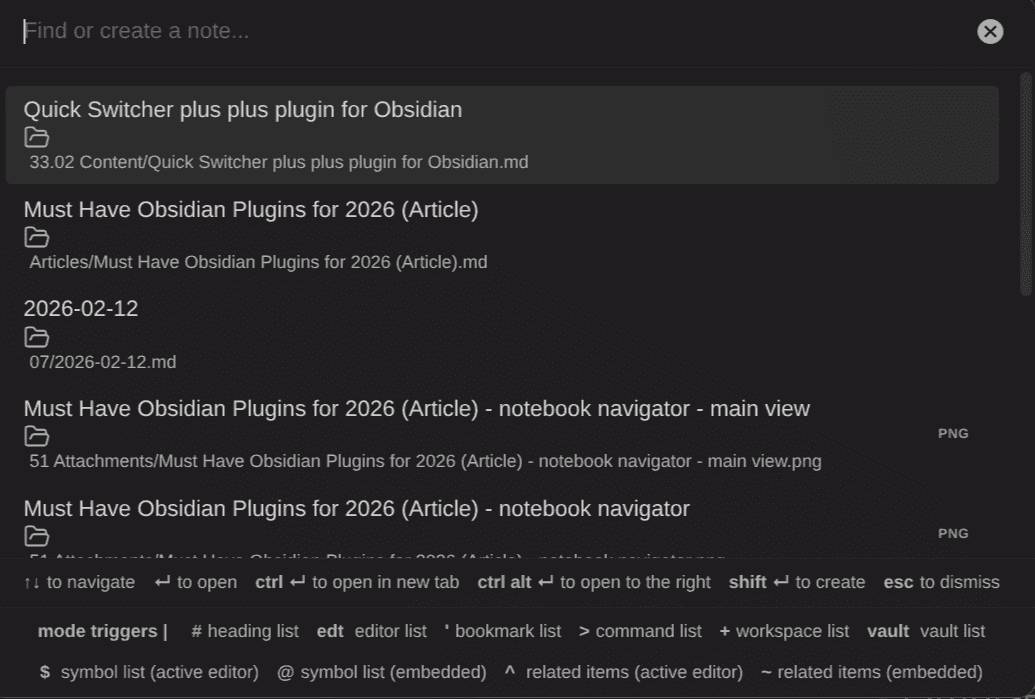
Quick Switcher++ is the one I use; Ctrl+O and Ctrl+P open it in my vault. It adds modes, triggered by a prefix:
| Mode | Prefix |
|---|---|
| Headings, vault-wide | # |
| Symbols (headings, tags, links, embeds, callouts, canvas nodes) of the highlighted result (or the current file) | @ |
| Open editors | edt |
| Workspaces | + |
| Commands | > |
| Related items (backlinks, outgoing links, same folder) | ~ |
| Bookmarks | ' |
| Symbols of the active editor | $ (with a space) |
| Related items of the active editor | ^ (with a space) |
| Vaults (experimental) | vault |
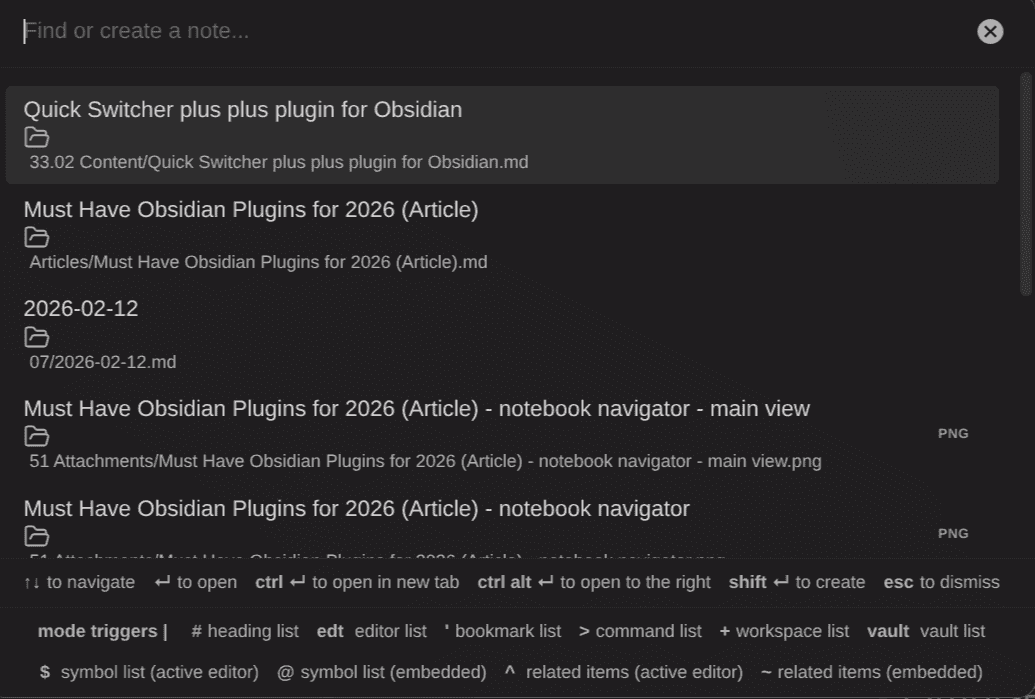
Some examples of how these modes find things:
#retrolists every heading containing "retro" across your vault. If you keep meeting notes with a "Retrospective" section, you jump straight to the section instead of the note.@followed by a few letters jumps inside a long note: to a heading, a callout, an embed or a tag. On a canvas, it lists the cards.~shows what's connected to the current note (backlinks, outgoing links, notes in the same folder), so you can move to a neighbor without opening the Backlinks pane.'searches your bookmarks.
If you need to search for a character that's also a trigger, prefix it with !. In the settings, you can add "Quick Filters" (hotkeys that restrict results to one type of item), exclude folders with a regular expression, and choose where titles come from: the file name, the first H1 or a property.
It works on mobile.
Another Quick Switcher
Another Quick Switcher is the most configurable switcher. You define your own search commands: by name, by backlinks, by links, by 2-hop links, by recently opened. It has a backlink search that shows the matching lines, and a "grep" mode powered by ripgrep, which a forum user with a 30,000-note vault recommended when core search felt slow. It can also normalize accents (off by default, and 2 to 5 times slower when on).
Each command you define has a target (all files, backlinks, outgoing links, 2-hop links or open files) and a list of sort priorities: perfect word match, prefix match, fuzzy name match, tag, header, link or property match, length, last opened, last modified, bookmarked, alphabetical, created. So you can build a "Recent" switcher sorted by last opened, a "Projects" switcher that ranks property matches first, and a "Neighbors" switcher limited to 2-hop links (notes linked to the notes this one links to).
The query syntax inside it: "exact", -exclude, #tag, @key:value for properties, and <cd> to restrict results to the current folder. Example: @status:active #project <cd> lists the active project notes in the folder you're in.
The grep mode searches the full text of your notes through ripgrep (rg, a very fast command-line search tool) and sorts results by modification date. The backlink and link searches show the matching lines, so you see how a note is mentioned before you open anything. There's also an in-file line search with context, a "header floating search" to jump between headings, and a move-file dialog.
It supports desktop and mobile, but the author doesn't use mobile, so mobile bugs are low priority.
Grappling Hook
Grappling Hook gives you one-key jumps between your bookmarked files, your previous note, and the next or previous file in a folder.
Assign hotkeys to its commands:
Bookmark cyclergoes through your bookmarked files, most recently modified first. With text selected, it copies the selection to the last-modified bookmark instead, which is a quick way to collect snippets into a working note.Switch to Alternate Notegoes back to the note you were on before (like:b#in Vim). The name of that note is shown in the status bar.Next/previous file in current folderwalks a folder without the file explorer.Cycle tab/splitandOpen first URL in fileround it out.
It pairs well with the Bookmarks core plugin: keep your working set in bookmarks, and cycle through it. Bookmarked headings and blocks are ignored by the cycler. It runs on mobile, but its author has been archiving several of his plugins, so check its status from time to time.
Front Matter Title
Front Matter Title shows a title property instead of the file name in the explorer, Search, the quick switcher and suggestions. If your files are named with IDs or timestamps, this is what makes them findable by name.
It also replaces the name in Bookmarks, Backlinks, tabs, the graph and canvases, and optionally in link text. It never renames files: the display changes, the file stays 202208251731.md. Recent Files works with it. Property Over File Name takes a narrower approach: it lets you search for and insert links to notes by a title property instead of the file name. If you name your files properly in the first place (part 2), you need neither.
Note that I personally don't recommend using IDs as file names. That may help avoid file name conflicts, but it makes it much harder to recognize notes without opening them.
Navigation
Notebook Navigator
Notebook Navigator is the breakout plugin of the past year. It replaces the file explorer with a two-pane view (folders and tags on one side, notes with previews on the other), plus pinned notes, shortcuts and a calendar. Its filter box has its own syntax: words match names and aliases, #tag (nested tags included), -# for untagged notes, .key=value for properties, has:task, folder:, ext:, and dates like @today, @last7d, @thismonth, @c: (created) and @m: (modified). It can also switch to an Omnisearch mode for full-text search, scoped to the current folder or tag. Saved searches become shortcuts.
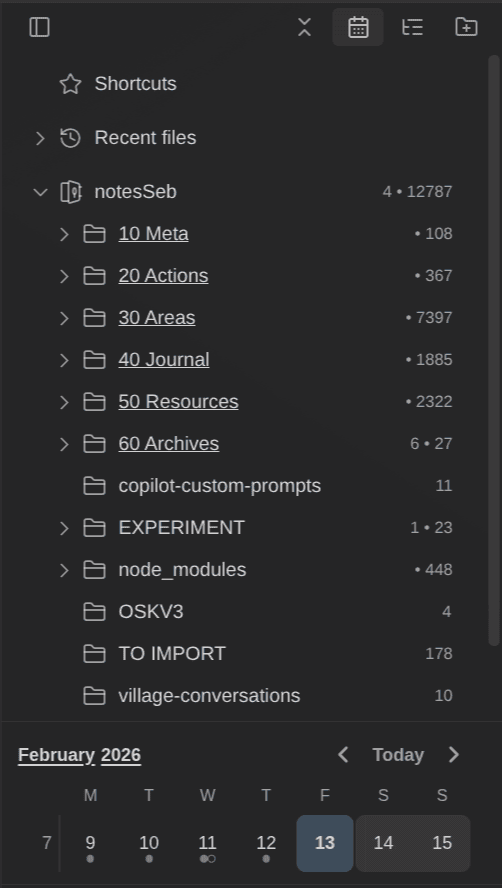
The rest of the filter syntax:
-wordexcludes, and"literal text"is matched literally#alone keeps only notes that have at least one tag;-#keeps only notes without tags (a great list to process when you want every note to have a pathway)- tag filters combine with
ANDandOR .keykeeps notes that have a property,.key=valuethose with a given valuefolder:and-folder:scope by folder; a leading/makes the folder match exacthas:taskkeeps notes with open tasks
Example: select your "Books" folder and type .status=reading to see the books you're reading, with a preview of each note. Or click a tag and type has:task to find the notes of that topic that still have something to do.
The Omnisearch mode returns at most 50 results, scoped to the folder or tag you selected, which is often exactly what you want: "search my Projects folder for 'invoice'". The plugin is optimized for mobile (single pane on phones), and claims to handle 100,000+ notes.
Quick Explorer
Quick Explorer (desktop only) adds a clickable folder breadcrumb above each note. Each segment drops down the sibling files and folders, and you can type to filter. It's the best answer to "what else is next to this note?".
It adds six commands you can bind to hotkeys: Browse vault, Browse current folder, and Go to next/previous/first/last file in folder. In the menus, use the arrow keys, Vim keys (Mod+h/j/k/l) or Emacs keys (Mod+n/p/f/b). When you enter a folder, its folder note is selected automatically. It also has a "quick-preview mode": press PgDn to page through every note in a folder like a notebook, which is a fast way to skim a project folder you haven't opened in months.
It's only useful if your folders mean something, and its breadcrumbs overlap with Notebook Navigator's.
Jump to link
Jump to link puts letter hints on every link in the current note, like Vimium in a browser. Type the letters and you follow the link. The fastest way to walk links from the keyboard.
Run Jump to link: Show link hints (it no longer ships with a default hotkey, so assign one). Hold Shift while typing the letters to open the link in a new pane. "Jump to anywhere" puts the hints on words instead of links, using a regular expression you can change (by default \b\w{3,}\b, i.e. words of three letters or more). Vim users can map its Lightspeed mode in their .obsidian.vimrc: exmap jumpToLink obcommand mrj-jump-to-link:activate-lightspeed-jump.
If a note has more links than available hint characters, some hints show as undefined. It runs on mobile. On a hub note or a MoC with dozens of links, this plugin turns "find the link, grab the mouse, click" into a hotkey and two letters.
Quiet Outline
Quiet Outline is a better outline: searchable, with rendered headings and no auto-expand. Use it to find your way in long notes.
The search box filters headings as you type, so in a 5,000-word note you type three letters and jump. Headings are rendered as Markdown (formatting, links), and the outline doesn't expand everything every time you scroll. It's bundled with the Obsidian Starter Kit. If you'd rather see headings right in the file explorer, Headings in Explorer lists them under each note.
Recent Files and Recent Notes
Recent Files lists recently opened files in the sidebar. Recent Notes lists recently edited notes in a timeline. Before installing either, try a Base sorted by file.mtime: it does the same job with zero plugins. Personally, I prefer a query for this (Dataview + Dataview Serializer in my case).
Recent Files is the classic "where was I?" fix. You can exclude paths, notes with given tags or bookmarked files, and hover an item to preview it. Recent Notes groups notes by period (Today, Yesterday, This Week…), Apple Notes style, with snippets, folder paths and thumbnails. It can filter by file type (Markdown, images, PDF, audio, video, canvas, CSV), pin notes, exclude folders and show the title property instead of the file name.
The Base version is a table view sorted by modification date, with a limit (see the Bases recipes in part 5):
views:
  - type: table
    name: Recently edited
    filters:
      and:
        - file.ext == "md"
    sort:
      - property: file.mtime
        direction: DESC
    limit: 30
Put it in your sidebar and you have Recent Notes without a plugin. Sort by file.ctime instead and you get "recently created".
Vault Changelog
Vault Changelog writes a note that lists your recently edited notes. Since it's a note, it's searchable, linkable and visible on mobile. It overwrites that note on every update, so use a dedicated file.
Each line looks like - 2025-01-28T1430 · [[Note Title]]. Run Vault Changelog: Update Changelog when you need it, or turn on "Auto update" (off by default) to update it on every edit, rename or delete. You choose the path of the changelog note, the number of entries, whether entries are wikilinks, and an optional heading. Embed the changelog in your home note and you see "what did I touch yesterday?" at a glance, even on Obsidian Publish.
With auto-update on, every edit you make triggers a write to the changelog note. That means sync traffic (Syncthing, Obsidian Sync, git), so exclude that file from git diffs if you can.
Breadcrumbs and Link Structure
Breadcrumbs builds typed hierarchies (up, down, next, prev) from properties, tags, folders or naming schemes, and shows a trail at the top of each note. Link Structure does something similar as a Bases view: a draggable tree of notes built from an up property.
Breadcrumbs reads relationships from many sources: properties, tags, lists, folders, Dataview fields, and naming schemes (Dendron-style dotted names, Johnny.Decimal numbers, dates, or your own regular expression). It also infers the implied direction: if A is up of B, B is down of A, without you writing both. Then it gives you several ways to navigate:
- a trail at the top of each note, showing its ancestors (like the breadcrumbs of a website)
- a Tree view in the sidebar and a Matrix view of all relations
- previous and next buttons for sequences (chapters, lessons, meeting series)
- code blocks that render a tree, a Mermaid diagram or a Markmap mind map
- an export to Canvas
Link Structure is the Bases-native take. Give notes an up: "[[Parent]]" property (the name is configurable per view), add a "Structure" view to a Base, and you get a tree whose content the Base's filters decide. Drag a note to re-parent it, and the links update. Ctrl+drag adds a second parent instead of replacing it, and a note with several parents appears in several branches. With the view in the sidebar, the "reveal active file" button cycles through every place the current note appears. Its author's reason for building it: there's "nothing comparable to the file manager for link-based hierarchies. The closest alternative is Breadcrumbs, but it's read-only." It's in the official plugin catalog, so you don't need BRAT. Complex Templater templates can conflict with it.
Folder notes
Folder notes attaches a note to each folder, so clicking the folder opens its index.
It can create folder notes for all existing folders in one go and apply a template to new ones. Its companion plugin, Folder Overview, generates a list of the folder's content inside the folder note. The older Waypoint does the same with a %% Waypoint %% marker that becomes a linked table of contents of the folder and its subfolders, updated live, but it no longer gets new features. By the way, the limitations I found in the Waypoint plugin inspired me to create Dataview Serializer.
Another option is to embed a Base filtered on the folder (file.inFolder(this.file.folder)) in the folder note: no extra plugin for the index.
Links and backlinks
Better Backlinks
Better Backlinks shows backlinks as cards with the whole block around each link: the section, the full list item with its children, or the property row. It also finds title matches (2026-09-24 Meeting with Joe shows up under 2026-09-24), lists unlinked mentions with Link buttons, and adds "Created on this day / this week" groups on daily and weekly notes. Mobile included. The block-level context is the main difference with core backlinks, and it matters most in vaults with many daily notes.
Say your daily notes have a list item Call with [[Joe]] with four sub-bullets of notes. Core backlinks show the line with the link (a bit more with "Show more context"); Better Backlinks shows the whole item with its sub-bullets. You read what happened without opening ten daily notes.
To set it up:
- It renders at the bottom of your notes. Turn off "Show backlinks at the bottom of notes" in the core Backlinks settings, or you'll get two lists.
Better Backlinks: Open sidebaropens it in the sidebar instead, andToggle backlinks sectionhides it.- By default it reads the date format and folder of daily notes from the core Daily notes settings, and those of weekly notes from Periodic Notes if it's on; set them under "Daily notes" and "Weekly notes" if you use something else. The "created on this day" groups are off by default, and they use your
createdproperty. - Each card shows the number of links and the last modified date, and the sort order you pick for a note is remembered.
Backlink Settings
If you only want core backlinks to behave, Backlink Settings does one thing: it makes the Linked mentions section remember its sort order, its collapse state and "Show more context" for every note you open. Turn on "Show more context" once, and it sticks.
Find orphaned files and broken links
Find orphaned files and broken links generates a list of orphans (notes no other note links to), broken links, empty files and empty folders. Orphans are notes you'll never reach by navigation. Process that list regularly. Its output files land in the vault root, so delete them after use.
Run Find orphaned files: it creates and opens a note called Find orphaned files plugin output.md, with a link to each orphan. Find broken links does the same for links that point to nothing, and another command creates the missing notes for you. Empty files include notes that only have properties, which is a good way to spot templates you applied and never filled in.
The settings let you ignore folders, files, tags and file types, and even files that link to a given note. For example, you can ignore every note linked from your archive index, so archived notes don't pollute the list. There are also commands to delete or archive the listed attachments by extension. Those are destructive, and the archive folder must already exist.
In my note about it, I wrote that "Notes are much happier when they're linked with other ones". When you go through the list, each orphan gets one of three fates: link it from a MoC or a related note, merge it into another note, or delete it. The core Graph's "orphans" toggle and the Obsidian CLI show the same information, but this plugin gives you a list you can work through. It runs on mobile.
I personally prefer to use my Maintenance Base to discover orphans.
Strange New Worlds
Strange New Worlds shows reference counts next to links, headings and blocks, so you see how connected a note is while reading. Its author is looking for new maintainers.
The counts also appear next to block references and embeds, and hovering a count lists the notes that reference that link, heading or block, with a preview. So you see that the heading "Pricing" in your product note is referenced from 7 other notes without opening the Backlinks pane.
Various Complements
Various Complements suggests existing note names as you type. It's findability at writing time: you link notes you'd otherwise forget about. I call it a must-have in my plugin notes; it saves a TON of time. It also completes words and property values from your vault, which keeps your metadata consistent (the same spelling of a status every time).
This is one of the plugins I use the most. It saves me an enormous amount of time.
Turning mentions into links
Link Unlinked Mentions is the batch version of the core Backlinks "Link" button. Run Link mentions of other notes in current note (or click its ribbon icon): it scans the current note for the titles and aliases of other notes, shows each match with its context, and links the ones you confirm in one pass ("Link N mentions"). It skips properties, code, math, existing links, tags and HTML comments, and it reports ambiguous terms (two notes sharing a title or alias) instead of guessing. It works on the current note only and edits it in place, which isn't reversible without a backup. It's new, so test it on a copy of your vault first.
Automatic Linker turns plain-text note names into wikilinks, on save or across the whole vault. Fakelink does it virtually: matching text is rendered as a link, but your files never change (and virtual links don't show up in the graph or backlinks). Note Definitions underlines terms you've defined and shows the definition on hover. Automatic Linker writes to your files: back up first, and exclude short or generic titles.
A few details for each:
- Automatic Linker works on save ("Format on save"), on a selection, or on the whole vault by command. Three properties control it per note:
automatic-linker-off: truedisables linking in that note,automatic-linker-exclude: truekeeps the note from being a link target (do this for notes with generic titles like "Ideas"), andautomatic-linker-scoped: truelimits linking to notes in the same folder. It handles CJK text and optional case-insensitive matching. It can also rewrite GitHub, Jira or Linear URLs and fetch page titles, which means network calls; turn that off if you don't want them. Over-linking common words is the main way it goes wrong. - Fakelink matches note titles, aliases and headings, vault-wide by default (you can restrict it to a folder). Right-click a virtual link to turn it into a real one, or to add the word to the excluded keywords. It can't fully hide its links in Canvas or tables. The idea is the interesting part: your notes act like a glossary, and you find connections while reading, without editing anything.
- Note Definitions works from a definitions folder: right-click a folder and choose
Set definition folder, then add entries withAdd definition. Each defined word is underlined everywhere it appears; hover to see the definition, or runGo to definitionto open it. Definitions are plain Markdown files in your vault, with no hidden metadata. Define common words and you'll see underlines everywhere.
Graphs and maps
Clew
Clew is graph analytics: hubs (by link count and PageRank), bridges between clusters, communities, "stale clusters" nobody has touched recently, orphans and broken links, and a "find path" feature between two notes.
A few of those terms:
- A hub is a note many notes point to. PageRank (Google's original algorithm) also counts who links: a link from another hub counts more.
- A bridge is a note that connects two groups of notes that would otherwise be separate. Bridges are often your most interesting notes, because they connect two topics.
- A community is a cluster of notes that link to each other more than to the rest. Clew also flags clusters spread across many folders (your folders don't match how you actually think) and "stale clusters" nobody has edited in a long time.
- Find path shows the chain of links between two notes. Ask how your note about a book connects to a project, and you see the notes in between.
Open it from its ribbon icon or the Open graph view command. You pick a layout (force-directed, or radial around a chosen note by hop distance), filters, and what drives color and size (activity, structure…). A Diagnostics panel lists orphans and broken links, and a timeline replays how your vault grew. The full guide is on the author's site.
It's new, so expect the interface to change. It runs on mobile.
ExcaliBrain
ExcaliBrain shows parents, children and friends around the current note. It requires Dataview and Excalidraw, and its author (Zsolt Viczián) now ships K-Plex as a new take on the same idea (part 8).
It infers relationships from your links: notes that link to the current note are parents, notes it links to are children, mutual links are friends, and it also shows siblings. You can make relationships explicit with Dataview-style fields, for example Author:: [[Isaac Asimov]], and choose which field names mean parent, child or friend in the settings. The map follows the note you're on, and it works best with the Hover Editor plugin, so you can preview notes from the map.
Extended Graph and Graph Banner
Extended Graph (desktop only) makes the core graph more useful (filters by tags and properties, images, saved views), but it looks stalled. Graph Banner shows the local graph at the top of every note.
Extended Graph's most useful feature for finding things is that it can reflect your current search results and your open tabs in the graph. It can also drop links by relationship type, show images in nodes, pin and focus nodes, and size them by statistics, with several saved views and SVG export. You set all of this from a toolbar inside the graph view, and the docs are in the GitHub wiki. It patches the undocumented internals of the core graph, so Obsidian updates can break it and reset your graph settings.
Graph Banner is the low-effort option: the local graph of the current note sits at the top of the note, in Reading and Editing views, so you see its neighbors without opening a pane.
Maps by meaning and by place
Graphs show links. Some tools map your notes by meaning instead. Smart Second Brain's Smart Graph groups notes into topic regions and draws semantic links between notes that never link to each other (more in part 12).
And some notes are best found by place. The official Maps plugin, made by the Obsidian team, adds a Map view to Bases. Give a note a coordinates property, and it appears as a marker:
coordinates:
  - "48.85837"
  - "2.294481"
icon: "landmark"
color: "red"
tags:
  - places
The icon is the name of a Lucide icon, and the Base's filters decide which notes appear. Travel notes, restaurants, client sites, the places in a novel: you find them by pointing at a map. The community alternative, Map View, has been around longer and now supports Bases.
Juggl, an interactive graph plugin you'll still see recommended, hasn't been updated since 2023: treat it as legacy. I also left out the 3D graph plugins: they're pretty, but none of them adds a way to filter or explain links that the plugins above don't already offer.
Tags and properties
TagFolder
TagFolder shows your notes as a tree of tags, built from tag combinations: a note tagged #food #red appears under food → red and under red → food. Its filter supports sweet -red | food -sweet (space for AND, - for NOT, | for OR). In big vaults, enable "Disable narrowing down" to keep the tree manageable.
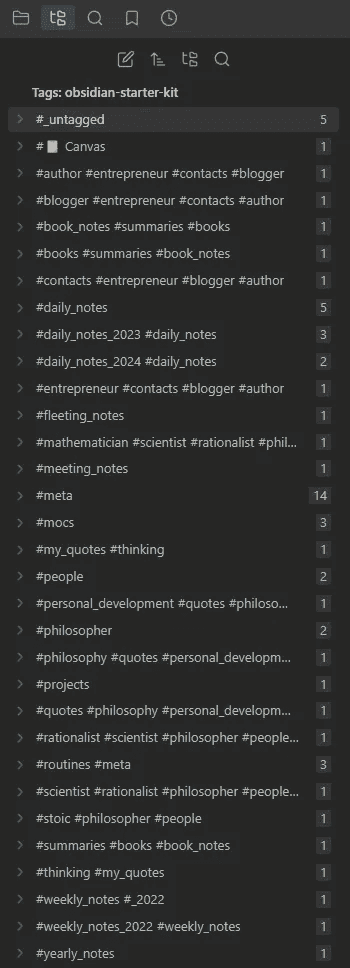
The tree is a way to intersect tags without typing a query: open #book, then #productivity under it, and you see the notes that have both. Open the panel with the Show Tag Folder command. There's also a "Simple list" display and a separate list pane.
A few settings make it better:
- "Use title" shows the title property or the first H1 instead of the file name.
- You can sort notes by name, modification date or path.
- A special note,
taginfo.md, holds per-tag options in its properties (key,mark,alt,redirect), which lets you pin tags.redirectmerges tag variants (#todoand#to-do) in the tree.
The more tags per note, the bigger the tree gets, since every combination becomes a branch. That's why "Disable narrowing down" exists. TagFolder is by vrtmrz, the author of Self-hosted LiveSync.
Tags Overview
Tags Overview lists the files under each tag, with AND/OR filters across tags and property filters.
Open the Tags overview pane, pick tags in the filter dropdown and toggle between AND and OR. Ctrl/Cmd-click a tag in the results to add it to the filter. The files show as a list or a table. You can add property filters in the settings, and a "related tags" toggle shows which tags appear together. That last one is useful for tag cleanup: if #ml always appears with #ai, one of them is probably redundant. It overlaps with Bases and Notebook Navigator's tag tree. Its value is a faceted interface that needs no setup.
Keeping tags and properties clean
Browsing tools only work if the tags and properties underneath are consistent. Tag Wrangler (part 8) renames and merges tags across the vault. For properties, Metadata Menu adds typed fields, "fileClasses" (schemas that define which properties a kind of note has, with allowed values), autocompletion of preset values, and table views per fileClass. Consistent values are what make [status:active], Bases filters and Dataview queries reliable: one typo in a status, and that note disappears from every view that filters on it. Metadata Menu's author can't dedicate much time to it anymore and is looking for contributors. Core Properties (types and suggestions) and Bases now cover part of what it does, and in the Obsidian Starter Kit, the OSK plugin defines allowed values per note type. I actually took inspiration from Metadata Menu to create my own note type system in the Obsidian Starter Kit plugin; I knew Metadata Menu was not maintained anymore, and I needed more advanced features.
For bulk fixes, Multi Properties adds a property to many notes at once, and Bases Toolbox finds and replaces property values across the vault. For tags, Multi Tag tags every note in a folder (and its sub-folders) at once.
Seeing tags and properties at a glance
Supercharged Links styles links according to the properties or tags of the note they point to. Give links to project notes their own color, and you spot them in any list, Base or MoC without reading the names. Related Notes by Tag shows a sidebar of notes that share tags with the current one, with no AI involved: a tag-based "see also". And Tag Page generates a page per tag, if you like a landing page for each tag.
Queries
Dataview is still the most installed query plugin, but it's no longer actively maintained. For new dashboards and filtered lists, use Bases. Keep Dataview for what Bases can't do yet (inline queries, task-level queries, JavaScript), and serialize what matters. My Dataview guide covers the details. Its successor, Datacore, can query sections and blocks, but it's JavaScript-only (i.e., for more technical people) and still in beta at the time of writing.
Dataview
Dataview's query language (DQL) reads like SQL for notes: TABLE, LIST, TASK or CALENDAR, then FROM a source (#tag, "folder", [[note]] for the notes that link to it, outgoing([[note]]) for the notes it links to, combined with AND, OR and -), then WHERE, SORT, GROUP BY, FLATTEN and LIMIT:
```dataview
TABLE status, file.mtime AS "Last edit"
FROM #project AND -"Archives"
WHERE status = "active"
SORT file.mtime DESC
```
It also has inline expressions (` = this.status ) and dataviewjs` blocks for JavaScript. It's effectively in maintenance mode, and it executes JavaScript from your notes. Its results only exist in the rendered view, which is why I serialize them (part 8).
Datacore
Datacore indexes your vault down to sections and blocks, attachments included, and its author aims for 2 to 10 times better query and rendering performance than Dataview. Its query language:
- types:
@page,@section,@block,@task,@list-item,@codeblock,@file - tags and paths:
#tag,path("Folder") - links:
linkedto([[X]]),linkedfrom([[X]]),connected([[X]]) - fields:
exists(rating),rating > 9 - combine with
andandor
@section and #tag returns the sections tagged #tag, not whole notes, which neither Bases nor Dataview can do. The problem is the syntax around it: the non-JavaScript query blocks aren't available yet, so queries run inside datacorejsx React views:
```datacorejsx
return function View() {
  const pages = dc.useQuery("@page and #book");
  return <dc.Table rows={pages} columns={[{id:"Name", value:p=>p.$link}]} />;
}
```
Its roadmap still lists card views, grouped views and a sort and filter UI as to-do.
For most people, Bases is the answer. Datacore is for power users who need block-level queries and are fine writing JavaScript code.
Tasks
Tasks has its own query language for tasks spread across your notes:
```tasks
not done
due before next monday
path includes Projects
group by filename
```
Since version 8.4 (August 2026), it also has a "Quick search" command to find any open task in your vault. TaskNotes takes the other approach: one note per task, viewed through Bases.
The query language goes much further than that example:
- Dates accept natural language:
due before next monday,done after 14 days ago,happens in this week,no due date,has scheduled date. - Text filters work on the description, heading, path, folder, file name and tags:
description includes invoice,heading includes Follow-up,tags include #waiting.regex matches /pattern/iis there when substring matching isn't enough. - Booleans: each line is an AND. Within a line, wrap filters in parentheses and combine them:
(path includes Clients) AND NOT (tags include #someday). - Placeholders make one query reusable:
path includes {{query.file.path}}means "tasks in the note that contains this query", so the same block works in every project note. - Grouping and debugging:
group bystatus, due date, priority, folder, file name, heading or tags, andexplainprints how Tasks understood your query, which saves a lot of guessing.
Here's a "what am I waiting for?" query you can drop into any project note:
```tasks
not done
path includes {{query.file.path}}
(tags include #waiting) OR (description includes waiting for)
group by heading
```
TaskNotes makes each task a note, with properties for status, due date, project and so on. That means tasks are findable with everything in this series: the quick switcher, Search with [status:open], Bases views, and my Kanban Action Planner's filter language. If you need SQL, SQLSeal runs SQL queries over your notes and CSV files.
Bases view plugins
Bases has an API for new view types, and plugins now use it to show the same filtered set of notes in new ways. Each one gives you another way to find a note in a set you've already narrowed down:
- Dynamic Views adds grid and masonry card views with thumbnails, previews, and "Shuffle view" and "Open random file" buttons (see part 12 for the resurfacing angle). It's still changing fast.
- Calendar Bases shows any set of notes with a date property on a calendar. Add a Calendar view to a Base, set the start date property (and an optional end date), and click an entry to open it. Dragging an entry rewrites its date in the note's properties, so be careful. It looks stalled; Prisma Calendar is the maintained alternative, with calendar, timeline, heatmap and Gantt views.
- Feed Bases shows the notes of a Base as a scrollable feed of full notes, which is a nice way to review a filtered set (all your notes from one meeting series, one after the other).
- Bases Paginator adds a paginated table with quick filtering, for result sets too big to scroll.
- Block View is a Bases view that filters and displays block-level content, such as tasks or tagged blocks.
- Virtual Content injects a query or a Base into every note that matches a rule, without writing anything into the notes. For example, a "related notes" Base at the bottom of every project note.
Add the official Maps plugin, Link Structure, and my own Kanban Action Planner, Graph Explorer Base View, Journal Bases and Bookshelf Base (all discussed above). Each of them reads the same Base, so you can add a view without touching your filters.
Attachments: PDFs, images, audio
Here's the rule I recommend: text that isn't in a Markdown file isn't reliably findable. Core Search doesn't read PDFs, images or Office files. The PDF viewer can search inside one PDF at a time (desktop only).
Two approaches exist:
- Index attachments in a plugin's cache. Omnisearch + Text Extractor do this: OCR for images, text extraction for PDFs and Office files. It's convenient, but Text Extractor is unmaintained, PDF extraction often fails, and extraction doesn't work on mobile. And only Omnisearch can use that cache.
- Write the text into Markdown. Then every tool finds it: core Search, Omnisearch,
rg, git and AI agents. This is what I recommend:
- my Transcriber plugin transcribes images to Markdown with local Ollama vision models, and writes a
.mdfile next to each image - OCR Extractor writes extracted text below the image embed, in a collapsible callout
- AI Attachmate transcribes PDFs, images and canvases to Markdown notes (with a Gemini API key)
- Whisper transcribes audio recordings into notes. Note that my Knowii Voice AI app will get first-class support for Obsidian in the next release!
- for scanned PDFs, run them through an OCR tool that adds a text layer before putting them in your vault
 Sébastien Dubois

The plugin-cache approach in practice
If you go with Omnisearch, attachment indexing is off by default. Its settings have separate switches for PDFs, images (OCR), Office documents (.docx and .xlsx) and AI image indexing, and changing any of them clears the cache and needs a restart. Text Extractor reads PNG, JPG, WEBP, GIF and BMP images, PDFs, and Word and Excel files. It uses Tesseract for OCR (it downloads language files the first time, so it needs internet once) and, on macOS only, can use the system's own OCR instead ("Use system OCR"). For PDFs, it appears to read the existing text layer only, so a scanned PDF without one yields nothing.
Two details make this approach better than it sounds. The extracted text is cached as JSON files in the plugin's folder, and if you sync that folder, mobile can search text that was extracted on your desktop. And for images, AI Image Analyzer plugs into Omnisearch's "Images AI indexing" setting: a local Ollama vision model generates keywords for each image (a whiteboard photo becomes "diagram, funnel, marketing, Q3"), with Text Extractor as the fallback.
Smart Second Brain 2.0 uses another approach: its own full-text search indexes PDF content without any AI provider, and it runs on mobile. Press Tab to rerun the same query semantically if you've set up an embedding model (part 10).
The limit of all three is the same: the text lives in a plugin's cache which is not great for use outside of Obsidian.
The Markdown approach in practice
- Transcriber recommends small OCR-capable vision models like
maternion/LightOnOCR-2:1bor Qwen models, all running locally with Ollama. It can transcribe a whole folder in one batch. Because it writes a.mdfile next to each image, the transcript has its own name, can carry properties and links, and shows up everywhere. - OCR Extractor lets you choose the OCR engine: free or paid, local or cloud. The text it writes is searchable with Obsidian's built-in search, other search plugins, and even your operating system's file search. The callout is collapsible, so it doesn't clutter your notes.
- AI Attachmate (new) sends PDFs and images to Google's Gemini API with your own key, and handles canvases locally. Mind what you send: anything you transcribe this way leaves your machine.
- Whisper works with OpenAI, Groq, Azure or any Whisper-compatible API, on desktop and mobile. Record, upload, or right-click an audio file and choose "Transcribe audio file". It can create the note from a template (
{{title}},{{audioFile}},{{transcription}},{{date}}) and post-process the text with an LLM, for example to add a summary and headings. - Subtitles and transcripts (
.srt,.vtt) aren't Markdown, so core Search ignores them. Media Extended links them to the video and makes them searchable inside its player; for Omnisearch, you can try addingsrt vttunder "Additional TEXT files to index". - Scanned PDFs: an OCR tool such as OCRmyPDF adds a text layer to the PDF itself. Do it before the PDF enters your vault, and every PDF-aware tool can read it.
A few more cases:
- Excalidraw stores drawings as Markdown, with the text elements in a dedicated section. Core Search finds text you typed in drawings. Turn on "Compress Excalidraw JSON in Markdown" so the drawing data doesn't clutter your results. The text sits under a
# Text Elementsheading, and you can add tags and properties to drawings like to any note. Inside a drawing, the "Search for text in drawing" command finds and highlights matches. Omnisearch strips the compressed drawing data before indexing, so only your text counts. For handwriting and images inside drawings, Excalidraw offers an optional cloud OCR (Taskbone, with an API key) that puts the recognized text in the drawing's properties, where Search can find it. - Canvas text is indexed by core Search. To search inside the canvas you have open, Simple CanvaSearch (desktop only) replaces Search In Canvas, which hasn't been updated since 2024. Simple CanvaSearch does fuzzy matching on the cards of the current canvas and pans to the match; you can search titles only, or titles and contents (slower on huge canvases). Omnisearch indexes canvas text cards, file paths and edge labels, Sift indexes card text, and core Canvas has a "Jump to group" command for big boards.
- PDF++ doesn't index PDF text, but it turns your PDF annotations into Markdown links. So you search your notes about the PDF. Each highlight becomes a link to a text selection in the PDF, its backlinks can be filtered by page, and hovering syncs the PDF with the Backlinks pane. Its author has gone quiet, though. If you read PDFs in Readwise instead, the same principle applies: what you find later is your highlights and notes, exported as Markdown.
- Web clips: the Obsidian Web Clipper can fill properties like
source,author,publishedand a summary when you clip. Then[source:"<url>"]tells you whether you already saved a page. Templates can trigger automatically by URL pattern or by page type (a recipe, an article), so each kind of clip lands with the right properties. Its Interpreter can ask an LLM (including a local one through Ollama) to write the summary or keyword properties for you, which gives search more to work with later.
Name attachments so you can find them
Remember what core Search does with attachments (part 5): it finds them by name (file: and path:), never by content. So for most images, PDFs and recordings, the file name is the ONLY thing search can match. And Obsidian's default name for pasted images is a timestamp: paste a screenshot, and you get Pasted image 20261009153012.png. Five hundred of those, and your attachments folder is a wall of identical names. Phone photos aren't better (IMG_1234.jpg).
Three habits fix this.
1. Decide where attachments go. Settings → Files and links → Default location for new attachments has four options: the vault folder (the default), a folder you specify, the same folder as the current note, or a subfolder under the current note's folder. In my vault, every attachment goes to one attachments folder. That works fine as long as the names are good, because then file: and path: do the rest. Per-note subfolders keep files next to their notes; pick whatever you'll keep up.
2. Rename on paste. Two plugins cover this:
- Paste image rename shows a rename prompt when you paste an image, or renames it automatically from a pattern. The default pattern is
{{fileName}}: the image takes the name of the note you pasted it in (My note.png, thenMy note-1.png,My note-2.png). You can add a date with{{DATE:YYYY-MM-DD}}, set animageNameKeyin a note's properties to use a custom base name, turn on "Handle all attachments" for dragged files and PDFs, and batch-rename the images of the current note. It's enabled in my vault and ships with my Obsidian Starter Kit. It hasn't been updated since 2023, though, so read "Stale plugins and what to use instead" below before you rely on it. - Custom Attachment Location is the heavyweight: patterns for both the folder and the file name (including values read from the note's frontmatter, or asked for at paste time), a "Collect attachments" command that moves existing attachments to where your settings say they belong, and commands to jump between a note and its attachments. Keeping attachments in sync when you rename a note is now handled by its companion plugin, Advanced Rename and Delete Handler.
Pick one. Two plugins renaming the same pasted file is asking for trouble.
3. Give important files a companion note. A file name holds a few words. A note holds a title, a date, a source, a summary and links. For any PDF or scan you'll want to find again (an invoice, a paper, a manual), give the file a descriptive name (2026-10-09 Invoice ACME.pdf) and create a short note with properties and a few sentences in your own words, linking to the file. The quick switcher, Search, Bases, rg and AI agents all find the note, and the note opens the PDF. It's the cheapest OCR there is: you only "extract" the part you'll actually search for. Pointer notes for files outside your vault work the same way (part 7).
Gotchas:
- Renames rewrite links. Renaming an attachment updates every link to it, so a batch rename touches many notes at once (and shows up as a big diff in git). Paste image rename's "Batch rename all images instantly" command has no confirmation, so use it with caution.
- Pasting a file on Windows keeps its original name. Copying a file from File Explorer and pasting it is a file transfer, so Paste image rename's prompt doesn't show up. Rename those by hand or use "Handle all attachments".
- Rename before you transcribe. Transcriber names its output after the image (see below), so a good image name gives you a good transcript name for free.
Handwritten notes: my reMarkable pipeline
Handwriting is the least findable format there is. It isn't text, and most of the time it isn't even in your vault: it sits in a paper notebook or on a tablet. As I put it in Isolated notes are dead notes: "Notes that stay on paper, on a device, or in a system outside your knowledge base are nearly wasted effort." And yet some situations are made for a pen. Knowledge capture must work in any context: "The goal is not to be 'analog first' or 'digital first.' The goal is to be capture-first, regardless of context."
I read on a reMarkable and take my book notes on it by hand. To make those notes searchable, I built two plugins that form a pipeline:
- reMarkable Sync (listed as "Remarkable Synchronizer") connects to the reMarkable cloud, or to a self-hosted rmFakeCloud server (that's what I use), and syncs notebook pages into your vault as images. Pages are named
{NotebookName}-P{NNN}, your folder structure from the tablet is mirrored, and blank pages are skipped. Two options matter for findability: Save typed text note turns text typed on the device's keyboard into a searchable Markdown note (and[[wikilinks]]you type on the device become real links), and Save highlights note quotes the text you highlighted in a Markdown note. - Transcriber converts the images to Markdown with a local vision model running in Ollama. Right-click the synced folder, choose "Transcribe all images in folder", and each page gets a Markdown file next to it with the same name:
Meeting Notes-P001.pngproducesMeeting Notes-P001.md. From there, the text is in Search, Omnisearch,rg, git and your AI tools like any other note.
A few conventions make the result findable, beyond merely searchable:
- Name notebooks on the tablet like notes. The notebook name becomes the name of every page image and every transcript.
Notebook 7-P012.mdtells the quick switcher nothing;Atomic Habits - Book notes-P012.mddoes. - Keep the tablet's folders simple. They're mirrored in your vault, so a deep folder tree on the device becomes a deep folder tree in your vault.
- Tag the transcripts. Transcriber's Frontmatter tags setting adds tags to the properties of every file it creates. Use it to give transcripts a type, so a Base can list them and an excluded-path filter can hide them.
- Search for
[unclear]. The default prompt tells the model to write[unclear]where it can't read your handwriting. Search for it after a batch, and fix those passages while you still remember what you wrote. - Treat transcripts as raw captures. A transcript is one long block of text, like a busy daily note. During knowledge ingestion, extract the ideas into atomic notes with real names, and link them. I describe the whole flow, from paper to atomic notes, in this article about my analog reading pipeline.
No reMarkable? Photograph your paper pages with your phone, put the photos in your vault (rename them first), and run Transcriber on them. Same result.
Gotchas:
- Transcription isn't perfect. You still need to review and clean up the output. Even so, it's much faster than typing your notes again.
- Model size matters for handwriting. Transcriber's default model is
qwen3.5:9b(about 6 GB); its docs recommendqwen3.5:27b(about 17 GB) for handwriting, complex documents and diagrams, if your machine has the memory. I've been getting solid results withglm-ocr. - Transcriber is desktop-only (it needs Ollama), and reMarkable Sync's mobile support is experimental. Sync and transcribe on your computer.
- Re-transcribing skips existing files. Images that already have a
.mdfile are skipped unless you turn on "Overwrite existing files", which would also overwrite the corrections you made by hand.
I wrote about both plugins when I released them: syncing reMarkable notes and converting handwritten notes to Markdown.
 Sebastien Dubois

 Sebastien Dubois

Voice notes
Audio is the format search handles worst. A recording contains no text, and its file name says when you recorded it, never what you said. Two habits make voice notes findable.
Record inside the note it belongs to. The core Audio recorder plugin saves the recording to your vault and embeds it at the end of the active note. So open the meeting note, the project note or today's daily note first, then hit record: the note around the embed gives the recording a name, a date and links. Add one line above the embed that says what's in it, so Search has something to match. Removing the embed doesn't delete the file, by the way: the recording stays in your vault until you delete it from the file explorer.
Turn the audio into text. Transcribe your recordings (Whisper, above) and keep the transcript in the note. For voice memos recorded away from your desk, a dedicated app and a sync plugin work well. I record with Voicenotes AI, and the Voicenotes sync plugin imports each memo with its transcript into a dedicated folder, named with the ISO date and the title: 2026-02-02 Creating a knowledge base for improvement. That's the "ISO dates for anything chronological" rule from part 2, applied automatically: the quick switcher finds a memo by topic, and sorting by name gives me the timeline.
The same rule applies as for handwriting: a transcript is a raw capture. During your weekly review, extract what matters into proper notes, and archive or delete the rest.
Gotchas:
- Cloud transcription means your audio leaves your machine. Voicenotes uploads your recordings and transcribes them on its servers, and the Whisper plugin sends audio to whichever API you configure (usually a cloud service). Choose accordingly for sensitive recordings.
- Long transcripts drown search results. A one-hour meeting transcript matches almost any query. Keep transcripts in their own folder and exclude it with
-path:when it gets in the way, or keep only the summary in your main notes.
Make everything text
This whole section boils down to one rule: if it isn't text, search can't see it, whether "search" means core Search, rg, git or your AI agent. So the question to ask about every image, recording, scan or file is: where is the text that describes it?
The ways to get that text, from this part and the rest of the series:
- Audio becomes a transcript: Whisper for recordings, Voicenotes for memos on the go (see "Voice notes"). Meeting recordings deserve the same treatment, with the transcript (or at least a summary) in the meeting note.
- Images and scans go through OCR or a vision model: Transcriber, OCR Extractor, or OCRmyPDF for PDFs (see "The Markdown approach in practice").
- Handwriting goes through the same pipeline: reMarkable Sync, then Transcriber (see "Handwritten notes: my reMarkable pipeline").
- Important files get a companion note with a title, properties and a few sentences in your own words (see "Name attachments so you can find them"), and files outside your vault get pointer notes (part 7).
- Web pages are clipped as Markdown with the Web Clipper, with properties filled in at capture time (part 3, "Clip web pages with findability built in").
- What you read elsewhere comes in as highlights, synced from Readwise and friends (part 7).
- Screenshots and diagrams get a line of description: a caption under the embed, or alt text. Both are plain text in your note, so Search finds them.
You don't need all of these. Pick the formats you actually capture, and make sure each one ends up as text somewhere in your vault.
Multilingual search
If you write in a language with accents, or in Chinese or Japanese, core search has clear limits. Here's what works today:
- Accents: Omnisearch ignores diacritics by default ("brûlée" is indexed as "brulee"), with a separate option for Arabic. Another Quick Switcher can normalize accents. Sift tolerates umlauts. In core Search, use regex (
/caf[eé]/) or aliases. - Inflected languages: Natural link finds notes regardless of declension and word order.
- Chinese: core Search matches literal substrings, so a Chinese phrase works. Omnisearch needs the Simplified Chinese Word Splitting plugin (
cm-chs-patch) with its jieba option turned on. Fuzzy Chinese Pinyin adds pinyin search for files, headings, commands and tags. - Japanese and Korean are weakly supported in Omnisearch.
- Stemming ("run" finding "ran") doesn't exist in any keyword tool. Semantic search covers that (part 10).
Accents and diacritics
As of Obsidian 1.14.4, core Search, the quick switcher, link suggestions and find-in-note all treat "é" and "e" as different letters. The feature request has been open on the forum since 2020, and it's one of the most-liked. The explanation relayed there: accented letters are sometimes stored as two separate code points (a letter plus a combining accent), which breaks how Obsidian highlights matches, so it's "not a simple thing to add".
So in a French vault, a note titled "Été 2025" doesn't come up when you type ete in the quick switcher. Your options, from simplest to strongest:
- Add the unaccented spelling as an alias (
aliases: [Ete 2025]). The quick switcher and link suggestions match aliases. This is the fix for notes you look up by name. - Use a regular expression in core Search:
/caf[eé]/matches both spellings. It works, but nobody wants to type that every day. - Use Omnisearch for full-text searches. "Ignore diacritics" is on by default. It sits in the "Danger Zone" settings with the Arabic option (off by default, in beta), because changing either clears the cache.
- Turn on "Normalize accents/diacritics" in Another Quick Switcher if you want accent-insensitive title search. Its settings warn that it's about 2 to 5 times slower.
- Use Sift for umlauts and the German ß (
kuechefindsKüche), and for the compound words that make German search so painful.
Inflected languages
In heavily inflected languages like Russian, a word changes form with its grammatical role, so a note title rarely appears in your text exactly as written. Natural link understands word forms: it finds and links notes regardless of declension and word order.
Chinese, Japanese and Korean
Core Search matches literal substrings, so searching for a Chinese phrase works without any word segmentation. The problems are elsewhere: Omnisearch splits text on spaces and punctuation, which Chinese doesn't use between words, and the editor's word selection and word-by-word navigation get confused.
Simplified Chinese Word Splitting (cm-chs-patch) fixes both. It uses your operating system's word segmenter by default, which fixes double-click selection and Vim word motions. For Omnisearch, you need to turn on its jieba option and follow the prompt to download the jieba engine (a WebAssembly file), then clear Omnisearch's cache. On desktop, that file is written outside your vault, in Obsidian's configuration folder; on mobile, it's stored in .obsidian/.
Fuzzy Chinese Pinyin lets you search with pinyin: full pinyin, initials or a mix, Traditional characters, shuangpin, and fuzzy sounds (though shuangpin and fuzzy sounds can't be combined). Bind its Open Search command to replace the quick switcher and Execute Command to replace the command palette, and turn on "use link suggestions" and "use tag suggestions" so [[ and # work with pinyin too. A linkText: property makes specific headings and blocks directly searchable. Its documentation is in Chinese only.
Japanese and Korean are harder. Omnisearch only triggers its Chinese segmentation on Chinese characters, so as far as its code shows, kana and hangul aren't segmented. The Japanese word splitting plugin hasn't been updated since 2022. Seek claims CJK segmentation for its keyword side, and semantic search sidesteps the problem by working on meaning instead of words (part 10).
Right-to-left languages
Obsidian 1.14 made right-to-left languages first-class: the workspace and sidebars flip, Bases tables support RTL, and mobile gestures are mirrored. Search itself doesn't ignore Arabic or Hebrew vowel marks in core. Omnisearch's "Ignore Arabic diacritics" option (in beta) covers Arabic.
Stemming
No keyword tool in Obsidian does stemming (reducing "running", "ran" and "runs" to "run"). Omnisearch gets part of the way with prefix matching: run finds "running", but not "ran". If that matters to you, semantic search is the answer, because embeddings compare meaning, not spelling (part 10).
Stale plugins and what to use instead
Some plugins that older guides recommend are no longer maintained. Here are the replacements I'd pick today:
| Stale or gone | Status | Use instead |
|---|---|---|
| Smart Random Note | No update since 2021 | Core Random note, Dynamic Views (shuffle), Doomscroll |
| Search In Canvas | No update since 2024 | Core Search (indexes canvases), Simple CanvaSearch, Sift |
| Better Search Views | No update since 2024 | Floating Search, Core Search Assistant |
| Quick Preview | No update since 2024 | Floating Search's preview, Another Quick Switcher's preview |
| Juggl | No update since 2023 | K-Plex, Clew |
| Calendar | No update since 2021 | Journal Bases, Notebook Navigator's calendar |
| Reflection | Barely maintained, needs Periodic Notes | Daily Echoes, Better Backlinks |
| MCP Tools | Archived | Local REST API's built-in MCP server |
| Settings Search | Deprecated by Obsidian 1.13.4 | The core Settings search |
| Global Search and Replace | No update since 2024 | Find-n-Replace, Regex Replace |
| Dataview (for new setups) | No longer actively maintained | Bases; Datacore for block queries |
| Extended Graph | Stalled | Clew for analysis, Graph Banner for the local graph |
| Index Checker | No update since 2025 | Waypoint, or a Base embedded in the folder note |
| Review | No update since 2024 | Repeat, Simple Note Review |
| Make.md (for navigation) | Barely maintained | Notebook Navigator + Bases |
| File Tree Alternative | No update since 2024 | Notebook Navigator |
Stale doesn't always mean broken. Smart Random Note, for example, still works. The risk is that the next Obsidian update breaks them and nobody fixes it, usually at the moment you depend on them most. If a stale plugin does a job no maintained plugin does, keep it, but know what you'd switch to.
I've also covered the plugins I use every day in The Best Obsidian Plugins for 2026.
 Sebastien Dubois

All of this, preconfigured
Configuring all of this takes time. My Obsidian Starter Kit ships with the structure from part 2 and part 3 (note types, templates, properties, folders by type, hierarchical tags, icons for every note type) and with the finding tools already set up: a Base for every note type, the Dynamic Base in the sidebar, Omnisearch, Quick Switcher++, Notebook Navigator, K-Plex, Quiet Outline, Hidden Folders Access, Journal Bases, Graph Explorer Base View, Dataview Serializer, Time Machine and more. Everything has its place, and AI can find it all easily. It's a 1:1 copy of the vault I run my business from, and more than a thousand Obsidian users have built their own systems on top of it.
 Dwayne Appleby

Cheat sheet
Quick Switcher++ modes (if you install it): # headings vault-wide · @ symbols in the current file · edt open editors · + workspaces · > commands · ~ related items · ' bookmarks
Omnisearch syntax
"exact phrase" · -exclude · path:"Some/Folder" · ext:pdf (or .pdf) · #tag moves tagged results up · no OR, no regex, no property operators
FAQ
What's the best Obsidian search plugin? For full-text search, Omnisearch: relevance ranking, typos, accents, attachments. Sift is the most promising newcomer of 2026. For opening notes, Quick Switcher++. For browsing, Notebook Navigator.
Omnisearch or core Search? Both. Core Search for precise queries with operators and properties. Omnisearch when you don't remember the exact words, or when you need ranked results.
Does Obsidian search inside PDFs and images? No. Core Search only reads notes and canvases. Omnisearch with Text Extractor can index attachments, but the most reliable approach is to transcribe their text into Markdown.
Conclusion
You don't need most of these. Start with core Obsidian, and install a plugin when you hit a gap it fills: Omnisearch when you can't remember the exact words, Quick Switcher++ when you jump to headings all the time, Notebook Navigator when you browse more than you search. Before you depend on one, check that it works on your phone and that someone still maintains it. And whatever you install, the rule from the attachments section holds: if it isn't text, no plugin will find it.
Next in the series: AI Search for Your Obsidian Vault - Keyword, Semantic, Hybrid and Agentic Search Explained. Previous: Navigate Your Obsidian Vault - Links, Graphs, Bookmarks and Hubs.
 Sébastien Dubois
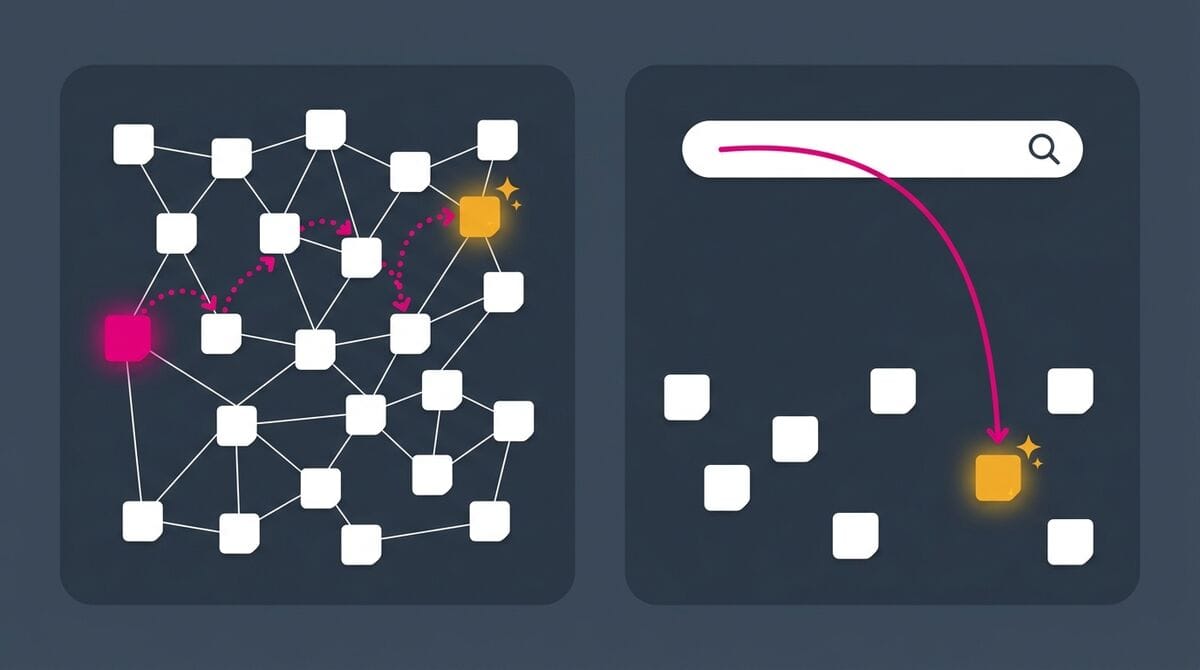
Prefer to read the whole series in one place? I turned it into an ebook, The Obsidian Search Handbook, with an exercise at the end of every chapter (the Complete edition adds a starter pack and worksheets).
Sébastien Dubois
Free cheat sheet. The commands and operators worth remembering, and the search escalation ladder (which tool to try first, depending on what you remember about the note), on 13 pages you can keep next to your vault. Enter your email and I'll send it right away: the Obsidian Search Cheat Sheet.
 Sebastien Dubois

Get the free Obsidian Search Cheat Sheet. 13 pages to keep next to your vault: the search operators worth remembering and the search escalation ladder. Enter your email and I'll send it right away. You'll also get a few short follow-up emails about finding notes in Obsidian, and you can unsubscribe at any time.
About Sébastien
Ready to get to the next level?
Found this valuable? Share it with someone who needs it.